Rendering HTML Easily within an SPGridView

If you try to create an SPGridView object, and need to include HTML formatted data within that SPGridView, you will quickly notice after viewing it within SharePoint, that the HTML is rendered as straight HTML, and not a link or an image, but, as the HTML code itself.

An easy way around this is to set the HTMLEncode property to false. By default this property is set to true, which will encode your HTML so that it will show up as code, changing <‘s and >’s into &lt; and &gt;, and so on.

Here is an example of this in action.

#region Create Child Controls
protected override void CreateChildControls()
{
    try
    {
        base.CreateChildControls(); 

        psGrid = new SPGridView();
        psGrid.AutoGenerateColumns = false; 

        BoundField colTitle = new BoundField();
        colTitle.HeaderText = "Title";
        colTitle.HtmlEncode = false;
        colTitle.DataField = "Title";
        this.psGrid.Columns.Add(colTitle); 

        BoundField colDesc = new BoundField();
        colDesc.HeaderText = "Description";
        colDesc.DataField = "Description";
        this.psGrid.Columns.Add(colDesc); 

        this.Controls.Add(this.psGrid); 

    }
    catch (Exception ex)
    {
        Trace.Write(ex);
        Trace.WriteLine(HttpContext.Current.Request.Url.ToString());
    }
}
#endregion 

#region Render
protected override void Render(HtmlTextWriter writer)
{
    try
    {
        using (SPSite site = new SPSite(SPContext.Current.Site.ID))
        {
            using (SPWeb web = site.OpenWeb("/sites/"))
            {
                DataTable dt = new DataTable();
                dt.Columns.Add("Title");
                dt.Columns.Add("Description"); 

                foreach (SPWeb subweb in web.Webs)
                {
                    DataRow dr = dt.NewRow();
                    dr["Title"] = "<a href='" + subweb.Url + "'>" + subweb.Title + "</a>";
                    dr["Description"] = subweb.Description;
                    dt.Rows.Add(dr);
                }
                this.psGrid.DataSource = dt;
                this.psGrid.DataBind(); 

                base.Render(writer);
            }
        } 

    }
    catch (Exception ex)
    {
        Trace.Write(ex);
        Trace.WriteLine(HttpContext.Current.Request.Url.ToString());
    }
}
#endregion 


Accessing the Top-Level Site within a Site Collection from anywhere.

If you need to programmatically access the top-level site within a site collection, and do not want to have to statically set any URLs, GUIDs, or anything like that when trying to open a web, you can access it as site.AllWebs[0] (where site is the site collection as shown below), as the first site in a site collection will always be the top level site.

using (SPSite site = new SPSite(SPContext.Current.Site.ID))
{
    using (SPWeb web = site.AllWebs[0])
    {

// Code here

    }
} 


Posters for SharePoint Stsadm command line parameters

The folks over at the Microsoft SharePoint Products and Technologies Team Blog, the official blog of the SharePoint Product Group, have posted useful posters for referencing the stsadm command line parameters.

They can be found on the SharePoint Community Portal under this document library, or, directly via the links below.

Stsadm parameters poster for Microsoft Office SharePoint Server 2007:

Stsadm parameters poster for Windows SharePoint Services 3.0:


SharePoint Designer Workflow Gotcha

When creating workflows in SharePoint designer, you may have already come across this error:

"You specified identical destination filenames for some of the files you are trying to copy. Make sure all of the destination files have unique names and try again."

image_6_2

Not very helpful however, especially to someone who is new at this…

You can ignore the error, and the workflow will run if you have it setup to automatically trigger when a new item is created, or an existing item has changed, however, you will be unable to manually start the workflow, and you will be returned with a blank screen in your browser, with the "Old URL" url in your address bar, for example:

https://wss.company.com/_layouts/spsredirect.aspx?oldUrl=https%3A%2F%2Fwss%2Ecompany%2Ecom%2Fdev%2Fsite1%2FWorkflows%2FWorkflow%25201%2FWorkflow%25201%2Easpx%3FList%3D7c376e76%2Dc5ba%2D4bd0%2Da97a%2D610e94299b4d%26ID%3D2%26TemplateID%3D%7Bf579fe37%2Dae14%2D4c00%2Da2b9%2D8f7f59f618dd%7D%26Source%3Dhttps%253A%252F%252Fwss%252Ecompany%252Ecom%252Fdev%252Fsite1%252FLists%252FNew%252520Employees%252FAllItems%252Easpx

That’s even more helpful… not even a generic error.

Have no fear – here comes the explanation…

This error occurs when you have a page that is created (such as creating an Assign To-Do Item action) for the workflow, when it has the same name as the workflow itself, in my example shown below, both the workflow, and the Assign To-Do Item action have the same name of Workflow 1

image_6_4

image_6_6

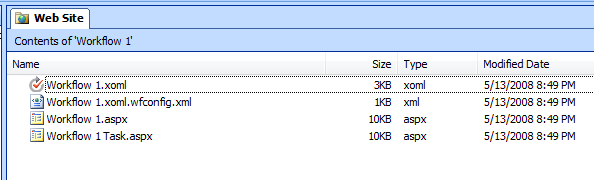
Now – the fix is quite easy. Just change the name of the task from Workflow 1 to something else, such as Workflow 1 Task

image_6_8

And if you click Finish, the error should no longer appear, and if you check the workflow directory in SharePoint Designer, you can see that the ASPX files for the Assign To-Do Item action have been created with their new name, as there is no longer a conflict.

image_6_10


Error: Cannot Import this Web Part

If you get the following error message when attempting to add a web part to a page, it’s not that helpful is it. This post on Microsoft TechNet (http://forums.microsoft.com/MSDN/ShowPost.aspx?PostID=2362666&SiteID=1) contains a good response from MVP Robert Bogue which details some things to try to resolve the issue, however, it can be tough to locate the source of the problem without much detail.

image

A good way to get additional detail around the error message is to do the following.

Go to Site Settings > Galleries > Web Parts

And click on the web part linked title. This will go to the web part preview. When a web part is working fine, the web part will display in the page. However, for broken web parts that give the mysterious error shown above, it will give you the actual error itself, as shown below, provided you have your debug settings on correctly within your web.config

clip_image001

web.config Debug settings for development

When developing in SharePoint, it is always a good idea to make a few changes to your web.config so that you can actually get some useful error messages when things do not go as planned.

To do so, locate the web.config for the web application you are working on (for example: C:\Inetpub\wwwroot\wss\VirtualDirectories\site.com80\web.config) and make the following changes:

  1. Locate CallStack="false" and set it to true: CallStack="true"
  2. Locate customErrors mode="On" and set that to Off: customErrors mode="Off"
  3. Locate compilation batch="false" debug="false", and then set those both to true: compilation batch="true" debug="true"

And that should do the trick to give you some useful debug messages in SharePoint!