February Cumulative Update Packages Released for WSS v3 and MOSS 2007

Yesterday, Microsoft released the February Cumulative Updates for WSSv3 and MOSS 2007. More information, as well as links to obtaining the hotfix packages can be found here: http://blogs.msdn.com/joerg_sinemus/archive/2009/02/25/february-cumulative-update-for-wss-v3-and-moss-2007.aspx

WAIT WAIT WAIT!!! BEFORE YOU GO INSTALLING…. [UPDATE 2.27.09]

The Microsoft SharePoint Team posted a note regarding these updates, there is apparently an "uber" (as they put it) February Cumulative Update coming out within the next few weeks. You can read the note they posted for yourself here – http://blogs.msdn.com/sharepoint/archive/2009/02/26/is-it-time-to-apply-feburary-cumulative-update.aspx – basically stating to wait…


Taking SharePoint Offline – What are the Options?

The UK SharePoint Consulting Services team posted some great information to their blog last week regarding options for taking SharePoint offline with Microsoft Office products – it’s a good read with good details on options for working with content when you are not connected to your SharePoint environment.

http://blogs.msdn.com/uksharepoint/archive/2009/02/19/taking-sharepoint-files-offline-what-product-s-should-you-use.aspx


How to Properly Remove a Web Part from a Web Part Page

A common observation I make when working with clients is how web parts are removed from a page, and more importantly, how they are improperly removed from the page.

First, I’ll explain the improper ways, then get into why these are bad practices, and then how to properly remove web parts from a web part page.

Improper Method #1 – “Close”
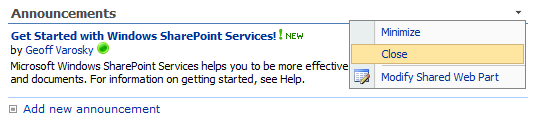
There are usually two ways I see this take place, the first being the Close option off of the Web Part menu, available when the page is not in edit mode (and the user has proper permissions of course!), as well as when the page is in edit mode.
image 

Improper Method #2 – The “X”
The second improper method is the X link that appears in the upper-right hand corner of the web part when the page is in edit mode.
image 

Why These Are Bad Practices…
While I do not blame anyone for using this method, as we have all come to understand that most of the time, clicking on the X or going to File > Close within a regular application will close out the program, SharePoint adds a different meaning to these. As I mentioned in the prior sentence – I said most of the time, meaning that SharePoint treats these actions similar to, say, Windows Live Messenger. When you click the X in the top-right corner of the screen (of your contact list), it minimizes the application to the system tray, so it is still running and taking up system resources, you no longer see the window on your screen.

The X and Close options for SharePoint web parts behave in much the same fashion. When either of those options are used, the web part is indeed closed, and removed from your view, however, just like with Windows Live Messenger, it just removes it from view, however, each time the page is loaded, that web part is still loaded onto the page, however, it is not viewable, thus, taking up resources to render the web part, as well as adding addition download time to that page.

While it is not immediately apparent how to remove those for good, or show them back again on the page, there are ways to do so.

Viewing Web Parts Which Have Been Closed
To view which web parts have been closed on a page, we’ll utilize a an application page called Web Part Page Maintenance page. This page is not accessible from the Site Settings page or anywhere else in the UI by default, however it is surfaced if a web part on a specific page has an error, and a link is then given on the resulting error message. However, you can easily get to this page by appending the following to the current ASPX page you are on.

Say for example, you are on a team site default.aspx page, so you would have a URL like the following in your address bar:

image

By appending ?contents=1 to default.aspx, you can access the Web Part Page Maintenance page, like so:

image

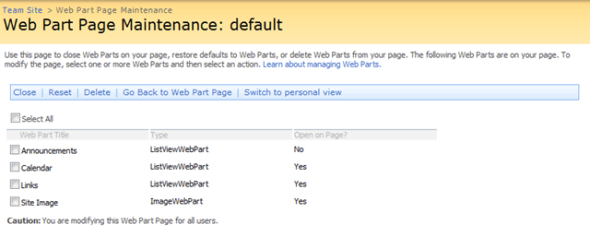
You will then see a page like this:

image

In this list you can see each of the web parts that are on the page, the type of web part that they are, and most importantly (for this post), the last column, which shows you if the web part is open on the page or not.

If you use the two "improper” methods described above, this field will list the value of “No”.

This screen is also very handy for removing any closed web parts (or any others for that matter). To do so, check the box next to the web parts that are to be removed, and then click the Delete option within the toolbar above.

image

How to Properly Delete a Web Part from a Web Part Page
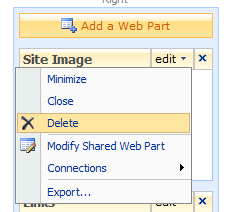
Now that we’ve outlined the issues, and how to recover from them. In addition to the ability to delete web parts from the web part page by using the Web Part Page Maintenance page as described above, the easiest way to properly remove a web part from the page is to put the page into edit mode (Site Actions > Edit Page), using the web part menu, and selecting Delete
image 

This will remove the web part from the page for good.

Conclusion
While a few minor web parts, such as a lightweight Content Editor Web Part, and the default Image Web Part (created by default for Team and Blank site templates) will not be a huge performance hit, and will be barely noticeable, if at all. The real issue lies with large list views, data view web parts that roll-up information, or other web parts which can be memory and CPU intensive to run, such as a third party list roll-up web part that queries hundreds, or even thousands if lists. If these web parts are not removed from the page, and you have a few of them closed on there, the performance of that web part page, possibly the server itself will be affected.
 

Microsoft Releases Documentation on Moving Databases for SharePoint

On February 2nd, Microsoft released procedures documenting moving all SharePoint related databases from one server to another, covering both moving to a database server with the same name, as well as moving to a database server with a different name.

See the following link for more information and to download the documentation: http://www.microsoft.com/downloads/details.aspx?FamilyID=65686896-c171-46a8-a95f-54f43ad79952&displaylang=en


Speaking at Boston SharePoint Saturday

As I had previously posted, SharePoint Saturday is coming to Boston, and I am pleased to announce that I have been accepted as a speaker for the event! There are some great speakers and sessions lined up for this free one-day conference, and I am excited to be a part of it. If you are not already signed up to go, and will be in the area on March 14th, 2009, I highly suggest you do so here.

I will be delivering a session entitled ‘Introduction to Developing Custom Actions within SharePoint’. This will be a level 200 session, as all of the demonstrations will be built in the session utilizing Visual Studio. Knowledge of the product, SharePoint 12 hive, Features, etc., is a bonus to have going into this session, however, not a pre-requisite. And there will be ample amounts of XML, as well as a little bit of code.

Here is the session summary (as it appears on the SharePoint Saturday site) –

“Custom Actions control features in SharePoint such as the Edit Content Block, the Site Actions menu, toolbars, and the links within the Site Settings page. Learn how to leverage Custom Actions to extend the SharePoint User Interface. This session will describe the basics of Custom Actions, a demonstration to build one or more and apply them to a site in SharePoint, as well as provide resources for additional information.”

I am planning 4 demonstrations for this presentation currently, so show different aspects of how the different Custom Actions elements within SharePoint can be used to modify existing elements and create new elements.

Once this event is over, I will post slide decks, as well as recordings/screen captures of the demonstrations to by blog here, in case you were unable to make it, or unable to attend the session.

For more information on resources for developing Custom Actions for SharePoint, take a look at one of my previous posts which includes an aggregation of great resources available on the subject.

Links
Session Information – http://www.sharepointsaturday.org/boston/Pages/meeting.aspx?meetingid=15 
SharePoint Saturday – Boston – http://www.sharepointsaturday.org/boston/
Registration for the Event – https://www.clicktoattend.com/invitation.aspx?code=135382


Tracing Service lost trace events

If you are receiving this error within the ULS logs in SharePoint 2007 (x:\Program Files\Common Files\Microsoft Shared\web server extensions\12\LOGS\), and the error is as follows:

Tracing Service lost trace events.  Current value n.

(Where n is a numeric value) – the best course of action to take to remedy this is to restart the Windows SharePoint Services Tracing service within the services console on your Windows server.

Usually if you are seeing this error in the ULS logs, you are most likely not seeing any other log entries at all. The ULS logging service is basically just posting a message to the logs saying that it is having issues hooking up with the service that SharePoint speaks to.

This is a short post, however, it should get you back on track. As I research this issue further, I will update this blog entry with possible causes and additional solutions for resolving this issue. This is definitely not the first time I have run into the issue, but, I wanted to at least make a quick posting about it to share the “quick fix” for now.


SharePoint Best Practices Conference – Day 2 Recap

Day 2 at the SharePoint Best Practices Conference was another great one. Today, the tracks I attended were more on the technical and development side of things, starting off the day with the first part of Best Practices for Implementing Kerberos in a SharePoint Environment (and ended the day today with the second part of this session), put on by Spence Harbar and Bob Fox, the main takeaway from these sessions was this – kerberos configuration is very simple. This was a refreshing take on kerberos, as if you have ever attempted to setup kerberos (and not just for SharePoint), there is a lot of information out there that can be confusing, and down right wrong. Spence should be posting the slide deck today from their two sessions up on his blog at some point, so keep an eye out there for it.

The second session of the day was Data Protection, Recovery, and Availability, put on once again by Mike Watson and Ben Curry. This session not only focused on DR and HA as it relates to SharePoint, but also DR and HA in general. A highly informative session with some great information pruned from the best of the best in DR (Mike Watson will be teaching the DR portion of the Microsoft Certified Master program for SharePoint).

After a bit of a break for lunch, I attended the Agile SharePoint development with Scrum session hosted by Andrew Woodward of 21apps.com. This session was an excellent and informative introduction into Agile development practices using the Scrum methodology.

Another short break, and I was found attending Microsoft Office SharePoint Server 2007 Lifecycle Management Demofest: Methodologies, Tools, and Best Practices hosted by Rick Taylor. Rick reviewed some great tools for use with WSS and MOSS for managing, monitoring, and configuring SharePoint environments that he has worked on with Microsoft.

And as mentioned at the beginning of this post, my day ended with the second part of the Kerberos session. Now, I will be heading out shortly from my hotel to join the speakers and attendees of the conference at the unofficial SharePoint By Day, SharePint By Night event @ the La Jolla Brew House in, La Jolla, orchestrated by Andrew Woodward.


SharePoint Best Practices Conference – Day 1 Recap

I am in beautiful, sunny San Diego this week for the 2009 US SharePoint Best Practices Conference. Yesterday the festivities were kicked off by an introduction to the conference by Bill English of Mindsharp, and then Joel Oleson started things off on the right foot with a short version of his session to be held later in the day “What the SharePoint Owners Manual Won’t Tell You… Avoiding Failed Deployments and Chaos”. It was a great start to the conference.

Following the keynote and introduction to the conference, I attended Mark Schneider’s session – “How to Develop a Taxonomy Plan”. Mark’s session was highly informative, and a great introduction to taxonomy.

I took the time around lunch to mingle with some of the exhibitors at the conference, and to get a read of what hot new products are being offered for SharePoint, and to meet some great people. There are some great 3rd party tools out there that I had no idea existed, and hope to leverage some of those in the future to fill some gaps that are inherently within the product.

I then attended Mike Watson (The SharePoint Mad Scientist) and Ben Curry’s session regarding Capacity Planning and Performance. These guys definitely know their stuff, and I took away quite a bit from the session.

To end the sessions for the day, I went to two back-to-back sessions by Bob Mixon regarding Taxonomy, and how to relate and apply taxonomy to SharePoint – “Learn Why Taxonomies are the Most Important Part of any Document or Information Asset Management System”. Once again, as seems to be the theme, I learned a lot from one of the masters, and enjoyed the sessions.

All of the presenters here definitely know their material inside and out, and are the best in their respective sections of the “SharePoint Pie”

I am part of the way through day 2 of the conference, and am excited for the rest of the sessions I will be attending today and tomorrow.