So, here is the scenario – we’ve prototyped out a content type, named New CT, added a few default columns into it (Title and URL), and attached that content type to a list named New List. Now, we need to package this up in a SharePoint Solution Package (WSP) in Visual Studio, so we can re-deploy it elsewhere.
Here is how you can go about doing this…
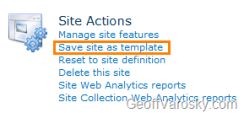
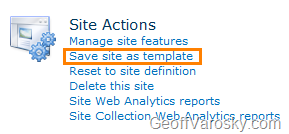
First, let us save this off as a template, but going to Site Actions > Site Settings > Site Actions > Save site as template
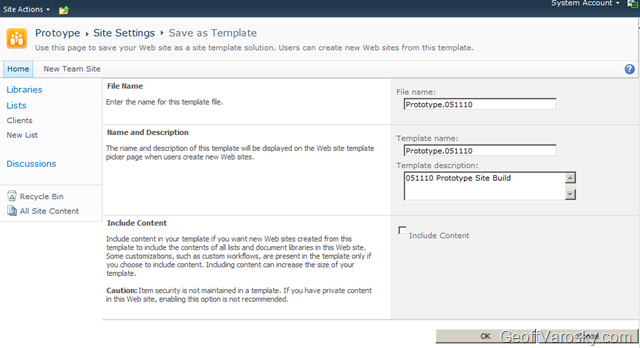
Let us also input a little information – I always like to include the date, either in the template name (useful for when it is outside of SharePoint on the file system somewhere!), the file name, and the description.
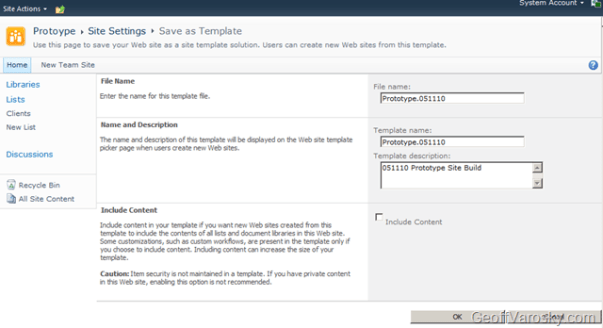
Once we have done so, click OK. Let it process… and then once it is completed, it will tell us that the site template has been saved into the site Solution Gallery.

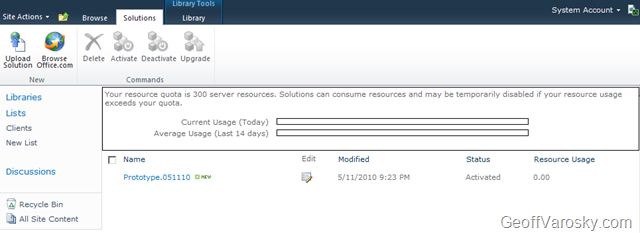
Click on that link to go directly there, or, go there via Site Actions > Site Settings > Galleries > Solutions

Once in there, you will see your site template. A big difference from how this was in 2007 however, is the fact that this is a WSP file. Click it, and save it locally.
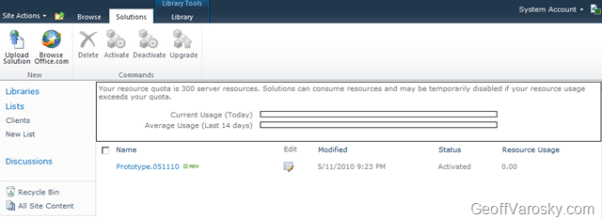
Now, keep track of where you saved it. We’ll need this in a moment… now, go ahead and launch Visual Studio 2010, and start a new project.
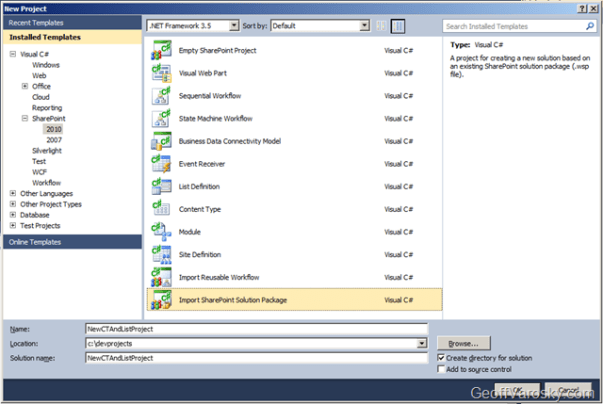
Under your preferred language of choice (C# for me), under the SharePoint node, select the 2010 node, and then in the project section, select Import SharePoint Solution Package as the project type. Give the project and a solution a name below, and then press OK.
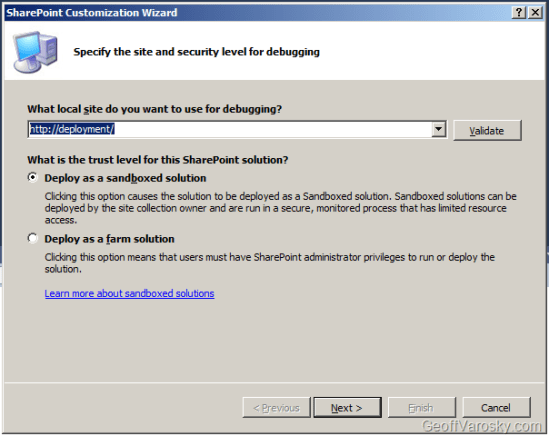
Once you do so, you will have to select a site in which you would like to debug against (also used for deploying and retracting solutions), and then we can select whether we want to either deploy this as a sandboxed solution, or, if we want to deploy it as a farm solution. In this example, I will be selecting a Sandboxed Solution. Lists, Site Columns, and Content Types are supported as Sandboxed solutions, so this should not be an issue. You can also choose to deploy this as a farm solution if you wish (if you’re going to be deploying code to the GAC, pushing to the Web Application, etc.), I am just showing one of the possible options here.
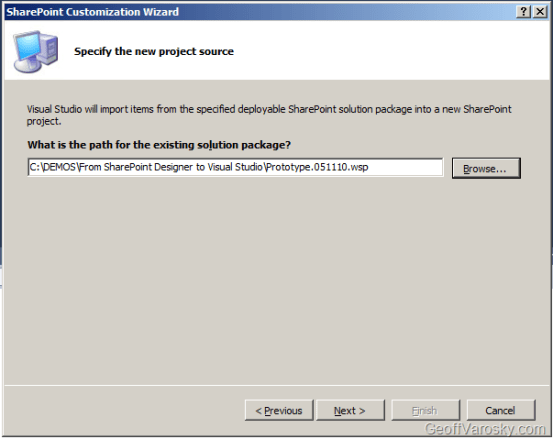
Next, you will be asked the important question – where is the location of the WSP file, your site template, which we had previously saved out? Find that, select it, and then click Next
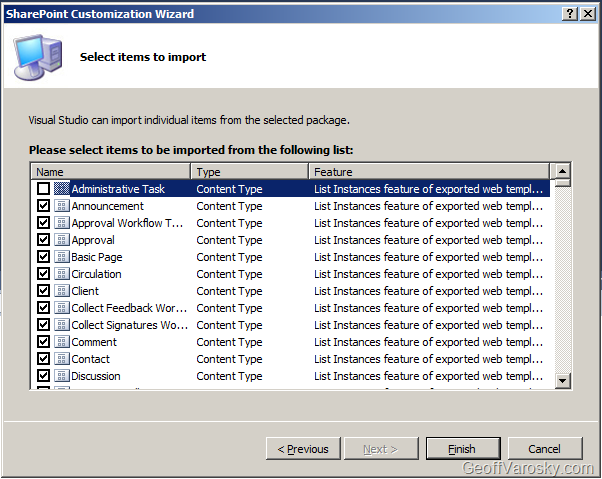
I may not have been 100% truthful on the last sentence… this next question is our most important question. What do we want to include, out of ALL of the SharePoint artifacts that are in that solution file, into Visual Studio? Lets have a look. First, you will want to select the first one you see in the window by clicking on it, both the checkbox, and the item itself so it is highlighted as shown… going to show you a neat little trick!

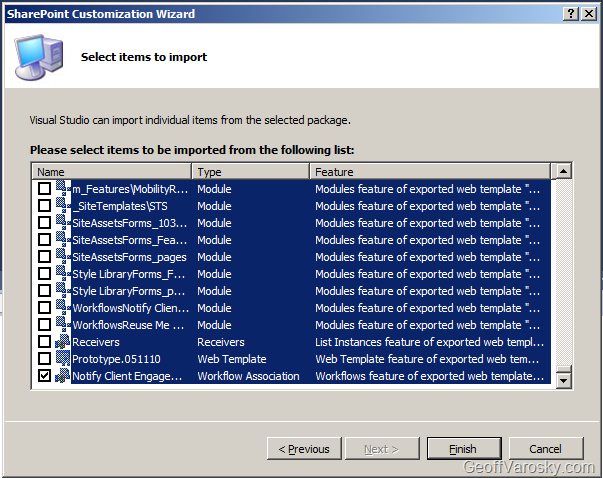
 Now, scroll ALL the way to the bottom of the list, and select that, using your shift + click combination, and PRESTO! Everything has been unselected, except for the last item, which is just a simple click. This saves you a LOT of un-checking of checkboxes. Since we don’t need all of that stuff, just the artifacts pertaining to our list and content type. If you don’t have kids that watch TV, then the image to the right of this text may not make any sense to you. If that is the case, then don’t worry about it. But that is D.J. Lance Rock from Yo Gabba Gabba. Yeah, they have a segment with Biz Markie, and once had Mixmaster Mike on to show his cool trick – scratching. Awesome right? Well Lance, this was my cool trick, I doubt however, this will ever make it to a kids show. Anyways, back to our artifact selection! Also, a CTRL+A, and a click will do the same thing.

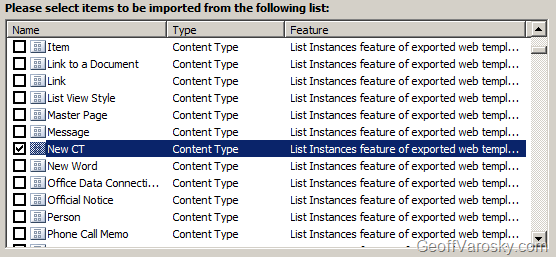
You’ll see that the listing is sorted by default using the Type column, and then by the Name column. This is handy for locating what we want. So – what we do want? Let’s start from the top, and work our way down. We need our New CT content type…
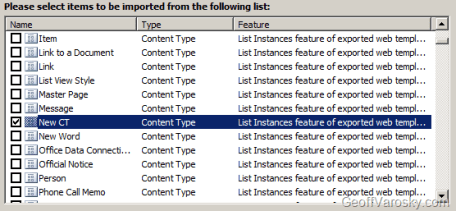
I am not going to bother with the built-in site columns. In the case(s) where we will be deploying this solution out, those built-in columns will be there, so we’ll skip those field elements. However, if we created our own site columns, we would want to select those fields here.
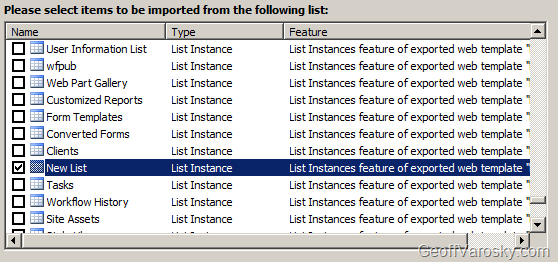
We’ll want to also select our New List List Instance

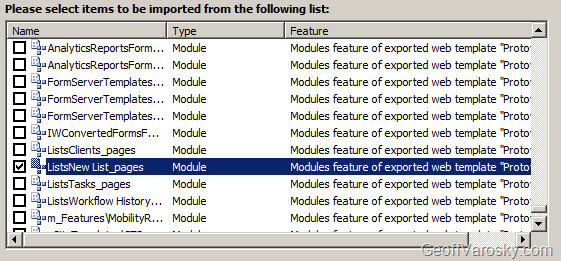
And last but not least, our ListsNew List_pages module, as we definitely want to have our default NewForm, EditForm, and DisplayForm pages included with our solution! Otherwise, these pages will NOT deploy, and you’ll have to re-do these steps!

So we should have 3 artifacts selected overall. Our New CT content type, our New List list instance, as well as our ListsNew List_pages module. Once we have that done, click on Finish.
You’ll get a message like this…

It’s really hoping we need these, but, I am not going to include them. I know where this solution is deployed, these will already be there. Plus, I do not want to overwrite any modifications to any existing columns or content types where this is deployed to. So, I am going to play it safe, and choose No. Your mileage may vary.
If all goes well, we should get a success message

You can also see more detail of the import process in the output window in VS…
1: Importing the SharePoint solution (.WSP)...
2: Importing Feature: List Instances feature of exported web template "Protoype"...
3: A new feature Feature1 has been added to the project NewCTAndListProject
4: c:\devprojects\NewCTAndListProject\NewCTAndListProject\Package\Package.package (0,0): Added Feature1 to Package
5: Importing List Instance: New List...
6: Importing Content Type: New CT...
7: Importing Feature: Modules feature of exported web template "Protoype"...
8: A new feature Feature2 has been added to the project NewCTAndListProject
9: c:\devprojects\NewCTAndListProject\NewCTAndListProject\Package\Package.package (0,0): Added Feature2 to Package
10: Importing Module: ListsNew List_pages...
11: Importing Feature: PropertyBag feature of exported web template "Protoype"...
12: A new feature Feature3 has been added to the project NewCTAndListProject
13: c:\devprojects\NewCTAndListProject\NewCTAndListProject\Package\Package.package (0,0): Added Feature3 to Package
14: Importing Element: PropertyBags...
15: The SharePoint solution import completed successfully.
16: Total number of items to import: 4
17: Total number of items imported successfully: 4
18: Total number of items not imported due to errors: 0
Cool. Now what? Well, from here, you can modify your feature names, titles and descriptions so they actually make more sense than Feature 1, Feature 2, and Feature 3.

Explore the contents of your solution, check your element manifests, etc.

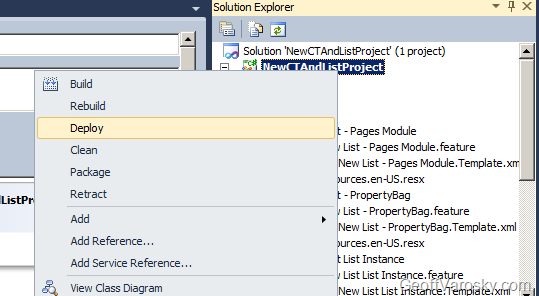
Lots of fun stuff! Anyhow, now that we’ve brought it in, let’s package and deploy it, all in one fell swoop, out to our Deployment site which we set up originally on the project (you can change that too… maybe a good idea for a future post!) So, let’s either right click on our solution, and choose Deploy…

Or, we can go to the Build menu, and choose Deploy NewCTAndListProject.

Also from these menus, we have the option to just package it if needed. You’ll find the created WSP in the bin/[Debug/Release]/ folder in your project directory.
The status bar in VS says this was a success (Deploy succeeded), so, let us check through the output window, just in case. We can also see the steps here that are taken during a Deploy…
1: ------ Build started: Project: NewCTAndListProject, Configuration: Debug Any CPU ------
2: NewCTAndListProject -> c:\devprojects\NewCTAndListProject\NewCTAndListProject\bin\Debug\NewCTAndListProject.dll
3: Successfully created package at: c:\devprojects\NewCTAndListProject\NewCTAndListProject\bin\Debug\NewCTAndListProject.wsp
4: ------ Deploy started: Project: NewCTAndListProject, Configuration: Debug Any CPU ------
5: Active Deployment Configuration: Default
6: Run Pre-Deployment Command:
7: Skipping deployment step because a pre-deployment command is not specified.
8: Recycle IIS Application Pool:
9: Skipping application pool recycle because a sandboxed solution is being deployed.
10: Retract Solution:
11: Skipping package retraction because no matching package on the server was found.
12: Add Solution:
13: Adding solution 'NewCTAndListProject.wsp'...
14: Deploying solution 'NewCTAndListProject.wsp'...
15: Activate Features:
16: Activating feature 'New List List Instance' ...
17: Activating feature 'New List - Pages Module' ...
18: Activating feature 'New List - PropertyBag' ...
19: Run Post-Deployment Command:
20: Skipping deployment step because a post-deployment command is not specified.
21: ========== Build: 1 succeeded or up-to-date, 0 failed, 0 skipped ==========
22: ========== Deploy: 1 succeeded, 0 failed, 0 skipped ==========
Now, for real verification, lets check the site.
First – we’ll check the Solutions gallery (Site Actions > Site Settings > Galleries > Solutions) and there it is!

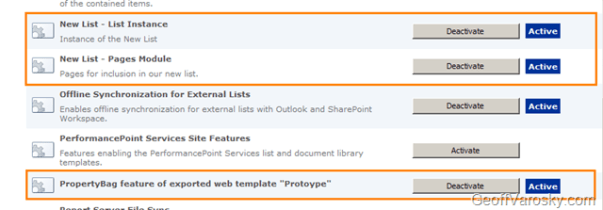
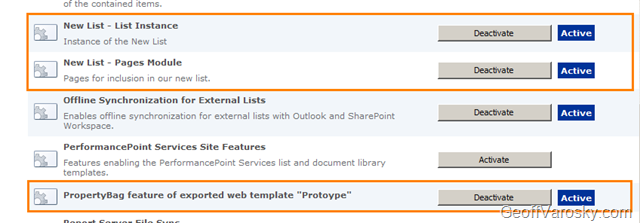
Next, let us check the web features… (Site Actions > Site Settings > Site Actions > Manage site features)
And there they are! Looks like I forgot to rename one of the feature titles – oops!
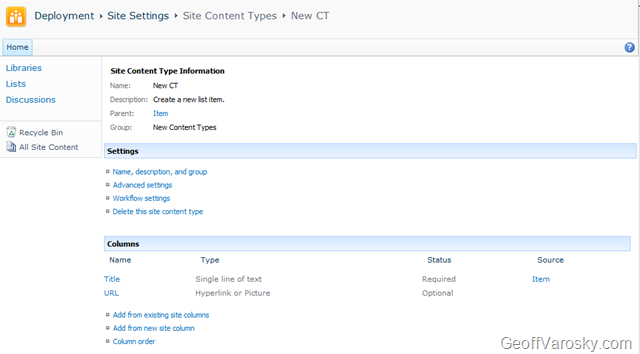
And now, lets see if our content type made it… (Site Actions > Site Settings > Galleries > Site content types) and yes, our New CT content type is there!

And so are the default columns…

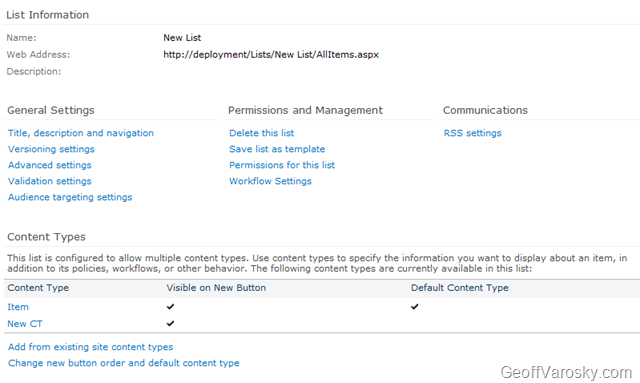
Now, let’s check for our list. (Site Actions > View All Site Content), again, there she blows!

and if we look at our List Settings, we’ll see our content type bound to the list…

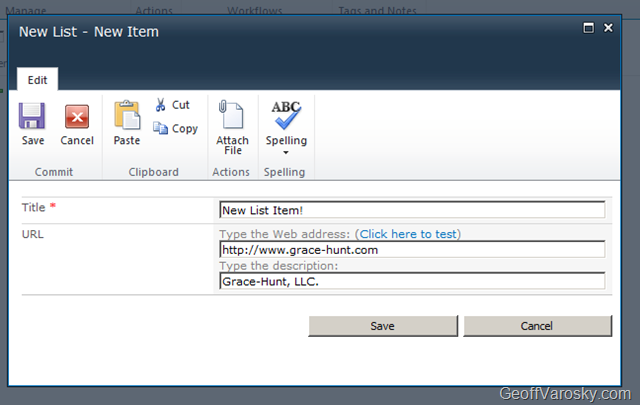
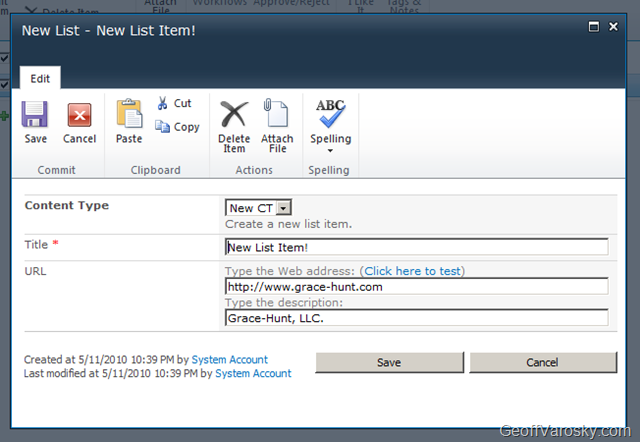
Our forms made it too!
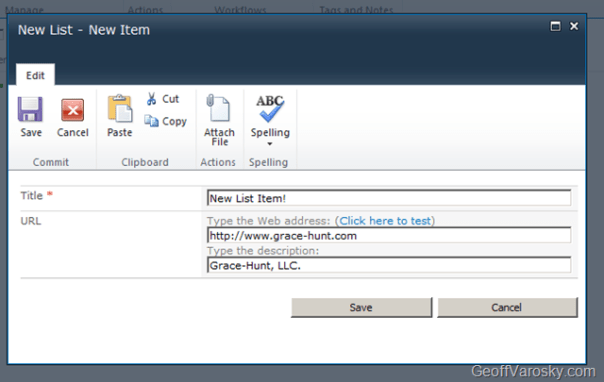

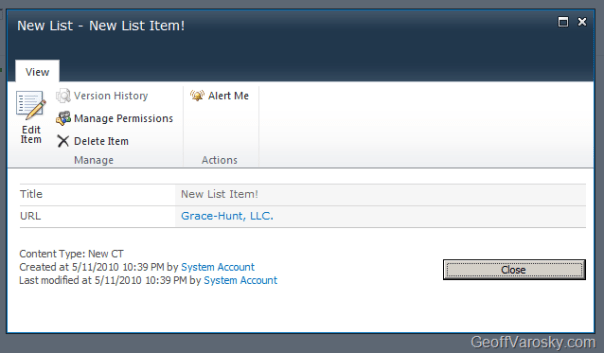
And that is all there is to it! Sure, a lot to take in, especially if this is the first glimpse at SharePoint Designer 2010, Visual Studio 2010, and SharePoint 2010. But do not worry – it’s not all that difficult.
In fact, if you happen to be in the DC area, and especially if you are attending SharePoint Saturday DC, I will be presenting on just this topic – “From SharePoint Designer to Visual Studio – Prototyping and Deploying Solutions in SharePoint 2010” at 9AM in Classroom 11. Hope to see you there!
Technorati Tags:
SharePoint,
SharePoint 2010,
SharePoint Saturday,
SharePoint Saturday DC,
SharePoint Foundation 2010,
SharePoint Server 2010,
SharePoint 2010 RTM,
SharePoint Foundation 2010 RTM,
SharePoint Server 2010 RTM,
Visual Studio 2010,
Visual Studio 2010 RTM,
SharePoint Designer 2010 RTM,
SharePoint Designer,
WSP,
SharePoint Solution Package,
Feature,
Site Actions,
Site Settings,
Sandboxed Solution,
Sandbox,
Sandbox Solutions,
Farm Solution,
Deployment,
Package,
Retract,
Debugging,
Debug,
Build,
Deploy,
Site,
Web,
Features,
SharePoint List,
ContentType,
Content Types,
Module,
ListInstance,
List Instance

















 Geoff Varosky's Blog