SPTechCon & October 21st BASPUG re-cap and materials

alt

I know, I know… I still need to publish my post on this past SharePoint Saturday Boston… however, since SPTechCon is slightly more fresh in my mind, and, because I promised materials to one of the lucky folks who attended my sessions by the end of the day, SPTechCon has taken the driver’s seat.

All I can say is what a great conference! Unfortunately, I was meeting people and companies, and talking to session-goers, catching up with friends, and meeting new ones, for the entire event, that the only sessions I was able to make it to, were my own!

I would first like to extend my thanks, yet again, to David Rubinstein, Stacy Burris, Kathy Bruin, and the rest of the BZ Media team, for not only taking me on as a speaker, but, for also graciously hosting the October meeting of the Boston Area SharePoint Users Group! With the conference in town, and by David’s suggestion months earlier, we managed to put together a fantastic panel of speakers from some of the SharePoint rock stars that were on hand at SPTechCon. We wanted to put together a focused panel on the new hotness, SharePoint 2010. While the conversations drifted a bit, we had a very energetic crowd, and very energetic panel. The free drinks at the attendee exhibit hall exception MAY have had something to do with that…

The panel consisted of none other than Bill English of Mindsharp, Andrew Connell of Critical Path Training, Joel Oleson of Quest, Heather Solomon of SharePoint Experts, Dux Raymond Sy of Innovative-e, and Mark Miller of EndUserSharePoint.com. (I’ll get the video posted soon enough!).

My next set of thanks is going to the BASPUG attendees and speakers – thank you all so much for making yet another highly successful meeting of the BASPUG! We had over 70 in attendance, and there was barely a seat available! To each and every one of our speakers, you are always welcome back in Boston to the users group!

Some of the comments from the BASPUG I’d like to share.. a few images below – LOTS of talk about the #BASPUG. Thank you all!

image

image

image

image

To close out the BASPUG @ SPTechCon, here is the slide deck from that night. Video, as mentioned above, still to come!

Next, I’d like to thank all of those who attended my two sessions at SPTechCon. The first session, bright and early before Steve Fox’s keynote, was “Just Freakin’ Work! Overcoming Hurdles and Avoiding Pain” with Mark Rackley. We had almost a full room, even with the change in time, as well as for being quite early at 8:15am.

Below is our slide deck from that presentation.

My next session closed off the conference at 4:00 on Friday, and I delivered to a great crowd, “Creating Custom Actions in SharePoint 2010”. Thank you again for all who attended, and let me know if you have any questions here in the comments, so I can share them with the rest of the world, or rather, the small portion of people that view my blog 🙂 Below is my deck from that session.

Thank you again everyone at the conference. I have to say, in all honesty, that this was one of the best conferences I have ever had the privilege to attend!

Looking to see these sessions again? Join me in February next year at SPTechCon San Francisco!

Converting the SharePoint and Office 2010 Information Worker Virtual Machines to VMWare from Hyper-V

I had a problem. My laptop (my main computer), runs Windows 7. The 2010 Information Worker (RTM) virtual images are Hyper-V. I run all of my development images off of (2) 1TB external ESATA 7200RPM drives using VMWare Player, since Virtual PC is no longer useful for the most part.

So, a few months ago, I started poking around, to see what the options were out there for converting Hyper-V images to VMWare… the pickings were thin. I had some conversations at SharePoint Saturday DC with Ken Price about the issue, as he had the same issue as I did. I pinged him yesterday on twitter to see if he had come up with any leads – and it appears he did.

image

image

image

So, I took that as my challenge, to set out and see if this works. See… I am working with a group of people on a new book (waiting on contract stuff now, so, I’ll spare the details until everything is confirmed), and our plan is to use this IW image as our base for examples and screenshots, etc., to have a consistent feel throughout the book, as we’re all taking on different chapters.

So, first things first, I downloaded the Information Worker Virtual Images, both the front-end server with SharePoint and Office (2010-7a) and the backend server (2010-7b) with Exchange 2010 from here: http://go.gvaro.net/a6P7ec [Editor’s note: Can I just plug Verizon FiOS for giving me a sweet connection with 25Mb/s download speeds?]

Once I downloaded those images, I ran the executable files for each image to join the +/- 700MB rar file slices, 2010-7a.part01.exe and 2010-7b.part01.exe.

Once that was done, I downloaded and fired up WinImage, which is very simple to operate, see the screenshot walk-through below…

Go to Disk >Convert Virtual Hard Disk Image

image

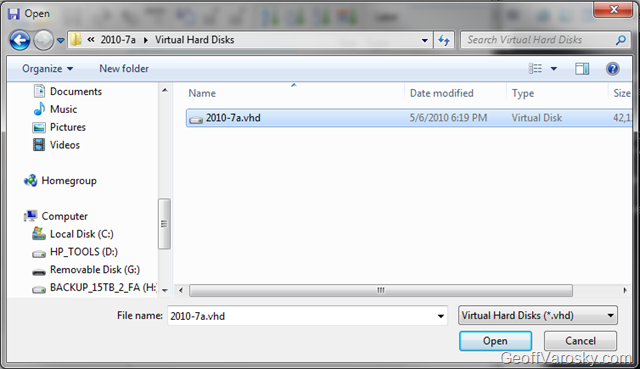
Select the 2010-7a VHD first located in the Virtual Hard Disks folder

image

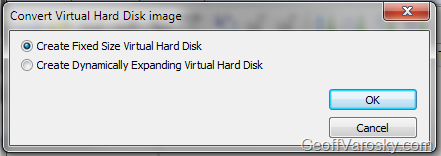
Set the disk to either be a fixed disk, or a dynamically expanding disk

image

Then select the converted VMDK name to use (the one seen there is from my initial conversion, you will not see that) but, to keep things simple, just name the output file 2010-7a.vmdk.

image

And then let it do it’s thing. Repeat the same steps for the 2010-7b.vhd as well, if you also want to run exchange as well.

Ok, we then need to create the VMX files (the VMWare virtual machine configuration files)… to do so, I first copied one over by hand, but, that just lead me to BSOD after BSOD when booting up, so, I did a quick search, and found VMX Builder, a free utility from PowerWF. This however complained that I did not have a license to perform this action, which makes no sense, as it is a FREE program. So, off I went looking for something else… and found a web-based approach called EasyVMX! With such enthusiasm in the name, I had to check it out.

I went with EasyVMX v 2.0 (on the right), as it offered the most flexibility.

image

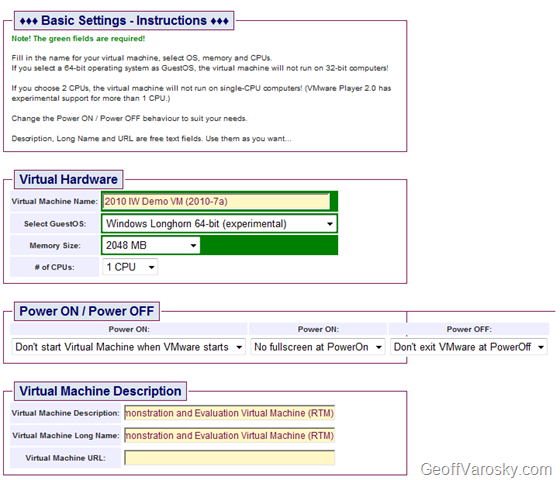
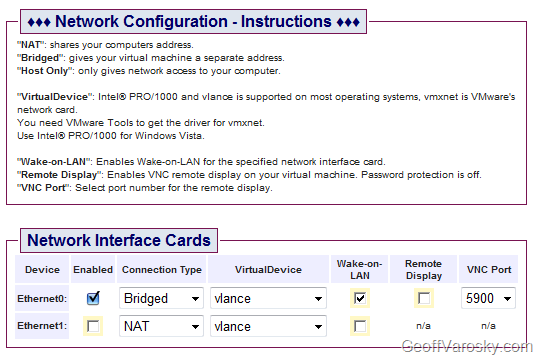
I then configured my VM as shown below in the following screenshots

image

image

image

image

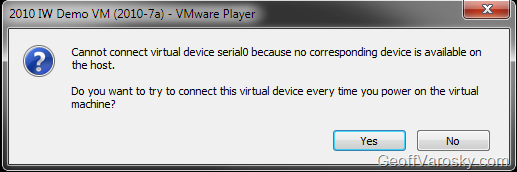
In the image above – disconnect the parallel port and serial port if you’d like, it’ll save you some yes/no error prompts when starting up the VM later…

image

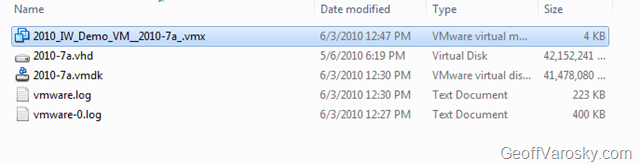
I then downloaded the VM from the ZIP contained above, and opened it, and copied out the VMX files that was created, and pasted that into the folder with our converted 2010-7a VMDK

image

image

I then changed the configuration around slightly, to point to the VMDK that we converted, as well as the image name, as shown below [click to enlarge] in Beyond Compare.

image 

Then, we can now add the machine into VMWare Player.

image

image

I then edit the VMWare Machine Settings to change the RAM to 4096

image

And reconnecting the Network to connect at power-on, and to replicate the physical machine state

image

Now, time to flush out a few configuration differences from the EasyVMX generated configuration, I answered No to all of the following pop-up questions (see note above when using EasyVMX configuration on avoiding these)

image

image

AND HOLY MOLY! IT WORKS!

image

So, that is how you can convert a Hyper-V image to VMWare, especially in the case of the 2010 Information Worker Demonstration Virtual Machine(s). I hope this helps! This allowed me to then send the following tweet back to Ken Price

image

This here would be that blog post 🙂


SharePoint 2010 SDKs Released Today

image Saw the news first from Rob Foster of the SharePoint Pod Show, as of today, May 20th, 2010, the SharePoint Server and SharePoint Foundation 2010 SDK has officially been released from Microsoft.

Go get it here: http://www.microsoft.com/downloads/details.aspx?displaylang=en&FamilyID=f0c9daf3-4c54-45ed-9bde-7b4d83a8f26f


Importing Lists and Content Types into Visual Studio 2010 from Site Templates for Packaging in SharePoint 2010 Solutions

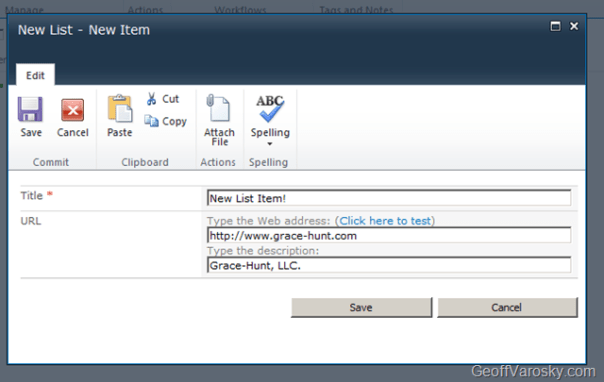
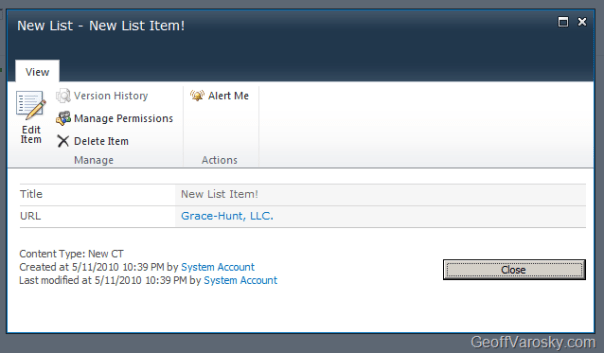
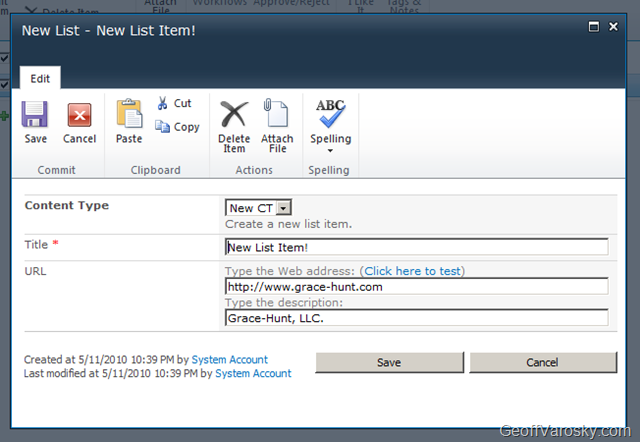
So, here is the scenario – we’ve prototyped out a content type, named New CT, added a few default columns into it (Title and URL), and attached that content type to a list named New List. Now, we need to package this up in a SharePoint Solution Package (WSP) in Visual Studio, so we can re-deploy it elsewhere.

Here is how you can go about doing this…

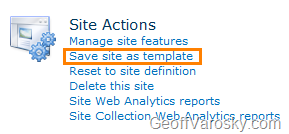
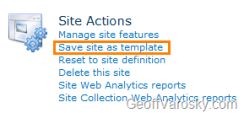
First, let us save this off as a template, but going to Site Actions > Site Settings > Site Actions > Save site as template
image

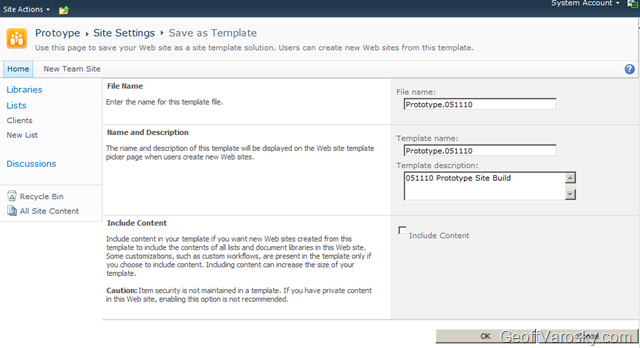
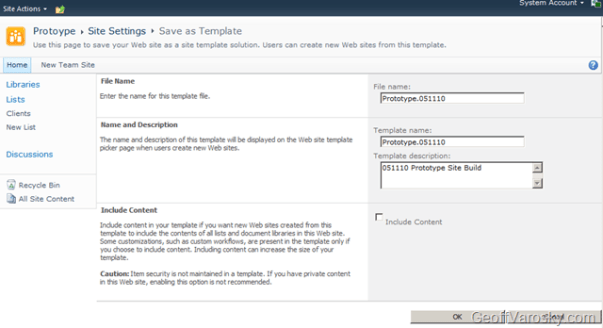
Let us also input a little information – I always like to include the date, either in the template name (useful for when it is outside of SharePoint on the file system somewhere!), the file name, and the description.
image

Once we have done so, click OK. Let it process… and then once it is completed, it will tell us that the site template has been saved into the site Solution Gallery.

image

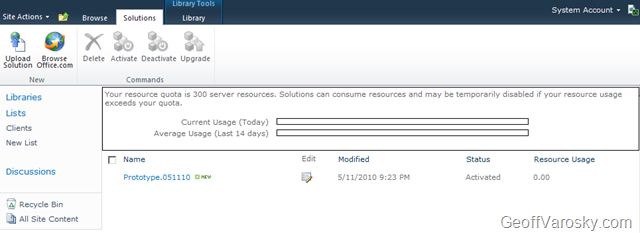
Click on that link to go directly there, or, go there via Site Actions > Site Settings > Galleries > Solutions

image

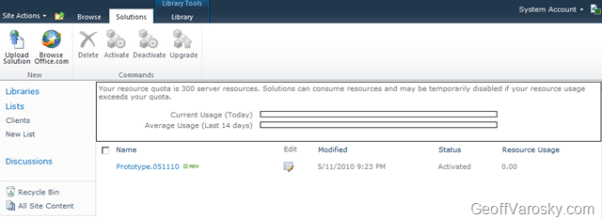
Once in there, you will see your site template. A big difference from how this was in 2007 however, is the fact that this is a WSP file. Click it, and save it locally.
image

Now, keep track of where you saved it. We’ll need this in a moment… now, go ahead and launch Visual Studio 2010, and start a new project.

Under your preferred language of choice (C# for me), under the SharePoint node, select the 2010 node, and then in the project section, select Import SharePoint Solution Package as the project type. Give the project and a solution a name below, and then press OK.
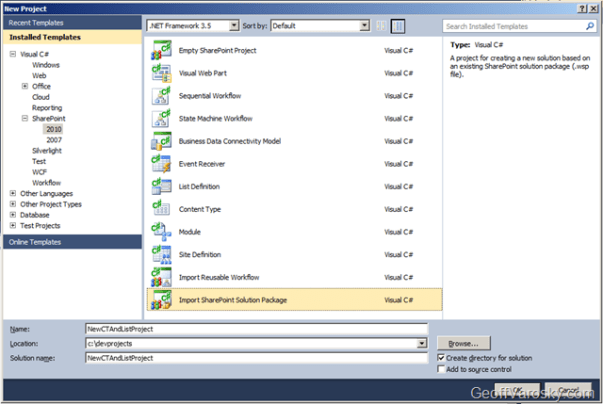
image

Once you do so, you will have to select a site in which you would like to debug against (also used for deploying and retracting solutions), and then we can select whether we want to either deploy this as a sandboxed solution, or, if we want to deploy it as a farm solution. In this example, I will be selecting a Sandboxed Solution. Lists, Site Columns, and Content Types are supported as Sandboxed solutions, so this should not be an issue. You can also choose to deploy this as a farm solution if you wish (if you’re going to be deploying code to the GAC, pushing to the Web Application, etc.), I am just showing one of the possible options here.
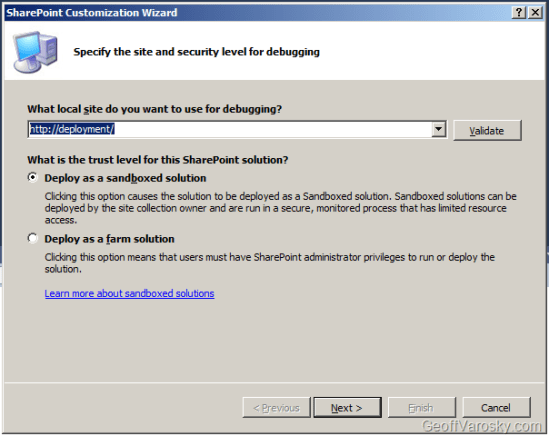
image

Next, you will be asked the important question – where is the location of the WSP file, your site template, which we had previously saved out? Find that, select it, and then click Next
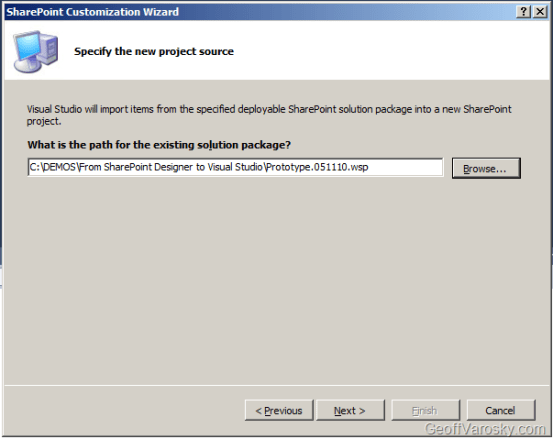
image

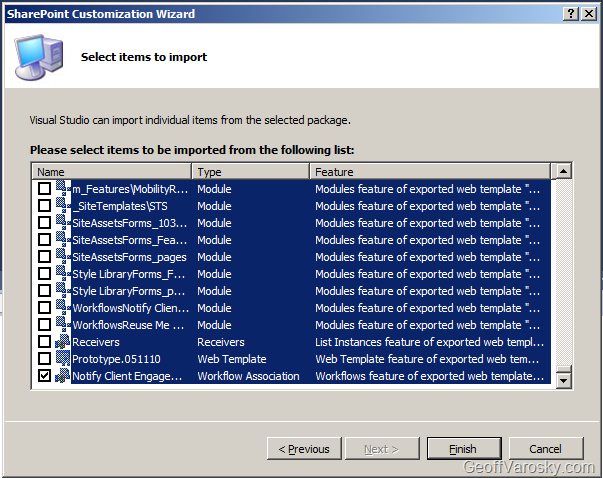
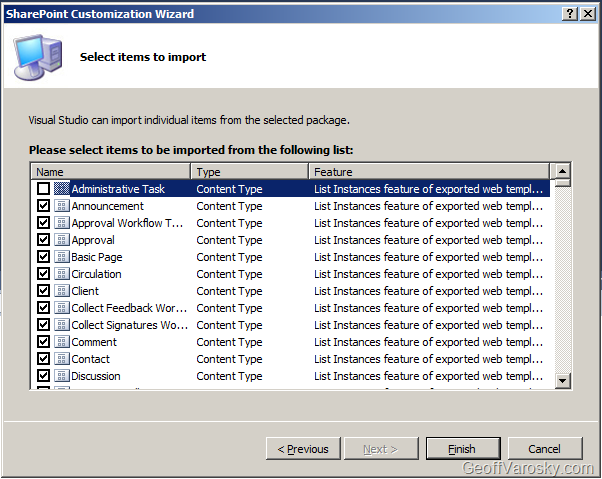
I may not have been 100% truthful on the last sentence… this next question is our most important question. What do we want to include, out of ALL of the SharePoint artifacts that are in that solution file, into Visual Studio? Lets have a look. First, you will want to select the first one you see in the window by clicking on it, both the checkbox, and the item itself so it is highlighted as shown… going to show you a neat little trick!

image

imageNow, scroll ALL the way to the bottom of the list, and select that, using your shift + click combination, and PRESTO! Everything has been unselected, except for the last item, which is just a simple click. This saves you a LOT of un-checking of checkboxes. Since we don’t need all of that stuff, just the artifacts pertaining to our list and content type. If you don’t have kids that watch TV, then the image to the right of this text may not make any sense to you. If that is the case, then don’t worry about it. But that is D.J. Lance Rock from Yo Gabba Gabba. Yeah, they have a segment with Biz Markie, and once had Mixmaster Mike on to show his cool trick – scratching. Awesome right? Well Lance, this was my cool trick, I doubt however, this will ever make it to a kids show. Anyways, back to our artifact selection! Also, a CTRL+A, and a click will do the same thing.

image

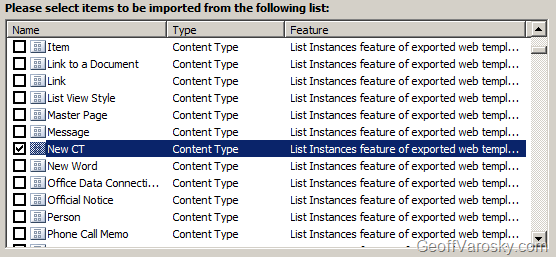
You’ll see that the listing is sorted by default using the Type column, and then by the Name column. This is handy for locating what we want. So – what we do want? Let’s start from the top, and work our way down. We need our New CT content type…
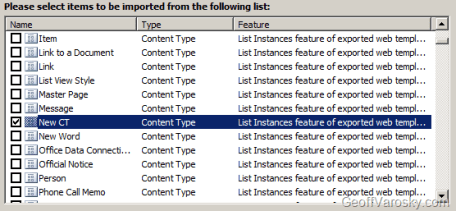
image

I am not going to bother with the built-in site columns. In the case(s) where we will be deploying this solution out, those built-in columns will be there, so we’ll skip those field elements. However, if we created our own site columns, we would want to select those fields here.

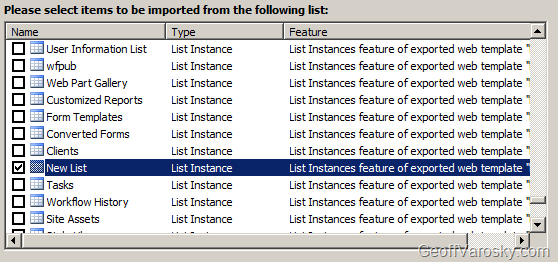
We’ll want to also select our New List List Instance

image

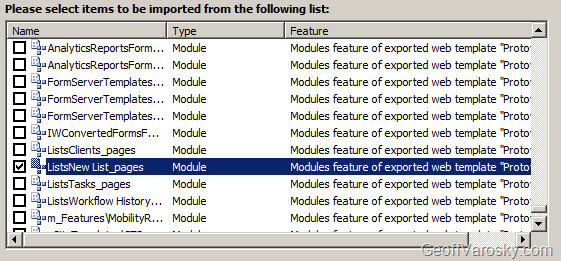
And last but not least, our ListsNew List_pages module, as we definitely want to have our default NewForm, EditForm, and DisplayForm pages included with our solution! Otherwise, these pages will NOT deploy, and you’ll have to re-do these steps!

image

So we should have 3 artifacts selected overall. Our New CT content type, our New List list instance, as well as our ListsNew List_pages module. Once we have that done, click on Finish.

You’ll get a message like this…

image

It’s really hoping we need these, but, I am not going to include them. I know where this solution is deployed, these will already be there. Plus, I do not want to overwrite any modifications to any existing columns or content types where this is deployed to. So, I am going to play it safe, and choose No. Your mileage may vary.

If all goes well, we should get a success message

image

You can also see more detail of the import process in the output window in VS…

   1: Importing the SharePoint solution (.WSP)...
   2: Importing Feature: List Instances feature of exported web template "Protoype"...
   3: A new feature Feature1 has been added to the project NewCTAndListProject
   4: c:\devprojects\NewCTAndListProject\NewCTAndListProject\Package\Package.package (0,0): Added Feature1 to Package
   5: Importing List Instance: New List...
   6: Importing Content Type: New CT...
   7: Importing Feature: Modules feature of exported web template "Protoype"...
   8: A new feature Feature2 has been added to the project NewCTAndListProject
   9: c:\devprojects\NewCTAndListProject\NewCTAndListProject\Package\Package.package (0,0): Added Feature2 to Package
  10: Importing Module: ListsNew List_pages...
  11: Importing Feature: PropertyBag feature of exported web template "Protoype"...
  12: A new feature Feature3 has been added to the project NewCTAndListProject
  13: c:\devprojects\NewCTAndListProject\NewCTAndListProject\Package\Package.package (0,0): Added Feature3 to Package
  14: Importing Element: PropertyBags...
  15: The SharePoint solution import completed successfully.
  16: Total number of items to import: 4
  17: Total number of items imported successfully: 4
  18: Total number of items not imported due to errors: 0


Cool. Now what? Well, from here, you can modify your feature names, titles and descriptions so they actually make more sense than Feature 1, Feature 2, and Feature 3.

image

Explore the contents of your solution, check your element manifests, etc.

image

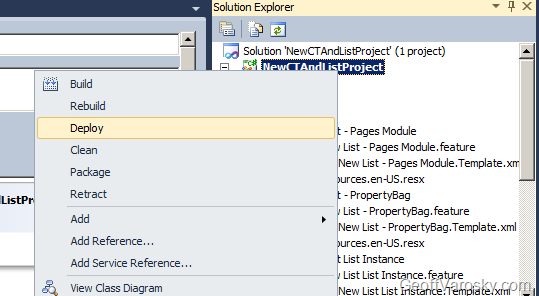
Lots of fun stuff! Anyhow, now that we’ve brought it in, let’s package and deploy it, all in one fell swoop, out to our Deployment site which we set up originally on the project (you can change that too… maybe a good idea for a future post!) So, let’s either right click on our solution, and choose Deploy

image

Or, we can go to the Build menu, and choose Deploy NewCTAndListProject.

image

Also from these menus, we have the option to just package it if needed. You’ll find the created WSP in the bin/[Debug/Release]/ folder in your project directory.

The status bar in VS says this was a success (Deploy succeeded), so, let us check through the output window, just in case. We can also see the steps here that are taken during a Deploy…

   1: ------ Build started: Project: NewCTAndListProject, Configuration: Debug Any CPU ------
   2:   NewCTAndListProject -> c:\devprojects\NewCTAndListProject\NewCTAndListProject\bin\Debug\NewCTAndListProject.dll
   3:   Successfully created package at: c:\devprojects\NewCTAndListProject\NewCTAndListProject\bin\Debug\NewCTAndListProject.wsp
   4: ------ Deploy started: Project: NewCTAndListProject, Configuration: Debug Any CPU ------
   5: Active Deployment Configuration: Default
   6: Run Pre-Deployment Command:
   7:   Skipping deployment step because a pre-deployment command is not specified.
   8: Recycle IIS Application Pool:
   9:   Skipping application pool recycle because a sandboxed solution is being deployed.
  10: Retract Solution:
  11:   Skipping package retraction because no matching package on the server was found.
  12: Add Solution:
  13:   Adding solution 'NewCTAndListProject.wsp'...
  14:   Deploying solution 'NewCTAndListProject.wsp'...
  15: Activate Features:
  16:   Activating feature 'New List List Instance' ...
  17:   Activating feature 'New List - Pages Module' ...
  18:   Activating feature 'New List - PropertyBag' ...
  19: Run Post-Deployment Command:
  20:   Skipping deployment step because a post-deployment command is not specified.
  21: ========== Build: 1 succeeded or up-to-date, 0 failed, 0 skipped ==========
  22: ========== Deploy: 1 succeeded, 0 failed, 0 skipped ==========


Now, for real verification, lets check the site.

First – we’ll check the Solutions gallery (Site Actions > Site Settings > Galleries > Solutions) and there it is!

image

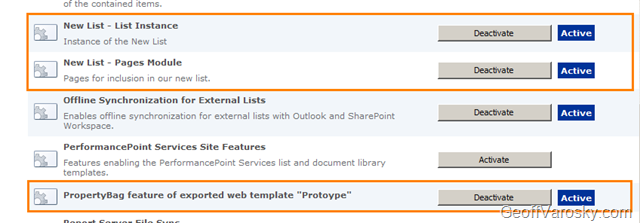
Next, let us check the web features… (Site Actions > Site Settings > Site Actions > Manage site features)

And there they are! Looks like I forgot to rename one of the feature titles – oops!
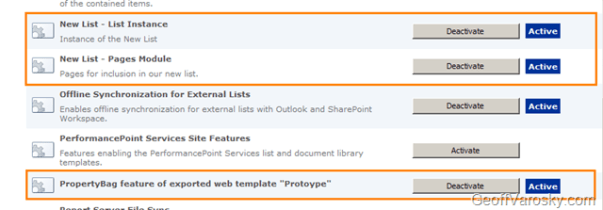
image

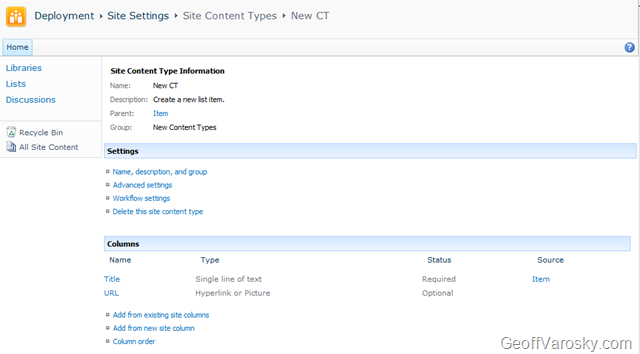
And now, lets see if our content type made it… (Site Actions > Site Settings > Galleries > Site content types) and yes, our New CT content type is there!

image

And so are the default columns…

image

Now, let’s check for our list. (Site Actions > View All Site Content), again, there she blows!

image

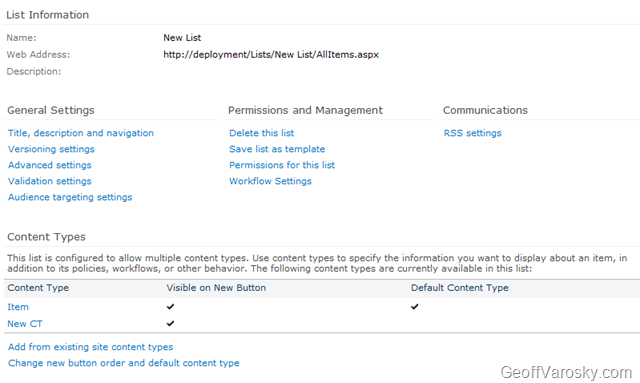
and if we look at our List Settings, we’ll see our content type bound to the list…

image

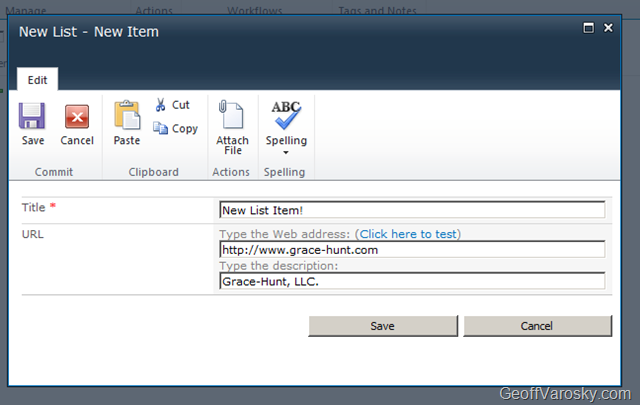
Our forms made it too!

image

image

image

And that is all there is to it! Sure, a lot to take in, especially if this is the first glimpse at SharePoint Designer 2010, Visual Studio 2010, and SharePoint 2010. But do not worry – it’s not all that difficult.

In fact, if you happen to be in the DC area, and especially if you are attending SharePoint Saturday DC, I will be presenting on just this topic – “From SharePoint Designer to Visual Studio – Prototyping and Deploying Solutions in SharePoint 2010” at 9AM in Classroom 11. Hope to see you there!


SharePoint Foundation 2010 and SharePoint Designer 2010 Available for Download!

That’s right, if you look at the pages, you will no longer see any “Beta” tags on them. That’s right. On the same day that we get the Server and Office bits on MSDN and TechNet subscriptions, the rest of the world can get the free stuff. SharePoint Foundation 2010 and SharePoint Designer 2010 are now available to the world to download from Microsoft.

SharePoint Foundation 2010 – http://www.microsoft.com/downloads/details.aspx?displaylang=en&FamilyID=49c79a8a-4612-4e7d-a0b4-3bb429b46595

SharePoint Designer 2010 x64 – http://www.microsoft.com/downloads/details.aspx?displaylang=en&FamilyID=566d3f55-77a5-4298-bb9c-f55f096b125d

SharePoint Designer 2010 x86 – http://www.microsoft.com/downloads/details.aspx?displaylang=en&FamilyID=d88a1505-849b-4587-b854-a7054ee28d66

Update: Thanks to JD Wade for the x64 and x86 link differentials!

image

image


SharePoint 2010 and Office 2010 RTM Versions Available for Download on MSDN!

You heard that correctly! For all of you who have an MSDN subscription, after what seemed like forever, SharePoint Server 2010, Visio 2010 (x86 and x64), Office 2010 (x86 and x64) are now available for download on MSDN! There goes my weekend 🙂

image

image

Office, Visio, Project and SharePoint 2010 Reach RTM!

image Jeff Teper, Corporate VP for SharePoint Server at Microsoft announced a short while ago that SharePoint, Office, Visio, and Project 2010 have finally reached RTM status at the Microsoft SharePoint Team Blog here – http://blogs.msdn.com/sharepoint/archive/2010/04/16/sharepoint-2010-reaches-rtm.aspx 

Straight from the blog itself comes these wonderful words we have all been waiting to hear for a long time now…

“Today we reached an exciting engineering milestone- the release-to-manufacturing (RTM) for Office 2010, SharePoint 2010, Visio 2010 and Project 2010!

RTM is the final engineering milestone and a major achievement for all of the internal teams who worked so hard to get to this point. As tirelessly as our engineering teams worked, we would never have reached this milestone without incredibly active participation from our customers and partners. More than 5,000 organizations and partners have worked with us on rapid deployment and testing of the products, and the feedback that we’ve received from all these programs has shaped a fantastic set of products that I’m sure our customers will love.

Our Volume License customers with active Software Assurance (SA) on these products will be one of the first to receive the 2010 set of products. They will be able to download the product in English, French, Spanish, German, Russian, and Dutch via the Volume Licensing Service Center starting April 27. Other languages will be available on a rolling timeline. Customers without SA will be able to purchase the new products through Volume Licensing from Microsoft partners starting May 1.

Earlier this year we announced that we will officially launch SharePoint 2010 to our business customers on May 12 with a virtual launch. Our virtual launch will allow people from around the globe to participate in our launch by going to http://www.the2010event.com. Stephen Elop, President of Microsoft’s Business Division, will deliver a keynote as part of the virtual launch, and the virtual launch site will showcase product demos, customer and partner testimonials, and interviews with product managers and executives, and we hope this will give you another great way to explore, learn, and get excited about the 2010 releases.

On behalf of the SharePoint team, I want to thank all of the customers and partners who have helped us reach this milestone. We look forward to continue learning from you and all the great things you will do with our products!

-Jeff Teper

Corporate Vice President, SharePoint Server, Microsoft”


BASPUG_whitebgIf you also do not know, on the same date as the 2010 Virtual Launch Event, and happen to be in the Boston area, we are launching the Boston Area SharePoint Users Group (BASPUG) with Chris Bortlik, a SharePoint Technology Specialist at Microsoft, who will present “Introducing SharePoint 2010”. For more information and to register, please visit http://www.bostonsharepointug.org. We hope to see you there!


Even more on Correlation IDs within SharePoint 2010

I briefly talked about log correlation IDs in two previous posts (More on Correlation IDs in SharePoint 2010 and The SharePoint 2010 Developer Dashboard), and am also including a bit from yet another post (Diagnostic Logging Enhancements in SharePoint 2010). When you get to an error page in SharePoint 2010, you are now presented with a Correlation ID. Basically, this is just expanding upon Wictor Wilén’s post here: Working with SharePoint 2010 Correlation ID in PowerShell and code. I basically just want to flesh these out a bit, and ways to get at the errors you are looking for.

Using our Boston Area SharePoint Users Group website as an example – we don’t have search configured yet on the new site, however, we have the search box available currently (we’ll fix it, I swear!). Running a search produces the following error message:


image

Straight, and to the point. While about as useless as your regular everyday SharePoint error, you get a pretty icon, but, more importantly, you get a correlation ID. Now, let’s see what we get using the Get-SPLogEvent PowerShell command mentioned in Wictor’s article…

So, I am running the following command –

   1: Get-SPLogEvent | ?{$_.Correlation -eq "41e7b6f1-ac66-4a16-87c0-18a85ad13f21"} | ft Category, Message -Autosize
   2:  

And it’ll take a few moments, as it has a LOT of log entries to run through…

image

So, let’s take a step back. Now, this is NOT SUPPORTED BY MICROSOFT, at least as far as I know. So, don’t do it. ever. really. They’ll find you. This may change however once the RTM copy hits the shelves, and it is available at Target stores world-wide. Once it is released, then we’ll be able to find out all of what is and what is not supported.
But let’s say, for the sake of argument, I want to find those log entries fast, and, as luck would have it, I am also the resident SQL DBA, so, I have access to the SharePoint databases on the farm’s SQL server.

Take a look at the WSS_Logging database. Specifically, at the ULSTraceLog view. Notice in there, that there is a column named CorrelationId? Well kids, that means we can do a direct SQL search for it, in addition to the handy PowerShell Get-SPLogEvent command, as well as the code-based approach Wictor outlined in his post!

   1: SELECT * 
   2: FROM WSS_Logging.dbo.ULSTraceLog
   3: WHERE CorrelationId = '41e7b6f1-ac66-4a16-87c0-18a85ad13f21'
   4:  
   5:  

This, as you may notice if you also try, this will take a few moments, depending on the size of your logs, but, what I have noticed, is that it runs far quicker than the Get-SPLogEvent PowerShell command.

image 

So, in short, if you need a completely unsupported way to quickly get to your logs by using your CorrelationId, there is a faster way than viewing and searching through the ULS text logs on the file system, or using the Get-SPLogEvent PowerShell cmdlet.

I have not run actual timing tests on these, these are just from personal experience. Maybe one day I will get around to that…


SharePoint 2010 Certifications

And another short post for today – this time relating to SharePoint 2010 Certifications.

There has been a lot of speculation and wonder in the SharePoint community about what the 2010 certification path would look like for the next release. Well, the good news is, as of about a month ago, some information started to come out from Microsoft, from several outlets, but, my information came from the Born to Learn blog at Microsoft Learning. Specifically, this post: http://borntolearn.mslearn.net/btl/b/weblog/archive/2010/03/03/what-s-comming-for-sharepoint-2010-exams.aspx, as well as the SharePoint Training site at Microsoft: http://www.microsoft.com/learning/en/us/training/sharepoint.aspx#2010sec2

The 4 exams that are coming along for the June/July timeframe are:

· 70-667: TS: Microsoft SharePoint 2010, Configuring
· 70-668: PRO: Microsoft SharePoint 2010, Administrator
· 70-573: TS: Microsoft SharePoint 2010, Application Development
· 70-576: PRO: Designing and Developing Microsoft SharePoint 2010 Applications

Two TS and two PRO exams, one set for IT Professionals, and one set for Developers. One great thing about the new generation of exams to be noted however, is that not only do these get you your MCTS (Microsoft Certified Technology Specialist) credit, but, they will also earn you your MCPD (Microsoft Certified Professional Developer) credit as well.

Can’t wait to plop down in front of a computer at Prometric and take these once they are available!


More on Correlation IDs in SharePoint 2010

A while back, I did a post on the new developer dashboard in SharePoint 2010, I’ve also discussed this topic in several presentations on What’s New for Developers in SharePoint 2010, and I’ve talked about the wonderful new feature of correlation IDs that now appear in the developer dashboard, and other error messages, that help with tracking down errors within your logs.
 
Wictor Wilén made a great post on Working with SharePoint 2010 Correlation ID in PowerShell and code. This article focuses on using the Get-SPLogEvent PowerShell cmdlet to track down logs using that correlation ID, and using it in code. A good read!