PerfomancePoint Dashboard Designer “Code blocks are not allowed in this file”

image

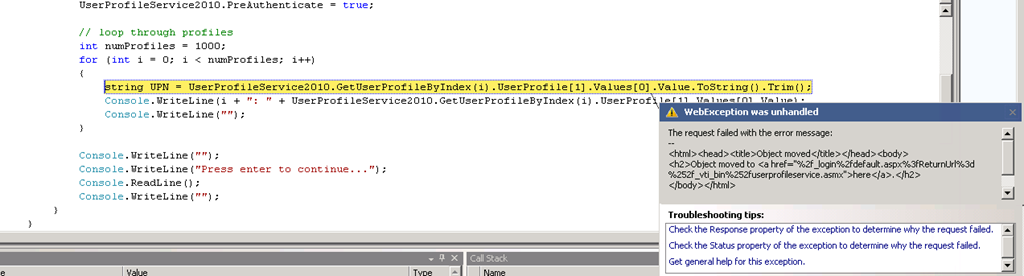
If you are configuring PerformancePoint in SharePoint 2010, and you are attempting to launch the Dashboard Designer ClickOnce application from the Business Intelligence Center site you have created, you may encounter this error. Some books and blog posts on the subject of configuring and running PerformancePoint services do not seem to touch on this – SharePoint by default, does not allow in-page code.

To get around this, you will need to modify the web.config file for the web application in which PerformancePoint lives, by inserting the following code in the <SharePoint><SafeControls><PageParserPaths> section as shown below.

<SharePoint>
  <SafeMode MaxControls="200" CallStack="false" DirectFileDependencies="10" TotalFileDependencies="50" AllowPageLevelTrace="false">
     <PageParserPaths>
       <PageParserPath VirtualPath="/BICenter/Pages/ppssample.aspx" CompilationMode="Always" AllowServerSideScript="true" />
     </PageParserPaths>
  </SafeMode>
</SharePoint>


Where the VirtualPath listed above is the relative URL to the ppsample.aspx page within your BI Center.

SharePoint Site Collection backup failed–site left locked.

Ran into an issue the other day. Was running a site collection backup from Central Administration, when it just flat out failed with a generic error. Didn’t think much of it, until a user could not add any data, nor see the Site Actions menu within a site under that site collection.

image

I started to investigate – all signs pointed to the content database being locked, but no matter where I looked, I was unable to find just where it was locked up.

First, in Central Administration, I checked to see the status of the site collection. This can be found under Application Management > Site Collections > Configure quotas and locks

image

The site collection was showing as "Not locked”.

Then, while in Central Admin, I checked to see if the database itself was locked. Under Application Management > Manage content databases
image

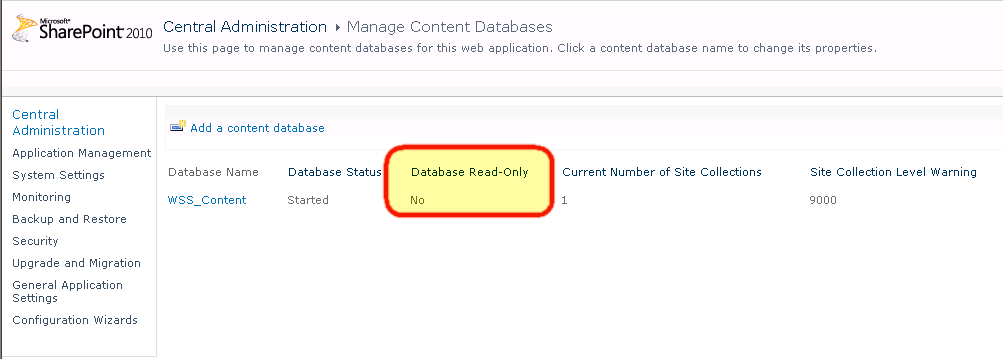
As you can see above – it was not Read-Only.

I then took a look at the database, seeing if it was set to single user, read-only, or if the database was not in ‘NORMAL’ state.

image

Everything looked fine here. I did some troubleshooting, and could not find the source of the problem. So, I threw out an #SPHelp request on twitter, and sure enough, twitter saves the day again. Sean McDonough (@spmcdonough) replied with the following suggestion.

image

This is the STSADM equivalent of setting the site collection lock status under Application Management > Site Collections > Configure quotas and locks which we first looked at. I set the database read-only. And then set it back to none, and everything was back and working again! Thanks Sean!

image

So, in closing, this post has two objectives to it. Number 1 is to show you where you can check/set lock statuses for site collections and content databases. And number 2, if you encounter the same issue I did, how to resolve it, so hopefully after a bit of searching if you run into this error, you can save some sweat and hair, and get your site collection back up and functional.

And then plan to perform the site collection backup off-hours, just in case 🙂

SharePoint Saturday Hartford Recap and Session Materials

altI was pleasantly surprised when about a week or so before SharePoint Saturday Hartford came around on January 29th, to hear the news that the event had sold out! We have had lots of success with SharePoint Saturday Boston, however, I was unsure if this was going to be overkill for the region, if it would all be SPS Boston attendees looking for their “fix” between our 6-8 month cycle there of events, I honestly was not sure what to expect, but, wanted to help get it going anyways, so I offered up Grace Hunt to sponsor the event.

And what a great event it was! Over 150 people attended, plus speakers and sponsors, which, by the size of the venue, was a perfect amount to fit in there comfortably. I made some great new connections with speakers and attendees alike, and had a chance to spend some time with some old friends.

165538_10150133897807642_612892641_8214470_4415448_nI presented two sessions at this event, and also helped out in our vendor-led session at lunch time.

My first session of the day was on “Creating Custom Actions in SharePoint 2010”. I had a great group in the room, which asked some very good questions, and even dealt fine with the State Service in one of my demonstrations was broken, so I could not complete a custom action running a workflow (sorry about that!)

Thank you to all my attendees for that session, and even more importantly, having some fans of the Hartford Whalers in there. Below is my slide deck from my Custom Actions presentation.

My next session was done with Tim Farrell, also of Grace Hunt. We presented “Building a Custom Solution from the Ground Up” Since Tim did most of the heavy lifting in this session – I’ll refer to his blog for the session materials (Permalink to SPS-Hartford Presentation pt1 – The Beginning).

A big thanks to SB Chattergee, Talbott Crowell, Pradeepa Siva, and Bob Ohlheiser for putting together this great event, all of the attendees and sponsors of SharePoint Saturday Hartford, and the Grace Hunt team that made it to the event!

Helpful Resources for Troubleshooting Issues with Membership Providers in SharePoint

When configuring membership providers for Forms Based Authentication in SharePoint – you often run into some troubles. These are just a couple of links that I have found useful in the past to assist in the configuration process.

Microsoft.BusinessData.Runtime.ExceededLimitException: Database Connector has throttled the response.

If you’ve created a BCS list before (such as defined by the excellent tutorial put together by Laura Rogers for connecting to a SQL data source using a SQL account – http://www.sharepoint911.com/blogs/laura/Lists/Posts/Post.aspx?ID=90), and received this error on your Read List view page:

Unable to display this Web Part. To troubleshoot the problem, open this Web page in a Microsoft SharePoint Foundation-compatible HTML editor such as Microsoft SharePoint Designer. If the problem persists, contact your Web server administrator.

Correlation ID:117e242f-0985-42e9-9972-b1a879ce7e3b

After investigating the ULS Logs, located in %SYSTEM DIR%\Program Files\Common Files\Microsoft Shared\web server extensions\14\LOGS, and searching for the correlation id mentioned above. You may find the following error:

Error while executing web part: Microsoft.BusinessData.Runtime.ExceededLimitException: Database Connector has throttled the response. The response from database contains more than ‘2000’ rows. The maximum number of rows that can be read through Database Connector is ‘2000’. The limit can be changed via the ‘Set-SPBusinessDataCatalogThrottleConfig’ cmdlet.     at Microsoft.SharePoint.BusinessData.SystemSpecific.Db.ThrottledIDataReader.Read()     at Microsoft.SharePoint.BusinessData.SystemSpecific.Db.DbEntityInstanceEnumerator.MoveNext()     at Microsoft.SharePoint.BusinessData.Runtime.EntityInstanceEnumeratorBase.MoveNext()     at Microsoft.SharePoint.SPListDataSource.GetFilteredEntityInstancesInternal(XmlDocument xdQueryView, Boolean fFormatDates, Boolean fUTCToLocal, String firstRowId, Bo…

Thanks to the wonders of the interwebs, the solution to this is fairly simple, and the error explanation is extremely helpful. Do a search for this: Set-SPBusinessDataCatalogThrottleConfig, which will lead you to a great article on the Microsoft Business Connectivity Services Team Blog by Adam Outcalt here: http://blogs.msdn.com/b/bcs/archive/2010/02/16/bcs-powershell-introduction-and-throttle-management.aspx which will give you very great instructions on modifying the BCS throttling configuration.

Be careful with this however, the throttling is there for a reason. Not just to give you another option to configure.

Integrating Social Media into the SharePoint 2010 Ribbon

image

I think the image above says enough for itself. Came across this link today (http://shojeeb.com/sharepoint/custom-social-bookmarking-ribbon-tab-in-sharepoint-2010/) by Zubhair Ahmed. Very cool integration of social media controls into SharePoint 2010, and just had to share.

A few other people think so as well…

image

image

Quick Tip – Using the Resources List in Central Administration

Let’s face it, both in SharePoint 2007 and 2010, Central Administration does require a bit of clicking around. Some features and functionality you will use on a daily basis, but others, not so much. While the UI for Central Administration got a great overhaul, navigating around can be tedious.

Not that it is any rocket science here either, however, I rarely come across client environments where this is used at all. The list was available in 2007, as well as 2010. When you log into Central Administration, you’ll see the Resources link list web part off to the right. So the quick tip of the day is – make use of this!

For instance, if you need to get down to the user profile service administration screen… you need to do the following:

  1. Click on Application Management > Manage service applications
  2. Locate the service application, and click it
  3. Then you’re there.

However, just adding a link to the Resources list for this, and other commonly used items, saves both time and effort, especially if you have trouble locating your service applications. So just copy the URL, go back out to the main page, and add it in as a link.

image

More ideas? Maybe you need to look at the Job History for your web application each day. Instead of doing the following:

  1. Click on Monitoring > Check job status
  2. Clicking on Job History on the quick Launch
  3. Selecting Web Application from the View drop down

Just copy out the link, and add it into the Resources list for a quick link http://servername/_admin/TimerJobHistory.aspx?View=2

Now, there are many other possibilities to store these links – your bookmarks for example – while that works for you, it does not work for anyone else who needs access to Central Admin.

If you wanted to build a feature or two, you could also implement some Custom Actions here as well…

SharePoint & PowerShell 101: Finding Cmdlets

imageI recently did a post on Listing all available PowerShell commands in SharePoint 2010. That is all well and good, if you want to manually browse through all of them. But what if you want to search for them?


Get-Command

Get-Command is a highly useful cmdlet in PowerShell. Today we are just going to use a basic functionality of it, to help us find and locate the cmdlets we need to use. Today, we need to do some work with the User Profile Service. However, we don’t know what the command names are that we need to use, only that we need to use them. For that, we can use Get-Command. If you need to figure out how to use the Get-Command cmdlet, run

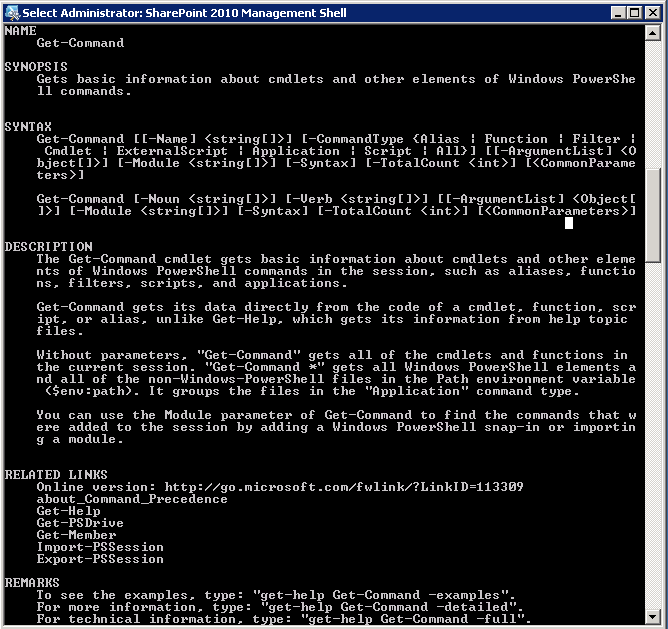
Get-Help Get-Command

Which will return the following information about the cmdlet

image

This will return the usage of the Get-Command cmdlet. We are just going to use the –Noun switch to pass in our parameters.

Let’s start looking at the basics… we’re looking to find commands relating to the User Profile Service. So, let’s try searching for a noun of Profile

Get-Command –Noun Profile

Nothing is returned… oh right, it would appear that the Get-Command is literal, not a wildcard. However, we can use a wildcard character to help us search, as we have no idea what the name of the command is. Let’s try searching for *Profile*, that should do the trick.

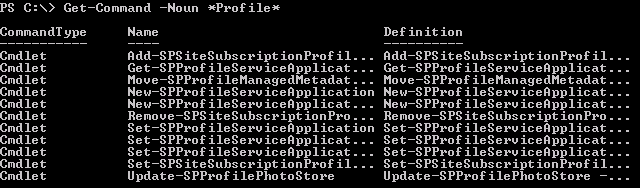
Get-Command –Noun *Profile*

image

Hooray, results! However, we cannot see the entire name of the results returned. For that, we can use the Select-Object cmdlet.

Fore information on using that, try this in the PowerShell console

Get-Help Select-Object

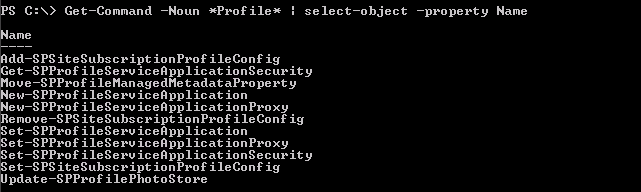
So, let’s only pull the Name property in our results of the Get-Command

Get-Command -Noun *Profile* | Select-Object –Property Name

image

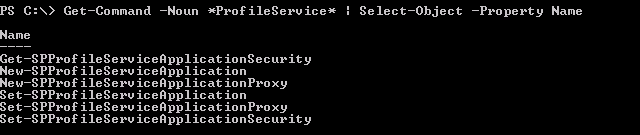
Much better! We can further refine these by adjusting our Noun, to just look at ProfileService

Get-Command -Noun *ProfileService* | Select-Object -Property Name

image

And there we go! Hopefully this helps you in your quest to add PowerShell to your arsenal of SharePoint management and development tools.

I’d love to hear what else you would like to learn about – leave me information in the comments!

List View Web Part Toolbar Types in SharePoint 2010

When imageadding a List View Web Part to your pages in SharePoint 2007, you had 3 options:

  • Full Toolbar
    • Gave you the library controls on a toolbar above your headers and list items, but no “Add new document” or “Add new list item” link below your data, because it was available in the toolbar above.
      image
  • Summary Toolbar
    • Gave you the “Add new document” link below your data
      image
  • No Toolbar
    • Nothing!

In SharePoint 2010, things are slightly different. Let’s take a look at our options, as well as how they are rendered.

  • Full Toolbar
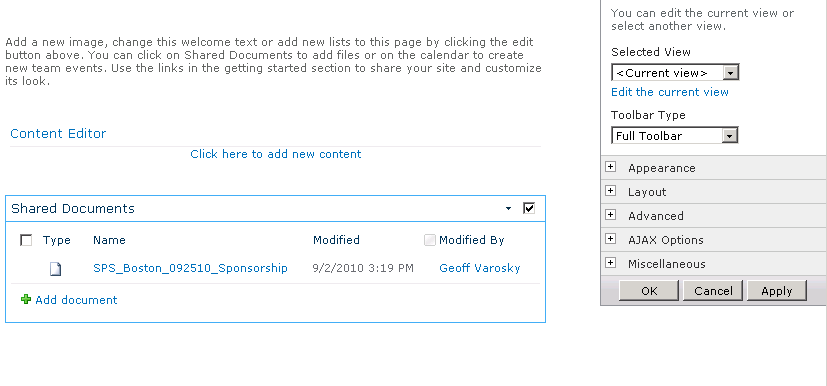
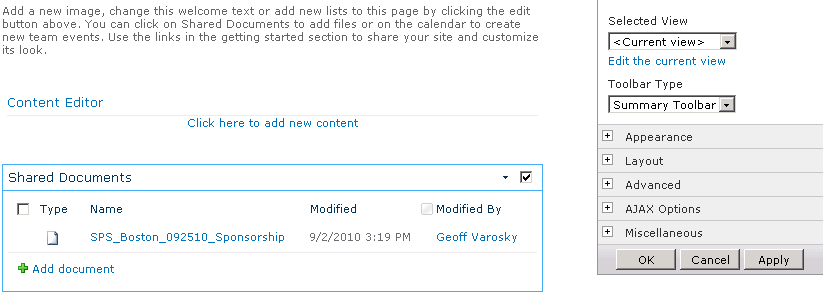
    • Just appears to give us the “Add Document” link. No toolbar being shown. Odd.
      image
  • Summary Toolbar
    • The exact same thing as the “Full Toolbar”. Odd, again.
      image
  • No Toolbar
    • Works as advertised.
      image
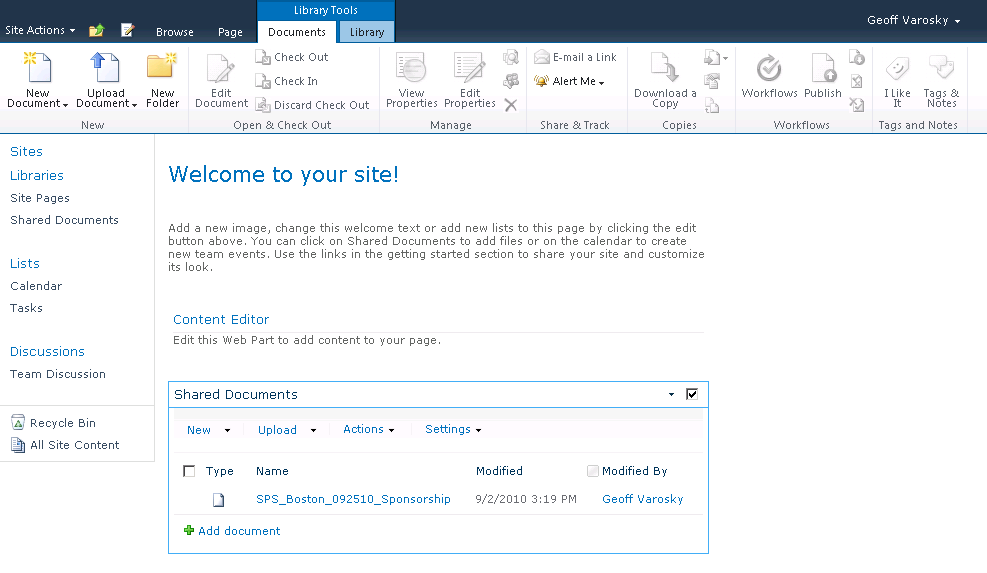
  • Show Toolbar
    • The new option on the block… This option now acts like the old “Full Toolbar” used to.
      image

My big question here is, why leave the “Full Toolbar” option, if it is now exactly the same as the Summary Toolbar? My guess would be for backwards compatibility. Also, if you hadn’t noticed – the ribbon in 2010 also takes the place of some of these options. Go ahead and click into your webpart somewhere, you’ll notice you get the contextual ribbon options for the list and list items, negating the need for the “Full Toolbar” option.

image

Hope this helps map out what these options are. I had not paid much attention to these as of yet, until it was brought up by a client recently.