WSS v3 and MOSS 2007 SP1 Support Ending April 28th, 2010

Stefan Goßner, a senior escalation engineer for SharePoint and MCMS, recently posted about this, and I needed to share this with my readers as well. His article is below, and it is a good read. If you are on SP1 for WSS and MOSS, you will need to have SP2 installed by April 28th, 2010, to maintain support from Microsoft. More information can be found in Stefan’s blog post here: http://blogs.technet.com/stefan_gossner/archive/2010/01/07/is-your-sharepoint-2007-farm-already-on-service-pack-2-if-not-read-this.aspx


CorasWorks Releases Unique ID Generator Tool for Free!

William Rogers (Co-Founder & Chief Workplace Architect of CorasWorks) posted yesterday on the CorasWorks Community Site, that they are releasing their Workplace ID tool to the community for free, without requiring the need for any additional software. Released as the Workplace ID Generator Building Block (free download with registration), can be downloaded from the CorasWorks App Store here: http://community.corasworks.net/AppsHome.aspx?CWFrameSource=FrameAppDetail.aspx?C=5%26RID=123

More information on this free download can be found in William’s blog post: http://community.corasworks.net/blogs.aspx?CWFrameSource=http://community.corasworks.net/blogs/williamsblog/archive/2010/01/05/unique-id-generator-tool-now-free-to-sharepoint-community.aspx

Ghostable vs. GhostableInLibrary – A Lesson on Custom Form Deployment in SharePoint

When provisioning files, you have the option to set files as either Ghostable, GhostableInLibrary, or, to not set that value, and keep it unghosted. All that means is can the file be cached at the web front end level, or, is it always served and built from the database. Ayman El-Hattab has a good write-up on this over at his blog here: http://www.sharepoint4arabs.com/AymanElHattab/Lists/Posts/Post.aspx?ID=97

However, what we want to know is how is the file treated during deployment for custom forms?

Let’s take for instance, you’ve created some custom list forms, and need to deploy those out to a site. Let’s call our file CustomForm1.aspx, and let’s tuck this away in a List Instance feature.

feature.xml

   1: <Feature xmlns="http://schemas.microsoft.com/sharepoint/"
   2:          Id="{6A88A1A8-69A9-4bbb-8580-3FBA31B2DF66}"
   3:          Title="GhostableVsGhostableInLibrary"
   4:          Description="Ghostable vs. GhostableInLibrary Demonstration Code"
   5:          Scope="Web"
   6:          Hidden="false"
   7:          Version="1.0.0.0"
   8:          Creator="Grace-Hunt, LLC. | www.grace-hunt.com"
   9:          >
  10:   <ElementManifests>
  11:     <ElementManifest Location="manifest.xml"/>
  12:     <ElementFile Location="CustomForm1.aspx" />
  13:   </ElementManifests>
  14: </Feature>

manifest.xml

   1: <Elements xmlns="http://schemas.microsoft.com/sharepoint/">
   2:   <ListInstance FeatureId="{9749B227-36E3-4564-96FC-E75BA895BD74}" 
   3:                 Id="e7a36212-b396-4495-aaf9-be414fbd27df" 
   4:                 TemplateType="10306" 
   5:                 Title="CustomList" 
   6:                 Url="Lists/CustomList" 
   7:                 OnQuickLaunch="TRUE" 
   8:                 Description="Ghostable Vs. GhostableInLibrary Test"/>
   9:   <Module Name="CustomForm" Url="Lists/CustomList/CustomForms">
  10:     <File Path="CustomForm1.aspx" Url="CustomForm1.aspx" Type="GhostableInLibrary"/>
  11:   </Module>
  12: </Elements>

Let’s deploy this as “GhostableInLibrary” first, and see what happens…

image

Look at that, we have a list created from a custom list definition, which is not inheriting from a Document Library, however, if we deploy the form to our list as GhostableInLibrary, we see that the list item count goes up by 1, and, if we view the list contents, there is nothing there. This is obviously not what we want to do!

Now if we re-deploy this as just Ghostable, the list item count stays the same, and we have no “ghost” item in our list, and our custom forms have been properly deployed.

manifest.xml

   1: <Elements xmlns="http://schemas.microsoft.com/sharepoint/">
   2:   <ListInstance FeatureId="{9749B227-36E3-4564-96FC-E75BA895BD74}"
   3:                 Id="e7a36212-b396-4495-aaf9-be414fbd27df"
   4:                 TemplateType="10306"
   5:                 Title="CustomList2"
   6:                 Url="Lists/CustomList2"
   7:                 OnQuickLaunch="TRUE"
   8:                 Description="Ghostable Vs. GhostableInLibrary Test"/>
   9:   <Module Name="CustomForm" Url="Lists/CustomList2/CustomForms">
  10:     <File Path="CustomForm1.aspx" Url="CustomForm1.aspx" Type="Ghostable"/>
  11:   </Module>
  12:  
  13: </Elements>

image

So, with that, I leave you with the lesson learned here – if you need to deploy custom forms to a regular SharePoint list, deploy them as Ghostable, not GhostableInLibrary, otherwise you end up with that “ghost” item in the list.


Converting new lines into line breaks in C#

As in my last post, I mentioned I am currently working on a project which involves the migration of SQL data into a SharePoint list. In doing so, I have one specific field, which maps to a multi-line rich text field in SharePoint. The data in SQL exists with line breaks, which formats nicely if placed into <pre> </pre> tags in HTML, or within a TEXTAREA element. However, I need this to work within the Rich Text field type within SharePoint, and \r\n’s are not cutting it. That field uses HTML to format the contents.

So, when pushing the items from SQL into the list, you can use the following snippet to replace new line characters [\r\n] with line breaks [<br />]

   1: SPList list = web.Lists["Messages"];
   2:  
   3: // SQL data exists within the referenced DataTable
   4: foreach (DataRow dr in dt.Rows)
   5: {
   6:     SPListItem item = list.Items.Add();
   7:     item["Message"] = dr["Message"].ToString().Replace(Environment.NewLine,"<br />");
   8:     item.Update();
   9: }


Programmatically emptying the web and site Recycle Bins

I am currently working on a project, where I am migrating data from SQL into a SharePoint list. In doing so, I need to run this console utility through its paces, so, I have the need to constantly fill and purge the list several times.

Looping through each item within the list, for several thousand items is painstakingly slow however, so, I did find this great piece of code to do the job for me, which batch deletes all of the items from the specified list: http://code.msdn.microsoft.com/SharePointListDelete

Works exactly as advertised, and will now forever sit in my SharePoint tool belt. However, this method moves those items into the Recycle Bin. So, I thought I would share this with everyone else…

To empty both the web and site recycle bins, run the following code (modified for your environment of course…)

   1: using (SPSite site = new SPSite(SPContext.Current.Site.ID))
   2: {
   3:     using (SPWeb web = site.OpenWeb("/"))
   4:     {
   5:         // empty the web recycle bin
   6:         web.RecycleBin.DeleteAll();
   7:  
   8:         // empty the site collection recycle bin
   9:         site.RecycleBin.DeleteAll();
  10:     }
  11: }


SharePoint Quick Tip – Presence Information

If you have presence enabled in your SharePoint deployment (you know, you get those little round ball icons next to names within SharePoint), if you haven’t before, try giving it a hover over with your cursor. You’ll see that you get the down arrow next to it, which you can then expand down, to show some handy tools. You can see the email of the user, schedule a meeting, view their My Site, Send an email, look up contact information in Microsoft Outlook, and view the properties of that contact in Outlook.

image

stsadm -o warmupcollection And Other Good Things…

While I am in the process of creating a new virtual machine to host the new public beta of Office SharePoint Server 2010, I thought I would share a quick tip, regarding a toolset I use frequently. If you do any development work at all, or any sort of demonstration environment, you need to be aware of Scot Hillier’s SharePoint Development Environment Modifications project on CodePlex (http://www.codeplex.com/SPDevMod).

This is a collection of extremely useful tools for Visual Studio 2005 and 2008, some great STSADM extensions, and more. One of my favorite is mentioned in the subject of the post, and does exactly what it looks like. Taking the URL of a site collection, and warming it up. Useful after app pool recycles, IIS resets, etc., when everything is slow and sluggish as the JIT compiler loads up pages and gets them ready to go.


SharePoint Nation! – Virtual User Group Meeting Featuring a Developer Panel!

[re-posted from Amanda Murphy’s blog at: http://blog.funknstyle.com/?p=604]

Join us on Tuesday, August 18th at 8pm EST as we welcome a developer panel featuring Ed Musters, Geoff Varosky, Paul Schaeflein, Paul Stork and Rebecca Isserman. These guys will be there to answer your questions as well as provide some of their own guidance on topics such as getting started with web part development and the proper implementation of user controls. This event will be hosted by Laura Rogers.

As with all previous meetings, come join us no matter where you are in the world as this meeting will be delivered virtually via Live Meeting. In order to hear audio for the event, you will need to download the Live Meeting client.

Live Meeting Address:
https://www311.livemeeting.com/cc/mvp/webJoin?id=SPN05&role=attend


SharePoint Administration Freeware Tool – Axceler PinPoint

Axceler just released a new tool which will fit nicely into the SharePoint administrator’s toolbox, that can help answer some commonly asked questions in a SharePoint environment:

  • What are my most active sites?
  • What documents/pages see the most activity?
  • What are the largest sites and items within my farm?

Axceler PinPoint provides you with answers to these common question – and best of all, it’s free. The only downside is that it needs to be run from one of the SharePoint servers within your farm, and cannot be run remotely, as it makes use of the object model to work it’s magic. A small price to pay IMHO for this information.

Freeware SharePoint Tool Download

Click here for more information and to download


Quest DropThis for SharePoint 1.0 Freeware

The folks over at Quest Software have recently released a free utility to allow you to easily integrate your Outlook 2003 or 2007 client into SharePoint via their community site – SharePoint For All.

This tool works by allowing you to upload attachments into SharePoint, and provide a link in your email to that document, helping eliminate the sending of attachments through your own, as well as your recipients’ mail servers. All directly from within Outlook.

I find this utility extremely handy for sending files to clients, and pushing the files up to their project site, as well as working with internal teams, pushing files up to my MySite.

Go here to download the software, a mini-guide, and there is also a link to their support forum to share your questions and feedback: http://sharepointforall.com/media/p/401.aspx

Usage is simple, once the add-in is configured, send an email with an attachment, and you will be prompted with the box above so you can specify the location (other than the default you have configured), click OK, and you’re off to the races.

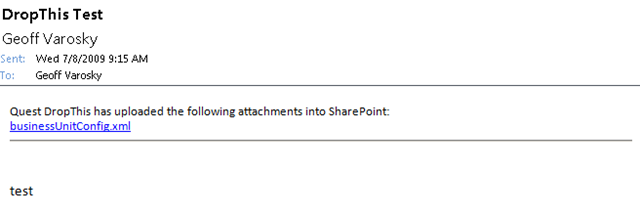
Your recipient will see an email like this, with a link to the attachment (if the first or second options are chosen)

image 

A word of note for Outlook 2007, which is not mentioned in the guide here: http://sharepointforall.com/blogs/team/archive/2009/06/23/the-official-quest-drop-this-for-sharepoint-mini-guide.aspx 

When I had installed (your mileage may vary), the utility was automatically set as disabled. You will know the utility is disabled if there is not a new Quest DropThis for SharePoint tab under Tools > Options. To change this, go into Tools > Trust Center, and click on Add-Ins. You should then see Quest DropThis for SharePoint underneath the Disabled Application Add-ins section. On the bottom of that screen, select Disabled Items from the Manage drop-down, and click Go. Find Quest DropThis for SharePoint in the list, and click Enable. Once enabled, it will then go under Inactive Application Add-ins, to now enable this add-in, select COM Add-ins from the Manage drop-down and click Go. Then, check the Quest DropThis for SharePoint option in the list, and click OK. You should now be ready to go!