AvePoint Releases FREE Tool for SharePoint Item Level Restoration from SQL and DPM Backups

AvePoint announced this at the SharePoint Technology Conference in Boston two weeks ago, and has issued a formal press release as of July 1st, 2009. They are now offering a FREE tool (DocAve SQL Restore Controller), that will allow you to perform full-fidelity item-level restore capabilities in SharePoint from SQL and DPM backups!

As with all of AvePoint’s products, this tool is available in their DocAve software suite (trial can be downloaded here: http://avepoint.com/resources/free-trial-downloads/). The trial gives you 30 days to try out the entire product suite, and after the 30 days period is up, you still have access to the DocAve SQL Restore Controller.


Executing SPQuery Queries and the U2U CAML Query Builder

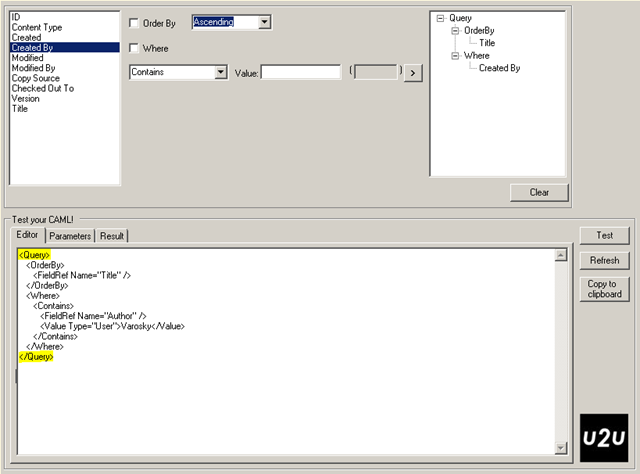
If you are querying against any list using the SPQuery method, then most likely you are using the U2U CAML Query Builder. And if you are not, why? (This is old news! It’s been around since SharePoint 2003) This utility is always one of the first installations to any of my development environments.

This utility makes your life much easier by allowing you to build and test your queries directly against SharePoint, before debugging them, through code. And you can also do it remotely via web services, so you do not have to install and run this directly from the server itself.

A newer version was released last year as well that will install directly into your farm via a feature, to allow you to build, test, and save queries all from the SharePoint UI!

However, a common issue takes place when you copy the query directly from the U2U CAML Query Builder (which works just fine in the utility itself), in that no matter what conditions you have specified for your query, you always retrieve all list items. If this is the first time you have run into this – you have no doubt done a little of the timeless developer troubleshooting method

  1. Bang head against desk
  2. Repeat

You need not worry however, this is a quick fix. The U2U CAML Query Builder inserts <Query> </Query> tags around the query itself. In your code, just drop these start and end tags from your query, and you should now be returning your expected results.

image


Current Item Properties for Comparison within the ItemUpdating Event Receiver Event

Within an event receiver, you have two hash tables available to you within SPItemEventProperties, BeforeProperties, and AfterProperties.

When working with the ItemUpdating event receiver, the AfterProperties do indeed hold the updated values of that list item. However, the BeforeProperties hash table does not hold the current item values, which can lead you to some head scratching trying to figure out how to access these for comparison purposes.

Never fear – you can still get to it through the SPItemEventProperties through:

properties.ListItem.Fields[“Field Display Name”].InternalName

So you can compare that with your AfterProperties value:

properties.AfterProperties[properties.ListItem.Fields["Field Display Name"].InternalName]

And you’re good to go.

SharePoint Quick Tip – execadmsvcjobs

A quick tip (as the title of this post states) for SharePoint, useful for both administrators and developers. Often in these roles, you are working wither within Central Administration, deploying, retracting, and removing solutions from your environment.

In doing so, you can either specify a time for these jobs to be run, then you definitely have to wait, or, you just need to wait for the SharePoint Timer Service to run these jobs for you. Or, you do have the option of firing up the command prompt, and running

stsadm -o execadmsvcjobs

That is all well and good, but, wouldn’t it be easier just to click a button? That is what this quick tip is all about. The solution? Just create a batch file to do this for you, and drop it on the quick-launch for easy access.

If you are unfamiliar with creating batch files, here is how to accomplish this.

  1. Open up notepad
  2. Paste in the following (be sure to change the path to your stsadm executable on the first line it it is not located in the same place, for example, on drive D rather than C)
  3. @SET STSADM="c:\program files\common files\microsoft shared\web server extensions\12\bin\stsadm.exe"
    @ECHO.
    @ECHO Executing Jobs...
    %STSADM% -o execadmsvcjobs
  4. Save the file as execadmsvcjobs.bat (be sure to select All Types (*.*) from the Save as type drop-down dialog, so .txt is not appended to the filename, resulting in execadmsvcjobs.bat.txt)
  5. Once saved, browse to the location where you have just saved this file, right click on it, and choose Send To > Desktop (create shortcut) from the context menu.
  6. Drag the shortcut icon into your Quick Launch bar
  7. Click on it to run!

Makes the process quick and simple. If you have other batch scripts which you run frequently, it may even be useful to have a toolbar itself setup to group these all together for easy access.


Interactive Silverlight STSADM Technical References for MOSS 2007 and WSS 3.0

Published just today on Microsoft TechNet, are two great interactive technical references for MOSS 2007 and WSS 3.0 STSADM command options. If you use the STSADM utility at all, and ever need a reference, this is an excellent option.

There are two separate versions, one limited to WSS 3.0 commands, and a second for MOSS 2007 only commands available via STSADM.

WSS 3.0: http://technet.microsoft.com/en-us/windowsserver/sharepoint/dd418924.aspx

MOSS 2007: http://technet.microsoft.com/en-us/office/sharepointserver/cc948709.aspx


SharePoint SPBasePermissions Enumeration

When I presented my session on Developing Custom Actions within SharePoint at the Boston SharePoint Saturday conference, I had mentioned a link for a listing of SPBasePermissions that is on MSDN, within the WSS 3.0 SDK, for use with the Rights attribute within the CustomAction element. This attribute defines what permissions are required for the Custom Action to be visible to users.

That link can be found here: http://msdn.microsoft.com/en-us/library/microsoft.sharepoint.spbasepermissions.aspx

For others reference, and my own personal reference, I have a copy of this listing of SPBasePermissions here.

Member Name

Description

AddAndCustomizePages

Add, change, or delete HTML pages or Web Part Pages, and edit the Web site using a Windows SharePoint Services–compatible editor.

AddDelPrivateWebParts

Add or remove personal Web Parts on a Web Part Page.

AddListItems

Add items to lists, add documents to document libraries, and add Web discussion comments.

ApplyStyleSheets

Apply a style sheet (.css file) to the Web site.

ApplyThemeAndBorder

Apply a theme or borders to the entire Web site.

ApproveItems

Approve a minor version of a list item or document.

BrowseDirectories

Enumerate files and folders in a Web site using Microsoft Office SharePoint Designer 2007 and WebDAV interfaces.

BrowseUserInfo

View information about users of the Web site.

CancelCheckout

Discard or check in a document which is checked out to another user.

CreateAlerts

Create e-mail alerts.

CreateGroups

Create a group of users that can be used anywhere within the site collection.

CreateSSCSite

Create a Web site using Self-Service Site Creation.

DeleteListItems

Delete items from a list, documents from a document library, and Web discussion comments in documents.

DeleteVersions

Delete past versions of a list item or document.

EditListItems

Edit items in lists, edit documents in document libraries, edit Web discussion comments in documents, and customize Web Part Pages in document libraries.

EditMyUserInfo

Allows a user to change his or her user information, such as adding a picture.

EmptyMask

Has no permissions on the Web site. Not available through the user interface.

EnumeratePermissions

Enumerate permissions on the Web site, list, folder, document, or list item.

FullMask

Has all permissions on the Web site. Not available through the user interface.

ManageAlerts

Manage alerts for all users of the Web site.

ManageLists

Create and delete lists, add or remove columns in a list, and add or remove public views of a list.

ManagePermissions

Create and change permission levels on the Web site and assign permissions to users and groups.

ManagePersonalViews

Create, change, and delete personal views of lists.

ManageSubwebs

Create subsites such as team sites, Meeting Workspace sites, and Document Workspace sites. 

ManageWeb

Grant the ability to perform all administration tasks for the Web site as well as manage content. Activate, deactivate, or edit properties of Web site scoped Features through the object model or through the user interface (UI). When granted on the root Web site of a site collection, activate, deactivate, or edit properties of site collection scoped Features through the object model. To browse to the Site Collection Features page and activate or deactivate site collection scoped Features through the UI, you must be a site collection administrator.

Open

Allow users to open a Web site, list, or folder to access items inside that container.

OpenItems

View the source of documents with server-side file handlers.

UpdatePersonalWebParts

Update Web Parts to display personalized information.

UseClientIntegration

Use features that launch client applications; otherwise, users must work on documents locally and upload changes. 

UseRemoteAPIs

Use SOAP, WebDAV, or Microsoft Office SharePoint Designer 2007 interfaces to access the Web site.

ViewFormPages

View forms, views, and application pages, and enumerate lists.

ViewListItems

View items in lists, documents in document libraries, and view Web discussion comments.

ViewPages

View pages in a Web site.

ViewUsageData

View reports on Web site usage.

ViewVersions

View past versions of a list item or document.


Getting the out of a SharePoint List

I was working recently on a project for a client, to build a feature that will create several list templates, content types, and instances of those lists. To do so, I used a great new utility that can be found on CodePlex, written by Jeremy Thake and Rich Finn, that will handle this for you. Better than the SharePoint Solution Generator that ships with VSeWSS (Visual Studio extensions for Windows SharePoint Services).
I used SPSource (the above mentioned program) to extract the content types, list templates, and list instances with ease, just needing a few minor tweaks, but I also had a different issue. I needed to populate those list instances with the data that currently existed within those lists. Jeremy Thake had pointed out that this could be done easily with PowerShell, but there is also another method that works easily enough, without requiring code.
To do so, go to your list which contains the data, and then go into the settings for that list, and save the list as a template, including the content.
Once you have created the list template, go to the list template library, and download the STP file that was created. Now, here is the trick, rename that file from Listname.stp to Listname.stp.cab. STP files are nothing more than cabinet files.
From: image

To: image
Once it has been renamed, open the cabinet file in your favorite compression utility, and open the Manifest.XML file that is inside it in your favorite XML editor. SharePoint Designer works great for this, as there is a quick utility to clean up the XML off of your right-click context menu to Reformat XML.
image
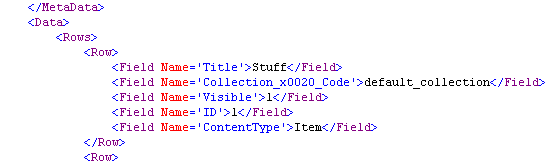
Once you have a nice clean view, do a search for <Data>, and you will then see the <Data> which you can then paste into your ListInstance element within your solution, and you have your data rows from your list, which will be added into the list when the list instance is created.
Copy everything within the <Data> element, including the <Data> tags, starting here (see below), and you should be good to go.
image
I generally trim off all of the fields that are not needed, and just keep my fields which I am using, for example, in the above, just trimming out everything but my fields. Which should generally all appear at the top of the <Row> element, as shown below.
image
All of the system fields will be generated automatically, and you do not run the risk of trying to push data into a list that is not supported, such as Created By field authors not being in the sites or farms where these are deployed to, or specifying the Attachment when the resulting list does not support them, you may receive an error on feature activation.
I am eventually planning to write a PowerShell script, or an executable to take care of this, and when I do, I will post about it here, and publish it to our CodePlex site.

Extending SharePoint Designer Workflows

Building out workflows using SharePoint Designer is a great way to create basic, and even complex workflows for SharePoint without having to know C# or VB, or ever having to open Visual Studio. Sure, there are some drawbacks, such as ease of reusability, but, this extends the power of SharePoint down to non-developers to be able to drive business processes in SharePoint.

Like SharePoint itself, SharePoint Designer built Workflows can be extended as well, to create custom actions to do more with SharePoint Designer workflows than what comes out of the box.

The main point of this post is to direct you to two great projects on CodePlex that have done just that:

Both of these projects fill some of the voids with SharePoint Designer workflow actions, such as the ability to send emails with file attachments or list item attachments, start another workflow.


Programmatically Disabling or Enabling Site Search Visibility

The following code snippets are from a web part I built for a client, to assist them with generating new sites. There were new sites being created a few times a day, that all needed to follow similar configurations, but, were all based on the blank site template. Security and other things needed to be modified easily from a single, central interface, which only Site Collection Administrators could access. Each site had to follow several different business rules, and almost every one needed to apply a different set of these, so thus, the web part was created to handle this, as creating site definitions for every possible outcome of the business rules, would have required a new site definition for almost every one of the hundreds of sites that were being created.

One of the thing they needed to be able to manage from their initial configuration, is to be able to allow or not allow search visibility into that site.

The following code snippet will allow you to do just that. (web below is a reference to the specific SPWeb object). Some definition, as well as links to the WSS 3.0 SDK are below the code snippet.

   1: web.AllowAutomaticASPXPageIndexing = true;
   2: web.ASPXPageIndexMode =WebASPXPageIndexMode.Always;
   3: web.NoCrawl = false;
   4: web.Update(); 

By setting AllowAutomaticASPXPageIndexing to true, this will allow indexing of the ASPX pages within the site by the search crawler.

ASPXPageIndexMode specifies the type of page indexing that will occur. Check this reference in the WSS 3.0 SDK which specifies all values possible for WebASPXPageIndexMode. By setting this to Always, ASPX page indexing is always enabled.

Setting SPWeb.NoCrawl, if set to false, will allow crawling of the site.

Now, using the combination of the three above, this will allow indexing of everything, including the ASPX pages within the site to be crawled. If you wanted to crawl everything else within the site, however, did not want to crawl the ASPX pages themselves, you would use the following:

   1: web.AllowAutomaticASPXPageIndexing = false;
   2: web.ASPXPageIndexMode =WebASPXPageIndexMode.Never;
   3: web.NoCrawl = false;
   4: web.Update(); 


Web Part Gallery Permissions – Something to think about…

A common configuration for my clients is to have an external facing site collection, which aggregates project sites for their vendors and customers that they interact with to collaborate on projects, for example: https://partners.company.com. Where each of the sub-sites below the top level site have specific permissions configured to only allow the external users related to a particular project only into those sites, so those users have no idea what other clients, vendors, etc., you are managing sites for.

There are some sites which are extremely customized from a basic project style template, and/or site definition, and for those sites, there may be quite a few sub-sites. In those cases, it usually makes sense to put reusable web parts into the web part gallery for that site collection, to make them easy to access.

For instance, a Content Query Web Part which displays data out from a source list with data that is relevant to all of those sites, or filtered to display some of the content out to different sites. Instead of rebuilding, or exporting/importing the web part each time, dropping it into the web part gallery makes access to it easy.

If you then give control to the external users of that site to add web parts to that site, they can then see those web parts, and even add them to their pages when attempting to add web parts to their sites. If you have these web parts grouped or named based on the client/partner/vendor/project, they will be able to see those names. Unless they have access however, they will not be able to view the content from those sites if the web part is pulling any data from them, thanks to security trimming.

So, if you are using those sorts of naming and grouping conventions with the web part gallery under this type of scenario, you may want to modify the permissions of those web parts in the gallery to only users who should be seeing them.

This can be done by going to the Web Part Gallery at the Site Collection Level, selecting the edit link of the web part, and clicking on the Manage Permissions link within the toolbar at the top of the edit page:

image

From there, select Edit Permissions from the Actions menu

image

And you can then add/remove permissions as needed, thus allowing you to limit exposure of clients/partners/vendors to those sites that should be seeing them.