SharePoint List Type IDs

On twitter today, someone was looking for list type IDs, and this also comes in line with my session I am presenting at SharePoint Saturday in Boston this weekend (Introduction to Developing Custom Actions within SharePoint), so, I thought I would make a quick post about it, and also for my own reference as well. So, without further ado – here is the list of all of the internal SharePoint list identifiers for WSS 3.0. And, feel free to follow me on twitter – @gvaro


  List Id

List Description

100

Generic list

101

Document library

102

Survey

103

Links list

104

Announcements list

105

Contacts list

106

Events list

107

Tasks list

108

Discussion board

109

Picture library

110

Data sources

111

Site template gallery

112

User Information list

113

Web Part gallery

114

List template gallery

115

XML Form library

116

Master pages gallery

117

No-Code Workflows

118

Custom Workflow Process

119

Wiki Page library

120

Custom grid for a list

130

Data Connection library

140

Workflow History

150

Gantt Tasks list

200

Meeting Series list

201

Meeting Agenda list

202

Meeting Attendees list

204

Meeting Decisions list

207

Meeting Objectives list

210

Meeting text box

211

Meeting Things To Bring list

212

Meeting Workspace Pages list

301

Blog Posts list

302

Blog Comments list

303

Blog Categories list

1100

Issue tracking


Restoring SharePoint 2003 Document Library Items from a SQL Backup

I get asked this question almost weekly – “Is there any way to restore files from a SharePoint 2003 document library from a SQL backup?”

So – I thought I would make a post about it. Indeed there is – released by James Edelen several years ago – available from here: http://www.mindsharpblogs.com/james/archive/2005/01/20/189.aspx (I also have copies in my Live Drive – links below, in case these ever go away, as they have in the past).

There are two utilities here, SharePoint Database Explorer and SPExport. SharePoint Database Explorer will allow you explore a SharePoint farm hierarchy directly from the SQL database, and SPExport will allow you to export documents from a document library from a SQL database directly, to a locally accessible resource (computer, network fileshare, etc.)

Local copies of the utilities:
SPExport Binaries
SPExport Source
SharePoint Database Explorer Binaries
SharePoint Database Explorer Source


February “Uber” Cumulative Updates Packages Released for WSS 3.0 and MOSS 2007

Following my earlier post regarding the February Cumulative updates for WSS 3.0 and MOSS 2007, the referenced “Uber” packages have finally been released. These are the ones that should be installed, rather than the 2/25 release packages.

http://blogs.msdn.com/joerg_sinemus/archive/2009/03/09/february-cumulative-update-uber-package-for-wss-and-moss.aspx


February Cumulative Update Packages Released for WSS v3 and MOSS 2007

Yesterday, Microsoft released the February Cumulative Updates for WSSv3 and MOSS 2007. More information, as well as links to obtaining the hotfix packages can be found here: http://blogs.msdn.com/joerg_sinemus/archive/2009/02/25/february-cumulative-update-for-wss-v3-and-moss-2007.aspx

WAIT WAIT WAIT!!! BEFORE YOU GO INSTALLING…. [UPDATE 2.27.09]

The Microsoft SharePoint Team posted a note regarding these updates, there is apparently an "uber" (as they put it) February Cumulative Update coming out within the next few weeks. You can read the note they posted for yourself here – http://blogs.msdn.com/sharepoint/archive/2009/02/26/is-it-time-to-apply-feburary-cumulative-update.aspx – basically stating to wait…


Taking SharePoint Offline – What are the Options?

The UK SharePoint Consulting Services team posted some great information to their blog last week regarding options for taking SharePoint offline with Microsoft Office products – it’s a good read with good details on options for working with content when you are not connected to your SharePoint environment.

http://blogs.msdn.com/uksharepoint/archive/2009/02/19/taking-sharepoint-files-offline-what-product-s-should-you-use.aspx


How to Properly Remove a Web Part from a Web Part Page

A common observation I make when working with clients is how web parts are removed from a page, and more importantly, how they are improperly removed from the page.

First, I’ll explain the improper ways, then get into why these are bad practices, and then how to properly remove web parts from a web part page.

Improper Method #1 – “Close”
There are usually two ways I see this take place, the first being the Close option off of the Web Part menu, available when the page is not in edit mode (and the user has proper permissions of course!), as well as when the page is in edit mode.
image 

Improper Method #2 – The “X”
The second improper method is the X link that appears in the upper-right hand corner of the web part when the page is in edit mode.
image 

Why These Are Bad Practices…
While I do not blame anyone for using this method, as we have all come to understand that most of the time, clicking on the X or going to File > Close within a regular application will close out the program, SharePoint adds a different meaning to these. As I mentioned in the prior sentence – I said most of the time, meaning that SharePoint treats these actions similar to, say, Windows Live Messenger. When you click the X in the top-right corner of the screen (of your contact list), it minimizes the application to the system tray, so it is still running and taking up system resources, you no longer see the window on your screen.

The X and Close options for SharePoint web parts behave in much the same fashion. When either of those options are used, the web part is indeed closed, and removed from your view, however, just like with Windows Live Messenger, it just removes it from view, however, each time the page is loaded, that web part is still loaded onto the page, however, it is not viewable, thus, taking up resources to render the web part, as well as adding addition download time to that page.

While it is not immediately apparent how to remove those for good, or show them back again on the page, there are ways to do so.

Viewing Web Parts Which Have Been Closed
To view which web parts have been closed on a page, we’ll utilize a an application page called Web Part Page Maintenance page. This page is not accessible from the Site Settings page or anywhere else in the UI by default, however it is surfaced if a web part on a specific page has an error, and a link is then given on the resulting error message. However, you can easily get to this page by appending the following to the current ASPX page you are on.

Say for example, you are on a team site default.aspx page, so you would have a URL like the following in your address bar:

image

By appending ?contents=1 to default.aspx, you can access the Web Part Page Maintenance page, like so:

image

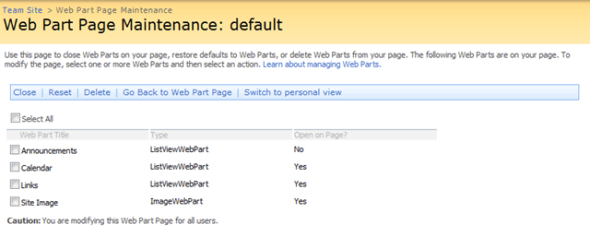
You will then see a page like this:

image

In this list you can see each of the web parts that are on the page, the type of web part that they are, and most importantly (for this post), the last column, which shows you if the web part is open on the page or not.

If you use the two "improper” methods described above, this field will list the value of “No”.

This screen is also very handy for removing any closed web parts (or any others for that matter). To do so, check the box next to the web parts that are to be removed, and then click the Delete option within the toolbar above.

image

How to Properly Delete a Web Part from a Web Part Page
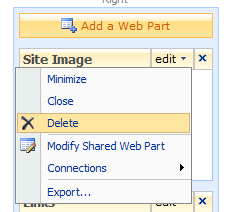
Now that we’ve outlined the issues, and how to recover from them. In addition to the ability to delete web parts from the web part page by using the Web Part Page Maintenance page as described above, the easiest way to properly remove a web part from the page is to put the page into edit mode (Site Actions > Edit Page), using the web part menu, and selecting Delete
image 

This will remove the web part from the page for good.

Conclusion
While a few minor web parts, such as a lightweight Content Editor Web Part, and the default Image Web Part (created by default for Team and Blank site templates) will not be a huge performance hit, and will be barely noticeable, if at all. The real issue lies with large list views, data view web parts that roll-up information, or other web parts which can be memory and CPU intensive to run, such as a third party list roll-up web part that queries hundreds, or even thousands if lists. If these web parts are not removed from the page, and you have a few of them closed on there, the performance of that web part page, possibly the server itself will be affected.

 

Microsoft Releases Documentation on Moving Databases for SharePoint

On February 2nd, Microsoft released procedures documenting moving all SharePoint related databases from one server to another, covering both moving to a database server with the same name, as well as moving to a database server with a different name.

See the following link for more information and to download the documentation: http://www.microsoft.com/downloads/details.aspx?FamilyID=65686896-c171-46a8-a95f-54f43ad79952&displaylang=en


Tracing Service lost trace events

If you are receiving this error within the ULS logs in SharePoint 2007 (x:\Program Files\Common Files\Microsoft Shared\web server extensions\12\LOGS\), and the error is as follows:

Tracing Service lost trace events.  Current value n.

(Where n is a numeric value) – the best course of action to take to remedy this is to restart the Windows SharePoint Services Tracing service within the services console on your Windows server.

Usually if you are seeing this error in the ULS logs, you are most likely not seeing any other log entries at all. The ULS logging service is basically just posting a message to the logs saying that it is having issues hooking up with the service that SharePoint speaks to.

This is a short post, however, it should get you back on track. As I research this issue further, I will update this blog entry with possible causes and additional solutions for resolving this issue. This is definitely not the first time I have run into the issue, but, I wanted to at least make a quick posting about it to share the “quick fix” for now.


Fixing PNG Transparency Issues for Internet Explorer (SharePoint Edition!)

Portable Network Graphic (PNG) files have an issue when rendered in IE 5.5 up through version 6, have an issue with displaying transparency, and renders the transparency in gray.

Microsoft has a KB article regarding the issue here: http://support.microsoft.com/kb/294714however, this requires you to enclose the PNG within a DIV, and you would need to do this for each one… there are more elegant and efficient ways to accomplish this.

While this is not a SharePoint specific issue, my world centers around SharePoint solutions, and I run into this often. The best resource for this fix out there is located here: http://homepage.ntlworld.com/bobosola/index.htm

There are numerous ways to get this into SharePoint, to name a few…

  • Create a Content Editor Web Part, either link to pngfix.js or place the code within the web part on the page which contains one or many PNG files with transparency.

Download here:
http://cid-b06529fd3fc75473.skydrive.live.com/embedrow.aspx/SharePoint/Internet|_Explorer|_PNG|_Transparency|_Fix|_Web|_Part.dwp

  • Link to the pngfix.js, or just put the contents of the JavaScript file within a master page (which is what we’ve done at our website – www.grace-hunt.com) which can be seen if you view the source of any page within our website
    image

Microsoft Business Intelligence Strategy Update

On Friday, the Microsoft SharePoint Product Group announced on their blog, that PerformancePoint Server is being rolled into MOSS 2007 licensing, further integrating Microsoft’s BI products into Microsoft Office SharePoint Server.

From the post: “Microsoft is removing the barriers for customers who want to deploy a complete Business Intelligence solution, leveraging their existing investments in SharePoint Server, SQL Server, and Excel. Customers with SharePoint ECAL SA will have rights to deploy PerformancePoint Server today. PerformancePoint’s scorecard capabilities are certified by the Balanced Scorecard Institute/Palladium, building on the capabilities first introduced in Business Scorecard Manager. This means companies can implement their scorecards, following any methodology they choose, and accurately reflect this with their company strategy. The contextual dashboards allow organizations to create data-rich views that are interactive and change based on the users context. Organizations can create rich views that combine Excel, Excel Services, SharePoint Lists, Reporting Services, Analysis Services, and relational information to accurately reflect the business, measure the right information, and quickly understand changes in real-time.”

This is exciting news for Business Intelligence and SharePoint. For more information, check out the post here: http://blogs.msdn.com/sharepoint/archive/2009/01/23/microsoft-business-intelligence-strategy-update-and-sharepoint.aspx