Links to .NET Framework 2.0 Software Development Kit Downloads

I am always searching these out for myself, finding myself running a search each time I need to grab it (most of the time for GACUTIL). I know lots of people who are always running a search for them as well, so, I thought I’d share, for both x86 and x64 platforms, the shortened links are below.


Hiding the Search Scopes Drop-Down in WSSv3/MOSS 2007

In WSS v3 and MOSS 2007, you may be inclined to hide the search scopes drop-down control from a specific page. This article will tell you how to do just that. While this may translate to 2010, I have not tried it as of this point.

What is this ‘Search Scopes’ control you speak of?
The Search Scopes drop-down control you will find to the left of the search box in SharePoint by default. If you are running WSS, or have this on a team site, you will generally see this populated, depending on your location, with the default for that page. Such as here, from the main page of this blank site template, it defaults to the “scope” of the site This Site: My Company (below).

image

If you drill down into a list, you will see this change, it is contextual in WSS, so it will by default, from a list page, default to the “scope” of just the list, as the example shows below, This List: My Generic List

image

But since that list is contained within the My Company site, you will see, you can drop the search box down to search not only the list, but also the site as well.

image

I don’t think I need to mention that depending on the scope you select, your search will execute against that search scope.

In MOSS 2007, or using Search Server Express on top of WSS, you will see your search scopes include whatever scopes have been defined at the Shared Service Provider level, in addition to the contextual WSS searches (This Site, This List), as shown below. The All Sites and  People searches are two default scopes in MOSS 2007 search.

image 

Those scopes are configurable within the Shared Service Provider, and will only search on whatever content was configured for those scopes, so we will not get into all those possibilities, we’re just talking about hiding some part of the page here.

Ok, now that you’ve enlightened me on this “Search Scopes” control, how do I hide it?
Well, I am glad you asked, seeing as that is the point of the entire article! To hide it, we need to locate the control, and then toggle its visibility. First, lets view the page source, and see if we can find it. We know that the drop-down box contains the text This Site: My Company, so, lets search for that.

image

Now that we have located it, lets move back a bit from that control, and see if we can find the ID of the select box, or the ID of the cell in which it is contained, so we can hide it with just CSS.

NOTE: I know what some of you are thinking “Use Firebug!”, and “Use the IE Developer Toolbar!”. I know these are options people, but, I’m going for simple here. Lots of people have notepad, and lots of people know how to use that.

The following code contains the select control, as well as the surrounding table cell.

   1: <td class="ms-sbscopes ms-sbcell">
   2:     <select name="ctl00$PlaceHolderSearchArea$ctl01$SBScopesDDL" 
   3:         id="ctl00_PlaceHolderSearchArea_ctl01_SBScopesDDL" 
   4:         title="Search Scope" 
   5:         class="ms-sbscopes">
   6:             <option selected="selected" value="This List">This List: My Generic List</option>
   7:             <option value="This Site">This Site: My Company</option>
   8:     </select>
   9: </td>

If we look at this, the ID contains some dynamically generated stuff (ct100$blahblahblah$ct101), as does the name. Both are generated dynamically, so we should ignore those. We need something a bit more solid to land on, that is not going to change. That basically leaves us with the titles, as well as the classes of the search scopes drop-down box.

NOTE: Granted – when looking at a sampling of team sites on multiple local development images that I have, the control is the same within the code. However, I am going with something a bit more stable, the default styles that are attached to the TD surrounding the SELECT drop-down control.

I’m personally going to aim for the table cell (TD) which surrounds the select control, and hide that away. Your mileage may vary, you may want to go after the select control itself, and leave the table cell there.

So, with the table cell, we have no ID, we have no title, just the two classes, ms-sbscopes and ms-sbcell. How do we find the table cell with that? Magic? Voodoo? Increased taxes to the IRS? No, my dear friends, JavaScript. The frustrating client side scripting language of those who practice the martial art of SharePoint-fu.

Unfortunately I do not have the source readily available from where I found this code, it was quite a while ago when it found its way from the interwebs into my javascript toolkit, but, this is the code to get it done.

   1: <script type="text/javascript">
   2: document.getElementsByClassName = function(){
   3:     if(document.hasChildNodes && arguments[0]){
   4:         var data = new Array();
   5:         for(a=0;a<document.getElementsByTagName("*").length;a++){
   6:             if(document.getElementsByTagName("*")[a].className == arguments[0]){
   7:                 data.push(document.getElementsByTagName("*")[a]);
   8:             }
   9:         }
  10:         return data;
  11:     }
  12: }
  13: document.getElementsByClassName("ms-sbscopes ms-sbcell")[0].style.display = "none";
  14: </script>
  15:  

What this does is locates the element, in this case, the TD, by it class names, and then allows us to work with it, in this case, setting the display style to “none”, hiding it, but not deleting it from the page (see below), so when a search is executed, the default selected search scope is used to fire off the search.

document.getElementsByClassName("ms-sbscopes ms-sbcell")[0].style.display = "none";

How do you use this? Well, you can drop it into a Content Editor Web Part, into the Master Page, etc. Once done, the search scopes drop-down should disappear from sight.


Boston Area SharePoint Users Group – June 9th 2010 Meeting Update

BASPUG_195square_initials

Unfortunately, Craig Pilkenton was called out of town for a long term client engagement, and will be unable to present at our June 9th meeting on PowerShell. In an effort to keep our meeting at the administration level – we will be welcoming in Ryan Sockalosky, a SharePoint Technology Specialist from Microsoft to present "SharePoint 2010 Service Applications – A New Shared Services Architecture".

Session Abstract
SharePoint 2010 introduces a new services architecture that represent a major change in architecture and design considerations as well as enhanced capabilities scalability, and extensibility over the Shared Service Provider (SSP) of MOSS 2007. This session will provide an overview of the services architecture, the services shipped with the product, how to manage and administer the services, topology considerations as well as considerations for extending service applications.

About Ryan
Ryan Sockalosky works at Microsoft as a SharePoint Technology Specialist. He works with customers to explore how the SharePoint platform can be used to achieve  business and technology needs. Prior to joining Microsoft, Ryan worked as a consultant for PricewaterhouseCoopers for over 10 years building repeatable client solutions on the Microsoft platform in areas such as finance, tax, cost reduction, M&A and mutual fund accounting across multiple industries. His role included national leadership for SharePoint strategy planning, system architecture, and solution design.

For more information, and to register, please visit http://www.bostonsharepointug.org/

Please help spread the word on twitter, blogs, and by any other medium! Follow us on twitter at @BASPUG, and by twitter hashtag #BASPUG. Join our LinkedIn group here: http://www.linkedin.com/groups?gid=2878468


SharePoint Designer 2007 Error: The folder ‘http://servername’ isn’t accessible. The folder may be located in an unavailable location, protected with a password, or the filename contains a / or \.

Untitled

Wow. What a great error message! Ok, so we get the fact that it is not accessible, since we cannot get to it. This wild goose chase has had me running in circles for a while now. I checked everything. EVERYTHING! Web application policies, permissions, client integration settings, files in the SharePoint root, web.config settings, site definition configurations, group policy settings, and on and on and on… nothing. Every reference I could find of this error either had to do with Forms Based Authentication, and other miscellaneous issues.

Finally, I decided to check the hosts file, located in c:\Windows\system32\drivers\etc\. And there lied the resolution to this issue. Hosts file entries for the server name. When this server was initially being built, in order to get going on a few things, entries were added into the hosts file to masquerade as the future DNS names for the server. However, this was also the cause of the issue. By removing those entries, I could now open the site with SharePoint Designer 2007.

Reason for the post? A glimmer of hope for someone who comes across the same issue in the future.


SharePoint 2010 SDKs Released Today

image Saw the news first from Rob Foster of the SharePoint Pod Show, as of today, May 20th, 2010, the SharePoint Server and SharePoint Foundation 2010 SDK has officially been released from Microsoft.

Go get it here: http://www.microsoft.com/downloads/details.aspx?displaylang=en&FamilyID=f0c9daf3-4c54-45ed-9bde-7b4d83a8f26f


SharePoint Saturday DC 2010 Recap and Session Materials

What a weekend! With over 900 attendees (929 I think was the number), over 90 speakers, and over 30 sponsors – this was the largest event of its kind ever held, and it went extremely smooth, thanks to the efforts of Dux Raymond Sy, Dan Usher, Gino Degregori, Jennifer Davis, and all of the volunteers who helped keep it together. To grasp the size of this event, most SharePoint Saturday events average between 50 and 250 attendees. Great work everyone!

It was a dark, and stormy mid-afternoon. From the skies bellowed large hail, winds, and torrential rains. Luckily, we missed that by about an hour. Landed at IAD shortly after 5, grabbed my rental car, and headed with some co-workers to the hotel in Falls Church, with a quick last minute stop at Staples for some supplies for our booth (poster-board does not pack well…). We dropped off our stuff at the hotel, and headed to the Speaker + Sponsor dinner. It was an amazing site, that I did not expect to see at a SharePoint Saturday Event, lots of familiar faces, some of which I had not seen since the 2009 SharePoint Conference, and some of which I had yet to meet, and a LOT of old friends. Had some great conversations, food, and drinks, and then headed back to our hotel with a good percentage of the crowd.

The event itself was mind-boggling. The lines flowed smoothly for the close to 1000 people that were there, people were able to get in and register quickly. I in the meantime helped setup the Grace-Hunt booth, donned my “booth babe” shirt from the Women in SharePoint, and headed into the theater for the keynote. Dux and Marcy Kellar did a great job with their opening song, and we had a virtual keynote from Arpan Shah, the Director of the Microsoft SharePoint Product team.

After the keynote, as you might guess, the sessions started. And lots of them. There were about (100) 75 minute sessions happening throughout two buildings. My session kicked off at 2:30 – “From SharePoint Designer to Visual Studio – Prototyping and Deploying Solutions in SharePoint 2010”, and I think it went rather well if I do say so myself 🙂 Thanks to Brian Jackett for fielding a couple of questions from the audience as well, and donating his presentation mouse for the session. I always lose mine, but luckily found it later on. Thanks Brian!

KLO_3999 by kennethlo.Thank you to all of the (50, exactly) attendees that came to my session, it was a good one. This was the first time delivering that particular session, and I would LOVE any feedback you could offer. You were a fun crowd, at least, you laughed at my jokes (checks are in the mail, I PROMISE!).

Credit for the photo on the right goes to Ken Lo – he dropped into my session, so I had to do a little posing for the camera…. 🙂

I even got a cameo on Christian Buckley’s slide deck, as well as managed to help confuse Mark Rackley’s attendees for a bit. Fun!

The entire day I spent much of the time meeting existing and potential clients, new faces, friends, and catching up with old ones. By the end of the day, my dogs were barking something fierce, but, luckily Rackspace had the solution – free drinks at SharePint over at Greavys.

The night ended chatting with old and few friends, and was the perfect end to a great event.

So, without further ado – below is my deck from the event. I cannot wait for the next one!


Registration Open for Boston Area SharePoint User Group (BASPUG) on June 9th, 2010

BASPUG_whitebg 

Registration is now open for the meeting of the Boston Area SharePoint User Group (BASPUG) taking place on June 9, 2010, at the Microsoft NERD Center in Cambridge, MA, from 6-8PM.

We will have Craig Pilkenton, a Senior SharePoint Consultant with EMC, presenting “SharePoint 2010 Administration with Windows PowerShell”.

Food will be provided for free for the BASPUG from AvePoint.

For raffles this meeting, Black Blade Associates will be raffling off a license for their SharePoint Zip product. Lightning Tools will be raffling off 2 licenses for BCS Meta Man. We will also be raffling off one free 2009 SharePoint Conference content pass, as well as X-Box Games, Books, Shirts, and more!

For more information, and to register, please visit http://www.bostonsharepointug.org/

Please help spread the word on twitter, blogs, and by any other medium! Follow us on twitter at @BASPUG, and by twitter hashtag #BASPUG. Join our LinkedIn group here: http://www.linkedin.com/groups?gid=2878468 

We hope to see you there!

Importing Lists and Content Types into Visual Studio 2010 from Site Templates for Packaging in SharePoint 2010 Solutions

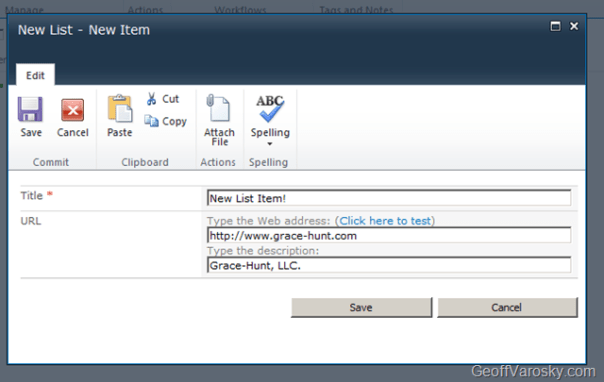
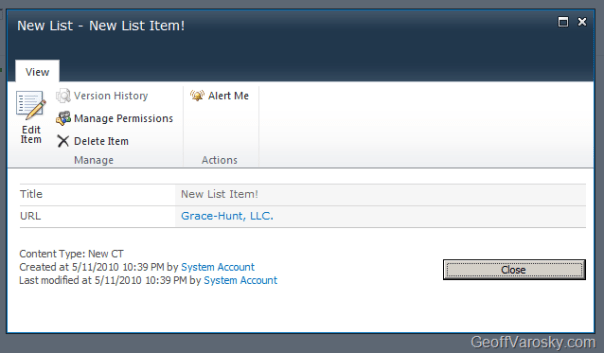
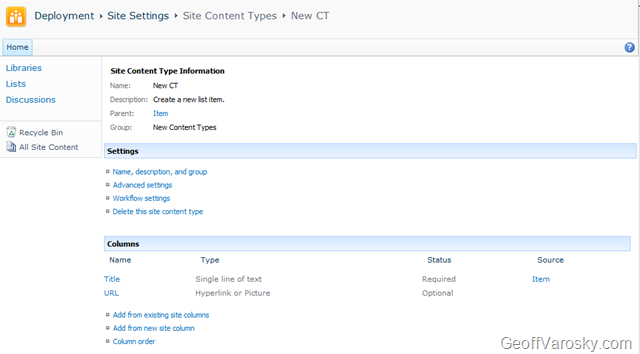
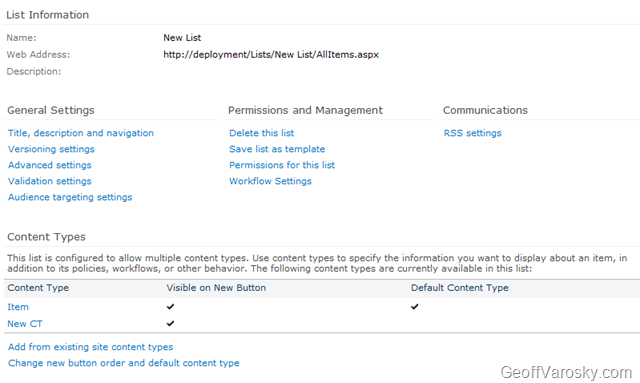
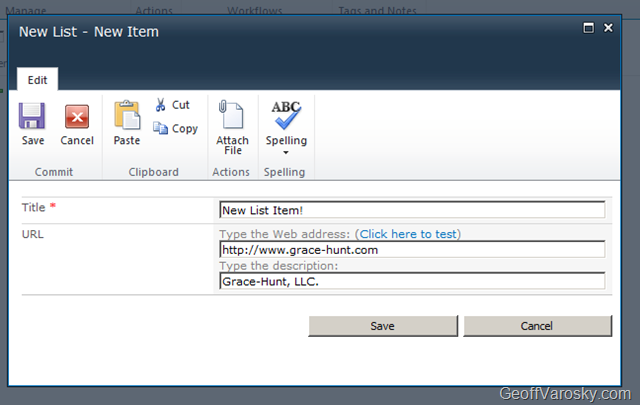
So, here is the scenario – we’ve prototyped out a content type, named New CT, added a few default columns into it (Title and URL), and attached that content type to a list named New List. Now, we need to package this up in a SharePoint Solution Package (WSP) in Visual Studio, so we can re-deploy it elsewhere.

Here is how you can go about doing this…

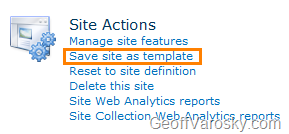
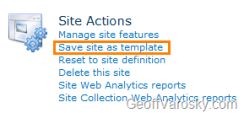
First, let us save this off as a template, but going to Site Actions > Site Settings > Site Actions > Save site as template
image

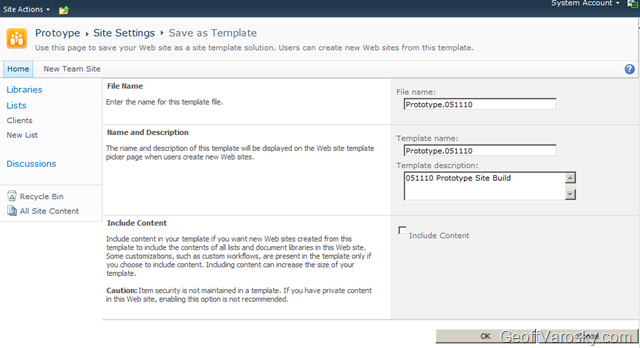
Let us also input a little information – I always like to include the date, either in the template name (useful for when it is outside of SharePoint on the file system somewhere!), the file name, and the description.
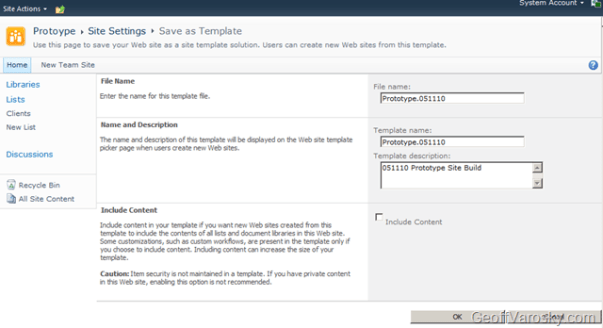
image

Once we have done so, click OK. Let it process… and then once it is completed, it will tell us that the site template has been saved into the site Solution Gallery.

image

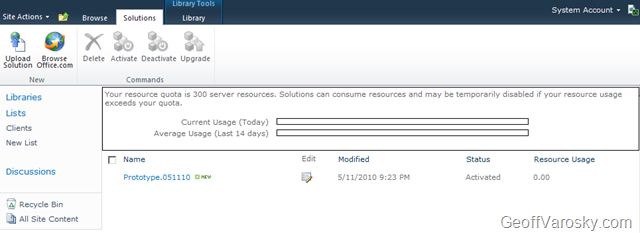
Click on that link to go directly there, or, go there via Site Actions > Site Settings > Galleries > Solutions

image

Once in there, you will see your site template. A big difference from how this was in 2007 however, is the fact that this is a WSP file. Click it, and save it locally.
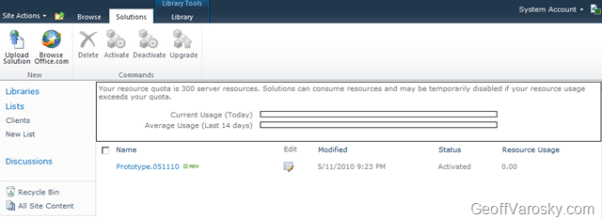
image

Now, keep track of where you saved it. We’ll need this in a moment… now, go ahead and launch Visual Studio 2010, and start a new project.

Under your preferred language of choice (C# for me), under the SharePoint node, select the 2010 node, and then in the project section, select Import SharePoint Solution Package as the project type. Give the project and a solution a name below, and then press OK.
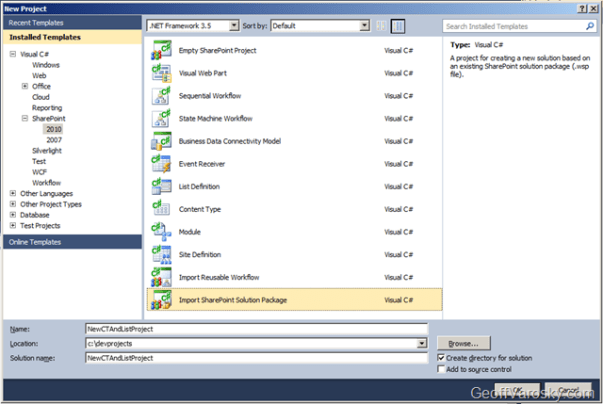
image

Once you do so, you will have to select a site in which you would like to debug against (also used for deploying and retracting solutions), and then we can select whether we want to either deploy this as a sandboxed solution, or, if we want to deploy it as a farm solution. In this example, I will be selecting a Sandboxed Solution. Lists, Site Columns, and Content Types are supported as Sandboxed solutions, so this should not be an issue. You can also choose to deploy this as a farm solution if you wish (if you’re going to be deploying code to the GAC, pushing to the Web Application, etc.), I am just showing one of the possible options here.
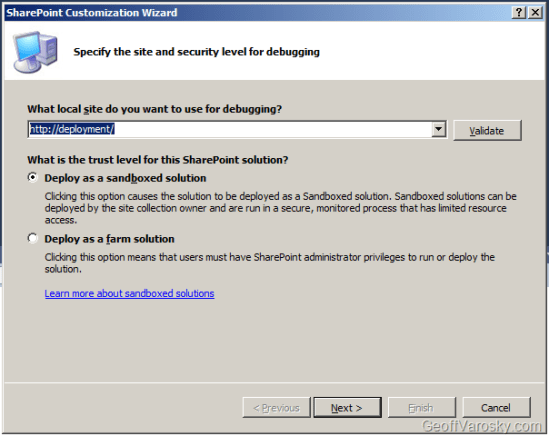
image

Next, you will be asked the important question – where is the location of the WSP file, your site template, which we had previously saved out? Find that, select it, and then click Next
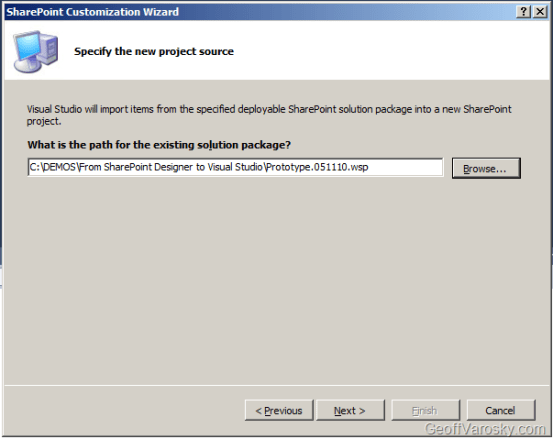
image

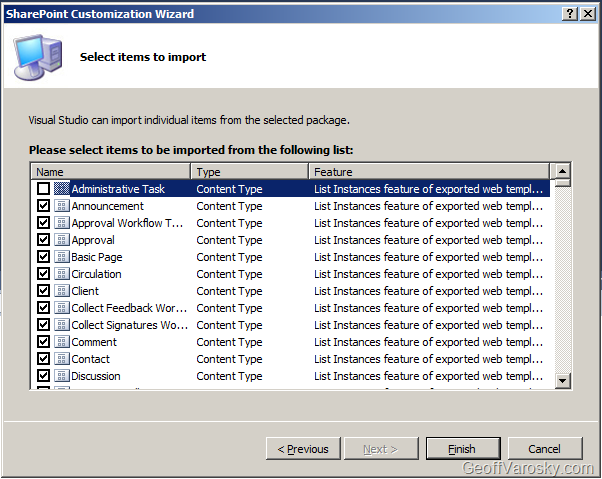
I may not have been 100% truthful on the last sentence… this next question is our most important question. What do we want to include, out of ALL of the SharePoint artifacts that are in that solution file, into Visual Studio? Lets have a look. First, you will want to select the first one you see in the window by clicking on it, both the checkbox, and the item itself so it is highlighted as shown… going to show you a neat little trick!

image

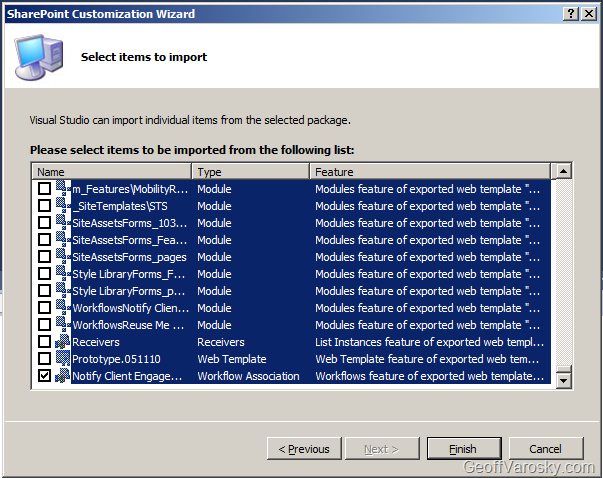
imageNow, scroll ALL the way to the bottom of the list, and select that, using your shift + click combination, and PRESTO! Everything has been unselected, except for the last item, which is just a simple click. This saves you a LOT of un-checking of checkboxes. Since we don’t need all of that stuff, just the artifacts pertaining to our list and content type. If you don’t have kids that watch TV, then the image to the right of this text may not make any sense to you. If that is the case, then don’t worry about it. But that is D.J. Lance Rock from Yo Gabba Gabba. Yeah, they have a segment with Biz Markie, and once had Mixmaster Mike on to show his cool trick – scratching. Awesome right? Well Lance, this was my cool trick, I doubt however, this will ever make it to a kids show. Anyways, back to our artifact selection! Also, a CTRL+A, and a click will do the same thing.

image

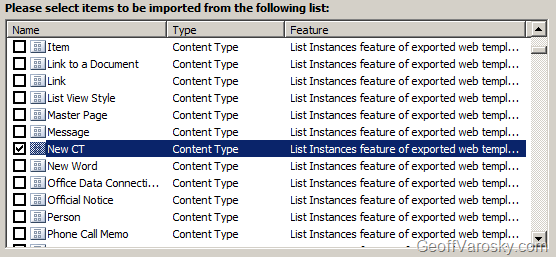
You’ll see that the listing is sorted by default using the Type column, and then by the Name column. This is handy for locating what we want. So – what we do want? Let’s start from the top, and work our way down. We need our New CT content type…
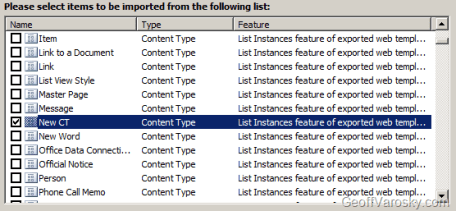
image

I am not going to bother with the built-in site columns. In the case(s) where we will be deploying this solution out, those built-in columns will be there, so we’ll skip those field elements. However, if we created our own site columns, we would want to select those fields here.

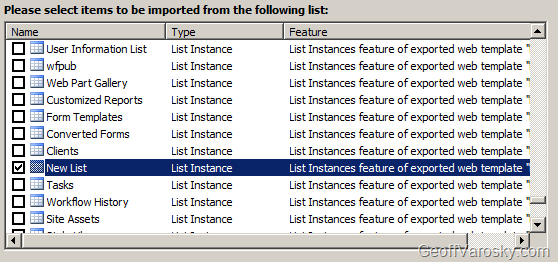
We’ll want to also select our New List List Instance

image

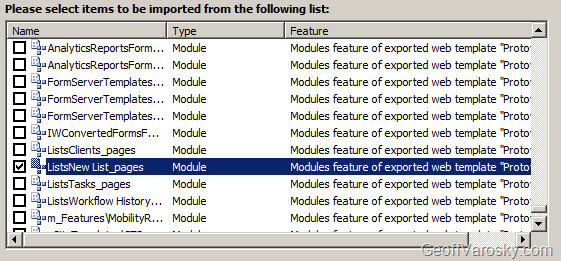
And last but not least, our ListsNew List_pages module, as we definitely want to have our default NewForm, EditForm, and DisplayForm pages included with our solution! Otherwise, these pages will NOT deploy, and you’ll have to re-do these steps!

image

So we should have 3 artifacts selected overall. Our New CT content type, our New List list instance, as well as our ListsNew List_pages module. Once we have that done, click on Finish.

You’ll get a message like this…

image

It’s really hoping we need these, but, I am not going to include them. I know where this solution is deployed, these will already be there. Plus, I do not want to overwrite any modifications to any existing columns or content types where this is deployed to. So, I am going to play it safe, and choose No. Your mileage may vary.

If all goes well, we should get a success message

image

You can also see more detail of the import process in the output window in VS…

   1: Importing the SharePoint solution (.WSP)...
   2: Importing Feature: List Instances feature of exported web template "Protoype"...
   3: A new feature Feature1 has been added to the project NewCTAndListProject
   4: c:\devprojects\NewCTAndListProject\NewCTAndListProject\Package\Package.package (0,0): Added Feature1 to Package
   5: Importing List Instance: New List...
   6: Importing Content Type: New CT...
   7: Importing Feature: Modules feature of exported web template "Protoype"...
   8: A new feature Feature2 has been added to the project NewCTAndListProject
   9: c:\devprojects\NewCTAndListProject\NewCTAndListProject\Package\Package.package (0,0): Added Feature2 to Package
  10: Importing Module: ListsNew List_pages...
  11: Importing Feature: PropertyBag feature of exported web template "Protoype"...
  12: A new feature Feature3 has been added to the project NewCTAndListProject
  13: c:\devprojects\NewCTAndListProject\NewCTAndListProject\Package\Package.package (0,0): Added Feature3 to Package
  14: Importing Element: PropertyBags...
  15: The SharePoint solution import completed successfully.
  16: Total number of items to import: 4
  17: Total number of items imported successfully: 4
  18: Total number of items not imported due to errors: 0


Cool. Now what? Well, from here, you can modify your feature names, titles and descriptions so they actually make more sense than Feature 1, Feature 2, and Feature 3.

image

Explore the contents of your solution, check your element manifests, etc.

image

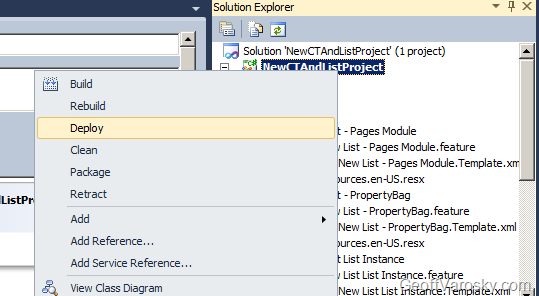
Lots of fun stuff! Anyhow, now that we’ve brought it in, let’s package and deploy it, all in one fell swoop, out to our Deployment site which we set up originally on the project (you can change that too… maybe a good idea for a future post!) So, let’s either right click on our solution, and choose Deploy

image

Or, we can go to the Build menu, and choose Deploy NewCTAndListProject.

image

Also from these menus, we have the option to just package it if needed. You’ll find the created WSP in the bin/[Debug/Release]/ folder in your project directory.

The status bar in VS says this was a success (Deploy succeeded), so, let us check through the output window, just in case. We can also see the steps here that are taken during a Deploy…

   1: ------ Build started: Project: NewCTAndListProject, Configuration: Debug Any CPU ------
   2:   NewCTAndListProject -> c:\devprojects\NewCTAndListProject\NewCTAndListProject\bin\Debug\NewCTAndListProject.dll
   3:   Successfully created package at: c:\devprojects\NewCTAndListProject\NewCTAndListProject\bin\Debug\NewCTAndListProject.wsp
   4: ------ Deploy started: Project: NewCTAndListProject, Configuration: Debug Any CPU ------
   5: Active Deployment Configuration: Default
   6: Run Pre-Deployment Command:
   7:   Skipping deployment step because a pre-deployment command is not specified.
   8: Recycle IIS Application Pool:
   9:   Skipping application pool recycle because a sandboxed solution is being deployed.
  10: Retract Solution:
  11:   Skipping package retraction because no matching package on the server was found.
  12: Add Solution:
  13:   Adding solution 'NewCTAndListProject.wsp'...
  14:   Deploying solution 'NewCTAndListProject.wsp'...
  15: Activate Features:
  16:   Activating feature 'New List List Instance' ...
  17:   Activating feature 'New List - Pages Module' ...
  18:   Activating feature 'New List - PropertyBag' ...
  19: Run Post-Deployment Command:
  20:   Skipping deployment step because a post-deployment command is not specified.
  21: ========== Build: 1 succeeded or up-to-date, 0 failed, 0 skipped ==========
  22: ========== Deploy: 1 succeeded, 0 failed, 0 skipped ==========


Now, for real verification, lets check the site.

First – we’ll check the Solutions gallery (Site Actions > Site Settings > Galleries > Solutions) and there it is!

image

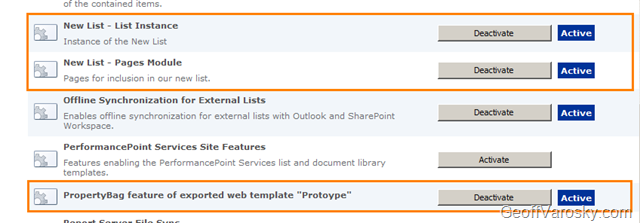
Next, let us check the web features… (Site Actions > Site Settings > Site Actions > Manage site features)

And there they are! Looks like I forgot to rename one of the feature titles – oops!
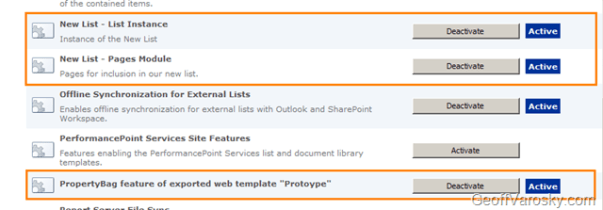
image

And now, lets see if our content type made it… (Site Actions > Site Settings > Galleries > Site content types) and yes, our New CT content type is there!

image

And so are the default columns…

image

Now, let’s check for our list. (Site Actions > View All Site Content), again, there she blows!

image

and if we look at our List Settings, we’ll see our content type bound to the list…

image

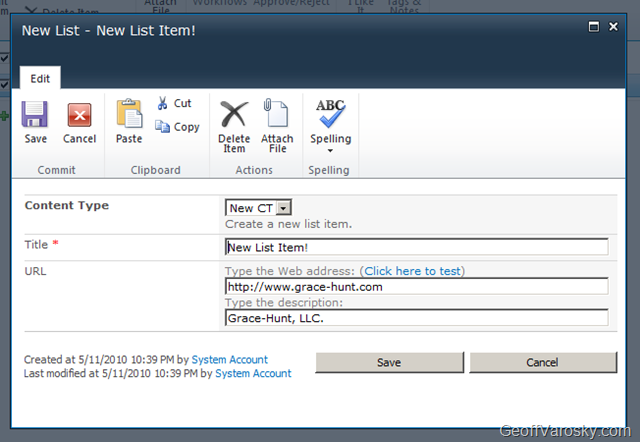
Our forms made it too!

image

image

image

And that is all there is to it! Sure, a lot to take in, especially if this is the first glimpse at SharePoint Designer 2010, Visual Studio 2010, and SharePoint 2010. But do not worry – it’s not all that difficult.

In fact, if you happen to be in the DC area, and especially if you are attending SharePoint Saturday DC, I will be presenting on just this topic – “From SharePoint Designer to Visual Studio – Prototyping and Deploying Solutions in SharePoint 2010” at 9AM in Classroom 11. Hope to see you there!


VMWare Player Error: “Failed to open virtual machine: Failed to query source for information.”
I was converting over one of the last of my few Virtual PC images to VMWare today, and received this error. I had to do a little searching before I found what the problem was, it was due to the Virtual Machine Configuration file (*.vmc), being in a separate directory than the VHD that it was referencing.

My scenario:

VMC file located in J:\Virtual Images\Server2003_01.vmc

The VHD file was located in J:\Virtual Images\Server2003_01\Server2003_01.vhd

Moving the VMC file into the J:\Virtual Images\Server2003_01\ directory did the trick. I could now open the VMC file in VMWare player, and convert it over.

Just wanted to share this quick tidbit… hope it can help someone else!


Just two more weeks until SharePoint Saturday DC!

That’s right, we’re getting down to the wire (and I need to work on my presentation!)

Join myself, and at the moment, roughly 1099 other people signed up to attend this historic (for SharePoint Saturday) event!

Some quick statistics (taken from the SharePoint Saturday DC website update that was posted today)…

– 1100 registered
– 30 sponsors
– 100 total sessions
– Venue parking is FREE
– Recommended Hotel: Fairview Park Marriott
– $1000 raised for Red Cross Donation. Donate now!
Register to be a Live Blogger for EndUserSharePoint.com
– Invite others to SPSDC with this sample email message
All speakers + sponsors attending must register to the event

Lots of seats still available. If you haven’t registered, do it now!

Grace-Hunt will be there sponsoring the event, so please drop by and say hello to myself and Tim Enright. We’ll be at the table with the Grace-Hunt logo on the front of it 🙂

I will also be speaking at the event, so, if you’re interested to learn how to prototype solutions and deploy them in SharePoint 2010, then by all means, come and drop in my session. Information of my session below…

From SharePoint Designer to Visual Studio – Prototyping and Deploying Solutions in SharePoint 2010
With SharePoint 2010, analysts and developers now have the ability to work together more efficiently to prototype solutions in SharePoint Designer 2010, and then deploy those re-usable solutions utilizing Visual Studio 2010. In this session we’ll introduce this new functionality available with SharePoint 2010 and its toolset, and complete a few demonstrations to showcase these new features.