Using a SharePoint Designer Workflow to Build a URL to Populate a Multi-Line Rich Text Field

It’s been quite some time since I have had this exact problem surface for me, so, I had to run through it real quick on a development site to test out the feasibility to do this, and thought I would share…

The requirement that came to me was based on information in one list, build up a URL and some additional text to drop into a multi-line rich text field within another list, using a SharePoint Designer workflow, so no custom code was being installed on the server. The URL we will be re-directing to is a custom page with several data view web parts on it, which bring back information about the selected item.

So, let’s take a look on how to do this…

  1. Create a new workflow in SharePoint Designer, and add a step to it. Add any conditions you need met to the step, and then select the Actions drop-down, and choose More Actions…
    image
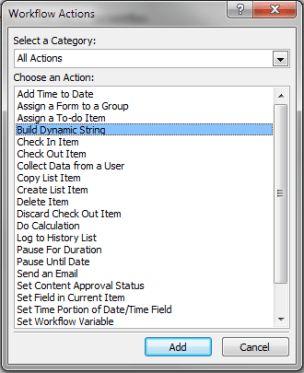
  2. From the list of available Workflow Actions, select Build a Dynamic String
    image
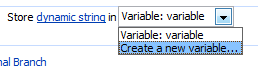
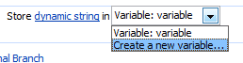
  3. Now, click on the Variable: variable text in the step that was just created, and select Create a new variable… from the drop-down menu that appears.
    image
  4. You will see a pop-up window appear, Edit Variable. Fill in the Name and Type fields with the name of the variable, as well as the type. In the case, we’ll be using a String.
    image
  5. Now we click on the dynamic string link (as shown in step 3), and we can start building our HTML link!
    image
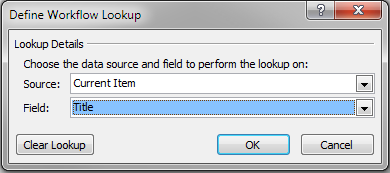
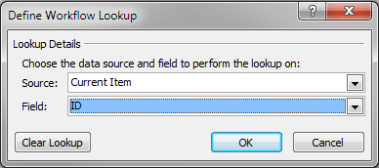
  6. Now, where we get to the point when we want to add in a field from the current list item, choose Add Lookup. Select Current Item from the Source drop-down, and select the field, in this case, ID from the Field drop-down. And click OK.
    image

    And then repeat the process for any additional field values from the current item we want to pass through
    image

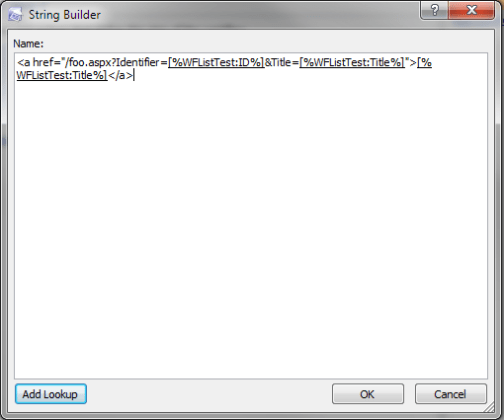
  7. Now you can see, we have our URL built, and ready to go using variables from the current list item
    image
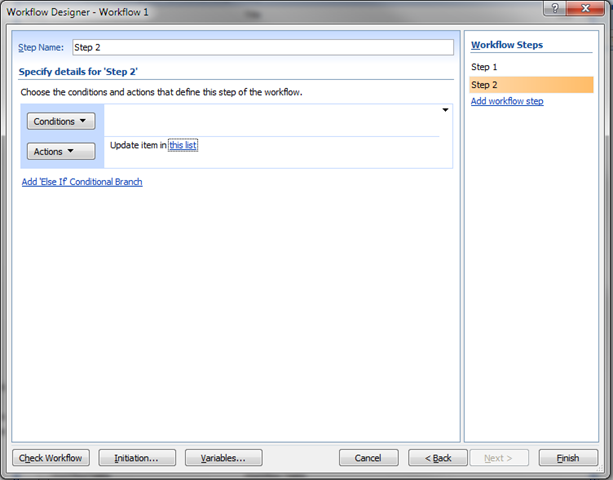
  8. Next, we’ll add a second step to our workflow, to Update and item, or create, whatever you fancy, in a specific list. For the purposes of demonstrating this functionality, I am just going to update the list item I am working with. You could easily configure this to create a new list item in a different list.
    image
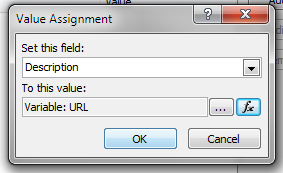
  9. And select the list by clicking on the this list link above, and then, Set this field, in our case, Description To this value,
    image
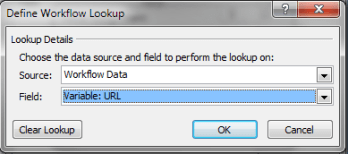
  10. and when we select the To this value drop-down, select the Workflow Data menu option, and choose the Variable: URL which we created earlier in this process.
    image
  11. And our Update List Item screen should now show the following
    image
  12. Now click OK, and click Finish, and your workflow will be created and published to the server.
    image
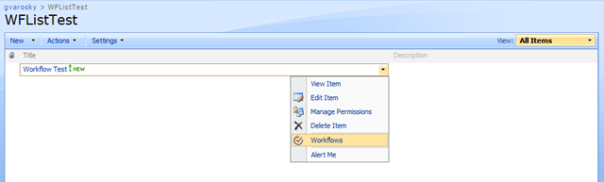
  13. Let’s go back to our site, create an item in our, list, and try this out. Select the List Item Menu for the list item you are working with, and select Workflows
    image
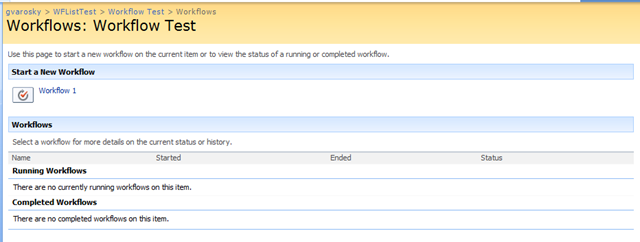
  14. Then, we’ll see our workflow that we associated to this list available under the Start a New Workflow section
    image 
  15. Click on our workflow, and we’ll be brought to the workflow initiation form, click on the Start button
    image
  16. Once we do so, our workflow should complete successfully, and we should now have something in our Description field!
    image 
  17. If we hover over the link in the form, we should see it pointing to the URL that we had crafted
    image

    Which should be /foo.aspx?Identifier=1&Title=Workflow Test

And that is all there is to it! Very useful functionality in SharePoint Designer Workflows for building your own dynamic variables, storing them away, and re-using them to achieve the functionality you need.


Speaking at the SharePoint Technology Conference 2010 in Boston

SPTCon_BOSTON728x90

I received the “official” news yesterday from David Rubenstein, that I have been confirmed to speak at The SharePoint Technology Conference in Boston this October 20th – 22nd, at the Hyatt Regency Cambridge, in Cambridge, MA (it’s basically Boston). I will be joined by many other fantastic speakers, more on those to come as more conference information becomes available. In addition to delivering my own session “Creating Custom Actions in SharePoint” (more on that below), I will also be delivering a session with my good friend Mark Rackley, entitled “Just Freakin’ Work! Avoiding common hurdles in SharePoint Custom Development”. See below for information on both of those sessions…

Creating Custom Actions in SharePoint
Custom Actions control features in SharePoint such as the Edit Control Block, the Site Actions menu, toolbars, and the links within the Site Settings page. Learn how to leverage Custom Actions to extend the SharePoint User Interface. This session will describe the basics of Custom Actions, a demonstration to build one or more and apply them to a site in SharePoint, as well as provide resources for additional information.

Just Freakin’ Work! Avoiding common hurdles in SharePoint Custom Development
“Why am I getting a security error??” “Why does my code work sometimes, but not others?” “I wonder if McDonalds is hiring.” Writing custom code in SharePoint opens up unlimited possibilities but also throws many hurdles in your way that will slow you down if you don’t take them into account. So, before giving up and searching for careers in the fast food industry, equip yourself with the knowledge you need to succeed in writing custom code for SharePoint.

So, join us in October for a great soon-to-be-announced line-up of speakers, sessions, classes, and vendors in Boston! For more information, please visit The SharePoint Technology Conference website at http://www.sptechcon.com


SharePoint Foundation 2010 and SharePoint Designer 2010 Available for Download!

That’s right, if you look at the pages, you will no longer see any “Beta” tags on them. That’s right. On the same day that we get the Server and Office bits on MSDN and TechNet subscriptions, the rest of the world can get the free stuff. SharePoint Foundation 2010 and SharePoint Designer 2010 are now available to the world to download from Microsoft.

SharePoint Foundation 2010 – http://www.microsoft.com/downloads/details.aspx?displaylang=en&FamilyID=49c79a8a-4612-4e7d-a0b4-3bb429b46595

SharePoint Designer 2010 x64 – http://www.microsoft.com/downloads/details.aspx?displaylang=en&FamilyID=566d3f55-77a5-4298-bb9c-f55f096b125d

SharePoint Designer 2010 x86 – http://www.microsoft.com/downloads/details.aspx?displaylang=en&FamilyID=d88a1505-849b-4587-b854-a7054ee28d66

Update: Thanks to JD Wade for the x64 and x86 link differentials!

image

image


SharePoint 2010 and Office 2010 RTM Versions Available for Download on MSDN!

You heard that correctly! For all of you who have an MSDN subscription, after what seemed like forever, SharePoint Server 2010, Visio 2010 (x86 and x64), Office 2010 (x86 and x64) are now available for download on MSDN! There goes my weekend 🙂

image

image

New England Give Camp 2010

image

At a Glance

When: June 11th-13th, 2010

Where: Microsoft New England Research and Development Center, 1 Memorial Drive, Cambridge, MA

Contact Email: negc2010@hotmail.com

Twitter: @NEGiveCamp

Coding for Charity

New England GiveCamp is a charitable event at which software developers, designers, and other technical volunteers donate their skills and expertise to support area non-profit organizations.

During GiveCamp weekend about 100 software professionals from around New England will converge in Cambridge, Massachusetts, to develop pro bono custom software solutions for multiple New England charities.

Three Ways to Participate

Non-Profit Organizations

Has your organization been struggling to establish a web site? Do you need help setting up a registration list, keeping track of donations, or implementing a little bit of office automation? If so, New England GiveCamp can come to your rescue!

We are currently soliciting non-profit organizations across the region to identify software projects that can be completed during the weekend coding effort at New England GiveCamp.

Visit the Non-profits page at the New England GiveCamp web site to get an idea of the types of projects that are candidates for GiveCamp — then submit your own project for consideration. If you need help defining your project, let us know; we have volunteer business analysts that can help!

Volunteers

Volunteers are the life-blood of GiveCamp. Regardless of your technical background or the amount of time you have to contribute, there’s a place for you to help. If you’re a technical professional that can set aside the entire weekend, we invite you to work as part of a development team assigned to a specific non-profit’s project. All experience levels and technology backgrounds are welcome.

If you can’t commit for the entire weekend, or if you’d like to help in a non-technical capacity, there’s plenty of other options to participate in this event—both on site and as part of the planning effort.

See the Volunteers page on the web site for ideas on how you can contribute, and look for the registration page around mid-April.

Sponsors

An event of this scale requires significant coordination and financial support. Microsoft has already donated use of its facility for the entire GiveCamp, but there are a number of other ways you can help.

Sponsorships are needed to cover meals, snacks, and drinks for the volunteers on site at the three-day event, as well as to defray costs for supplies, giveaways, and other miscellaneous expenses.

As a sponsor, you will receive recognition at the event itself as well as on the New England GiveCamp web site. Your logo will be featured on the event T-Shirt and prominently displayed at the event.

Please visit the Sponsors page for more information and to discuss with us various options to contribute to this unique event.


For More information, To Help, Volunteer, or to Sponsor, please visit http://www.newenglandgivecamp.org


Quick Command Line Tip – Preserving Your History…

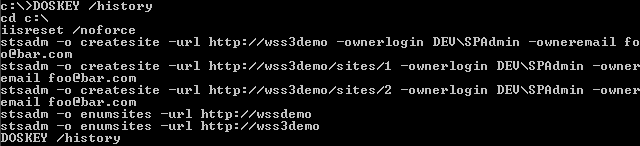
A lot of administration work can be done from the command line using STSADM. Adding and retracting solutions, resetting IIS, interfacing with GACUTIL, adding users, creating sites and webs, and the list goes on and on and on… after a while, you may want to keep a record of the operations that you had performed. This is very helpful in keeping a server log together, so you can always go back and trace what has been done.

By using the following command: DOSKEY /history, you can do just that. Looking to find out what DOSKEY is? Check Wikipedia of course 🙂 But, if you don’t want to go elsewhere to find out, we’ll just quote Wikipedia, they say it better than I can.

“DOSKey is a utility for MS-DOS and Microsoft Windows that adds command history, macro functionality, and improved editing features to the command line interpreters COMMAND.COM and cmd.exe. It was included as a TSR program with MS-DOS and PC-DOS versions 5 and later, and with Microsoft’s Windows 95/98/Me.”

image

If you’d like to save that off to a file? Also not a problem, just run: DOSKEY /history c:\STSADM.042010.txt and you’re ready to go. Your command history will be backed up in C:\STSADM.042010.txt.


Title Field GUID in WSS 3.0 and MOSS 2007

This is just a quick reference post. I often find myself looking for the GUID of the Title column, which is a default column on all lists. The GUID for this is the same in WSS and MOSS, as it is part of the Item content type, and will always have this GUID, at least as far as I know, in WSS 3.0 and MOSS 2007. So, here it is!

{fa564e0f-0c70-4ab9-b863-0177e6ddd247}


Office, Visio, Project and SharePoint 2010 Reach RTM!

image Jeff Teper, Corporate VP for SharePoint Server at Microsoft announced a short while ago that SharePoint, Office, Visio, and Project 2010 have finally reached RTM status at the Microsoft SharePoint Team Blog here – http://blogs.msdn.com/sharepoint/archive/2010/04/16/sharepoint-2010-reaches-rtm.aspx 

Straight from the blog itself comes these wonderful words we have all been waiting to hear for a long time now…

“Today we reached an exciting engineering milestone- the release-to-manufacturing (RTM) for Office 2010, SharePoint 2010, Visio 2010 and Project 2010!

RTM is the final engineering milestone and a major achievement for all of the internal teams who worked so hard to get to this point. As tirelessly as our engineering teams worked, we would never have reached this milestone without incredibly active participation from our customers and partners. More than 5,000 organizations and partners have worked with us on rapid deployment and testing of the products, and the feedback that we’ve received from all these programs has shaped a fantastic set of products that I’m sure our customers will love.

Our Volume License customers with active Software Assurance (SA) on these products will be one of the first to receive the 2010 set of products. They will be able to download the product in English, French, Spanish, German, Russian, and Dutch via the Volume Licensing Service Center starting April 27. Other languages will be available on a rolling timeline. Customers without SA will be able to purchase the new products through Volume Licensing from Microsoft partners starting May 1.

Earlier this year we announced that we will officially launch SharePoint 2010 to our business customers on May 12 with a virtual launch. Our virtual launch will allow people from around the globe to participate in our launch by going to http://www.the2010event.com. Stephen Elop, President of Microsoft’s Business Division, will deliver a keynote as part of the virtual launch, and the virtual launch site will showcase product demos, customer and partner testimonials, and interviews with product managers and executives, and we hope this will give you another great way to explore, learn, and get excited about the 2010 releases.

On behalf of the SharePoint team, I want to thank all of the customers and partners who have helped us reach this milestone. We look forward to continue learning from you and all the great things you will do with our products!

-Jeff Teper

Corporate Vice President, SharePoint Server, Microsoft”


BASPUG_whitebgIf you also do not know, on the same date as the 2010 Virtual Launch Event, and happen to be in the Boston area, we are launching the Boston Area SharePoint Users Group (BASPUG) with Chris Bortlik, a SharePoint Technology Specialist at Microsoft, who will present “Introducing SharePoint 2010”. For more information and to register, please visit http://www.bostonsharepointug.org. We hope to see you there!


Working with Web Parts in SharePoint Designer 2010

Another tidbit I wanted to share regarding SharePoint Designer 2010 that may be of interest to a lot of developers, site administrators, designers, and power users alike. If you have the permissions, you now have options directly in the interface of SharePoint Designer, to save your web parts out to a local file, or, push it into the Site Gallery!

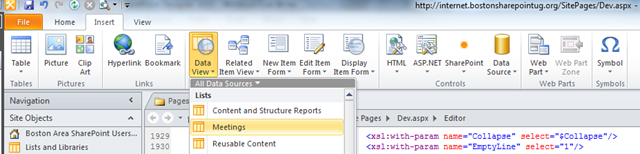
In SharePoint Designer, let’s add a Data View Web Part to our page, by going to the Insert ribbon tab, selecting Data View, and choosing the list which we want to create an XSLT Data View for…

image

Then configure your web part as you’d like to… and from there in SharePoint Designer 2007, we were stuck with going back to the page which we placed this, using the chevron on the web part in Edit mode on the page, and then choosing Export from the menu. This is no longer with SharePoint Designer 2010!

If you look at the ribbon while you are working on the Data View Web Part, click into the Web Part ribbon tab under List View Tools

image

Once you have done that, if you look all the way over to the right of that ribbon tab, you will see a section called Save Web Part.

image

Which presents two options, To Site Gallery, and To File. This is just another one of the many timesavers built into the overhauled SharePoint Designer 2010. If we select To Site Gallery, we are presented with a pop-up that will allow you to set the title and description for your web part

image

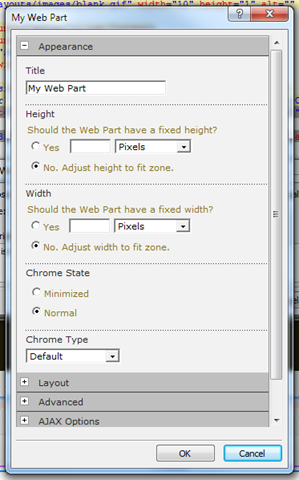
As well as a Set Properties… button, which will allow you to set web part properties on the saved version of the web part before putting it into the gallery.

image

Once you click OK, you are presented with another pop-up

image

This asks you if you want to always just show data from the current site list, tied to the List ID GUID, or, if you want to make it relative, which will tie it down to the list name itself, relative to the site in which it is displayed.

Now, if we meander on over to the web part gallery for this site collection, Site Actions > Site Settings

image

and selecting Web Parts under Galleries

image

We will now see that our web part which we created in SPD 2010, is now deployed out to the Site Collection Web Part Gallery!

image

If we choose the alternate option, To File from the Save Web Part section of the ribbon, you will be prompted to save it locally as expected.

image

There is a lot of new functionality in SharePoint Designer 2010. As I get around to it, I’ll keep more of these posts coming.


Speaking at the Hartford Code Camp 3 on June 19th, 2010

After speaking at the New England Code Camp 13 last month, I am excited that I will be speaking at another local code camp so soon. I submitted and will be presenting two sessions at the 3rd Hartford Code Camp, taking place on June 19th, 2010, at the New Horizons Hartford Learning Center in Bloomfield, CT.

The event is put on by the Connecticut .NET Developers Group. For more information, click here: http://ctdotnet.org/CodeCamp3.aspx

The two sessions I will be presenting on will be…

What’s New for Developers in SharePoint 2010
SharePoint 2010 offers developers a unique and well deserved set of tools to aid in the development of SharePoint 2010 solutions. In this session we’ll cover improvements in the UI and the toolsets themselves, from PowerShell as a powerful scripting interface to the API, the Developer Dashboard, the SharePoint Toolkit in Visual Studio 2010, and more.

Creating Custom Actions within SharePoint
Custom Actions control features in SharePoint such as the Edit Control Block, the Site Actions menu, toolbars, and the links within the Site Settings page. Learn how to leverage Custom Actions to extend the SharePoint User Interface. This session will describe the basics of Custom Actions, a demonstration to build one or more and apply them to a site in SharePoint, as well as provide resources for additional information.

See you there!