SharePoint Saturday Boston – Session Survey

We’re just over a week away from our upcoming SharePoint Saturday Boston event!image

We are still working on the schedule, and will have that posted as soon as possible. To aid us in setting up the schedule, we would appreciate if you could respond to our Survey here: http://bit.ly/SPSBosSurvey of sessions that you would like to attend, so that we can gauge how many people will plan to attend these sessions, and thus, allow us to make sure we have enough room available.

Thank you – and we greatly appreciate your feedback.

Not registered yet? Sign up today for this FREE event! http://www.clicktoattend.com/?id=145192

And be sure to follow us on twitter for the latest and greatest information surrounding this event @SPSBoston

For more information on this free event, visit the main site here: SharePoint Saturday Boston


101 Uses for PowerShell

This is just a bookmark for myself, or, for anyone else that may need it. My friend Erik Kraus, whom I have had the pleasure to speak with before at the last SharePoint Saturday Boston, pointed me to a blog posting he had done early last year, which listed 101 Uses For PowerShell. This was a great article he had written, which gave some great examples of ways to make use of PowerShell. Specifically, he had one section on SharePoint, in which he automated the creation of <File> elements and their attributes within your Element Manifests, so you didn’t have to type out hundreds, or possibly thousands of File, or other references, within your features.

That great link can be found here: http://blogs.msdn.com/ekraus/archive/2009/01/30/101-uses-for-powershell.aspx

I had unfortunately lost the link some time back, and needed it again today. So, after digging for it, I thought I would post it here, so I should never forget it again!


Adding Custom Actions to the Ribbon UI in SharePoint 2010 Using SharePoint Designer 2010

image In my last article, Adding Custom Actions to the List Item Menu in SharePoint 2010 Using SharePoint Designer 2010, We walked through the process of adding custom actions to the List Item Menu using SharePoint Designer 2010, today, we’re going to have a look at the other Custom Action functionality available to us in SharePoint Designer 2010.

This article is going to group the rest of the options within our Custom Actions drop-down in SharePoint Designer 2010 together, as they are all basically doing the same thing, adding an item to the Ribbon UI, just for different forms (View, Edit, New, and Display).
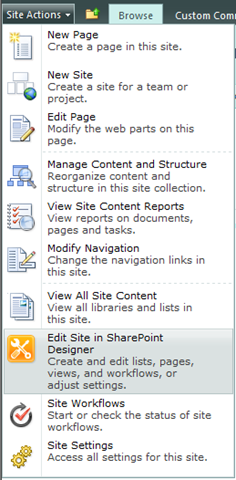
imageFirst, let’s open SharePoint Designer 2010 back up. So, let’s go into our 2010 test site, and click on the Edit Site in SharePoint Designer action off of the Site Actions menu.


image

Now that we have SharePoint Designer open, click on Lists and Libraries, under the Navigation > Site Objects, area on the left-hand side of your window.


Here is a quick little tip while we are here as well, that is new in SharePoint Designer 2010. If you hover your cursor over Lists and Libraries, as well as any of the other Site Objects navigation options, you will see a thumbtack appear on the right.

image 

image

If you click on this, it will expand your Lists and Libraries, or any of the other options, below the Site Objects on the left-hand side, allowing you 2007-like left-side navigation navigation between your objects.

Now, on with the show… as I mentioned back towards the start of this article, we’re going to look at the remaining Custom Actions we can build into our lists from SharePoint Designer 2010.

Click on any list that you have on the site. In this example, we will be using a tasks list that I had created for demonstration purposes.


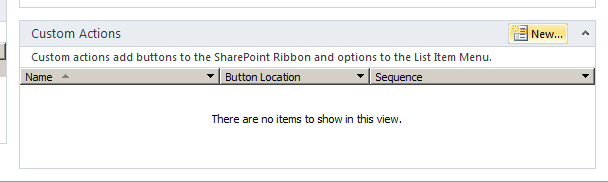
imageNow that we have our Tasks list loaded, we do not want to use the Custom Actions window in the lower-right hand side of our screen. This will automatically create a Custom Action for the List Item Menu if we click on the New… button. No, to create other types of Custom Actions, we need to use the Custom Action menu in the Ribbon UI to do what we are looking to do.

You will however notice, that by clicking here, the Ribbon context at the top of the screen changes from the List Settings ribbon, to the Custom Actions ribbon.

image 

We are going to use the Custom Actions ribbon to create our first of four custom actions for this article. First, we are going to start with the Display Form Ribbon. To start creating one of these, click on the Custom Action button in the ribbon, and select Display Form Ribbon

image

By doing so, we see the familiar Create Custom Action window pop-up that we saw in my last article on the subject.

image

For our example, lets fill in a Name, Description, and under the Select Type of Action, we are going to choose Initiate workflow. For this, I just created a simple list-level workflow, which will e-mail the owner of the task, CC’ing the current user, to request them to review and update the task, with a link back to the task (see screenshot below).

image

Select our workflow from the drop-down next, in this example, our workflow name is Task Review Request.

image

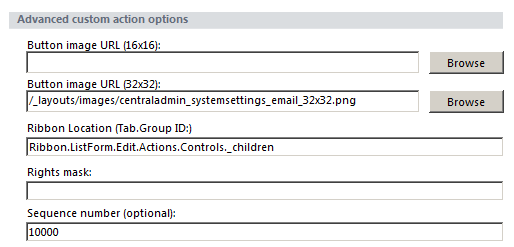
Next, if we scroll down in our window, we are going to specify a 32×32 image, so that we have a fancy little icon to go with our button. We could sue a 16×16, but, that will be quite small, and since we’re on the ribbon, we want this to stick out a bit. So, I browsed in the layouts folder in the SharePoint root to find an e-mail related icon, and did, at /_layouts/images/centraladmin_systemsettings_email_32x32.png. You could also use the Browse button to find a local image on your computer or network file share to use.

image

You will also see in the advanced section, that the wizard automatically entered in the Ribbon Location. This location, Ribbon.ListForm.Display.Manage.Controls._children, is great, because, really, were you going to remember that? Here is a listing of what each of these options are:

Form Name Ribbon Location
Display Form Ribbon.ListForm.Display.Manage.Controls._children
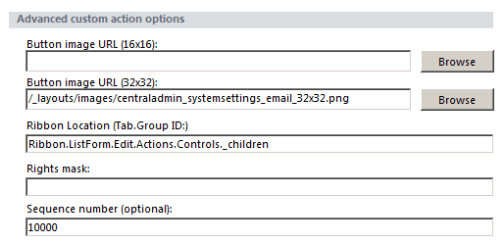
Edit Form Ribbon.ListForm.Edit.Actions.Controls._children
New Form Ribbon.ListForm.Edit.Actions.Controls._children
View Form Ribbon.ListItem.Actions.Controls._children


I have also created a blog post, just with this information, available here, which I will reference in later articles, as needed: SharePoint 2010 Custom Actions – Default Form Ribbon Locations

Now, below there, there is the options for Rights mask. This allows you to assign permissions of who can actually see this custom action. If the user does not meet the requirements, which are comma separated values from the SPBasePermissions class enumeration, they do not see the custom action. We will not apply any currently to this item, leaving it for all to see. But, the option is there.

You can choose your own sequence number for this as well. Generally, the best practice is to use anything over 10,000.

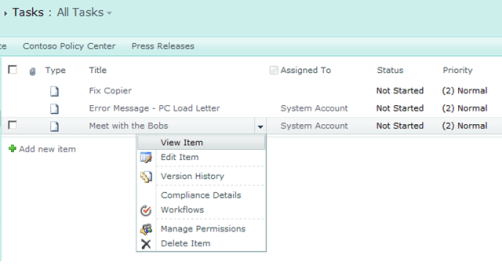
Now, once we are set with this, lets click on OK on the Custom Action Wizard, and now lets see this in action! Let’s go back to our list in SharePoint… Let’s use the List Item Menu, and select View Item
image

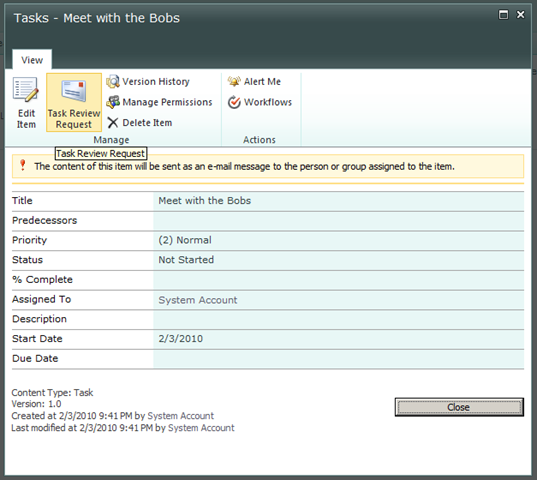
We will get a modal dialog window now with the Display Form, that we linked our Custom Action to. As you will see, we now have a new icon in our View Ribbon, which shows our fancy little e-mail icon, as well as the title of the Custom Action:

image

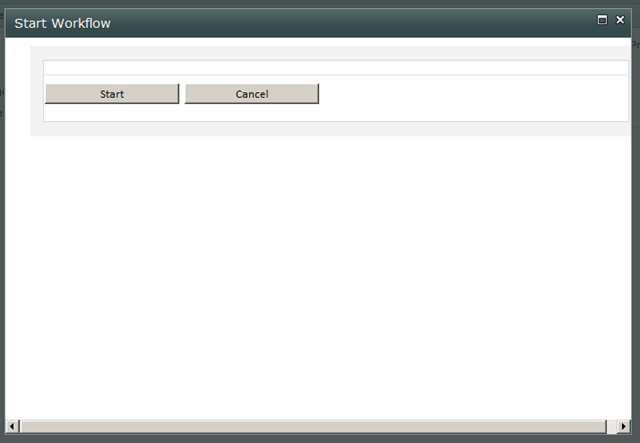
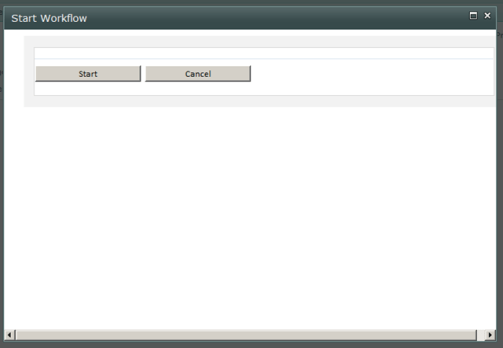
Clicking on this will then initiate the workflow which we associated with the Custom Action
image

And once we click Start on the workflow initiation form, the workflow will then start! Very cool stuff.

image

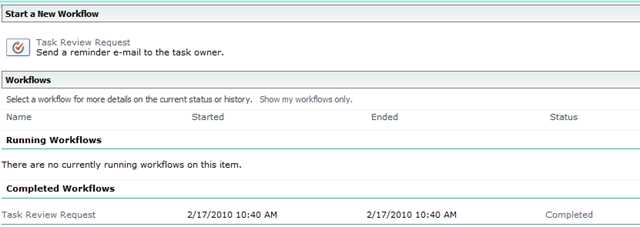
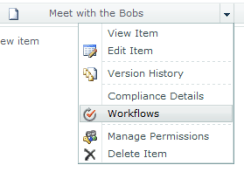
To be sure it is actually doing its thing, let’s check the workflows for that list item, back from the main list page, by selecting the Workflows option from the List Item Menu.
image

Once the page loads, you will see we have a completed workflow for our Task Review Request workflow that we created

image

Now, to finish up this article, we’re going to add the same Custom Action to the other forms on this site as well. So, back in SharePoint Designer 2010, opened to our list, lets create a new Custom Action for each of the other three forms, and see where they show up.

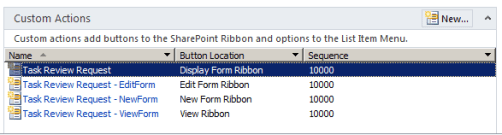
The only change we are going to make however, for each one, is just in the title. We could have it named the same thing for each form, sure, but, I want to show you where these end up in the SharePoint UI, and to do so, I am doing to insert the name of the form into our Custom Action title.

As you can see, when we choose a different ribbon location for our Custom Action, we get a new Ribbon Location automatically populated for us:
image

Follow the previous steps in the article if you need to to create these additional actions. When finished, we should have four Custom Actions in total assigned to our list, one for each of the form types:
image

Now, let’s head back to our our SharePoint site and see where these now appear in the UI.

First – let’s have a look at the List View form ribbon – click on the Items tab under the List Tools ribbon image , and you will see a section for Actions. You will also see in here, that our ViewForm Custom Action is available here. What does this allow us to do? Well, using the multiple-item selection functionality in SharePoint 2010, we can run our action against multiple list items!
image

Well, you would think… but if you attempt to do so, you will get an error, so, only do this on a per-item basis. The functionality is not smart enough to fire up three consecutive workflows by using SharePoint Designer 2010 for each of the items you have selected. It will work fine when going through them one by one.

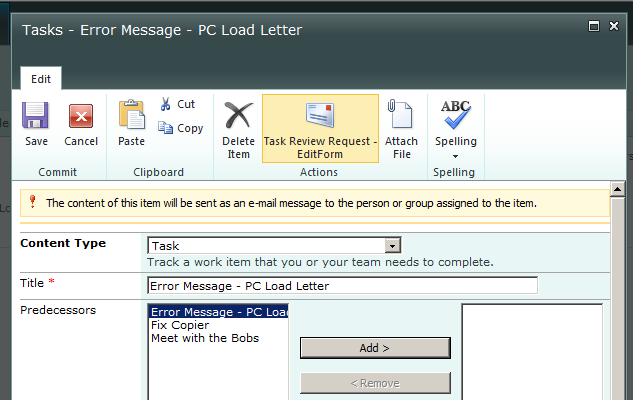
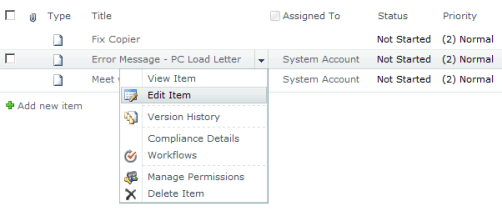
Next, if we go into the Edit Item view form for one of our tasks
image

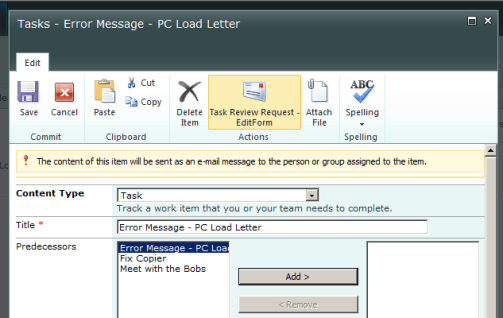
We will see that we have our Custom Action appearing in the Actions area of the form
image

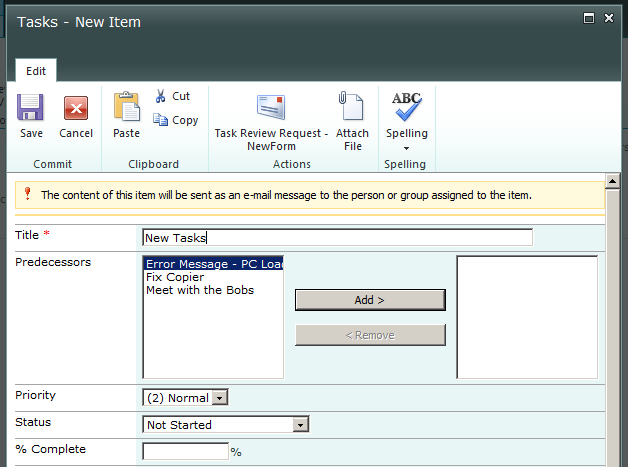
And the same goes for when we go to create a new Task

image

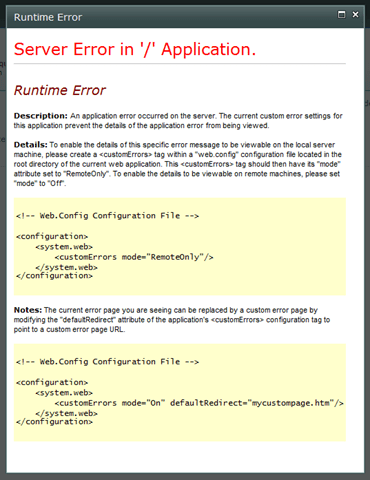
However, until the task is created, you will not be able to run the workflow, as until you hit Save on the new item form, your task does not exist as of yet, so, the workflow has nothing to bind to, just something to keep in mind when creating your Custom Actions in SharePoint Designer 2010. If you do try and run your workflow from your Custom Action – you will get the lovely Runtime Error.
image

I just wanted to show you where this would appear, and that even though the Edit and New Forms use the same Ribbon Location (Ribbon.ListForm.Edit.Actions.Controls._children), they are actually bound to the individual forms themselves.

I hope this article was informative, and helps shed some light on some of the new functionality available in SharePoint 2010, and SharePoint Designer 2010. Please let me know what you think, or leave any questions regarding this material in the comments, and I will answer them as soon as I can.


SharePoint 2010 Custom Actions – Default Form Ribbon Locations

Below is a listing of the default form (View, Edit, New and Display) ribbon locations. When creating Custom Actions in SharePoint, you will need to reference these locations to determine where your Custom Action will be displayed.

Form Name Ribbon Location
Display Form Ribbon.ListForm.Display.Manage.Controls._children
Edit Form Ribbon.ListForm.Edit.Actions.Controls._children
New Form Ribbon.ListForm.Edit.Actions.Controls._children
View Form Ribbon.ListItem.Actions.Controls._children


This is current for the Beta 2 release, and is subject to change with the RTM version of the product.


SharePoint 2010 Beta 2 SPBasePermissions Enumeration

image Now that I am starting to cover several articles on Custom Actions in SharePoint 2010, I need to post the updated SPBasePermissions class enumeration. Please note – that this is for the current Beta 2 release of SharePoint 2010, and may change with the RTM release of the product later this year.

As you can note however below, there are currently no changes at all to the SPBasePermissions class. I was not completely surprised with this, as this is a pretty granular list. The SharePoint 2007 SPBasePermissions Enumeration can be found here.

Member name Description
EmptyMask Has no permissions on the Web site. Not available through the user interface.
ViewListItems View items in lists, documents in document libraries, and view Web discussion comments.
AddListItems Add items to lists, add documents to document libraries, and add Web discussion comments.
EditListItems Edit items in lists, edit documents in document libraries, edit Web discussion comments in documents, and customize Web Part Pages in document libraries.
DeleteListItems Delete items from a list, documents from a document library, and Web discussion comments in documents.
ApproveItems Approve a minor version of a list item or document.
OpenItems View the source of documents with server-side file handlers.
ViewVersions View past versions of a list item or document.
DeleteVersions Delete past versions of a list item or document.
CancelCheckout Discard or check in a document which is checked out to another user.
ManagePersonalViews Create, change, and delete personal views of lists.
ManageLists Create and delete lists, add or remove columns in a list, and add or remove public views of a list.
ViewFormPages View forms, views, and application pages, and enumerate lists.
Open Allow users to open a Web site, list, or folder to access items inside that container.
ViewPages View pages in a Web site.
AddAndCustomizePages Add, change, or delete HTML pages or Web Part Pages, and edit the Web site using a SharePoint Foundation–compatible editor.
ApplyThemeAndBorder Apply a theme or borders to the entire Web site.
ApplyStyleSheets Apply a style sheet (.css file) to the Web site.
ViewUsageData View reports on Web site usage.
CreateSSCSite Create a Web site using Self-Service Site Creation.
ManageSubwebs Create subsites such as team sites, Meeting Workspace sites, and Document Workspace sites.
CreateGroups Create a group of users that can be used anywhere within the site collection.
ManagePermissions Create and change permission levels on the Web site and assign permissions to users and groups.
BrowseDirectories Enumerate files and folders in a Web site using Microsoft Office SharePoint Designer 2007 and WebDAV interfaces.
BrowseUserInfo View information about users of the Web site.
AddDelPrivateWebParts Add or remove personal Web Parts on a Web Part Page.
UpdatePersonalWebParts Update Web Parts to display personalized information.
ManageWeb Grant the ability to perform all administration tasks for the Web site as well as manage content. Activate, deactivate, or edit properties of Web site scoped Features through the object model or through the user interface (UI). When granted on the root Web site of a site collection, activate, deactivate, or edit properties of site collection scoped Features through the object model. To browse to the Site Collection Features page and activate or deactivate site collection scoped Features through the UI, you must be a site collection administrator.
UseClientIntegration Use features that launch client applications; otherwise, users must work on documents locally and upload changes.
UseRemoteAPIs Use SOAP, WebDAV, or Microsoft Office SharePoint Designer 2007 interfaces to access the Web site.
ManageAlerts Manage alerts for all users of the Web site.
CreateAlerts Create e-mail alerts.
EditMyUserInfo Allows a user to change his or her user information, such as adding a picture.
EnumeratePermissions Enumerate permissions on the Web site, list, folder, document, or list item.
FullMask Has all permissions on the Web site. Not available through the user interface.


This is basically just a local reference for myself, and one to direct people to for various articles. This is a copy from the SDK from Microsoft, available here: http://msdn.microsoft.com/en-us/library/microsoft.sharepoint.spbasepermissions(office.14).aspx


Useful Resource – SharePoint 2010 Layered Photoshop File

Came across this link via Steve Pietrek’s blog – he posts links from time to time rounding up useful resources, so much so, that I am going to need to watch that more carefully.

One of the links he posted recently was to Erik Swenson’s blog, where he shared (for free), a layered Photoshop file of a default SharePoint 2010 site. This is extremely handy for mock-ups. Thanks Erik! Much appreciated.

You can find that post here: http://erikswenson.blogspot.com/2008/10/ootb-sharepoint-layered-photoshop-file.html


SharePoint Saturday New York (1/30/10) Session Materials and Wrap-Up

It was a pleasure to be back in New York City, speaking at my second SharePoint Saturday event there. This event was entirely devoted to SharePoint 2010, and here were a lot of eager attendees, hungry for information on the new version.

Information on the event can be found here: http://www.sharepointsaturday.org/ny

Michael Lotter did a bang-up job putting this event together, as he always does. A big thanks to him, and everyone who was able to lend him a hand in putting this event together. More thanks to all of the attendees of the event (especially those of you who came to my session!). And of course, a big thanks to the sponsors, who fund these events and make them possible.

I was also in town participating in the SharePoint 2010 Developer Ignite training which took place from Monday to Wednesday. Ignite training is put on by Microsoft to ramp up their partners with new releases. This worked out great, as it gave me a day off to do some touristy stuff around the city, which I have never done, even though I had visited there many times. So, I did the “Top of the Rock” Rockefeller Center observation deck thing, and even did the NBC Studios tour. The SNL set is much smaller in person! And a good friend even drive me through Times Square at night. So, 3 major touristy things under my belt. I am quite pleased!

Ok, so you didn’t come here to listen to what I did outside of SharePoint, you came here for my slide deck from the event. Thanks for dropping by at least! Below you will find my slides embedded via SlideShare. Please, if you would, leave me a few comments below if you were able to make it to the session, and let me know what you thought. We ran a little over on time, which worked out well, because my session was right before lunch, so we could bleed over a bit, and there was still enough pizza to go around.

If you have any questions on any of the materials – please, fire away in the comments section below.

In addition to the session – since all we did was write just a little code, I won’t bore you with my “Hello, World!” Visual Web Part code. However, I will show you my snippets which I used throughout my session, to save all of you from watching me spell-check myself.

Also, more information on SharePoint Server 2010 can be seen on my blog under the categories of SharePoint 2010 Beta 2, SharePoint Designer 2010, and SharePoint 2010.

PowerShell commands to enable the Developer Dashboard

   1: [Microsoft.SharePoint.Administration.SPWebService]::ContentService.DeveloperDashboardSettings.DisplayLevel='OnDemand';
   2: [Microsoft.SharePoint.Administration.SPWebService]::ContentService.DeveloperDashboardSettings.Update();


PowerShell command to get a listing of the URL, Author, and Title of a Web

   1: Get-SPweb -site http://whatsnewin2010.dev.grace-hunt.com | ft Url, Title, Author

PowerShell command to get the Title of all of the lists within a Web

   1: Get-SPweb -site http://whatsnewin2010.dev.grace-hunt.com | foreach { $_.Lists | ft $_.Url, Title }

PowerShell command to get the listing of all of the Resource settings for the User Code service (Sandbox Solutions)

   1: [Microsoft.SharePoint.Administration.SPUserCodeService]::Local.ResourceMeasures


PowerShell commands to enable the User Code service to run on a Domain Controller (local image development for Sandbox Solutions)

   1: $acl = Get-Acl HKLM:\System\CurrentControlSet\Control\ComputerName
   2: $person = [System.Security.Principal.NTAccount]"Users"
   3: $access = [System.Security.AccessControl.RegistryRights]::FullControl
   4: $inheritance = [System.Security.AccessControl.InheritanceFlags]"ContainerInherit, ObjectInherit"
   5: $propagation = [System.Security.AccessControl.PropagationFlags]::None
   6: $type = [System.Security.AccessControl.AccessControlType]::Allow
   7: $rule = New-Object System.Security.AccessControl.RegistryAccessRule($person, $access, $inheritance, $propagation, $type)
   8: $acl.AddAccessRule($rule)
   9: Set-Acl HKLM:\System\CurrentControlSet\Control\ComputerName $acl

PowerShell commands to view the Property Bag of a Web

   1: $web = get-spweb -site http://whatsnewin2010.dev.grace-hunt.com
   2: $web.AllProperties | ft


Speaking at the Western Massachusetts Microsoft Technology Users Group on April 20th, 2010

image

I will be speaking at the Western Massachusetts Microsoft Technology Users Group on Tuesday, April 20th, 2010.

I will be speaking on Creating Custom Actions within SharePoint.

Session Abstract

Custom Actions control features in SharePoint such as the Edit Control Block, the Site Actions menu, toolbars, and the links within the Site Settings page. Learn how to leverage Custom Actions to extend the SharePoint User Interface. This session will describe the basics of Custom Actions, a demonstration to build one or more and apply them to a site in SharePoint, as well as provide resources for additional information.

Event Details

Start Time: 6PM EST
End Time: 8PM EST
Location: MassMutual Learning & Conference Center at 350 Memorial Drive, Chicopee, MA

For more details, please visit: http://www.mstech.org/Events/tabid/109/ctl/Details/Mid/544/ItemID/245/Default.aspx

More information on the Western Mass Microsoft Technology Users Group

The Western Mass Microsoft Technology Users Group brings together people interested in Microsoft technologies.  We are C# and VB.NET programmers, Sharepoint gurus, ASP.NET developers, commercial component developers, IT staffers, enterprise database programmers, entrepreneurs and novices.

We come together to learn, meet people, ask questions and create solutions.  Our meetings always feature a speaker, interesting conversation, swag giveaways, free pizza and plenty of time to network and socialize.  Now, we have this online community which we hope will facilitate collaboration between meetings and serve as a growing knowledge store and history of the group.

We regularly have between 20 – 35 members who come to our meetings with a wide range of interests and abilities.  We usually have 1 or 2 meetings per month.  We host developer oriented meetings on the first Tuesday of the month from 6pm – 8pm, and we host IT PRO oriented meetings on the third Tuesday of the month.  Actual times can be found on our EVENTS page.  Meetings are held at MassMutual Learning & Conference Center at 350 Memorial Drive, Chicopee, MA.  Click here for a map.

Please join us!  We are always interested in new people and new ideas.  The first step is to Register so you will receive meeting notices and be able to participate in this online community.  If you have questions prior to joining our group, please email Dan Caron.

Also, we are always seeking speakers to present relevant topics to our group.  If you are interested, please email Dan Caron.

I hope to see some of you there!


Global SharePoint Users Group Meeting on February 2nd, 2010

The third meeting of the Global SharePoint Users Group will commence on Tuesday evening, February 2nd, from 7PM – 8PM EST.image

This meeting, Paul Schaeflein will be talking on PowerShell for SharePoint 2010.

Session Abstract: “PowerShell is the new administrative environment and scripting language for Microsoft’s server products. It provides tremendous benefits to developers as well. This session will show how to leverage PowerShell to understand the SharePoint API; how to use PowerShell to manage development and QA environments and how to create helpful (and efficient) scripts for general use.

For more information on the event, go to http://www.gspug.org

To register for this event, please go here: http://gspugfeb2010.eventbrite.com/

This is a virtual online users group that meets via Live Meeting, so you don’t even have to go anywhere, or, skip any work – there is no reason for you not to attend!


Registration Open for SharePoint Saturday Boston

image

I am pleased to announce that registration is now open for SharePoint Saturday Boston! Register today to reserve your spot. Registration is on a first-come, first-serve basis.

What’s SharePoint Saturday Boston?

SharePoint Saturday Boston is a free community‐focused SharePoint event dedicated to educating and engaging members of the local technical community. SharePoint Saturday draws upon the expertise of local SharePoint IT professionals, developers and solutions architects who come together to share their real world experiences, lessons learned, best practices, and general knowledge with other like‐minded individuals.

When is SharePoint Saturday Boston?

Saturday, February 27th, 2010
8:45AM – 6:00PM

Where will SharePoint Saturday Boston be held?

SharePoint Saturday Boston will be held at the Microsoft Waltham office at 201 Jones Rd., Sixth Floor, Waltham, MA 02451

Who is organizing this event?

Talbott Crowell, Pradeepa Siva, Michael Lotter, Chris Bowen, Geoff Varosky

How do I register?

Registration is limited and based on first come first serve basis.  http://www.clicktoattend.com/?id=145192