Great Additions to the SharePoint 2010 Developer Dashboard

In my last post, I wrote about the new SharePoint 2010 Developer Dashboard, and all of its greatness. Today, I would like to mention a few add-ons that people have written already for the new Developer Dashboard, which make configuring it, and using it, even better.

Developer Dashboard Manager by Wouter van Vugt, adds a fancy new custom action to Central Administration, which allows you to set the Developer Dashboard DisplayLevel On-Demand. No more code, PowerShell scripts, or STSADM commands needed.

Developer Dashboard Visualizer by Japp Vossors“… is a jQuery-based solution that extends the Developer Dashboard by plotting an interactive diagram with data from the Developer Dashboard, giving you an **instant** insight into where the bottlenecks are in your code.”

As I come across more great additions for the Developer Dashboard, I will post them here!


The SharePoint 2010 Developer Dashboard

Another one of the great new features (for me, and for a lot of other administrators and developers), is the new Developer Dashboard within SharePoint 2010. The Developer Dashboard gives you plenty of output regarding the page loading process. This enables you to see how long each artifact of the page takes to load, any SQL queries, their stack traces, and IO stats, any warnings or assertions that were made, and more. This is extremely useful to use when debugging web parts, or other code that is called during the page loading process. This also gives administrators a unique insight into any bottlenecks in code running in the page created by their developers, offering them a second set of eyes on the performance of their code.

The Developer Dashboard provides insight only available from custom applications before, or, 3rd party tools such as Idera’s SharePoint Performance Manager.

The Developer Dashboard has 3 different states, On, OnDemand, or Off. When the Dashboard is set to On, it will always be shown on every page. When it is set to OnDemand, you have the ability to show and hide the Dashboard. When it is set to Off, it is, as you may have guessed, not available.

The Developer Dashboard is not enabled by default in SharePoint, at least Beta 1, or the current public Beta 2, I am not sure what the future holds for this specific configuration in the RTM version, which is still a ways away. We’ll cover the settings for this later in this post.


Enabling and Disabling the Developer Dashboard

There are three different methods you can use to change the setting for the Developer Dashboard, programmatically via code, using STSADM, or by using PowerShell.

1.) Programmatically

I have created a console application in Visual Studio 2010 Beta 2, to turn the Developer Dashboard On as shown below.

   1: using System;
   2: using System.Text;
   3: using Microsoft.SharePoint;
   4: using Microsoft.SharePoint.Administration;
   5:  
   6: namespace SPDeveloperDashboard
   7: {
   8:     class Program
   9:     {
  10:         static void Main(string[] args)
  11:         {
  12:             try {
  13:                 SPWebService ws = SPWebService.ContentService;
  14:                 ws.DeveloperDashboardSettings.DisplayLevel = SPDeveloperDashboardLevel.On;
  15:                 ws.DeveloperDashboardSettings.Update();
  16:             } 
  17:             catch (Exception ex)
  18:             { 
  19:                 Console.WriteLine(ex.ToString());
  20:             }
  21:         }
  22:     }
  23: }

You can also set the Developer Dashboard to run OnDemand, as stated above, by using the following code snippet

   1: SPWebService ws = SPWebService.ContentService;
   2: ws.DeveloperDashboardSettings.DisplayLevel = SPDeveloperDashboardLevel.OnDemand;
   3: ws.DeveloperDashboardSettings.Update();

And of course, it can be turned off completely, by using the following code snippet

   1: SPWebService ws = SPWebService.ContentService;
   2: ws.DeveloperDashboardSettings.DisplayLevel = SPDeveloperDashboardLevel.Off;
   3: ws.DeveloperDashboardSettings.Update();

It is very easy to do programmatically, however, there are easier methods for tweaking this option “On Demand”.

2.) STSADM

As stated above, the STSADM command line utility can be used to change these settings as well. To do so, run the following command

   1: stsadm -o setproperty -pn developer-dashboard -pv COMMAND

whereby replacing COMMAND above with On, OnDemand, or Off.

3.) PowerShell

And my new favorite love in SharePoint for administration, PowerShell. You can also do this via PowerShell, by issuing the following commands from the SharePoint 2010 Management Shell (replacing COMMAND below with On, OnDemand, or Off).

   1: [Microsoft.SharePoint.Administration.SPWebService]::ContentService.DeveloperDashboardSettings.DisplayLevel = 'COMMAND';
   2: [Microsoft.SharePoint.Administration.SPWebService]::ContentService.DeveloperDashboardSettings.Update();

There are a few ways to skin a cat with PowerShell of course, and a few other blogs, such as Bill Baer’s, and John W. Powell’s on MSDN show you alternative methods.


The Developer Dashboard

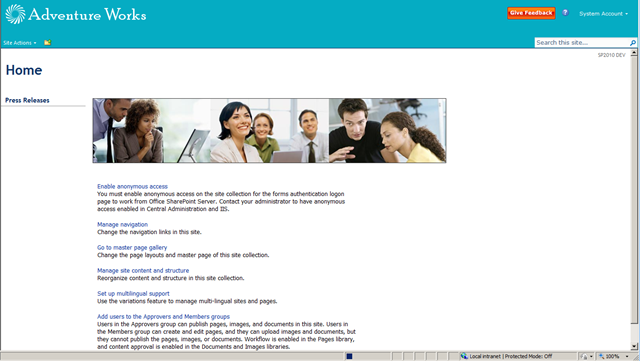
Now that we have a firm grasp on enabling and disabling the Developer Dashboard, let’s have a look at it. With the Dashboard set to On, it will always be displayed. If we have it on and go to a page within our site, we can see it is enabled at the bottom of the screen.

image

If we have the Developer Dashboard set to OnDemand, we see an icon appear in what I like to refer as the HUD (Heads Up Display) in SharePoint

image

Clicking this icon, will either enable or disable the Developer Dashboard. This is a very useful function, as sometimes you may not want to show it all the time, but can enable it as the need arises.

Now that we have it there, let’s see what we see…

The first section we see on the right, displays each operation being performed, and the total time each operation took to run, as well as the total execution time.

image

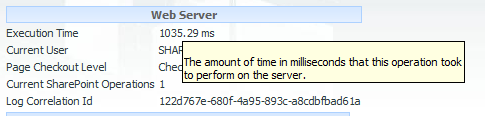
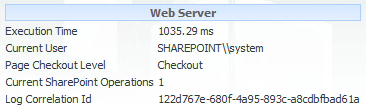
The next section we see, starting at the top left of the dashboard, shows us some overall information, such as the total execution time, the current user, the current page checkout level, current operations being performed, as well as the log correlation id of this load, to help you identify related log entries within the ULS logs (very cool!)
image

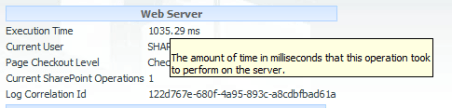
And another cool thing, each of these has a tooltip, so if you hold your mouse over, you get a description of the item you are viewing
image

The next piece of information we see, is if any Asserts or Critical Events occurred during this operation.

image

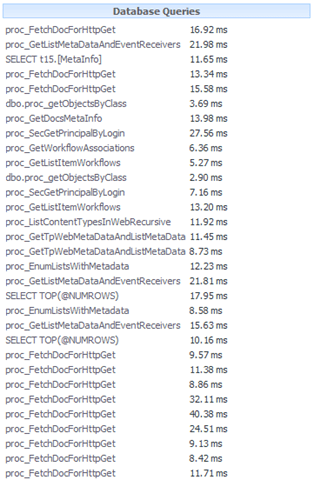
And next we come to Database Queries, which gives us a list of all of the queries run during this page load operation
image

Each of these are also links as well,. that when clicked, gives you a pop-up window showing you the text of the query performed, the callstack, as well as the IO statistics
image

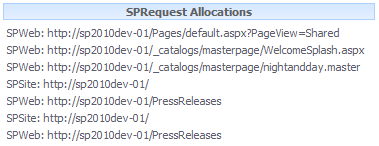
We also get to to see the number of Service Calls ( none were performed during this demonstration to show – sorry 😦 ), as well as SPRequest Allocations (SPWeb and SPSite objects)
image

which if we look at the tooltip for this section, we see the following
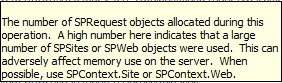
image
which goes back to something we developers learned a LONG time ago, is that we need to limit the number of these we run, as they eat up memory, and also need to be disposed of properly when done, it even provides a useful tip!

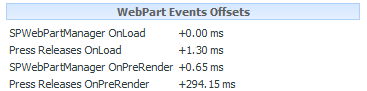
And last, but certainly not least, we get to see the WebPart Events Offsets, which shows us the timing offset of the event within a web part since it’s parent event had been instantiated, i.e. SPWebPartManager OnLoad.

image

This is a little more useful to look at and understand when there is more than 1 web part on the page, to see what I am talking about above. For each of the parent events (OnLoad, OnPreRender, etc.) that are triggered from the SPWebPartManager, you can easily see how long from when these events were started, to when they finally completed, for instance, my 17666.12ms load from my external ULS Logs List View Web Part below is taking a LONG time to run.

image


Additional Settings

In addition to being able to view this information, you can also set some other settings, other than the display level for the Developer Dashboard.

RequiredPermissions – By setting required permissions, using SPBasePermissions, you can restrict just who can view the Developer Dashboard. By default this is set to AddAndCustomizePages

TraceEnabled – This is a really cool property. This allows you to either display or hide a link at the bottom of the developer dashboard to display verbose tracing information. If we set this to true…

   1: SPWebService.ContentService.DeveloperDashboardSettings.DisplayLevel = SPDeveloperDashboardLevel.On;
   2: SPWebService.ContentService.DeveloperDashboardSettings.TraceEnabled = true;
   3: SPWebService.ContentService.DeveloperDashboardSettings.Update();

We now see a new link, “Show or hide additional tracing information…”, at the bottom of the Developer Dashboard

image

Although I have not quite yet been able to get this to work in Beta 2 as of yet. It was working in Beta 1. If anyone does have any luck, please let me know! This basically just dynamically enabled or disabled the regular ASP.NET in-page tracing information.

MaximumCriticalEventsToTrack – Sets the maximum number of critical events or assets that will be shown in a single transaction. Anything surpassing this limit is ignored. Setting this to 0 disables it altogether.

MaximumSQLQueriesToTrack – Just like the above property, however, anything above this settings will still be counted, however the call stack and query text will not be captured or visible.


Updated 1.9.10 – Wictor Wilén wrote up a great post dealing with the Developer Dashboard, and what I perceive as a new development best practice for SharePoint, making use of the SPMonitoredScope object, you can then insert your own web part calls into the Developer Dashboard, utilizing this object. More information can be found in his blog post here: http://www.wictorwilen.se/Post/Improve-your-SharePoint-2010-applications-with-monitoring-using-SPMonitoredScope.aspx?utm_source=feedburner&utm_medium=feed&utm_campaign=Feed%3A+WictorWilen+%28Wictor+Wil%C3%A9n%29


Adding Custom Actions to the List Item Menu in SharePoint 2010 Using SharePoint Designer 2010

In SharePoint 2010, it is easier than ever to add custom actions that are scoped to a specific list using SharePoint Designer 2010. So today, I am going to walk you through the process.

In a prior post, I showed you how to surface ULS logs using SharePoint Designer 2010, an External Content Type, and an External List. We’re going to use that list as our base for our custom action.

Our phony business case for this custom action is such – We are surfacing our ULS logs into a SharePoint list, and want to collect feedback on specific log entries for later consumption. We need to link to a form elsewhere in the site, which we will pass a reference to the item in question, as a URL.

Note – the List Item Menu refers to the same thing as the Edit Control Block. This is the context menu which is associated with all list items, available in list views and list view web parts.

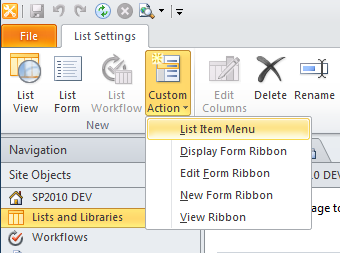
So, let’s open SharePoint Designer 2010, and navigate to our ULS Logs list, and we’re going to select Custom Action > List Item Menu from the Custom Action button on the ribbon UI

image

Once we select that link, we are presented with the following form

image

We’re going to name our custom action Log Entry Comment, and give it a description as well. Now let’s scroll down. You will see that we have 3 different types of actions we can associate with this custom action…

image

We can

    • Navigate to a Form for this list
    • We can Initiate a Workflow
    • Or, we can Navigate to a URL

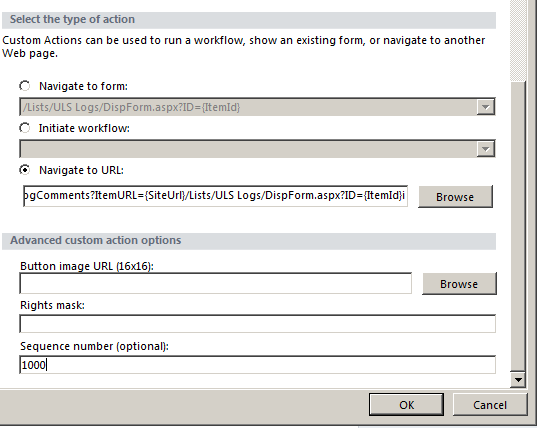
We’re going to select Navigate to URL, and enter in our URL, and enter in our bogus URL, and pass a name/value pair of ItemURL={ItemUrl}, which was found by looking into the November 2009 version of the SharePoint 2010 SDK

image

OH NO!!!! We can’t use it in Beta 2, which is the public beta we are running! Ok, so I guess on the receiving end, we’ll need to fix it up in some other way. So., we’ll just change our URL to pass a few things, and build the URL ourselves.

http://www.grace-hunt.com/ULSLogComments?ItemURL={SiteUrl}/Lists/ULS Logs/DispForm.aspx?ID={ItemId}

there, that should do the trick…

So, set your URL, and then give it a sequence number. This is the number in which it appears in the list. Anything over 10000 is a good practice, so you do not interfere with any other items in the list.

image

Then click OK, and you now have a custom action, associated with a list item, all without cracking open Visual Studio, deploying a package, etc. etc.

You will now see it on the ULS Logs list dashboard page in SharePoint Designer 2010

image

So, let’s go check out list… and there we have it, our custom action, associated to the list item menu/edit control block, within our list!

image

And if we click it, we get an ugly, url encoded version (http://www.grace-hunt.com/ULSLogComments?ItemURL=http%3A%2F%2Fsp2010dev%2D01/Lists/ULS Logs/DispForm.aspx?ID=__cb40004300o4200b7983a57-53e7-de11-8ed4-000c29a9d0f1) of:

http://www.grace-hunt.com/ULSLogComments?ItemURL=http://sp2010dev-01/Lists/ULS Logs/DispForm.aspx?ID=__cb40004300o4200b7983a57-53e7-de11-8ed4-000c29a9d0f1

Another cool thing, which you may notice, is that ALL list items have a globally unique identifier in SharePoint 2010! YES! No more list item IDs starting with 1, and going up from there.


Speaking at the Global SharePoint Users Group on January 5th, 2010

image I am pleased to announce that I will be speaking at the second Global SharePoint Users Group meeting on January 5th 2010. What is the GSPUG you ask? Here is some information from the site…

“Welcome to the official launch and start of the Global SharePoint Users Group. Why global? Well that’s a great question. There are many of us that belong to a SharePoint user group in some form or fashion in our local areas, however what if there is none in your area? That’s the void we’re going to try to fill, with technology the way it is today, there is no reason not to have a STRUCTURED and ORGANIZED online SharePoint users group. There is no replacement for a in person group you currently attend, however if you need your fix in-between meetings hopefully you can get that fix from our planned LIVE presentations.”

Find out more at: http://www.gspug.org/

My topic will be on Creating Custom Actions in SharePoint.

Session Abstract: Custom Actions control features in SharePoint such as the Edit Control Block, the Site Actions menu, toolbars, and the links within the Site Settings page. Learn how to leverage Custom Actions to extend the SharePoint User Interface. This session will describe the basics of Custom Actions, a demonstration to build one or more and apply them to a site in SharePoint, as well as provide resources for additional information.

We will be distributing the LiveMeeting information the day of the event via the Email you provide. We will also be giving away our prizes based on those that attended and the emails you provide as well.

Click here to register for the event! http://gspugjan5.eventbrite.com/?ref=ecount


Ghostable vs. GhostableInLibrary – A Lesson on Custom Form Deployment in SharePoint

When provisioning files, you have the option to set files as either Ghostable, GhostableInLibrary, or, to not set that value, and keep it unghosted. All that means is can the file be cached at the web front end level, or, is it always served and built from the database. Ayman El-Hattab has a good write-up on this over at his blog here: http://www.sharepoint4arabs.com/AymanElHattab/Lists/Posts/Post.aspx?ID=97

However, what we want to know is how is the file treated during deployment for custom forms?

Let’s take for instance, you’ve created some custom list forms, and need to deploy those out to a site. Let’s call our file CustomForm1.aspx, and let’s tuck this away in a List Instance feature.

feature.xml

   1: <Feature xmlns="http://schemas.microsoft.com/sharepoint/"
   2:          Id="{6A88A1A8-69A9-4bbb-8580-3FBA31B2DF66}"
   3:          Title="GhostableVsGhostableInLibrary"
   4:          Description="Ghostable vs. GhostableInLibrary Demonstration Code"
   5:          Scope="Web"
   6:          Hidden="false"
   7:          Version="1.0.0.0"
   8:          Creator="Grace-Hunt, LLC. | www.grace-hunt.com"
   9:          >
  10:   <ElementManifests>
  11:     <ElementManifest Location="manifest.xml"/>
  12:     <ElementFile Location="CustomForm1.aspx" />
  13:   </ElementManifests>
  14: </Feature>

manifest.xml

   1: <Elements xmlns="http://schemas.microsoft.com/sharepoint/">
   2:   <ListInstance FeatureId="{9749B227-36E3-4564-96FC-E75BA895BD74}" 
   3:                 Id="e7a36212-b396-4495-aaf9-be414fbd27df" 
   4:                 TemplateType="10306" 
   5:                 Title="CustomList" 
   6:                 Url="Lists/CustomList" 
   7:                 OnQuickLaunch="TRUE" 
   8:                 Description="Ghostable Vs. GhostableInLibrary Test"/>
   9:   <Module Name="CustomForm" Url="Lists/CustomList/CustomForms">
  10:     <File Path="CustomForm1.aspx" Url="CustomForm1.aspx" Type="GhostableInLibrary"/>
  11:   </Module>
  12: </Elements>

Let’s deploy this as “GhostableInLibrary” first, and see what happens…

image

Look at that, we have a list created from a custom list definition, which is not inheriting from a Document Library, however, if we deploy the form to our list as GhostableInLibrary, we see that the list item count goes up by 1, and, if we view the list contents, there is nothing there. This is obviously not what we want to do!

Now if we re-deploy this as just Ghostable, the list item count stays the same, and we have no “ghost” item in our list, and our custom forms have been properly deployed.

manifest.xml

   1: <Elements xmlns="http://schemas.microsoft.com/sharepoint/">
   2:   <ListInstance FeatureId="{9749B227-36E3-4564-96FC-E75BA895BD74}"
   3:                 Id="e7a36212-b396-4495-aaf9-be414fbd27df"
   4:                 TemplateType="10306"
   5:                 Title="CustomList2"
   6:                 Url="Lists/CustomList2"
   7:                 OnQuickLaunch="TRUE"
   8:                 Description="Ghostable Vs. GhostableInLibrary Test"/>
   9:   <Module Name="CustomForm" Url="Lists/CustomList2/CustomForms">
  10:     <File Path="CustomForm1.aspx" Url="CustomForm1.aspx" Type="Ghostable"/>
  11:   </Module>
  12:  
  13: </Elements>

image

So, with that, I leave you with the lesson learned here – if you need to deploy custom forms to a regular SharePoint list, deploy them as Ghostable, not GhostableInLibrary, otherwise you end up with that “ghost” item in the list.


Windows PowerShell compiled Help for SharePoint Server 2010

Found this out via several folks on Twitter (@nickhadlee, @sharepointdev and @MSDownloads), that there is now a CHM (Compiled Help Format) file available for PowerShell commands for SharePoint Server 2010. Get them while they’re still hot! They have them broken down into neatly categorized downloads (Search, Secure Store, Access Services, etc.)

http://www.microsoft.com/downloads/details.aspx?displaylang=en&FamilyID=045f7af5-b226-4a05-8ace-4e17cfdef856&utm_source=feedburner&utm_medium=twitter&utm_campaign=Feed%3A+MicrosoftDownloadCenter+%28Microsoft+Download+Center%29&utm_content=Twitter#tm


Creating an External Content Type to Surface ULS Log Data Into a SharePoint 2010 List

In my previous post regarding enhancements to diagnostic logging within SharePoint 2010, I touched upon the Awesome Fact[tm] that log data is now also being stored within the WSS_Logging database in SharePoint. Today, to further show some of the possibilities of surfacing and interacting with that data, I am going to walk through building an External Content Type, using Business Connectivity Services through SharePoint Designer 2010, to surface this data within a read-only list in SharePoint.

Warning – the data and configuration below are just examples. This is not entirely properly configured, but, this example is used as just that, to show you how easily it is to surface data in 2010 from external systems, and to expand on my previous post on the great new enhancements in 2010 regarding diagnostic logging. Your mileage may vary. Now, on with the show!

So, let’s kick this off. Open up SharePoint Designer 2010 to any site you have created in your environment, and select External Content Types off of the Site Objects navigation bar on the left.

image

Then click on the New External Content Type icon in the New section of the External Content Types Ribbon

image

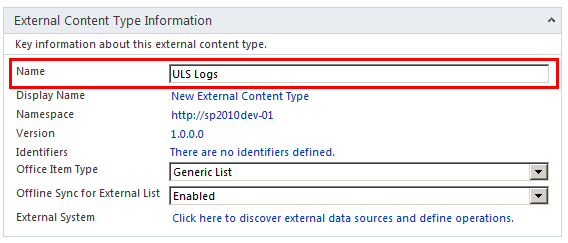
Click on the New External Content Type text in blue next to Name under External Content Type Information to rename the new External Content Type to something useful. In this case, I am naming my External Content Type ULS Logs

image

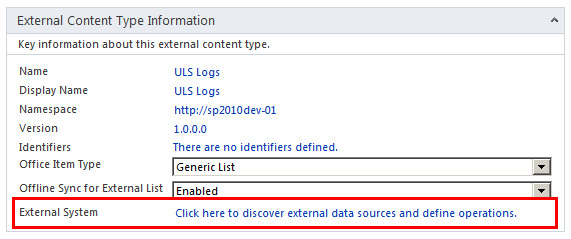
Now, click on the Click here to discover external data sources and define operations link next to External System

image

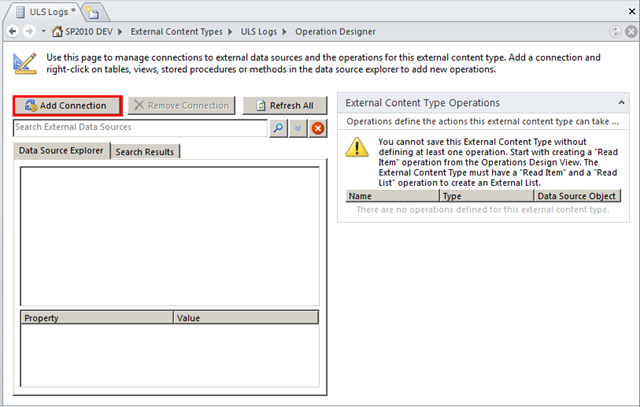
This will launch the Operations Designer window, we want to click on Add Connection to add a new data source to link to our BCS External Content Type

image

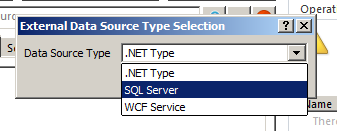
You will then be presented with a pop-up dialog box, for the External Data Source Type Selection, choose SQL Server from the Data Source Type drop-down

image

and then click OK. Another dialog window will then appear asking for the SQL Server connection details. Enter in your SQL server name as the Database Server, and enter in WSS_Logging in  the Database Name field, and click OK

image

WSS_Logging will now appear as a collapsed tree-structure within your Data Source Explorer window

image

Expand that down to views, and select the ULSTraceLog by right-clicking on the view, and choosing New Read Item Operation from the context menu

image

You will then be presented with the Read Item screen. Select Next >

image

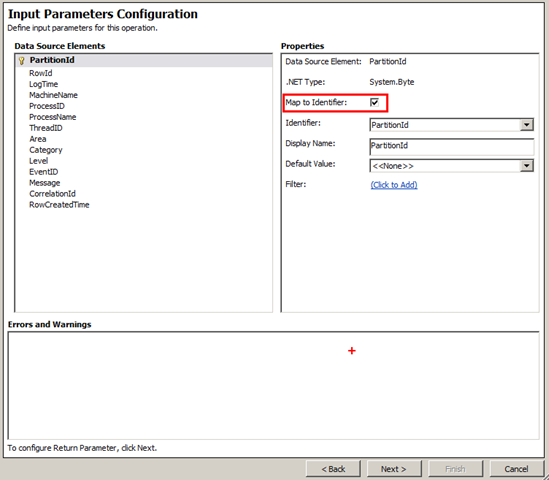
Be sure to check off the Map to Identifier checkbox (this will automatically set the PartitionId as the identifier)

image

And then select RowId from the left-side of the screen, and do the same for this as well, and then click Next >

image

Then perform the same actions for both the PartitionId as well as the RowId for the Return Parameters Configuration screen

image

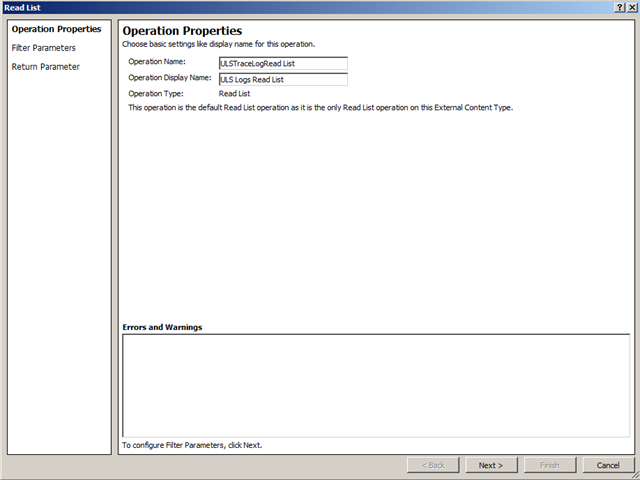
and then click Finish. We also need to create a Read List operation as well for this to work. So, right-click again on the WSS_Logging table, but this time choose New  Read List Operation

image

Leave the defaults as-is, and select Next >

image

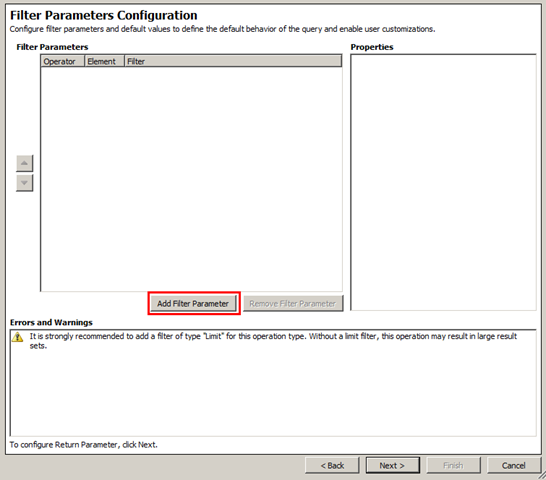
On the next screen, Filter Parameters Configuration, you will see a message at the bottom in the Errors and Warnings text area, that you should at the very least, create a Limit type filter, so you do not try to bring back too many rows from the database at once.

image

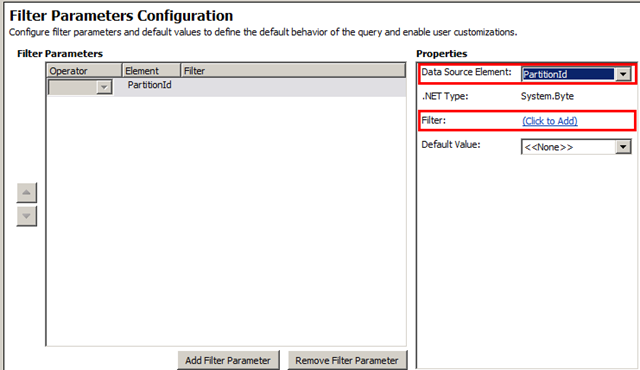
So, let’s so this. Click on the Add Filter Parameter button right above the Errors and Warnings text area

image

Set the Data Source Element as PartitionId (our main identifier), and then click the (Click to Add) link next to Filter

image

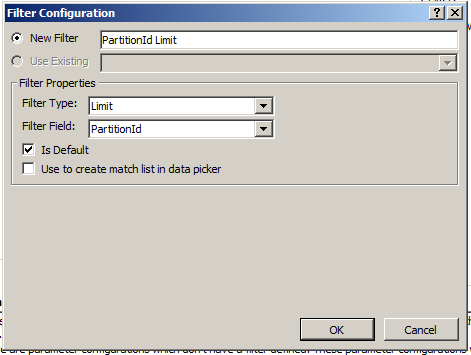
And then in the Filter Configuration dialog box that appears, set a name for this filter in the New Filter field, select Limit from the Filter Type field, and select PartitionId from the Filter Field drop-down, and check off Is Default to set this as the default filter.

image

And then click OK, and then enter in a Default Value for the filter. I am choosing a limit of 2000, because as we all well know from 2007, 2000 items is our general rule of thumb, as performance tends to degrade when working with more than 2000 items in a list.

image

Now click Next >

In the Return Parameter Configuration screen, map the identifiers for both PartitionId and RowId, as we did with our Read Item configuration

image

Now, go through each of the fields, and set them all as Read-Only

image

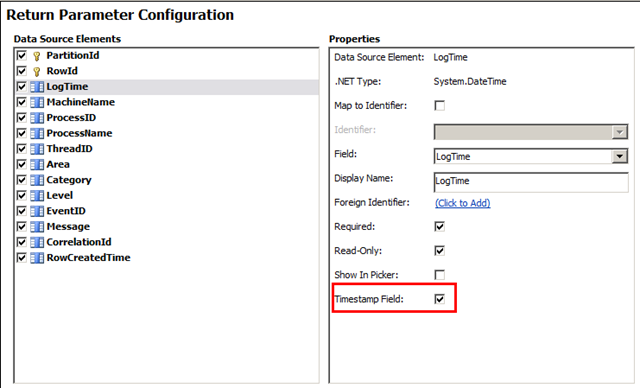
And for our LogTime field, select the Timestamp Field checkbox, as this is a timestamp.

NOTE: Only one field can be used as a timestamp type field

image

Once you have done this, click Finish, and then click Save at the top of the screen to save your new External Content Type

image

Then, go up to the ribbon, and select Create Lists & Form from the Lists & Forms section of the ribbon

image

Now, in the next window, set the new List Name, the default Read Item Operation, the System Instance (Data Connection), and a List Description (optional), and Create Infopath Form (also optional), and click OK

image

SPD2010 will then connect to your site, and create the new list!

image

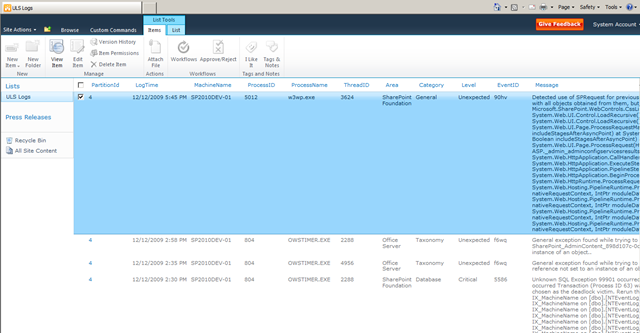
Now, lets go back to our site, and see what we have….There we are, our ULS Logs list!

image

image

That wasn’t so bad, was it?

To state again, this was just an example of the ease in which you can configure External Data Lists, External Content Types using BCS (Business Connectivity Services) created through SharePoint Designer 2010 in SharePoint 2010!


Publishing Site Images in SharePoint 2010

In case you were wondering – they kept with the same stock photos for the Publishing Site template in SharePoint 2010…

image


Converting new lines into line breaks in C#

As in my last post, I mentioned I am currently working on a project which involves the migration of SQL data into a SharePoint list. In doing so, I have one specific field, which maps to a multi-line rich text field in SharePoint. The data in SQL exists with line breaks, which formats nicely if placed into <pre> </pre> tags in HTML, or within a TEXTAREA element. However, I need this to work within the Rich Text field type within SharePoint, and \r\n’s are not cutting it. That field uses HTML to format the contents.

So, when pushing the items from SQL into the list, you can use the following snippet to replace new line characters [\r\n] with line breaks [<br />]

   1: SPList list = web.Lists["Messages"];
   2:  
   3: // SQL data exists within the referenced DataTable
   4: foreach (DataRow dr in dt.Rows)
   5: {
   6:     SPListItem item = list.Items.Add();
   7:     item["Message"] = dr["Message"].ToString().Replace(Environment.NewLine,"<br />");
   8:     item.Update();
   9: }


Programmatically emptying the web and site Recycle Bins

I am currently working on a project, where I am migrating data from SQL into a SharePoint list. In doing so, I need to run this console utility through its paces, so, I have the need to constantly fill and purge the list several times.

Looping through each item within the list, for several thousand items is painstakingly slow however, so, I did find this great piece of code to do the job for me, which batch deletes all of the items from the specified list: http://code.msdn.microsoft.com/SharePointListDelete

Works exactly as advertised, and will now forever sit in my SharePoint tool belt. However, this method moves those items into the Recycle Bin. So, I thought I would share this with everyone else…

To empty both the web and site recycle bins, run the following code (modified for your environment of course…)

   1: using (SPSite site = new SPSite(SPContext.Current.Site.ID))
   2: {
   3:     using (SPWeb web = site.OpenWeb("/"))
   4:     {
   5:         // empty the web recycle bin
   6:         web.RecycleBin.DeleteAll();
   7:  
   8:         // empty the site collection recycle bin
   9:         site.RecycleBin.DeleteAll();
  10:     }
  11: }