Diagnostic Logging Enhancements in SharePoint 2010

One of the big things I am happy that has been “upgraded” from SharePoint 2007 to SharePoint 2010 is diagnostic logging. Let’s take a look and see at a few of the more important features for what has been improved from v12… (at least my favorites, your mileage may vary).

Event Throttling
Let’s take Event Throttling for example. In 2007, you had a clunky drop-down menu to managing your throttling, and, you could only manage one at a time, or, all at once.

image

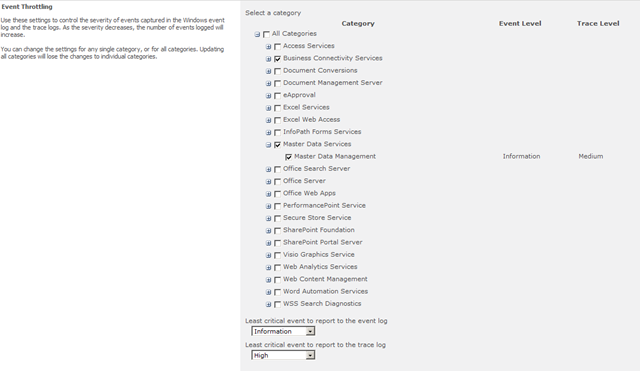
Now, in 2010, you can manage throttling for multiple services at once
image

And event see at a glance what each service is throttled to, without needing to select the service from the drop-down menu, to see the event level box values change.

image

Such a time saver! Definitely makes my life a heck of a lot easier as a developer.

Event Log Flood Protection

image

Event log flood protection – just as it states above – it suppresses duplicates messages for repeating errors. Just as I am sure some of you have probably seen in the past if you’re search service goes belly up, you get THOUSANDS of messages in short succession. This option, when enabled (default) will suppress those messages, so you do not end up seeing those THOUSANDS of the same message, over and over again.

Trace Log
The trace log configuration has undergone a few upgrades itself. Take a look back at the 2007 configuration…

image

You could set the where, number of files, and the minutes to use a log file, before moving onto the next one. Wow… that just isn’t all too helpful. Now, let’s have a look at the shiny new 2010 Trace Log configuration.

image

Ok, so, we didn’t get 50 additional configuration options, but, the ones we do have now are light years ahead of 2007 (in my humble opinion…)

We can now set the number of days to store log files on the server (14 by default), and we can now also restrict the total disk space used by the log files! This is not enabled by default, but, I think this is a best practice, even before the best practices have really be written down, to enable this option immediately, and to something less than the size of the disk available. Full disk = bad.

Also, and this is not a configuration option that you can tweak in Central Admin, but, if you take a look in the logs directory in your 14 Hive (ahem!) sorry, the SharePoint Root folder, you will see that the log files are now being compressed by default! I did this anyways in 2003 and 2007, and eons before with any websites, they just now thought of this? In any event, it saves me a step in server configuration.

image

Logging to the database!
Check this out. Open up the SQL Management Studio, and expand your databases. You’ll notice a nice new one (among others), named WSS_Logging. Go ahead, check it out…. you will see there are quite a few tables. Most of them are partitioned up, so not too many records are stored within one specific table

image

However, they were kind enough to create views for us as well
image

which greatly simplifies hunting for that needle in a haystack. You will also, see, the very last view, ULSTraceLog. Yes, the ULS log is now also contained within the database as well!

image

This is just absolutely phenomenal. How many times I coped out the ULS logs into an excel sheet (painstakingly, especially since they can be huge files), to sort, filter, and search the data. Or, looking and trying to search the ULS logs within Notepad? UGH! This makes my life so. much. easier. Another awesome thing about this? NETWORK ACCESSIBLE LOGS! Yes! You can now access these from anywhere SQL gives you access to, easily write your own applications to parse the data, use SQL Reporting Services to merge logs from your entire farm, or multiple farms… the possibilities are endless.

Also, you will see that all events that get written back to the server Event Log for all of the servers in your farm? Yep, those can now be accessed in SQL as well, in the NTEventLog table. Awesome.

These are just a few of the many enhancements in SharePoint 2010, more to come soon!


Right from the Source – Custom Actions in SharePoint 2010

Just wanted to share this with my readers – Andrew May from the SharePoint Developer Documentation Team, posted a great article on the Microsoft SharePoint Developer Documentation Team Blog yesterday, regarding Custom Actions in SharePoint 2010, specifically, adding a tab with custom actions to the Ribbon interface in SharePoint Foundation Server 2010. This is a good read, straight from the source of the documentation folks themselves at Microsoft.

If you are interested in developing Custom Actions in 2010 – this is a great resource: How to Add a Tab to the Ribbon in SharePoint Foundation


SharePoint Saturday DC Session Materials and Wrap-up

484037770

First of all, a big thanks to all of the attendees who made it out to Reston, VA at the Microsoft Office, to listen to all of the speakers talk about SharePoint, for free (I do no think anyone requested a refund that I am aware of), on a Saturday, in the snow. We had a good crowd, even with the weather, and I had a great time. Thank you all for coming out, definitely made the trip down there worth it! It was great to meet you all, and I had great interaction in my session from the attendees, as well as some sideshow humor, photo ops, heckling from Mark Rackley and Dan Usher (just kidding, you had some good questions!), and some live pair programming with the help of Christina Wheeler.

Another go out to the organizers of the event, Dan Usher, Dux Raymond Sy, and Gino Degregori. They all did a great job of putting this together, and for the sponsors for making this happen! These are great events that really drive the SharePoint community. It is events like these that make the virtual of social networking and online learning actual and physical.

APPLAUSE

Wow, I just realized that is probably the first animated gif I have posted in an extremely long while. Sorry for that… So, you may want to scroll down a bit to stop that and read the rest of this [code, slide presentations, etc.].

Anyhow, as per my presentation, I said I would get these up here as soon as possible, so here they are. Below is the presentation hosted at SlideShare.net, with short clips hosted at screencast.com, without audio, of the demonstrations themselves. I hope to soon re-record those and post them here, as those were my backups, just in case my virtual image did not want to play nice during my demos (it’s happened before, so now I always come prepared!).

And even further down the page away from the annoying applause animated gif above, are the code samples from my demonstrations as well. In addition to what we reviewed in the demos, I also included two additional sources (with pre-compiled WSPs, per the request of an attendee, they are included in the ZIP files below), that were briefly mentioned.

However, before I do that, I would kindly request from some of my attendees, that you please respond in the comments of this post to let me know what you thought of the session, if you will be using Custom Actions in your SharePoint development, if you have put this to use, and any questions you have regarding any of the material that I had presented. This goes a long way in helping me craft future versions of this topic, and plants seeds for others. Thanks in advance!

  • Demo #1 – Creating a Simple Custom Action
    • SPS.SiteActionsSolutionManagement
      • This was the link to the Solution Management page within SharePoint Central Administration off of the Site Actions menu. This is hard-linked however to my local system, to: http://litwareserver:9999, you will need to modify this within the solution, and rebuild the WSP to use for your CA URL and port.
    • SPS.SiteRecycleBin
      • This was the second deployment I quickly ran through, which added a Site Recycle Bin link to the Site Actions page under the Site Administration Custom Action Group
    • SPSDC.SiteActionsRecycleBin
      • This is the solution that I walked through during the first demonstration. This will add links to both the current site recycle bin, as well as the site collection recycle bin to the Site Actions menu.
  • Demo #2 – Creating a Slightly More Complex Custom Action
    • SPS.CompleteTask
      • This is the solution from the second demonstration. This solution will add Complete Task links to the Tasks and Gantt Tasks (Project Tasks) lists shown in the Edit Control Block. This will allow you to set the task Status field to Completed, and the Percent Complete field to 100% for the given task.
  • Demo #3 – Hiding Custom Actions
  • Demo #4 – Custom Action Groups

Some additional resources for Custom Actions I have on my blog that I had made mention of during my presentation:

The presentation and code samples above will also be made available on the SharePoint Saturday DC website.

Thanks again for attending, and please let me know what you thought of the event and the session! Dux mentioned that the DC events will be taking place twice a year. My plan for the next time, is to show how Custom Actions are used within SP2010, and possibly a session on building features and solutions… so be sure to keep an eye out for the next SharePoint Saturday DC!


SharePoint Quick Tip – Presence Information

If you have presence enabled in your SharePoint deployment (you know, you get those little round ball icons next to names within SharePoint), if you haven’t before, try giving it a hover over with your cursor. You’ll see that you get the down arrow next to it, which you can then expand down, to show some handy tools. You can see the email of the user, schedule a meeting, view their My Site, Send an email, look up contact information in Microsoft Outlook, and view the properties of that contact in Outlook.

image

SharePoint Saturday Boston – Call For Sponsors!

[re-posted from http://www.sharepointsaturday.org/boston/]

SharePoint Saturday Boston is currently looking for sponsors.  SharePoint Saturday is free to all attendees and a not for profit event.  Sponsorships help provide the necessary resources to facilitate the event.  If interested please download and review sponsorship document (right-click, and choose Save Target As... to avoid password prompts).  If there are any questions or want to sponsor an item please email SPSBoston@live.com.  Sponsorship for SharePoint Saturday Boston is on a first come first serve basis.

What: Join SharePoint architects, developers, and other professionals that work with Microsoft SharePoint Technologies for the 2nd ‘SharePoint Saturday’ Boston event, to be held on Saturday, February 27th, 2010 at the Microsoft Office on Jones Road in Waltham, MA.  SharePoint Saturday will be an educational, informative & lively day filled with sessions from respected SharePoint professionals & MVPs, covering a wide variety of SharePoint-orientated topics.  SharePoint Saturday is FREE, open to the public and is your local chance to immerse yourself in SharePoint!

When: February 27th, 2010

Where: Microsoft Office, 201 Jones Road, Waltham, MA

Follow us on twitter at @SPSBoston, and use the hashtag #spsbos when tweeting about the event. Visit the SharePoint Saturday Boston website for the most up-to-date information as well: http://www.sharepointsaturday.org/boston


SharePoint Saturday Boston – Call for Speakers

[re-posted from http://www.sharepointsaturday.org/boston/]

If you are interested in speaking at SharePoint Saturday Boston on February 27th, 2010, please download the speaker’s submission form here.

After completing the form, please return it to SPSBoston@live.com as soon as possible as the speaker slots fill up fast.

Once your outline is received we will review and send email confirmation that it was accepted.

What: Join SharePoint architects, developers, and other professionals that work with Microsoft SharePoint Technologies for the 2nd ‘SharePoint Saturday’ Boston event, to be held on Saturday, February 27th, 2010 at the Microsoft Office on Jones Road in Waltham, MA.  SharePoint Saturday will be an educational, informative & lively day filled with sessions from respected SharePoint professionals & MVPs, covering a wide variety of SharePoint-orientated topics.  SharePoint Saturday is FREE, open to the public and is your local chance to immerse yourself in SharePoint!

When: February 27th, 2010

Where: Microsoft Office, 201 Jones Road, Waltham, MA

Follow us on twitter at @SPSBoston, and use the hashtag #spsbos when tweeting about the event. Visit the SharePoint Saturday Boston website for the most up-to-date information as well: http://www.sharepointsaturday.org/boston


Save the Date! SharePoint Saturday Boston Announced 2.27.10

I am pleased to announce that the second SharePoint Saturday Boston event has been announced, and, that I am able to help organize this event!

What: Join SharePoint architects, developers, and other professionals that work with Microsoft SharePoint Technologies for the 2nd ‘SharePoint Saturday’ Boston event, to be held on Saturday, February 27th, 2010 at the Microsoft Office on Jones Road in Waltham, MA.  SharePoint Saturday will be an educational, informative & lively day filled with sessions from respected SharePoint professionals & MVPs, covering a wide variety of SharePoint-orientated topics.  SharePoint Saturday is FREE, open to the public and is your local chance to immerse yourself in SharePoint!

When: February 27th, 2010

Where: Microsoft Office, 201 Jones Road, Waltham, MA

Follow us on twitter at @SPSBoston, and use the hashtag #spsbos when tweeting about the event. Visit the SharePoint Saturday Boston website for the most up-to-date information as well: http://www.sharepointsaturday.org/boston

Also, follow the other organizers of the event for more information

More information to come!


Microsoft Search Server 2008 Express on Windows Server 2008 R2

I was configuring a new virtual image today for some upcoming client work, and since my new laptop is now x64, by base image for all future virtual images is Windows Server 2008 R2 (with SQL Server 2008 Development edition installed already). Since R2 is quite new still, I figured I would at least hit one roadblock, and sure enough I did.

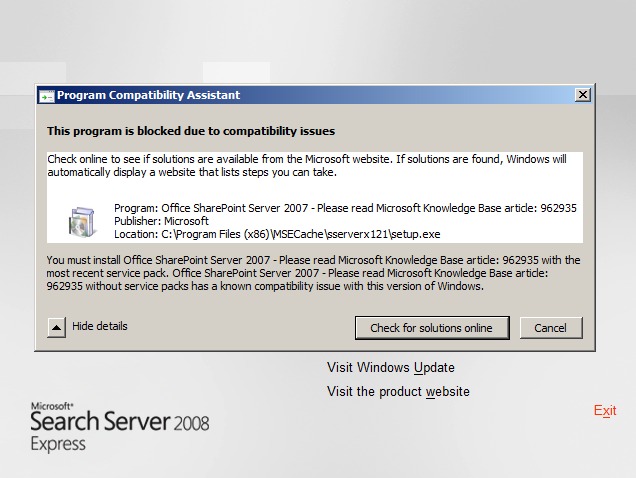
I had installed WSS 3.0 with SP2, without any issues (a command line based install, which instructions for can be found here: http://technet.microsoft.com/en-us/library/cc752946.aspx), and fired up the installation for Search Server Express 2008, when I hit this gem:

image

The error itself is a little confusing, especially since I was running the x64 install, and the message indicates an x86 binary… anyways… It turns out that Microsoft Office SharePoint Server 2007 SP2 needs to be slipstreamed into the Search Server 2008 Express install to do so. I will post the instructions below, but, to give credit where credit is due, thanks to Andy Kemp’s blog post here for the instructions – it saved whatever precious hair I have left on my head for other, more important things.

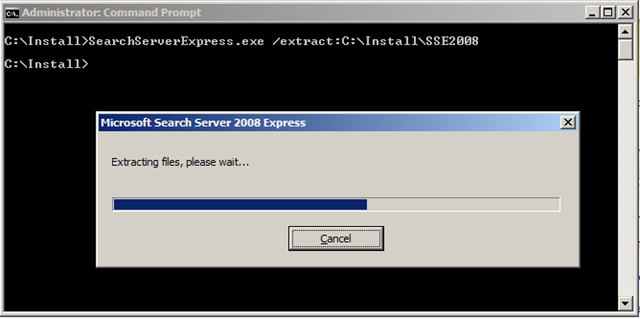
First, open up a command prompt, and extract Search Server Express to it’s own folder, which can be run by the following command

SearchServerExpress.exe /extract:drive:\path\folder

image

Then download the MOSS 2007 SP2 (x64) executable from here: http://www.microsoft.com/downloads/details.aspx?FamilyID=b7816d90-5fc6-4347-89b0-a80deb27a082&displaylang=en

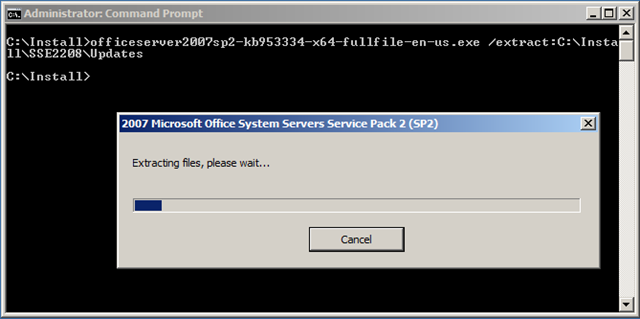
And extract it to the Updates subfolder of the folder that you had extracted Search Server Express to, by running the following command

officeserver2007sp2-kb953334-x64-fullfile-en-us.exe /extract:drive:\path\folder\Updates

image

Then just run the Setup.exe executable from within the Search Server Express 2008 folder, and you’re good to go.


Find a Font from an Image File!

While not directly SharePoint, or even Microsoft related, I had to share this tip. I was updating a graphic in a SharePoint site today, which someone else had done, and could not get in contact with them, I had an interesting problem, in which anyone who has done any sort of design has probably come across at some point – how do you find a font based solely on an image?

I found the answer via a quick Google Bing search > http://new.myfonts.com/WhatTheFont/

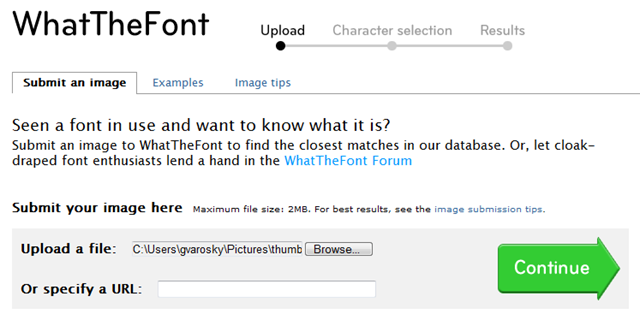
MyFonts.com has a neat online utility now, that, allows you to upload an image…

image

it then attempts to isolate the letters, with verification from you, the end user…

image

and then attempts to return some possible results!

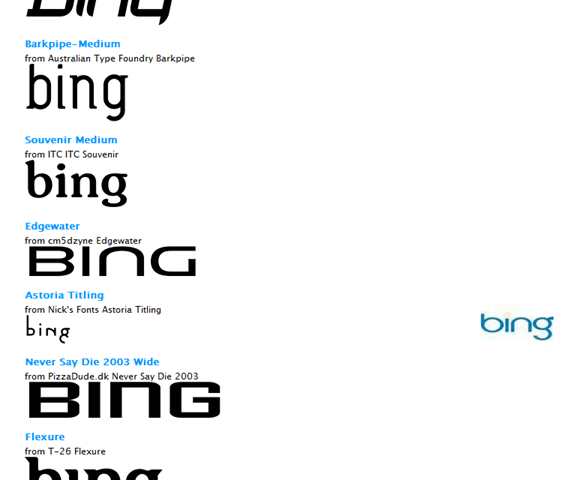
image

While I did not find any direct matches with Bing, it is a very cool program, and did work in my case. It may not be the EXACT same font, but, it was 99.5% there, and did the job I needed it to. I think probably the best design feature MyFonts.com put on the results page, is the scrolling image you had uploaded, so that you could accurately match it up with the example results shown.

WCF Hotfix (KB976462) for Windows Server 2008 R2