Additional SharePoint 2010 Beta 2 Installation Links…

Speaking at SharePoint Saturday DC on December 5th

484037770

I am pleased to announce that I will be speaking at SharePoint Saturday DC (well, actually Reston, VA) on Saturday, December 5th. There is a trio of excellent people organizing this event (Dan Usher, Dux Raymond Sy, and Gino Degregori) so it should be a good one!

The event registration sold out on the same day registration had opened, however, you can still sign up for the waiting list here: http://www.eventbrite.com/event/484037770

I will again be presenting my session “Introduction to Developing Custom Actions within SharePoint”, however a modified version based on prior feedback and time limitations from the Boston, Baltimore, and New York City events.

An official speaker and session list has not been released to the SharePoint Saturday DC site as of yet, however, you can follow along to the chatter in twitter by searching for hashtag #spsdc, and be sure to follow @SPSaturday_DC, @usher, and @meetdux for more information regarding the event.

I am excited to be involved in yet another SharePoint Saturday event, and am looking forward to presenting, seeing some old friends, and making some new ones.


Installing SharePoint Designer 2010 Beta

SharePoint Designer is an invaluable tool for site administrators and developers within SharePoint. After the Microsoft SharePoint Conference in Las Vegas, and seeing all of the great things that Microsoft has done to improve this tool from its humble beginnings back when it was FrontPage. So, naturally that I now have full-on access to the 2010 Beta, I am anxious to start playing around with SharePoint Designer 2010 first hand.

The first step in this process of course, is to get it installed. To do so, I am starting from the first site I have created in my new environment.

Going to the Site Actions menu (it’s moved by the way, over to the left side of the page from 2007), I select Edit Site in SharePoint Designer

image

Since I do not already have Designer 2010 installed, a dialog window pops up, basically letting me know that I do not have it installed, and I can do so. Just like SharePoint Designer 2007, SharePoint Designer 2010 will be free for all users. And since the Beta is all that is around now, that’s what it will install for me.

image

I select the language I am looking to install SharePoint Designer in (English, German, Spanish, Japanese, French, Russian, and Chinese are other available languages that can be selected, in addition to English, as shown above), and choose my platform. Even though SharePoint 2010 is only 64-bit, SharePoint Designer 2010 is available in both 32 and 64 bit, as it is intended to be run from the desktop, and many of us still run 32 bit desktops, as we probably will for a long time to come.

Once done, selecting the Download button goes out and fetches the right download, and prompts me to run and/or save it.

image

It’s sizeable for my options as chosen (English 64-bit) at 277MB, happy that I have a nice and fast connection.

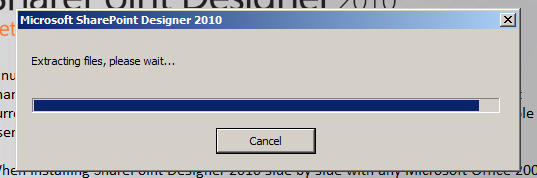
Once it’s up and running, the installer will extract the files, and then move on.

image

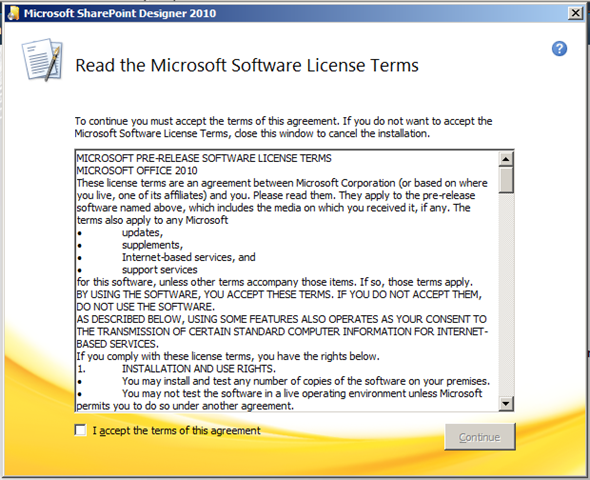
You have the usual EULA, agree and continue

image

Once accepted, you really cannot miss what is needed on the next screen. Microsoft made sure of that.

image

However, you can customize your installation by clicking on the Customize button, setting a new installation directory, setting your user information, and adding or removing features from the install. With the default installation, its a fairly hefty installation at 1.03G, but, I have a feeling it will be well worth it…

image

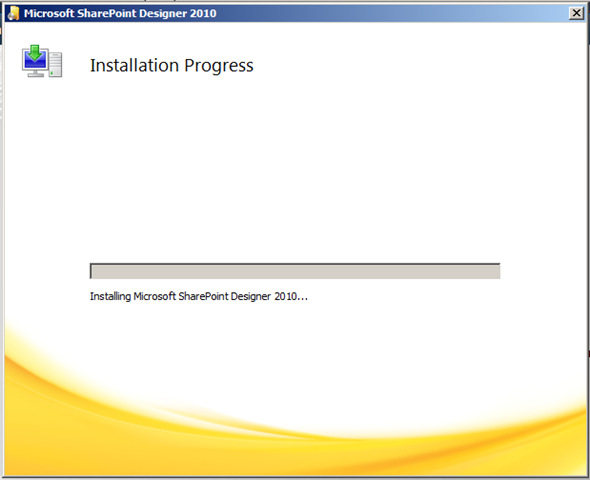
The installation begins (of course after you have clicked the Install Now button.

image

And that’s it. You’re done!

image


SharePoint 2010 Beta 2 Installation and Configuration Visual Tour

This is a quick visual guide to installing and configuring Microsoft SharePoint Server 2010 Beta 2, as it is from my experience. My environment is configured as such:

  • Virtual Image running on VMWare Player, on top of Windows 7 Enterprise x64
  • Windows Server 2008 R2
  • SQL Server 2008 SP1 CU2
  • AD, SQL, and SharePoint all co-existing on the same virtual image

This tour will not encompass the SQL or AD configuration however. Possibly in a later post I will cover those, but, just wanted to share the experience of configuring this beauty from a first-timer’s perspective. My friend Erik Kraus has a nice post with details and links to great sources of information regarding prerequisites, and installation instructions here: http://blogs.msdn.com/ekraus/archive/2009/11/17/sharepoint-2010-beta-2-is-finally-here.aspx

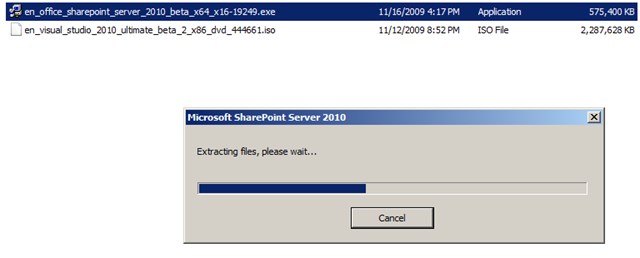
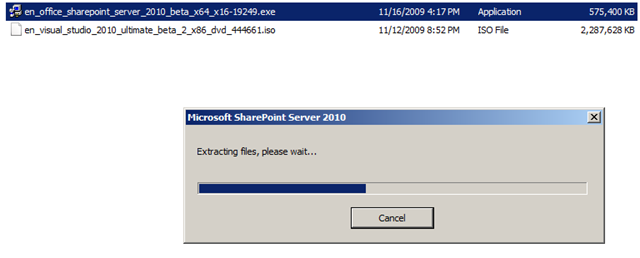
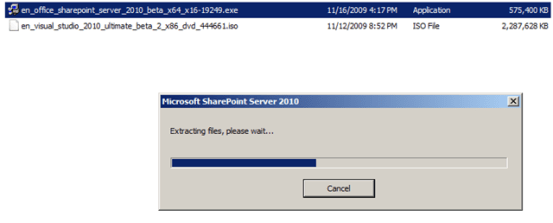
First, you will need to download the beta, then double click the executable file, and you’re off to the races.
image 

image

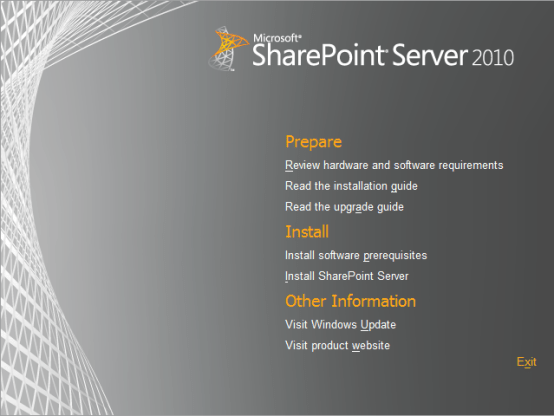
Checking the first option allows you to review the hardware and software requirements for SharePoint 2010. These are important! I suggest you do so before continuing. Once you have read these, it also make sense to read the installation guide.

Once you have read up on the requirements and installation procedures, it is time to move on down the line to the Install software prerequisites action. This will run through the SharePoint Products and Technologies 2010 Preparation tool, which as the screenshot below dictates, it installs and configures the following products:

  • Application Server Role
  • Web Server (IIS) Role
  • Microsoft SQL Server 2008 Native Client
  • Microsoft “Geneva” Framework Runtime
  • Microsoft Sync Framework Runtime v1.0 (x64)
  • Microsoft Chart Controls fro Microsoft .NET Framework 3.5
  • Microsoft Filter Pack 2.0
  • Microsoft SQL Server 2008 Analysis Services ADOMD.NET

image

Click Next >

image

Agree to the EULA and click Next >

image

The tool will then run through its paces, and if all goes well, you will see the following screen, letting you know that all the prerequisites have been installed or enabled.
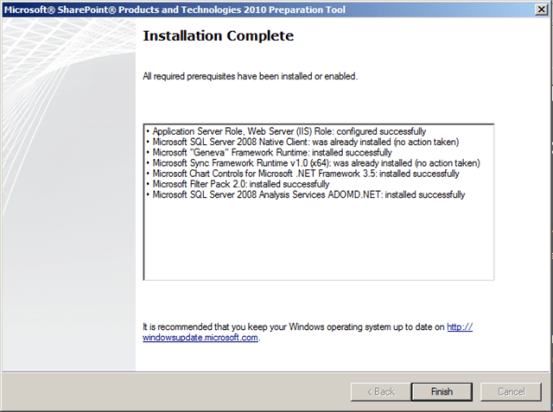
image

You will now be back at the trusty splash screen. Go ahead and click on Install SharePoint Server

image 

image

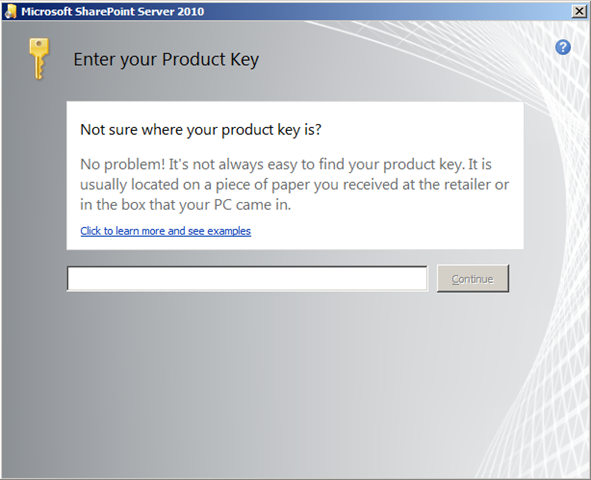
Then enter in your product key, which will be validated, and once so, the Continue button will light up. Click it.

image

Agree to another EULA and click Continue

image

In this “Choose Your Own Adventure” story, I selected Server Farm.

Editor’s Note: Unfortunately I missed a screenshot here, of the Server Type screen. I hope to have a screenshot of it here shortly. Onwards!
image

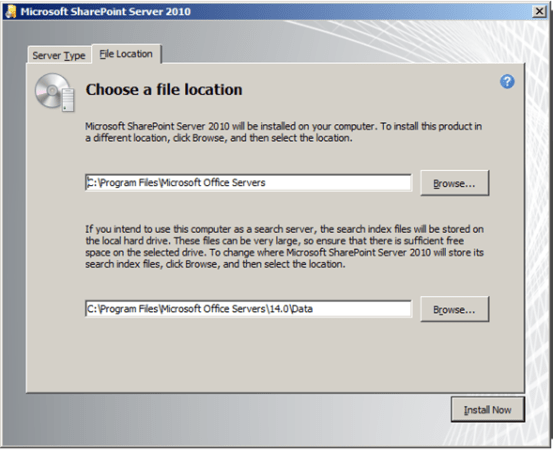
Next, on the File Location screen, these are the defaults, which I kept, as I only have the one partition on my virtual image. Then click Install Now if you are fine with these settings

image

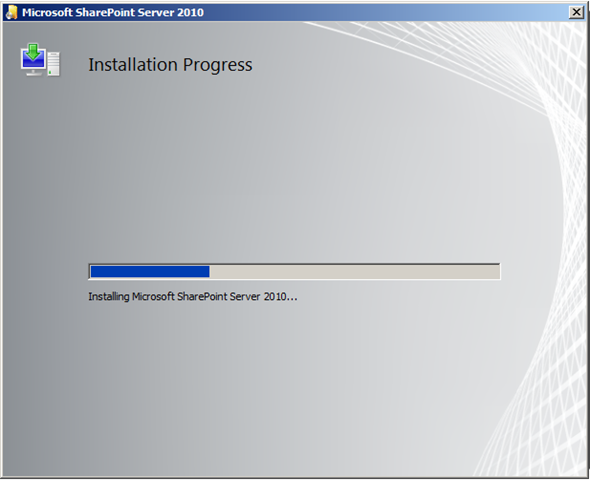
The installation begins! Once this process finishes, you will be presented with the following screen to run the SharePoint Products and Technologies Configuration Wizard – let’s do that.

image

image

The wizard will then load. Go ahead and click Next > to begin.

image

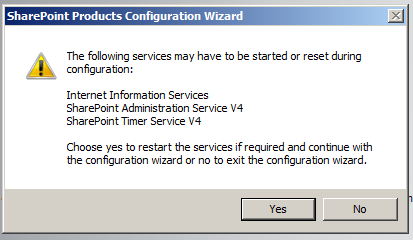
You’ll get this familiar pop-up.. go ahead and click Yes.

image

Choose Create a new server farm and click Next >

image

Here you will need to specify your database configuration settings. Fill those in and click Next >

If by chance you are not “up to code” on your version of SQL, you will get this error

image

Otherwise, you will see this next screen
image

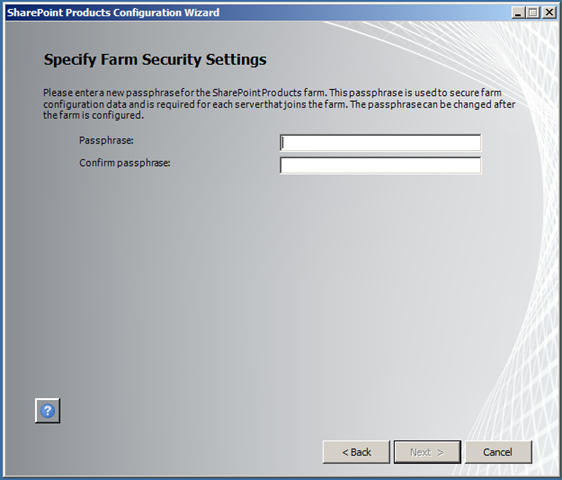
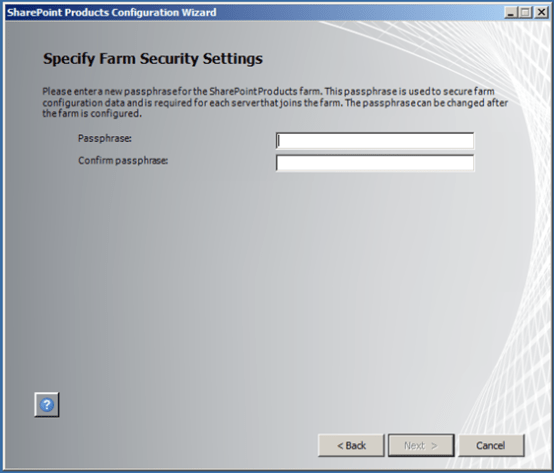
Here, you will specify a password for your new SharePoint farm. As it states above, the password “is used to secure farm configuration data and is required for each server that joins the farm”. It also states that it can be changed, but, you may want to jot this down somewhere. Once entered, click Next >

image

Specify the Central Administration port (I am partial to 9999), or let it auto-assign a random port for you. And choose your authentication method. I stuck with NTLM for now. This can be changed later on. If you decided on Kerberos here, you’d get this message after clicking Next >

image

But I didn’t, so we didn’t see that…. so after clicking Next > we see the following summary screen.

image

Click Next > here to apply these settings, or, click < Back to go back and change these if needed.
image

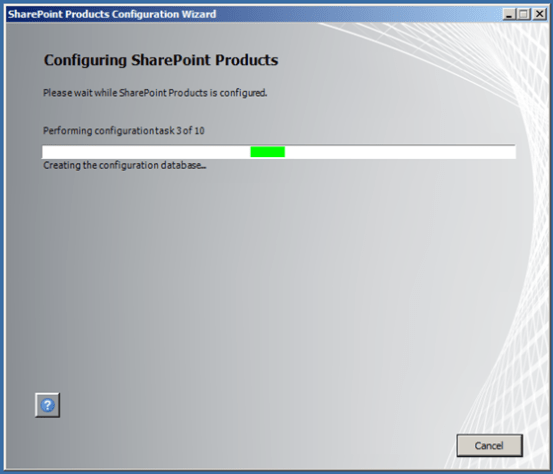
This will then kick off into the 10 step configuration process.

image

On successful configuration, and clicking Finish, you will be directed into Central Administration to the following URL: http://sp2010dev-01:9999/_admin/adminconfigintro.aspx?scenarioid=adminconfig&welcomestringid=farmconfigurationwizard_welcome

And you can see your new baby for the first time. Awww… so sweet and cuddly. I think I’ll name her Jane.
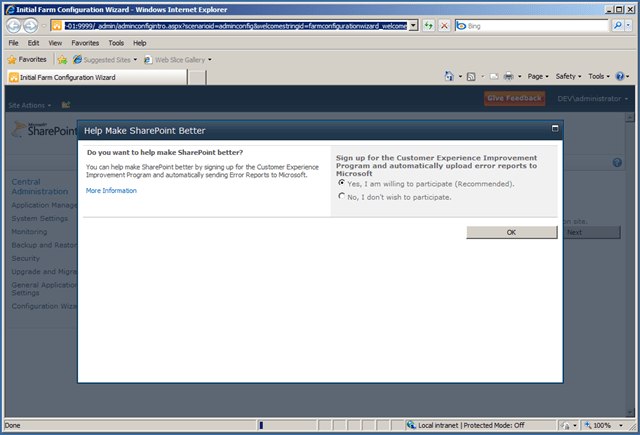
image

You will first be prompted to join the Customer Experience Improvement Program, I selected yes, and went on my merry way.

That is it for now… more to come soon! Thanks for watching.

 

The service application proxy “User Profile Service Application” could not be provisioned because of the following error: Unrecognized attribute ‘allowInsecureTransport’.

So, here I am, going through my installation of the SharePoint 2010, and received my first error! The error (full text below), came while configuring the services via the Initial Farm Configuration Wizard

Errors occured.

The service application proxy "User Profile Service Application" could not be provisioned because of the following error: Unrecognized attribute ‘allowInsecureTransport’. Note that attribute names are case-sensitive. (C:\Program Files\Common Files\Microsoft Shared\Web Server Extensions\14\WebClients\Profile\client.config line 56)

Corelation Id: bf7f0c8a-97f2-4250-b4e5-04c4d74eff3e

DOH! In addition to this error, not only is this halting my forward progress, and not this has anything really to do with anything, but, hopefully they run a spell check before this gets to RTM. There are two spelling mistakes in the message above (bolded and underlined). Anyways, I did a bit of searching on the interwebs for this, and it appears that it is a known issue on both Windows 7, and, Server 2008 R2, the latter of which I am running.
It appears that there is a fix coming down the pipe from Microsoft, according to this post on the SharePoint TechNet Forums: http://social.msdn.microsoft.com/Forums/en-US/sharepoint2010general/thread/041ddc78-8d18-4753-b7be-8d8113e26e62, as there is an issue with WCF on the two aforementioned platforms, as they share the same core.
There are also workarounds posted (like here: http://mphacker.spaces.live.com/Blog/cns!8040CC624DDC5404!790.entry), however, these come in the form of modifying a file within the “SharePoint Root” [14 Hive] (the file mentioned in the error). This is unsupported, but, guess what, so is the Beta copy of SharePoint 2010. However, in the article above, some issues have arisen by modifying the file directly.

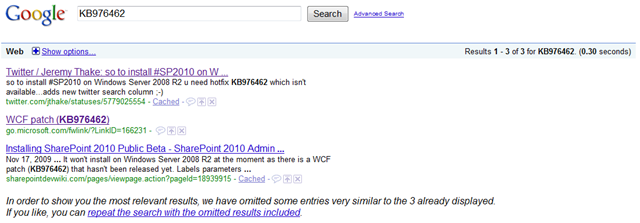
There is no release date that I am aware of for the patch, however, a search on Google nets the following

image

It appears it was there at some point, however, it has since been removed (“Sorry, but we couldn’t find the page that you requested.”). I’ll make another post as soon as I see it comes out. In the meantime, I am holding off on my installation until the fix comes out so I can have a “clean” fresh install.

UPDATE: Hotfix has been released! WCF Hotfix (KB976462) for Windows Server 2008 R2 


Yet another beautiful day…

image

Did I mention I was excited? After all of this hype, and my excessive drooling at the SharePoint Conference this year… I am installing SharePoint 2010.

SharePoint 2010 Developer Videos on Channel 9

If by chance you did attend (or did not attend) the SharePoint Conference in Las Vegas a few weeks ago, and if you did attend (or did not attend) the additional day for the all day post-conference developer session on Friday, October 23rd, hosted by Andrew Connell and Ted Pattison of Critical Path Training, they now have the videos online over at Microsoft’s Channel 9 here: http://channel9.msdn.com/learn/courses/SharePoint2010Developer/ of the same content that was delivered (probably however missing the Developer v. Admin joking that took place, with the all-day Admin course happening next door).

Lots of great information during this session, so much so, that I have been waiting for these to come out so that I could review them again. In fact, I think I’ll do that now!


Turning Off Internet Explorer Enhanced Security Configuration in Windows Server 2008 R2

You know, this annoying message when you fire up Internet Explorer?

image

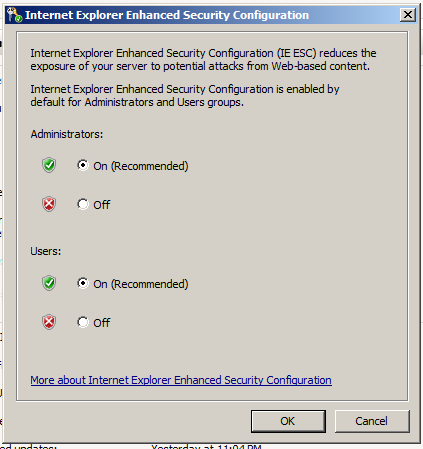
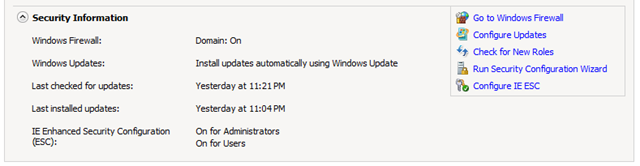
It’s fairly easy to do. Go to Start > Administrative Tools > Server Manager and from the main screen, there is a section called Security Information (screenshot below). You will notice some actions to the right of the security information summary. You will see one for Configure IE ESC, click that.

image

And the next screen is straight-forward, you have the option to turn it off for Administrators, Users, or both.

image

Click OK, and you’re good to go!


A word of caution before installing the SharePoint 2010 Public Beta

I received an email from Bjørn Furuknap today, and was delighted with what it contained. So I do not steal his thunder, give a read (link below) BEFORE you go installing the beta to save you some hassle.

http://furuknap.blogspot.com/2009/11/installing-sharepoint-2010-beta-2-how.html

** Updated 11.17.09 **

A reader of my blog, Arif, posted this morning in the comments, that it can definitely be done using local accounts – he was kind enough to share this link from the SharePoint From The Field Blog: http://sharepoint.microsoft.com/blogs/fromthefield/Lists/Posts/Post.aspx?ID=112 Thanks Arif!


stsadm -o warmupcollection And Other Good Things…

While I am in the process of creating a new virtual machine to host the new public beta of Office SharePoint Server 2010, I thought I would share a quick tip, regarding a toolset I use frequently. If you do any development work at all, or any sort of demonstration environment, you need to be aware of Scot Hillier’s SharePoint Development Environment Modifications project on CodePlex (http://www.codeplex.com/SPDevMod).

This is a collection of extremely useful tools for Visual Studio 2005 and 2008, some great STSADM extensions, and more. One of my favorite is mentioned in the subject of the post, and does exactly what it looks like. Taking the URL of a site collection, and warming it up. Useful after app pool recycles, IIS resets, etc., when everything is slow and sluggish as the JIT compiler loads up pages and gets them ready to go.