SharePoint Administration Freeware Tool – Axceler PinPoint

Axceler just released a new tool which will fit nicely into the SharePoint administrator’s toolbox, that can help answer some commonly asked questions in a SharePoint environment:

  • What are my most active sites?
  • What documents/pages see the most activity?
  • What are the largest sites and items within my farm?

Axceler PinPoint provides you with answers to these common question – and best of all, it’s free. The only downside is that it needs to be run from one of the SharePoint servers within your farm, and cannot be run remotely, as it makes use of the object model to work it’s magic. A small price to pay IMHO for this information.

Freeware SharePoint Tool Download

Click here for more information and to download


SharePoint 2010 Sneak Peek

Sorry for the delay on this post. I was away on vacation last week when the updates were made to the Microsoft SharePoint website, and I am still playing catch-up on work.

In any event, Microsoft has released 3 videos talking about some of the new features and what to expect with the next version of SharePoint, each with a different focus (Overview, IT Professional, and Developer). To see these videos, just follow this link: http://sharepoint.microsoft.com/2010/Sneak_Peek/Pages/default.aspx

Under each of the videos, they also list several highlights about the new version for that specific focus. All of these of course are directing people to the SharePoint Conference in Las Vegas this October (http://www.mssharepointconference.com/). Not going? You should…

In addition to this, they have also released a technical preview of the SharePoint 2010 SDK available from here: http://www.microsoft.com/downloads/details.aspx?FamilyID=94afe886-3b20-4bc9-9a0d-acd8cd232c24&displaylang=en

Also, Bjørn Furuknap, who writes the Understanding SharePoint Journal, has started a series on what developers can expect based off of news in the blogosphere, twittersphere, and the SDK, which can be found here: http://www.sharepoint2010beta.com/


Quest DropThis for SharePoint 1.0 Freeware

The folks over at Quest Software have recently released a free utility to allow you to easily integrate your Outlook 2003 or 2007 client into SharePoint via their community site – SharePoint For All.

This tool works by allowing you to upload attachments into SharePoint, and provide a link in your email to that document, helping eliminate the sending of attachments through your own, as well as your recipients’ mail servers. All directly from within Outlook.

I find this utility extremely handy for sending files to clients, and pushing the files up to their project site, as well as working with internal teams, pushing files up to my MySite.

Go here to download the software, a mini-guide, and there is also a link to their support forum to share your questions and feedback: http://sharepointforall.com/media/p/401.aspx

Usage is simple, once the add-in is configured, send an email with an attachment, and you will be prompted with the box above so you can specify the location (other than the default you have configured), click OK, and you’re off to the races.

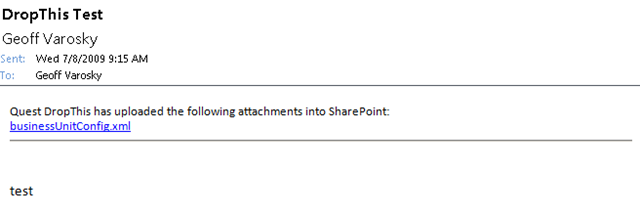
Your recipient will see an email like this, with a link to the attachment (if the first or second options are chosen)

image 

A word of note for Outlook 2007, which is not mentioned in the guide here: http://sharepointforall.com/blogs/team/archive/2009/06/23/the-official-quest-drop-this-for-sharepoint-mini-guide.aspx 

When I had installed (your mileage may vary), the utility was automatically set as disabled. You will know the utility is disabled if there is not a new Quest DropThis for SharePoint tab under Tools > Options. To change this, go into Tools > Trust Center, and click on Add-Ins. You should then see Quest DropThis for SharePoint underneath the Disabled Application Add-ins section. On the bottom of that screen, select Disabled Items from the Manage drop-down, and click Go. Find Quest DropThis for SharePoint in the list, and click Enable. Once enabled, it will then go under Inactive Application Add-ins, to now enable this add-in, select COM Add-ins from the Manage drop-down and click Go. Then, check the Quest DropThis for SharePoint option in the list, and click OK. You should now be ready to go!


AvePoint Releases FREE Tool for SharePoint Item Level Restoration from SQL and DPM Backups

AvePoint announced this at the SharePoint Technology Conference in Boston two weeks ago, and has issued a formal press release as of July 1st, 2009. They are now offering a FREE tool (DocAve SQL Restore Controller), that will allow you to perform full-fidelity item-level restore capabilities in SharePoint from SQL and DPM backups!

As with all of AvePoint’s products, this tool is available in their DocAve software suite (trial can be downloaded here: http://avepoint.com/resources/free-trial-downloads/). The trial gives you 30 days to try out the entire product suite, and after the 30 days period is up, you still have access to the DocAve SQL Restore Controller.


Executing SPQuery Queries and the U2U CAML Query Builder

If you are querying against any list using the SPQuery method, then most likely you are using the U2U CAML Query Builder. And if you are not, why? (This is old news! It’s been around since SharePoint 2003) This utility is always one of the first installations to any of my development environments.

This utility makes your life much easier by allowing you to build and test your queries directly against SharePoint, before debugging them, through code. And you can also do it remotely via web services, so you do not have to install and run this directly from the server itself.

A newer version was released last year as well that will install directly into your farm via a feature, to allow you to build, test, and save queries all from the SharePoint UI!

However, a common issue takes place when you copy the query directly from the U2U CAML Query Builder (which works just fine in the utility itself), in that no matter what conditions you have specified for your query, you always retrieve all list items. If this is the first time you have run into this – you have no doubt done a little of the timeless developer troubleshooting method

  1. Bang head against desk
  2. Repeat

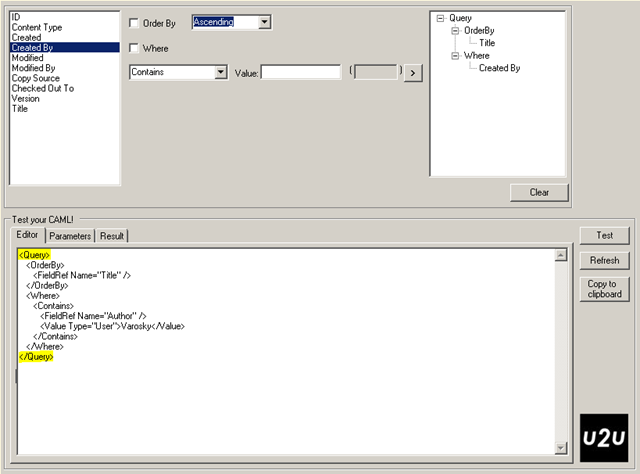
You need not worry however, this is a quick fix. The U2U CAML Query Builder inserts <Query> </Query> tags around the query itself. In your code, just drop these start and end tags from your query, and you should now be returning your expected results.

image


SharePoint Saturday Baltimore – Registration Opens 7/13!

image 

SharePoint Saturday Baltimore is quickly approaching! And the good news is here – registration opens at 10am EST on July 13th, 2009. Be sure to register early, as the slots are sure to fill up quickly!

For more information, and the place to visit to register for this event on 7/13, please click here: http://www.sharepointsaturday.org/baltimore/


Current Item Properties for Comparison within the ItemUpdating Event Receiver Event

Within an event receiver, you have two hash tables available to you within SPItemEventProperties, BeforeProperties, and AfterProperties.

When working with the ItemUpdating event receiver, the AfterProperties do indeed hold the updated values of that list item. However, the BeforeProperties hash table does not hold the current item values, which can lead you to some head scratching trying to figure out how to access these for comparison purposes.

Never fear – you can still get to it through the SPItemEventProperties through:

properties.ListItem.Fields[“Field Display Name”].InternalName

So you can compare that with your AfterProperties value:

properties.AfterProperties[properties.ListItem.Fields["Field Display Name"].InternalName]

And you’re good to go.

Common Coding Issues When Using the SharePoint Object Model

A link which I reference often over at MSDN is the Best Practices: Common Coding Issues When Using the SharePoint Object Model. I wanted to share it with any readers that may be unaware of its existence, and, an easy place for me to find it if I ever lose the bookmark. I generally browse it before jumping into a new project, just to make sure I am following the best practices when writing custom code against the API. At the time of writing a web part, event receiver, or workflow, it may be for a small set of data, but, you need to plan for growth.

Example: If you hear “this list will never have more than one or two hundred items in it”, you better plan for having several thousand, or tens of thousands. Needs change, it is a fact of life and business. By following some simple coding practices as outlined above, you can be ahead of the game, and not have to iterate through thousands upon thousands of list items you are querying for only a small subset, then you will not have to worry about angry users wondering why a page takes 45 seconds to load with only a single web part on it – yours.


Speaking at SharePoint Saturday Baltimore

I have the privilege yet again to join a great group of speakers and attendees in Baltimore on July 25th, 2009, to once again speak at SharePoint Saturday.

If you are unfamiliar with SharePoint Saturday, it is a free event that covers a wide range of areas within SharePoint: end user, architect, developer, administrator, and there will even be a SharePoint 101 track to help those new to SharePoint learn the basics.

There is a great lineup of speakers set so far, including Adam Macaulay, Dan Lewis, Dan Usher, Dux Raymond Sy, Eric Harlan, Errin O’Connor, Joel Oleson, Michael Noel, Mike Watson, Shadeed Eleazer, and more! Visit this page for the complete listing of speakers: http://www.sharepointsaturday.org/baltimore/Pages/speakers.aspx

Registration is set to open within a few weeks, and I will post any updates here regarding the event as I receive them, once it is open, and you are in the area, I highly suggest you attend if you can!

If you are not in the Baltimore area, do not worry. There are other SharePoint Saturday events scheduled around North America, and now, the world! Below are links to the other currently scheduled SharePoint Saturday events:

I will be delivering an updated version of my presentation that I had delivered in Boston for SharePoint Saturday, “Introduction to Developing Custom Actions within SharePoint”. Custom Actions control features in SharePoint such as the Edit Control Block, the Site Actions menu, toolbars, and the links within the Site Settings page. Learn how to leverage Custom Actions to extend the SharePoint User Interface. This session will describe the basics of Custom Actions, a demonstration to build one or more and apply them to a site in SharePoint, as well as provide resources for additional information

There are currently 4 demonstrations planned throughout the session, and possibly an additional demonstration if I can fit it in.

As per my Boston presentation, I will post all slide-decks, code samples, and answers to questions on my blog here within a few days following the Baltimore event.

Looking forward to meeting up with some friends, and meeting some new ones at this event. Hope to see you there!


SharePoint Quick Tip – execadmsvcjobs

A quick tip (as the title of this post states) for SharePoint, useful for both administrators and developers. Often in these roles, you are working wither within Central Administration, deploying, retracting, and removing solutions from your environment.

In doing so, you can either specify a time for these jobs to be run, then you definitely have to wait, or, you just need to wait for the SharePoint Timer Service to run these jobs for you. Or, you do have the option of firing up the command prompt, and running

stsadm -o execadmsvcjobs

That is all well and good, but, wouldn’t it be easier just to click a button? That is what this quick tip is all about. The solution? Just create a batch file to do this for you, and drop it on the quick-launch for easy access.

If you are unfamiliar with creating batch files, here is how to accomplish this.

  1. Open up notepad
  2. Paste in the following (be sure to change the path to your stsadm executable on the first line it it is not located in the same place, for example, on drive D rather than C)
  3. @SET STSADM="c:\program files\common files\microsoft shared\web server extensions\12\bin\stsadm.exe"
    @ECHO.
    @ECHO Executing Jobs...
    %STSADM% -o execadmsvcjobs
  4. Save the file as execadmsvcjobs.bat (be sure to select All Types (*.*) from the Save as type drop-down dialog, so .txt is not appended to the filename, resulting in execadmsvcjobs.bat.txt)
  5. Once saved, browse to the location where you have just saved this file, right click on it, and choose Send To > Desktop (create shortcut) from the context menu.
  6. Drag the shortcut icon into your Quick Launch bar
  7. Click on it to run!

Makes the process quick and simple. If you have other batch scripts which you run frequently, it may even be useful to have a toolbar itself setup to group these all together for easy access.