Programmatically Set a Text Field Default Value

Just a quick code snippet on setting the Default Text Value of a Single Line of Text field in SharePoint to a specific value.

   1: // update Shared Documents list "Customer Name" field
   2: SPList repDocs = childWeb.Lists["Shared Documents"];
   3: SPField clientName = repDocs.Fields["Customer Name"];
   4: clientName.DefaultValue = "foo";
   5: clientName.Update();
 

Access Denied error when activating the Publishing Infrastructure features on a site collection

When working with a client yesterday, rolling out a new site collection, we needed to activate the Office SharePoint Server Publishing Infrastructure feature on the site collection, as we needed the Summary Link Web Part, among others.

However, when activating this feature, we received an "Access Denied" error. Intriguing…

After a little research, I determined that the Publishing Resources were not activated at install time, thus giving us that error.

Never fear however, stsadm can ease your woes, just run the following command:

stsadm -o activatefeature -name PublishingResources -url http://site.collection.url

Then, go into the Site Collection Features, and activate the publishing resources, and you should be good to go!


Site Collection Usage Data (v2/v3)

To obtain site collection usage data in SharePoint, visit the following URLs:

v2/SPS 2003: https://sitecollectionurl/_layouts/1033/Usage.aspx

v3/MOSS 2007: https://sitecollectionurl/_layouts/Usage.aspx


Microsoft Releases New Enterprise Search Indexing Connectors

Microsoft released two additional Enterprise Search Indexing connectors today. One for EMC Documentum, and one for IBM FileNet. Both of these connectors work with the following applications:

  • Microsoft Office SharePoint Server 2007
  • Microsoft Search Server 2008
  • Microsoft Search Server 2008 Express

More Information…

IBM FileNet Connector 2008

Overview (from Microsoft)
The Enterprise Search Indexing Connector 2008 for IBM FileNet enables Microsoft enterprise search systems to index the contents of an IBM FileNet repository. Once indexed, this connector also allows IBM FileNet search results to be displayed for users from within the Microsoft enterprise search system. These capabilities are based on the connector’s ability to natively access the appropriate file formats, data structures and security implementation of the IBM FileNet document management system.

Known Issues
http://go.microsoft.com/fwlink/?LinkId=119737&clcid=0x409

Training Video
http://www.microsoft.com/winme/0804/32391/ConnectorTraining_IBMFilenet/index.html

EMC Documentum Connector 2008

Overview (from Microsoft)
The Enterprise Search Indexing Connector 2008 for EMC Documentum enables Microsoft enterprise search systems to index the contents of an EMC Documentum repository. Once indexed, this connector also allows EMC Documentum search results to be displayed for users from within the Microsoft enterprise search system. These capabilities are based on the connector’s ability to natively access the appropriate file formats, data structures and security implementation of the EMC Documentum document management system.

Known Issues
http://go.microsoft.com/fwlink/?LinkId=119736&clcid=0x409Training Video
http://www.microsoft.com/winme/0804/32391/ConnectorTraining_EMCDocumentum/index.html


Disabling Form Buttons and Still Get the PostBack Event to Fire

I was working on developing a web part today for a client to automatically provision SharePoint sites. One item I had left to take care of was disabling of the button after the form has been submitted, so that everything runs smoothly. Simple? Should be… but, but I was running into a wall.

Finally, I came across the answer – and I wish I still had it bookmarked, sorry for not passing along the credit on this one, but, it lies in creating a function that will allow the button to actually run the submit function, however, any clicks will return a false, allowing the button to basically be disabled from any further interaction. The code snippet is below (to be placed in the CreateChildControls section in the web part) with the aforementioned code to disable the button highlighted in bold.

   1: btnCreate = new Button();
   2: btnCreate.Text = "Create Site";
   3: btnCreate.Click += new EventHandler(btnCreate_Click);
   4: btnCreate.Attributes.Add("onclick","this.onclick=new Function('return false;');");
   5: this.Controls.Add(this.btnCreate); 


Technorati Tags: ,,

Dealing with Errors During Development

Of course good .NET programming practices have you nest your code within try/catch blocks, so you can still render pages even if there is some bad code within one of the web parts on the page, however, most articles I have seen reference pushing all errors to the Trace log.

This is all well and good in a production environment, but, in a development environment, I find it useful rather than to write errors to the Trace log, and having to dig through thousands of lines of messages (if you are not throttling events that is) in a text file (or using a third party tool – I’ve seen some on CodePlex), write event log entries to the system event log, and keep that open.

Writing events to the system event log is easy – just do the following in your code.

// we need to include the System.Diagnostics namespace
using System.Diagnostics;

// example try/catch block
try
{
// code here
}
catch (Exception ex)
{
    Trace.Write(ex);
    Trace.WriteLine(HttpContext.Current.Request.Url.ToString());
    EventLog.WriteEntry("Project List", ex.ToString(), EventLogEntryType.Warning, 2);
}

The 4 parameters passed above are

  • Source
    • String value containing the name of the source application
  • Message
    • String value containing the error message
  • Type (Error, FailureAudit, Information, SuccessAudit, Warning)
    • Must be specified by using EventLogEntryType
  • Event ID
    • Byte value representing an error code

Which will write an event, such as the example shown above to the Application event log.

image_2

More on the EventLog class can be found here: http://msdn.microsoft.com/en-us/library/system.diagnostics.eventlog(VS.80).aspx

Technorati Tags: ,,

Rendering HTML Easily within an SPGridView

If you try to create an SPGridView object, and need to include HTML formatted data within that SPGridView, you will quickly notice after viewing it within SharePoint, that the HTML is rendered as straight HTML, and not a link or an image, but, as the HTML code itself.

An easy way around this is to set the HTMLEncode property to false. By default this property is set to true, which will encode your HTML so that it will show up as code, changing <‘s and >’s into &lt; and &gt;, and so on.

Here is an example of this in action.

#region Create Child Controls
protected override void CreateChildControls()
{
    try
    {
        base.CreateChildControls(); 

        psGrid = new SPGridView();
        psGrid.AutoGenerateColumns = false; 

        BoundField colTitle = new BoundField();
        colTitle.HeaderText = "Title";
        colTitle.HtmlEncode = false;
        colTitle.DataField = "Title";
        this.psGrid.Columns.Add(colTitle); 

        BoundField colDesc = new BoundField();
        colDesc.HeaderText = "Description";
        colDesc.DataField = "Description";
        this.psGrid.Columns.Add(colDesc); 

        this.Controls.Add(this.psGrid); 

    }
    catch (Exception ex)
    {
        Trace.Write(ex);
        Trace.WriteLine(HttpContext.Current.Request.Url.ToString());
    }
}
#endregion 

#region Render
protected override void Render(HtmlTextWriter writer)
{
    try
    {
        using (SPSite site = new SPSite(SPContext.Current.Site.ID))
        {
            using (SPWeb web = site.OpenWeb("/sites/"))
            {
                DataTable dt = new DataTable();
                dt.Columns.Add("Title");
                dt.Columns.Add("Description"); 

                foreach (SPWeb subweb in web.Webs)
                {
                    DataRow dr = dt.NewRow();
                    dr["Title"] = "<a href='" + subweb.Url + "'>" + subweb.Title + "</a>";
                    dr["Description"] = subweb.Description;
                    dt.Rows.Add(dr);
                }
                this.psGrid.DataSource = dt;
                this.psGrid.DataBind(); 

                base.Render(writer);
            }
        } 

    }
    catch (Exception ex)
    {
        Trace.Write(ex);
        Trace.WriteLine(HttpContext.Current.Request.Url.ToString());
    }
}
#endregion 


Accessing the Top-Level Site within a Site Collection from anywhere.

If you need to programmatically access the top-level site within a site collection, and do not want to have to statically set any URLs, GUIDs, or anything like that when trying to open a web, you can access it as site.AllWebs[0] (where site is the site collection as shown below), as the first site in a site collection will always be the top level site.

using (SPSite site = new SPSite(SPContext.Current.Site.ID))
{
    using (SPWeb web = site.AllWebs[0])
    {

// Code here

    }
} 


Posters for SharePoint Stsadm command line parameters

The folks over at the Microsoft SharePoint Products and Technologies Team Blog, the official blog of the SharePoint Product Group, have posted useful posters for referencing the stsadm command line parameters.

They can be found on the SharePoint Community Portal under this document library, or, directly via the links below.

Stsadm parameters poster for Microsoft Office SharePoint Server 2007:

Stsadm parameters poster for Windows SharePoint Services 3.0:


SharePoint Designer Workflow Gotcha

When creating workflows in SharePoint designer, you may have already come across this error:

"You specified identical destination filenames for some of the files you are trying to copy. Make sure all of the destination files have unique names and try again."

image_6_2

Not very helpful however, especially to someone who is new at this…

You can ignore the error, and the workflow will run if you have it setup to automatically trigger when a new item is created, or an existing item has changed, however, you will be unable to manually start the workflow, and you will be returned with a blank screen in your browser, with the "Old URL" url in your address bar, for example:

https://wss.company.com/_layouts/spsredirect.aspx?oldUrl=https%3A%2F%2Fwss%2Ecompany%2Ecom%2Fdev%2Fsite1%2FWorkflows%2FWorkflow%25201%2FWorkflow%25201%2Easpx%3FList%3D7c376e76%2Dc5ba%2D4bd0%2Da97a%2D610e94299b4d%26ID%3D2%26TemplateID%3D%7Bf579fe37%2Dae14%2D4c00%2Da2b9%2D8f7f59f618dd%7D%26Source%3Dhttps%253A%252F%252Fwss%252Ecompany%252Ecom%252Fdev%252Fsite1%252FLists%252FNew%252520Employees%252FAllItems%252Easpx

That’s even more helpful… not even a generic error.

Have no fear – here comes the explanation…

This error occurs when you have a page that is created (such as creating an Assign To-Do Item action) for the workflow, when it has the same name as the workflow itself, in my example shown below, both the workflow, and the Assign To-Do Item action have the same name of Workflow 1

image_6_4

image_6_6

Now – the fix is quite easy. Just change the name of the task from Workflow 1 to something else, such as Workflow 1 Task

image_6_8

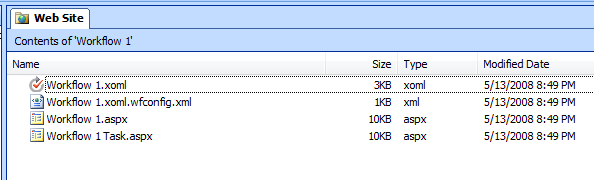
And if you click Finish, the error should no longer appear, and if you check the workflow directory in SharePoint Designer, you can see that the ASPX files for the Assign To-Do Item action have been created with their new name, as there is no longer a conflict.

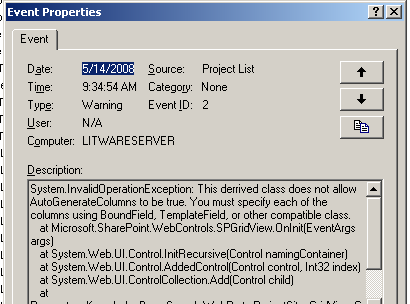
image_6_10