Azure Automation Credentials
February 23, 2018 Leave a comment
 I have been playing around with Azure Automation Runbooks as of late. For one I was working on, I am using a SharePoint list to kick off a flow, and that flow reaches out to my Azure Runbook via a Webhook, which in turns runs some PowerShell using the SharePoint PnP Library to create some list entries, as well as a site or two, depending on the request.
Since I have just been testing this functionality out, I’ve had my credentials under which the script runs and connects to SharePoint under a few variables.
$username = "geoff@domain.com"
$password = "!!!MySuperSecurePassword!!!~)()_($!@)(&$_)*($&@)*"
And then converting those to PowerShell credentials
[SecureString]$securePass = ConvertTo-SecureString $password -AsPlainText -Force
[System.Management.Automation.PSCredential]$psCredentials = New-Object System.Management.Automation.PSCredential($username, $securePass)
And then connecting to SharePoint
Connect-PnPOnline -Url $url -Credentials $psCredentials -ErrorAction Stop
Now that I have my testing near completed, I no longer wanted to store my username and password for my service account in the script itself as variables. In fact, I want to be able to use multiple credential sets if needed, depending on the tasks that need to be completed. In comes Azure Automation Credentials.
Creating Azure Automation Credentials
I’ll skip the step of creating an Azure Automation account, I covered that in my last post related to this. Since the
If you go into the Azure Portal, and go into your Azure Automation account, you will see under Shared Resources, a section called Credentials

Click on Add a credential

Enter in a Name, Description, and then the User name and Password for the credentials you wish to use.
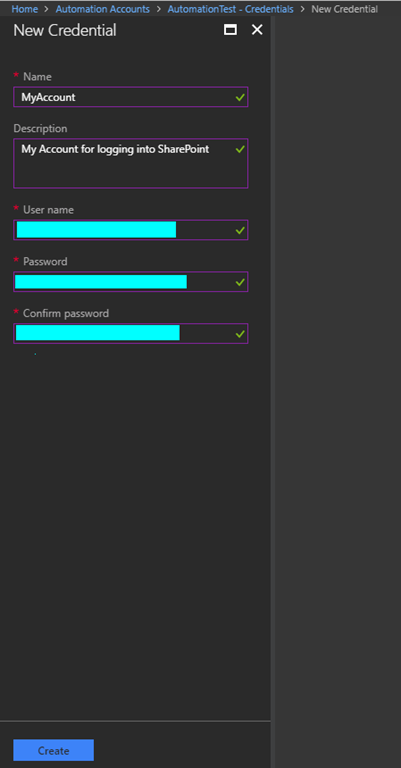
And then click on Create

Using Azure Automation Credentials
Now that we’ve created our credentials… we can use them! In this example, I am just using a test script to ensure it works…Let’s go over to our runbook.

You can see here in my example script, that instead of the code I used above, I am using:
Get-AutomationPSCredential -Name "MyAccount"
Where MyAccount is the name of the credential we just configured. Let’s now go test it out… go over to the Test Pane and click on Start
I am showing some output just to confirm that the script is indeed running, and it is getting PS Credentials, etc.
And did we get context?

Indeed we did! It works! I surprise myself sometimes… so there you go, this is how you can use Azure Automation Accounts and Automation Credentials to store and retrieve username and password pairs and use them in your Automation Runbooks.

 Geoff Varosky's Blog