ERROR: The column cannot be deleted because it is currently part of a composite column index.
October 17, 2011 5 Comments

If you’ve ever seen this error before, chances are, you are attempting to delete a Managed Metadata navigation in your list(s) in SharePoint 2010.
The answer to this is simple – you have indexing enabled on your column, and you are indexing multiple columns together, to create a composite index. The fix? Also simple. Go into the settings for your list or library, and under General Settings, click on Metadata navigation settings. As shown highlighted below.

Now if we look at the page, we can see what we’ve configured for Managed Metadata Services for this list. In my example, I allowed the default Folders and my custom column, MMSTest1 to allow for Managed Metadata Navigation within this Document Library, as well as used the MMSTest1 and Created columns as key filters.
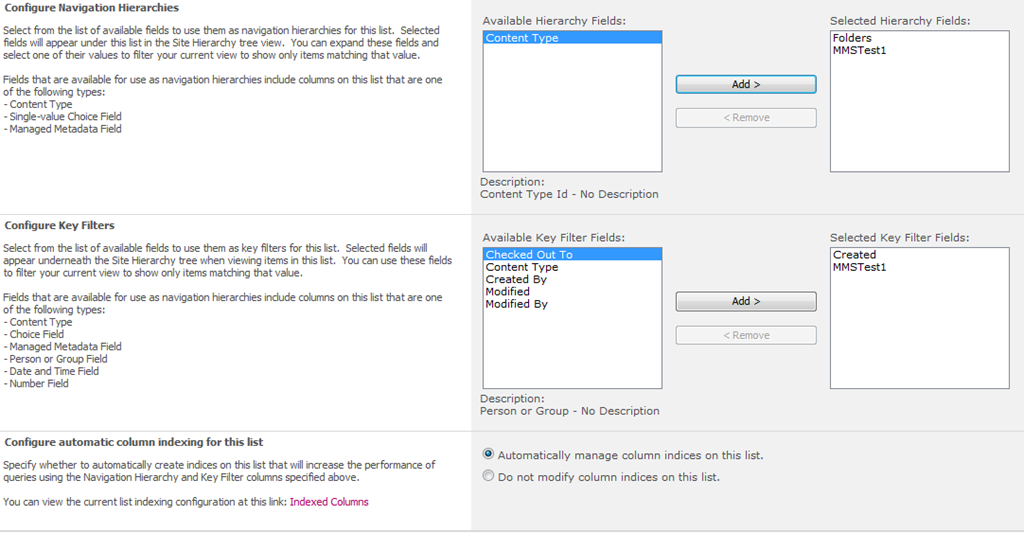
Now, if you look at the bottom of the Metadata navigation settings screen, you will see this:

By default, if you haven’t changed this, any of the columns you use in the Metadata navigation settings, will be automatically indexed, and if you are selecting multiple columns to filter against under Key Filters, or under Configure Navigation Hierarchies, then you are creating an index with multiple columns – a composite index.
So you have two solutions to fix this…
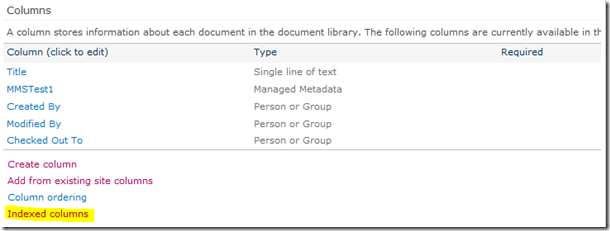
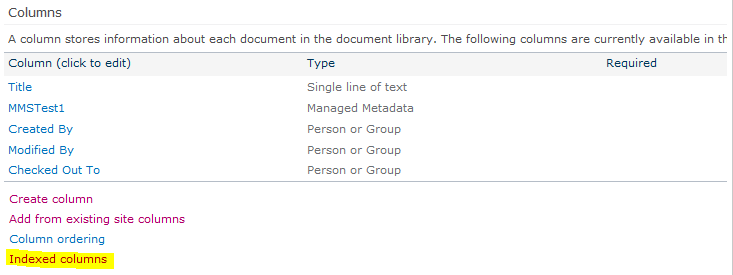
- You can manually remove the indexes, either by clicking the Indexed Columns link under Configure automatic column indexing for this list, or, from the Document Library Settings page, clicking on Indexed Columns link under the Columns setting of the page (shown highlighted below)
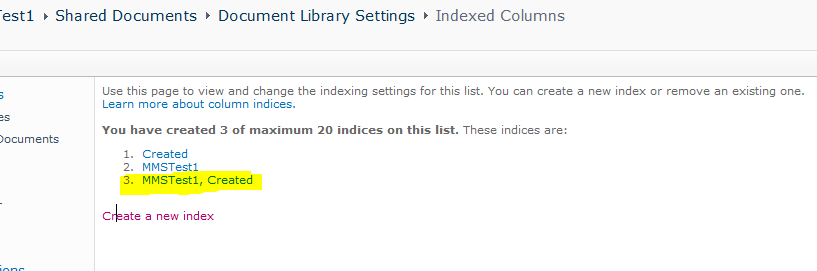
Once you are there, you will see something like this:
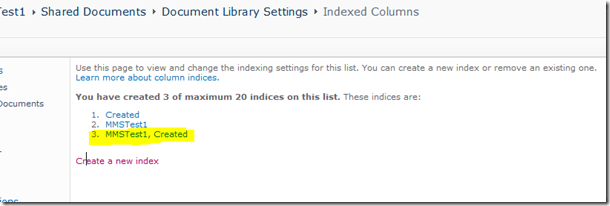
Where number 3 on the index list shows the composite index.
- Or, if you leave the auto-indexing on under Metadata navigation settings, removing the column from the key filters, and/or from the navigation configuration, then this will remove the composite index.
I may do a quick follow-up post to this soon to describe how columns are indexed using the metadata navigation screen at some point in the near future, and will link back to here, as it takes a little playing around to understand how it all works 😉

 Geoff Varosky's Blog