Geoff Varosky's Blog

SharePoint, Office 365, Azure, and Other Musings…

  • Home
  • About
  • Blog Links
  • Calendar
Posts Comments
  • SharePoint
  • SharePoint 2010
  • Events
    • SharePoint Saturday
    • User Groups
      • BASPUG
  • Office 365
  • PowerShell
  • SharePoint Online
  • SharePoint 2013

Creating an Azure Run As Account

April 2, 2019 Leave a comment

I have to ship this information to various people from time to time, so, instead of having to go grab screenshots each time and detail out the process, just going to throw this here.

In my previous post (and subsequent presentations on the subject of Azure Runbooks), I often gloss over the use of an Azure Run As Account, as for the purposes of those presentations, this was not required. Azure Run As Accounts provide a means for authentication in Azure, so that your Azure Runbooks can manage Azure resources. Otherwise, you would need to authenticate to Azure in your Runbook scripts as you would from your own computer remotely. For more in-depth information, here’s a link to the documentation on it.

To create an Azure Run As Account in an existing Azure Automation account, perform the following actions.

First, go into your Automation Account
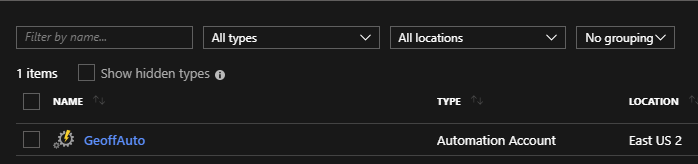
image

Then, scroll down to Account Settings, and choose Run as accounts

image

Then click on Create under Azure Run As Account (not the Classic one… unless you need a classic run as account)

image

Then click on Create, and Azure will handle the rest…

image

Then, in your code, you can easily authenticate to Azure using the following code in your scripts:

#region ConnectToAzure
try {
    $ServicePrincipalConnection=Get-AutomationConnection -Name "AzureRunAsConnection"

    "Logging in to Azure…"
    $AzureRmAccount = Add-AzureRmAccount `
         -ServicePrincipal `
        -TenantId $ServicePrincipalConnection.TenantId `
        -ApplicationId $ServicePrincipalConnection.ApplicationId `
        -CertificateThumbprint $ServicePrincipalConnection.CertificateThumbprint
} catch {
    if (!$ServicePrincipalConnection)
    {
        $ErrorMessage = "Connection $connectionName not found."
        throw $ErrorMessage
    } else{
        Write-Error -Message $_.Exception
         throw $_.Exception
    }
}
#endregion ConnectToAzure

Share this:

  • Click to share on Facebook (Opens in new window) Facebook
  • Click to share on LinkedIn (Opens in new window) LinkedIn
  • Click to share on X (Opens in new window) X
  • Click to share on Pinterest (Opens in new window) Pinterest
  • Click to share on Tumblr (Opens in new window) Tumblr
  • Click to email a link to a friend (Opens in new window) Email
  • Click to print (Opens in new window) Print
Like Loading...

Filed under Automation, Azure, PowerShell Tagged with Automation, Azure, Run As, run as account, runbook, runbooks

Categories

Archives

Top Posts

  • ERROR: The column cannot be deleted because it is currently part of a composite column index.
  • Importing PowerShell Modules into Azure Automation
  • Creating an External Content Type to Surface ULS Log Data Into a SharePoint 2010 List
  • Connecting to SharePoint Online using the PnP PowerShell Library and NOT Having to Log In Every. Single. Time…

Twitter Feed (@gvaro)

Tweets by gvaro

Enter your email address to subscribe to this blog and receive notifications of new posts by email.

Join 87 other subscribers
All content copyright 2007-2017 Geoff Varosky. All rights reserved.

Blog at WordPress.com.

  • Subscribe Subscribed
    • Geoff Varosky's Blog
    • Join 87 other subscribers
    • Already have a WordPress.com account? Log in now.
    • Geoff Varosky's Blog
    • Subscribe Subscribed
    • Sign up
    • Log in
    • Report this content
    • View site in Reader
    • Manage subscriptions
    • Collapse this bar
%d