Microsoft.BusinessData.Runtime.ExceededLimitException: Database Connector has throttled the response.

If you’ve created a BCS list before (such as defined by the excellent tutorial put together by Laura Rogers for connecting to a SQL data source using a SQL account – http://www.sharepoint911.com/blogs/laura/Lists/Posts/Post.aspx?ID=90), and received this error on your Read List view page:

Unable to display this Web Part. To troubleshoot the problem, open this Web page in a Microsoft SharePoint Foundation-compatible HTML editor such as Microsoft SharePoint Designer. If the problem persists, contact your Web server administrator.

Correlation ID:117e242f-0985-42e9-9972-b1a879ce7e3b

After investigating the ULS Logs, located in %SYSTEM DIR%\Program Files\Common Files\Microsoft Shared\web server extensions\14\LOGS, and searching for the correlation id mentioned above. You may find the following error:

Error while executing web part: Microsoft.BusinessData.Runtime.ExceededLimitException: Database Connector has throttled the response. The response from database contains more than ‘2000’ rows. The maximum number of rows that can be read through Database Connector is ‘2000’. The limit can be changed via the ‘Set-SPBusinessDataCatalogThrottleConfig’ cmdlet.     at Microsoft.SharePoint.BusinessData.SystemSpecific.Db.ThrottledIDataReader.Read()     at Microsoft.SharePoint.BusinessData.SystemSpecific.Db.DbEntityInstanceEnumerator.MoveNext()     at Microsoft.SharePoint.BusinessData.Runtime.EntityInstanceEnumeratorBase.MoveNext()     at Microsoft.SharePoint.SPListDataSource.GetFilteredEntityInstancesInternal(XmlDocument xdQueryView, Boolean fFormatDates, Boolean fUTCToLocal, String firstRowId, Bo…

Thanks to the wonders of the interwebs, the solution to this is fairly simple, and the error explanation is extremely helpful. Do a search for this: Set-SPBusinessDataCatalogThrottleConfig, which will lead you to a great article on the Microsoft Business Connectivity Services Team Blog by Adam Outcalt here: http://blogs.msdn.com/b/bcs/archive/2010/02/16/bcs-powershell-introduction-and-throttle-management.aspx which will give you very great instructions on modifying the BCS throttling configuration.

Be careful with this however, the throttling is there for a reason. Not just to give you another option to configure.

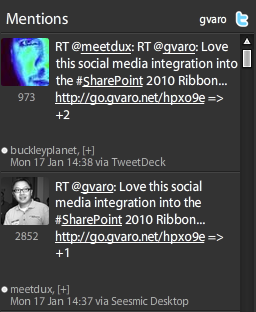
Integrating Social Media into the SharePoint 2010 Ribbon

image

I think the image above says enough for itself. Came across this link today (http://shojeeb.com/sharepoint/custom-social-bookmarking-ribbon-tab-in-sharepoint-2010/) by Zubhair Ahmed. Very cool integration of social media controls into SharePoint 2010, and just had to share.

A few other people think so as well…

image

image

Quick Tip – Using the Resources List in Central Administration

Let’s face it, both in SharePoint 2007 and 2010, Central Administration does require a bit of clicking around. Some features and functionality you will use on a daily basis, but others, not so much. While the UI for Central Administration got a great overhaul, navigating around can be tedious.

Not that it is any rocket science here either, however, I rarely come across client environments where this is used at all. The list was available in 2007, as well as 2010. When you log into Central Administration, you’ll see the Resources link list web part off to the right. So the quick tip of the day is – make use of this!

For instance, if you need to get down to the user profile service administration screen… you need to do the following:

  1. Click on Application Management > Manage service applications
  2. Locate the service application, and click it
  3. Then you’re there.

However, just adding a link to the Resources list for this, and other commonly used items, saves both time and effort, especially if you have trouble locating your service applications. So just copy the URL, go back out to the main page, and add it in as a link.

image

More ideas? Maybe you need to look at the Job History for your web application each day. Instead of doing the following:

  1. Click on Monitoring > Check job status
  2. Clicking on Job History on the quick Launch
  3. Selecting Web Application from the View drop down

Just copy out the link, and add it into the Resources list for a quick link http://servername/_admin/TimerJobHistory.aspx?View=2

Now, there are many other possibilities to store these links – your bookmarks for example – while that works for you, it does not work for anyone else who needs access to Central Admin.

If you wanted to build a feature or two, you could also implement some Custom Actions here as well…

SharePoint & PowerShell 101: Finding Cmdlets

imageI recently did a post on Listing all available PowerShell commands in SharePoint 2010. That is all well and good, if you want to manually browse through all of them. But what if you want to search for them?


Get-Command

Get-Command is a highly useful cmdlet in PowerShell. Today we are just going to use a basic functionality of it, to help us find and locate the cmdlets we need to use. Today, we need to do some work with the User Profile Service. However, we don’t know what the command names are that we need to use, only that we need to use them. For that, we can use Get-Command. If you need to figure out how to use the Get-Command cmdlet, run

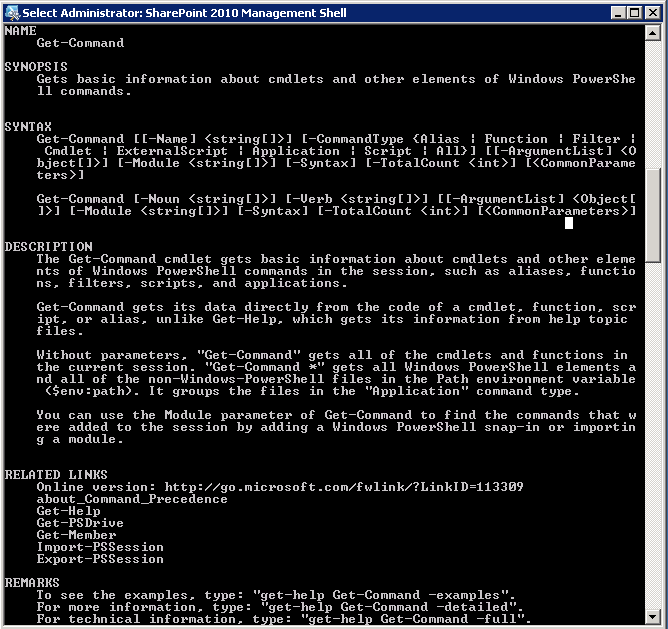
Get-Help Get-Command

Which will return the following information about the cmdlet

image

This will return the usage of the Get-Command cmdlet. We are just going to use the –Noun switch to pass in our parameters.

Let’s start looking at the basics… we’re looking to find commands relating to the User Profile Service. So, let’s try searching for a noun of Profile

Get-Command –Noun Profile

Nothing is returned… oh right, it would appear that the Get-Command is literal, not a wildcard. However, we can use a wildcard character to help us search, as we have no idea what the name of the command is. Let’s try searching for *Profile*, that should do the trick.

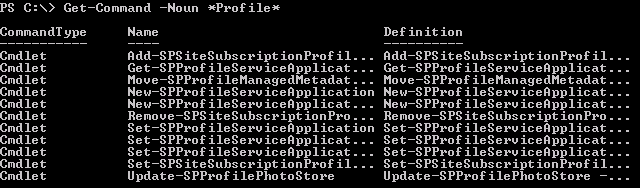
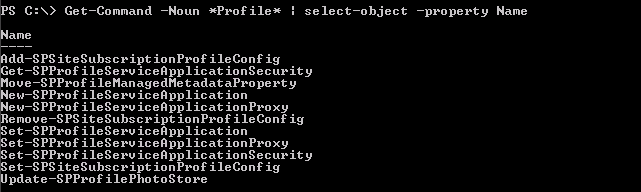
Get-Command –Noun *Profile*

image

Hooray, results! However, we cannot see the entire name of the results returned. For that, we can use the Select-Object cmdlet.

Fore information on using that, try this in the PowerShell console

Get-Help Select-Object

So, let’s only pull the Name property in our results of the Get-Command

Get-Command -Noun *Profile* | Select-Object –Property Name

image

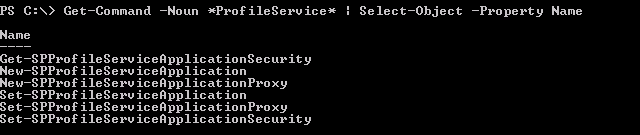
Much better! We can further refine these by adjusting our Noun, to just look at ProfileService

Get-Command -Noun *ProfileService* | Select-Object -Property Name

image

And there we go! Hopefully this helps you in your quest to add PowerShell to your arsenal of SharePoint management and development tools.

I’d love to hear what else you would like to learn about – leave me information in the comments!

List View Web Part Toolbar Types in SharePoint 2010

When imageadding a List View Web Part to your pages in SharePoint 2007, you had 3 options:

  • Full Toolbar
    • Gave you the library controls on a toolbar above your headers and list items, but no “Add new document” or “Add new list item” link below your data, because it was available in the toolbar above.
      image
  • Summary Toolbar
    • Gave you the “Add new document” link below your data
      image
  • No Toolbar
    • Nothing!

In SharePoint 2010, things are slightly different. Let’s take a look at our options, as well as how they are rendered.

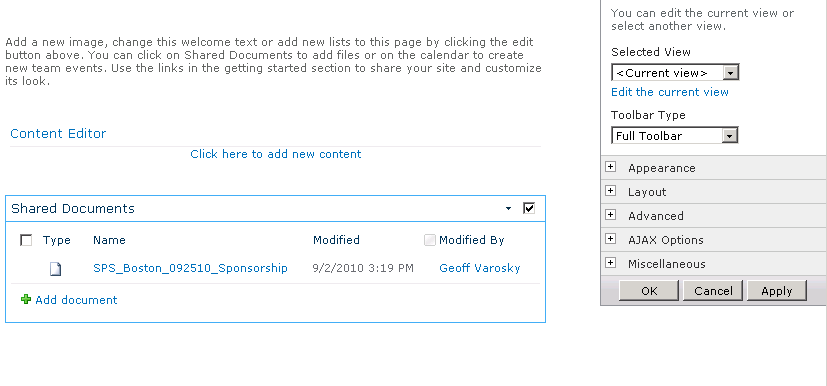
  • Full Toolbar
    • Just appears to give us the “Add Document” link. No toolbar being shown. Odd.
      image
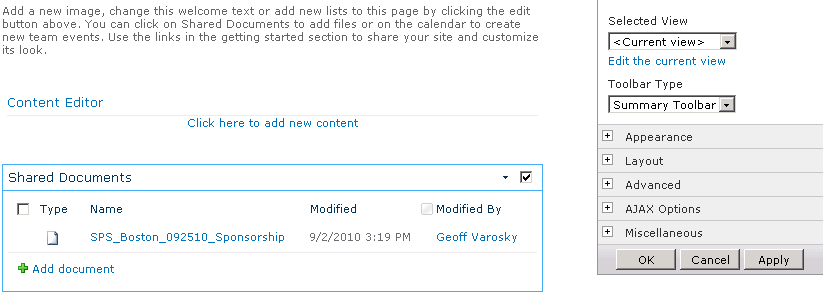
  • Summary Toolbar
    • The exact same thing as the “Full Toolbar”. Odd, again.
      image
  • No Toolbar
    • Works as advertised.
      image
  • Show Toolbar
    • The new option on the block… This option now acts like the old “Full Toolbar” used to.
      image

My big question here is, why leave the “Full Toolbar” option, if it is now exactly the same as the Summary Toolbar? My guess would be for backwards compatibility. Also, if you hadn’t noticed – the ribbon in 2010 also takes the place of some of these options. Go ahead and click into your webpart somewhere, you’ll notice you get the contextual ribbon options for the list and list items, negating the need for the “Full Toolbar” option.

image

Hope this helps map out what these options are. I had not paid much attention to these as of yet, until it was brought up by a client recently.

Create a Custom Action to Satisfy Your “All People” Needs.

image

Thanks for the intro Carl! Much obliged! Well, in your SharePoint world, your “Pale Blue Dot” view of all of the people in your site collection is the “All People” view, you know, the User Information List.

Almost two months ago, I wrote an article on how the “All People” link in SharePoint 2010 is, well, it’s gone MIA. It is easy to get to via  link. And, if you’ve got one site collection to manage, well, its as simple as adding a link somewhere, like in a link list within a management site somewhere, or, up in the handy dandy bookmarking feature, in those fancy things all the kids are using these days, “web browsers”… whatever that means…? Anyways. So, you need to get there, but, wouldn’t it be nice and simple to add in a link to say, I don’t know, the Site Settings page? Wow! That’d be cool! Then I can access it with all of the other Users and Permissions links! Right in one place?! WOW!

image

So, the question becomes, how can we get it there? (HINT: I mentioned it in the title of this article!)

Ok, so I gave it away, shame on me, I spoiled the ending. Boo hoo. Yes, Custom Actions! That’s how we’ll get it there!

So, what to do? Well, not too much actually. The creation of Custom Actions in SharePoint 2010 and with Visual Studio 2010 has become, well, easy. Extremely easy in fact due to the fine folks who created the CKS:DEV project over at Codeplex. Why? Well, because it contains item types with fancy pants wizards to allow you to click a few buttons, and create a custom action project with ease. You really do not even need to be a developer to do this, it’s quite easy, and hey, I provide screenshots and code. Go ahead, do it!

So, let’s get started, shall we? Oh, you need a glass of water first. No problem. I’ll be here waiting for you.

… 15 minutes to get a glass of water? seriously? Did you pump it from the well?

Ok, so, make sure you have VS 2010 installed, as well as CKS:DEV. NO, I am not waiting this time. You lollygagged around with getting a glass of water last time… You had your chance!


First, create a new project in Visual Studio 2010

image

Then, create an Empty SharePoint Project
image

Oh, guess what you’re about to witness? Yes, you in the back in the Charlie Brown polo shirt! You’ve got it. The creation of my next codeplex project for Grace-Hunt (yes, I know, it’s been a while!)

And since we do not need to elevate privileges, or any of that fancy stuff required for a server-side deployment, we’re going to create this as a Sandboxed Solution…

image

Next, once our project is loaded in the Visual Studio IDE, let’s add a new item to the project.

image

Right click on your project, go down to Add, then select  New Item.

On the next screen you are presented with, make sure you have SharePoint and 2010 selected under Installed Templates.

image

Select Custom Action, and give it a name (such as UserInfoList). Then click Add.

Now, again, thanks to the fine folks who created CKS:DEV, we have wizards!

image

On the first screen on the wizard, we have 6 settings we are going to make use of, detail from here for each of these attributes: http://msdn.microsoft.com/en-us/library/ms460194.aspx

ID

Attribute

Description

1

Id

Optional Text. Specifies a unique identifier for the custom action. The ID may be a GUID, or it may be a unique term, for example, "HtmlViewer".

2

Title

Required Text. Specifies the end-user description for this action.

3

Description

Optional Text. Specifies a longer description for the action that is exposed as a tooltip or sub-description for the action.

4

GroupId

Optional Text. Identifies an action group that contains the action, for example, "SiteManagement". If it is contained within a custom action group, the value of the GroupId attribute must equal the group ID of the CustomActionGroup element.

For a list of the default custom action group IDs that are used in Microsoft SharePoint Foundation, see Default Custom Action Locations and IDs.

5

Location

Optional Text. Specifies the location of this custom action, for example, "Microsoft.SharePoint.SiteSettings".

If the CustomAction element contains a CommandUIExtension child element, the Location must start with "CommandUI.Ribbon". For a list of default locations that are used with the Server ribbon, see Default Server Ribbon Customization Locations.

If the custom action is a menu item or toolbar button, the possible options include EditControlBlock, NewFormToolbar, DisplayFormToolbar, and EditFormToolbar.

If it is contained within a custom action group, the value of the Location attribute must equal the location of the CustomActionGroup element.

For a list of the default custom action locations that are used in SharePoint Foundation, see Default Custom Action Locations and IDs.

6

Sequence

Optional Integer. Specifies the ordering priority for actions.


image

On the next page, we do not actually need to set this option, however, I wanted to, to showcase this functionality. This utilizes the SPBasePermissions class to show whether this can be viewed to the user, based on the permissions they have for this object, in this case, the site collection.

image

On the last screen, and this is the important part, we need to specify the URL we want to have our CustomAction link to, this is the URLAction element. The ~sitecollection is a Token. More information on what tokens can be used in a URLAction can be found on slide #30 of my Creating Custom Actions in SharePoint presentation.

image

Now that we’ve finished defining the custom action, we just have a couple of more things to do. Since we do not our feature to be called “Feature1”, right-click on Feature1 in the Solution Explorer, and choose Rename.

image

Type it in, hit enter, all good.

Next we want to remove Feature 1 from after the title of our feature. Double click on the UserInfoList feature we just renamed, and we get a designer view of our feature (new in VS 2010).

image

In the Title field, remove Feature 1 after our feature, and add a description. Also, change the scope from Web to Site, which means we will deploy our solution to the site collection. Which also means, this link will appear for all Users and Permissions sections throughout all of the site settings pages within our site collection.

image

Now for the money! Right click on the project and select Deploy.

image

Look at the output window to see if we had success or failure…

image

And now look at your site settings page – there is our new link!

And that’s it! I will have this project published to Codeplex within the next few days, so, please keep an eye out.

The One Thing: Geoff Varosky and SharePoint 2010

So there I am, making phone calls to my broker, instead of running SharePoint Saturday Boston, and up walks Christian Buckley, asking what I think is one of the best new features of SharePoint 2010. Well, this is the result of that.


Wildcard Search for Forms Based Authentication Users in the SharePoint 2010 People Picker Not Working

wildcard

The Problem

Ran into an issue today with a client. We have their site configured for mixed authentication in SharePoint 2010 – using both Windows Authentication for internal users, and Forms Based Authentication (FBA) users, using the default SQL Membership Provider. The problem was that we could wildcard search Active Directory users, but, not FBA users. Interesting. If we typed in their username exactly, it came up just fine. Otherwise, well… nothing.

I had no idea what the issue could have been, so… I did a little digging around, and was able to come up with the solution!


The Resolution

The fix, is quite easy! Thanks to this post I came across: http://mikevallotton.wordpress.com/2010/10/18/sharepoint-2010-claims-authentication-custom-login-form-part-1-modifying-your-config-files/, I had a “duh!” moment. When setting up the FBA provider originally, I seemed to have skipped a step – adding the Membership and Role providers into the PeoplePickerWildcards section of the web.config.

<configuration>
    …
    <SharePoint>
        …
        <PeoplePickerWildcards>
          <clear />
          <add key="SQL-RoleManager" value="%" />
          <add key="SQL-MembershipProvider" value="%" />
        </PeoplePickerWildcards>
        …
    </SharePoint>
    …
</configuration>

That did the trick, now both my roles and users can be searched via wildcard in the People Picker in SharePoint 2010. Hopefully this helps others out!

New Version of SPDisposeCheck Released Today (12/13/10)!

Saw a tweet from J.D. Wade (@JDWade) today, that Roger Lamb released a new version today of SPDisposeCheck. If you’ve been in my Best Practices for SharePoint Development session I do with Mark Rackley, or, if you are a SharePoint developer, you should know what this is.

But, in case you do not know what it is, here is a comment straight from the linked post below:

SPDisposeCheck is a tool to helps developers and administrators check custom SharePoint solutions that use the SharePoint Object Model in identifying correctly disposing of SharePoint objects to help you follow published best practice. This tool may not show all memory leaks in your code and may produce false positives which need further review by subject matter experts.

The biggest update here is that it now comes complete with an add-in to the Visual Studio 2008/2010 IDE. Sure, you can do this yourself, but, I like it when it is done for me. Call me lazy, I call myself “efficient” 🙂

http://blogs.msdn.com/b/rogerla/archive/2010/12/13/announcing-spdisposecheck-v14-0-4762-1000-update-for-sharepoint-development.aspx