CustomAction Development Resources for SharePoint

A common development task is building out custom actions for SharePoint. What is a custom action you ask? Per Microsoft: “A custom action represents a link, toolbar button, menu item, or any control that can be added to a toolbar or menu that a user sees. Custom actions can be bound to list type, content type, file type, or programmatic identifier (ProgID).” (source)

A good example of a custom action feature in SharePoint is a recently released project to CodePlex – GraceHunt.SharePoint.Features.SiteActionsRecycleBin, which adds a link to the Site Actions menu on any site collection it is activated in, to provide a link to the recycle bin of the current site.

The reasoning behind this post was to list a few great resources which help in building custom actions for SharePoint.

John Holliday has a great (sortable and exportable to excel) list of all of the custom action identifiers, available here: http://johnholliday.net/resources/customactions.html, which lists the Id, GroupId, Location, Sequence, RegistrationType and RegistrationId of all of the Custom Actions built into SharePoint.

You can also build custom action features to hide elements within SharePoint menus, toolbars, and link menus. John Holliday has a great article on locating custom action identifiers to allow you figure out how to find the identifiers for installed custom actions within SharePoint, available here: http://johnholliday.net/post/2007/10/28/How-to-find-lt3bCustomActiongt3b-identifiers.aspx

This can also be useful to assist in figuring out the sequence number for installing your custom action feature in SharePoint, so you can insert it before or after other items that are currently there.

And last, but certainly not least, MSDN has some excellent resources regarding custom actions

I hope this is useful information, and if you have any resources that should be added here, just leave a comment below, and I will add it to the list.


[Updated 1.28.09]
Over at SharePointDevWiki.com, there is a growing amount of information regarding custom actions.

Jan Tielens has a good article on Adding Breadcrumb Navigation to Application Pages in SharePoint Central Administration.

André Vala wrote a great post about CustomActions as well, including some great in-depth information on each of the attributes and rights for actions in his post SharePoint 2007 Deployment: Custom Action Features


Visio Resources for SharePoint

As a SharePoint Solutions developer, I am often creating Visio drawings for clients and make use of several resources out there to generate SharePoint-centric Visio documents. This blog posting is more of a placeholder for myself, as well as other consultants here at Grace-Hunt, as a reference for finding Visio related SharePoint stencils, shapes, drawings and more for SharePoint.

If you have found some useful resources out there that are not listed here, please leave a comment below and I will update this posting with those links.

SharePoint + jQuery

For those of you that do not follow every blog post, twitter conversation, podcast, etc. relating to SharePoint, there has been lots of content being pushed out regarding the use and integration of the popular (and easy to use) jQuery JavaScript Library with SharePoint.

The blog End User SharePoint has had a great running series regarding the use of jQuery with SharePoint – jQuery for Everyone, and I suggest that you start with these articles to give you a good idea of what is possible by combining this great library with SharePoint.

There have also been some great projects on CodePlex for integrating (and making use of) the jQuery library in SharePoint, and I would like to highlight a few of those here.

To integrate the jQuery library into SharePoint, I highly recommend this very well thought-out and easy-to-use solution package for SharePoint – SharePoint ClientSide Extensions. This solution package allows you to include not only the jQuery library at the site level in SharePoint, but, also allows you to include the jQuery UI Extensions, the Prototype JavaScript framework, the script.aculo.us JavaScript library and supporting libraries, as well as the Ext JavaScript library, all from a clean settings page that appears under the Look and Feel settings section on the site this feature is activated on.

In addition to the great code examples posted at End User SharePoint, Jan Tielens has posted some great projects to CodePlex that make sue of the jQuery library:

  • TableRow Highlight“uses jQuery to highlight table rows when the mouse pointer is hovering above them”
  • Dock Navigation – “adds an overlay to every page of a site to allow users to navigate to the Lists and Document Libraries of that site”

As I encounter more great uses of the jQuery and other JavaScript libraries in SharePoint, I will showcase them in later posts on this blog.

[Updated 1.21.09] Another blog out there that has been utilizing and showing code samples for jQuery in SharePoint is Path to SharePoint. This is a great site, and has a new post up as of today talking about using jQuery to add a slider/sizer to the Gantt view in SharePoint: A slider for the Gantt view


Visual Studio 2008 extensions for SharePoint v1.3 CTP Released

Yesterday, the Microsoft SharePoint Product Group announced the release of the Community Technology Preview of Visual Studio 2008 Extensions for SharePoint.

To quote their blog for this release, what what VSeWSS is:

The Visual Studio extensions for SharePoint (VSeWSS) provide project templates for developers using Visual Studio 2008 to create, debug, package and deploy SharePoint projects including Web Parts, Data Lists, Content Types, Event Receivers, Templates, Modules and other SharePoint artifacts. The v1.3 release is an incremental release of the VSeWSS including top feature requests. It is an interim release for SharePoint Developers on the roadmap until Visual Studio 2010 is released with significantly improved SharePoint development tools as outlined here.

To view the list of features this release of VSeWSS brings to the table, as well as download instructions and additional information, visit the announcement here: http://blogs.msdn.com/sharepoint/archive/2009/01/12/announcing-community-technology-preview-of-visual-studio-2008-extensions-for-sharepoint-v1-3.aspx


CRM 4.0 List Web Part Installation and Configuration

On December 12, 2008, the Microsoft CRM Team announced the release of the CRM List Web Part for Microsoft Dynamics CRM 4.0.

Included here are the instructions for installing and configuring the CRM 4.0 List Web Part for WSS 3.0 and MOSS 2007. This is not intended to replace the supplied documentation that comes with the web part installation package below.


About the CRM List Web Part
From the README file included with the installation package, a bit about the CRM 4.0 List Web Part

The List Web Part for Microsoft Dynamics CRM 4.0 enables Microsoft CRM users to view the data in a SharePoint Web application. In Microsoft Windows SharePoint Services, Web Parts are building blocks used by SharePoint Web part pages. Microsoft Dynamics CRM users can connect List Web Part pages that integrate the functionality of Microsoft Office SharePoint Server 2007 and Microsoft Dynamics CRM 4.0 to build a central portal or dashboard for sales and marketing, or other business units with all relevant information and reports.


Additional Documentation
Also from the documentation are several links which may be helpful in using and configuring the CRM List Web Part

Within the download package is a readme as well (ListWebPart_CRM%204_readme.htm) that lists some known bugs and issues as of this posting)


What’s New?
And last but not least before we get into the installation and configuration – what’s new in the CRM 4.0 List Web Part, as per the provided documentation:

  • Provides improved support for connecting List Web Parts.
  • Supports multiple languages
  • Supports multiple organizations (multi-tenancy) using a Microsoft Dynamics CRM 4.0 Web service to find the URL for the organizations.
  • You can display List Web Parts from multiple organizations on the same Web page.
  • You can display List Web Parts from different Microsoft Dynamics CRM servers on the same Web page.
  • Supports Microsoft Dynamics CRM 4.0 Internet-facing deployment (IFD).
  • Writes to error logs.
    • You can find the List Web Part error logs at C:\Program Files\Common Files\Microsoft Shared\Web Server Extensions\12\LOGS\. To use error logs, configure them using the SharePoint Central Administration
  • Accesses data by using Web services.
  • Deploys the List Web Part and language packs using SharePoint Solution Deployment, which enables deployment to server farms.
  • Supports a multiple server setup.
  • Supports secure socket layer (SSL); strongly recommended for Microsoft Dynamics CRM Internet-facing deployments.
  • In addition, the List Web Part for Microsoft Dynamics CRM 4.0 does not need to use impersonation or trust for delegation between the SharePoint server and Microsoft Dynamics CRM database as it did in the List Web Part for Microsoft Dynamics CRM 3.0.


System Requirements

  • Microsoft Dynamics CRM 4.0
  • Windows SharePoint Services 3.0 w/ SP1 or greater or Microsoft Office SharePoint Server 2007 w/ SP1 or greater

The CRM 4.0 List Web Part is available for both 32-bit (ListWebPart-CRM4-1033-i386.exe) and 64-bit (ListWebPart-CRM4-1033-amd64.exe) operating systems.


Downloading…
Download from: http://www.microsoft.com/downloads/details.aspx?FamilyID=3B6EB884-EC15-4288-A2A3-D0B47E057458&DisplayLang=en


Installation
Installation Instructions from the above link:

You must have local administrator privileges on the server where you plan to install the List Web Part for Microsoft Dynamics CRM 4.0. You must also have administrator privileges for the SharePoint Services server. The List Web Part for Microsoft Dynamics CRM 4.0 must run by using full trust mode.

Click the ListWebPart.msi file to run the List Web Part for Microsoft Dynamics CRM 4.0 Setup wizard.

If you are using Windows Server 2008, install the List Web Part by using the command prompt instructions found in the documentation.

For more information, see the documentation: List Web Part for Microsoft Dynamics CRM 4.0 Administration and Deployment Guide.

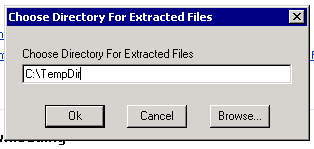
Run the executable you had downloaded, and you will be asked where to extract the files, this is just a temporary directory needed for the archive executable you are running.image 
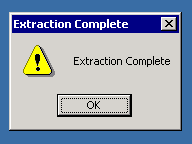
Once completed, you will get a notification that it was done:
image

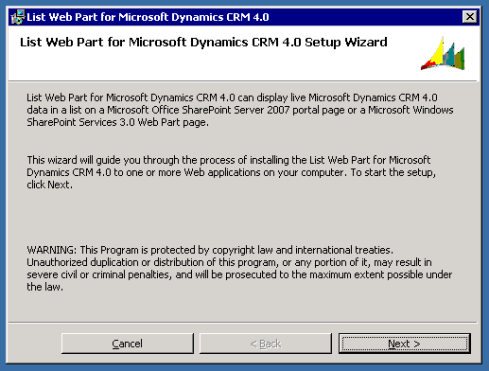
Now, head to your temporary directory where these were extracted to, and, run the ListWebPart.msi file as directed by the download page on Microsoft’s site.image

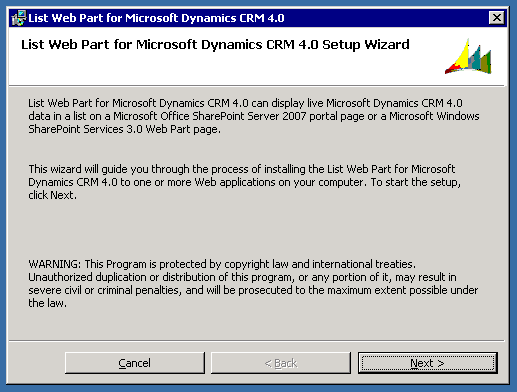
Once the installer starts, click Next >
image

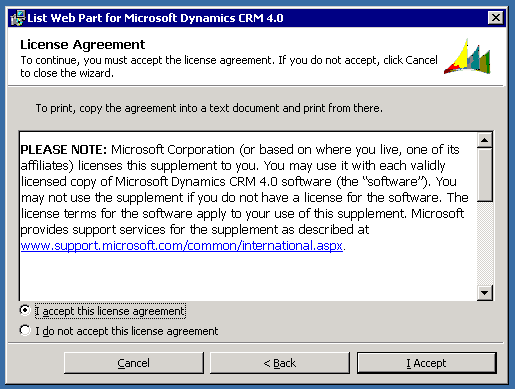
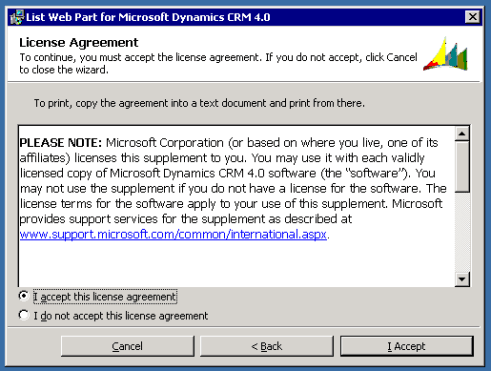
And after you have (of course) fully read the License Agreement, and agree to it, click I Accept
image

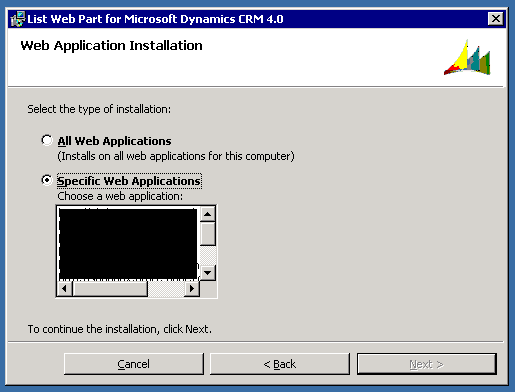
The next screen allows you to deploy the list web part to either All Web Applications, or Specific Web Applications. If you choose a specific web application (only one can be chosen here), you can always run this installer again to install to different web applications in the future if needed.
 image

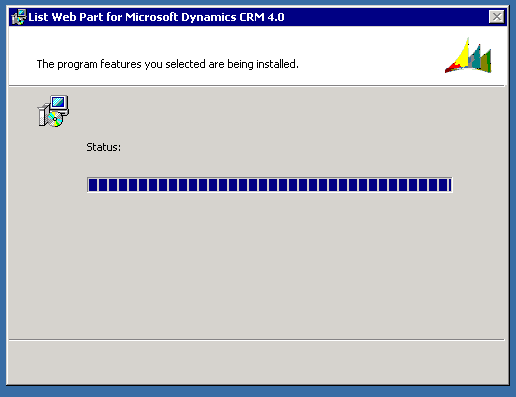
Then click Next >, and the CRM List Web Part will begin installation
image

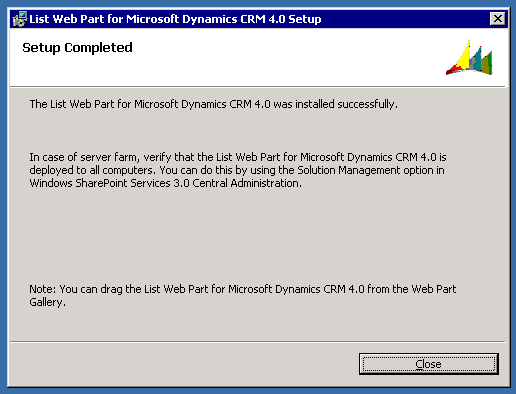
And once installed successfully, you should see the following message:
image

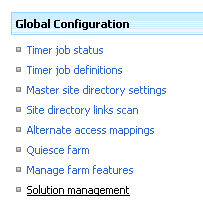
Also, as you can see from this setup completion screen, that the CRM 4.0 List Web Part is installed into the Solution Store in Central Administration (Central Administration > Operations > Solution Management), since this is the case, you do not need to run the installer for each specific web application you would like to deploy this to, you can deploy to additional web applications as needed from Central Administration.

Now, click Close, and you are ready to begin using the CRM List Web Part. However, let’s go take a look at the Solution Store in Central Administration, just to have a peek, you do not need to complete these steps when installing, this is just out of curiosity on my part.

So, let’s fire up Central Administration, and click on the Operations tab, and then on Solution Management under Global Configuration (note: my colors are only 8-bit, as I am going through two RDP sessions for these screenshots, so they may look a bit wonky)
image 

You should see microsoftdynamicscrmlistwebpart.wsp listed under solution management, with the status field set to Deployed, and the specific site, or Globally deployed, if you installed to all web applications.
image

If you installed to all web applications, and you received a success message from the installer, there still may have been issues deploying out to one or more of your web applications. The installer does not take this into account, and if at least one web application deployment is successful, you will get a success message from the installer.

How to know if one failed? You will see Error in the Status field, such as this:

image

And, by clicking on the solution package name, you can get the details on where it failed to deploy, and if there were any specific reasons for why it may have failed, but, you can also see the details on what was successful in deployment, as well as some additional details regarding the solution and its deployment
image

Ok, now let’s add one of these to a page and get it configured!


Configuration
Go to a SharePoint site on a web application that you have deployed this to, and put the page into Edit Mode, and click on Add a Web Part. The CRM List Web Part will show up under the Miscellaneous web part group on the Add a Web Part window
image 

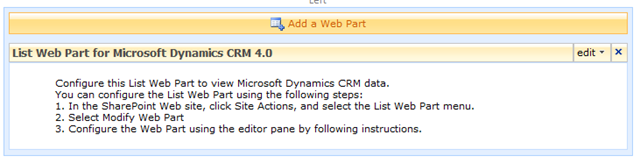
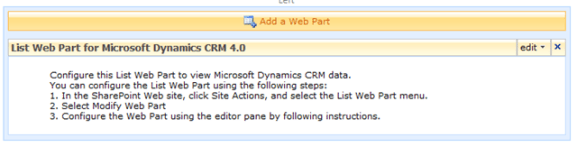
Once added to the page, you will see this informational message to start you off with configuring the web part, however there is an error for the first step. It tells you to go to Site Actions, however when it should be telling you to use the context menu for the web part itself (see second screenshot below)
image

image

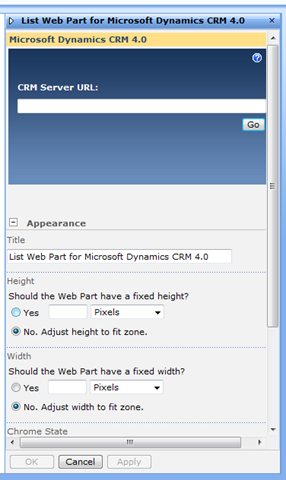
This will give you the web part properties window to allow you to start configuring the web part.
image

So, now that we can configure this, let’s set the URL to our CRM installation (i.e. http://crm:5555), and then click Go.

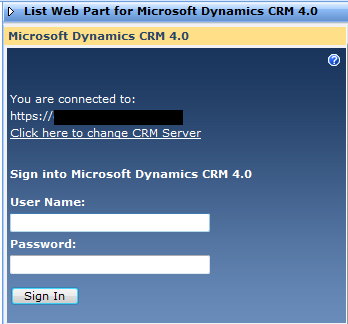
Once it is connected, it will say so (and give you an option for connecting to a different server (a MAJOR improvement over the CRM 3.0 List Web Part), and allow you to enter in your username and password to connect.
image

So, enter in your user credentials, and select Sign In.

Once you are signed in, you can select the Record Type to display, the associated View for that Record Type, showing all or a single specific column from that view, and whether or not to show the search options and toolbar to interact with the data.

So, that’s it for this segment, you should now be able to view and interact with data residing in Microsoft Dynamics CRM directly from WSS or MOSS.


Accelerators for Microsoft Dynamics CRM – Release: Enterprise Search

The Accelerators for Microsoft Dynamics CRM project on CodePlex has just released its latest update, which is the Enterprise Search 1.0 (R1) release, which provides methods via the Business Data Catalog to interact directly with data stored in Microsoft Dynamics CRM.
 
Information about the release from the release notes on the project page (linked below):
 
"This is Release 1 of 2 of the Enterprise Search Accelerator for Microsoft Dynamics CRM.

The enterprise search accelerator allows Microsoft Office SharePoint Server (MOSS) customers to view and search for Microsoft Dynamics CRM data directly from their SharePoint portals. By combining these two technologies users from different areas of the business will be able to:

  • View and edit any Microsoft Dynamics CRM data such as accounts, contacts, opportunities, sales orders, invoices, service cases and any custom entity data through MOSS.
  • Launch a MOSS search which can return documents, emails, web content and Microsoft Dynamics CRM data.
The enterprise search accelerator provides one enterprise portal that users can search and view important customer information and documents from several sources within the organization. Additionally, the technology, Business Data Catalog (BDC), and techniques used with this accelerator can be employed to surface data from other line of business applications to further enrich the MOSS portal.

The BDC makes it easy for people to connect to, find, and act on information stored in structured line-of-business systems (such as Microsoft Dynamics CRM) by using a declarative framework to securely integrate them into search results. With the BDC customers and partners can configure actionable audience-specific portals, dashboards and mash-up interfaces for this data without writing any code.

Release 1 (this release) includes key documentation on how to deploy MOSS Enterprise Search connecting to Microsoft Dynamics CRM on the standard Microsoft Virtual PC demonstration image.

Release 2 will provide additional documentation and tools to allow you to customize your enterprise search solution for different customer and partner requirements"

View and download the project and source code from here: http://www.codeplex.com/crmaccelerators/Release/ProjectReleases.aspx?ReleaseId=21449

SharePoint Single Sign-On Resources

Support for WSS 3.0 and MOSS 2007 Without SP1 Ending in January

Microsoft is ending support for WSS 3.0 and MOSS 2007 installations that do not have Service Pack 1 installed as of January 13, 2009. To be sure your systems stay in a supported state, it is recommended that you test and deploy Service Pack 1 for both WSS and MOSS before this date arrives.

More details from Microsoft can be found here: http://support.microsoft.com/gp/lifesupsps#Office


SharePoint Kerberos SPN Creation Tool

Daniel Pollard over at http://www.httpcode.com created a fantastic new web based utility to help ease the pain with setting up Kerberos for SharePoint.

You enter in some information regarding your SharePoint configuration, and presto, out comes the SPNs that you need to configure for Kerberos.

image

More information can be found here: http://httpcode.com/blogs/PermaLink,guid,9223bc52-aa2f-489c-9fdc-fd0debac9c30.aspx

And the tool itself can be found here: http://httpcode.com/tools/spntool.aspx


Recommended Additions for SharePoint 2007

I have had the pleasure to be involved with many SharePoint projects, and more often than not with those projects, there is a need to install or develop additional functionality which enhances the end user, administrator, or developer experience with the product. Below are several tools which I find myself installing and/or recommending on those projects, which do just that, without having to re-invent the wheel.

If you have any additions, please leave a comment about them, and I will keep this list going.

Backup/Recovery

  • Microsoft IT Site Delete Capture LE 1.0
    • Link: http://www.codeplex.com/governance/Release/ProjectReleases.aspx?ReleaseId=14351
    • Description: “Microsoft Site Delete Capture LE version 1.0 is an Windows SharePoint Services 3.0 solution package that when deployed to a Windows SharePoint Services 3.0 or Microsoft Office SharePoint Server 2007 server farm enables administrators to create a snapshot of site collections and Webs when they are deleted through the SharePoint user interface, the SharePoint Administration Tool, or Microsoft Office SharePoint Designer 2007.”

Administration

  • U2U List Properties Feature Package
    • Link: http://www.u2u.be/res/Tools/SharePointListProperties.aspx
    • Description: “The U2U List Properties Package has been developed to ease the work of a SharePoint 2007 developer. It adds an hyperlink to the List Settings page displaying a page with detailed information about the list properties.”
  • U2U Site Properties Feature Package
    • Link: http://www.u2u.be/res/Tools/SharePointSiteProperties.aspx
    • Description: “The U2U Site Properties Package has been developed to ease the work of a SharePoint 2007 developer. It adds an hyperlink to the Site Settings page displaying a page with detailed information about the site properties.”
  • SharePoint ULS Viewer
    • Link: http://www.codeplex.com/ULSViewer
    • Description: “A windows application for viewing SharePoint ULS log files more easily. Supports filtering and easy viewing of data.”
  • WSS / MOSS Log File Reader
  • SharePoint Access Checker Web Part
    • Link: http://www.codeplex.com/AccessChecker
    • Description: “The Access Checker Web Part is a Windows Sharepoint Services Web Part, for use within Windows Sharepoint Services v3 and Microsoft Office Sharepoint Server 2007, that displays a tree view showing permissions on objects for a user scoped to a Site hierarchy. It also has a second mode which will show the permission inheritance of objects within a Site hierarchy.”
  • SharePoint Manager 2007
    • Link: http://www.codeplex.com/spm
    • Description: “The SharePoint Manager 2007 is a SharePoint object model explorer. It enables you to browse every site on the local farm and view every property. It also enables you to change the properties (at your own risk). This is a very powerfull tool for developers that like to know what the SharePoint holds of secrets.”
  • SharePoint SUSHI
    • Link: http://www.codeplex.com/sushi
    • Description: “SharePoint SUSHI is a powerful, user-friendly utility enabling you to accomplish common administrative tasks. You can think of SUSHI as a Swiss army knife for SharePoint.
      SUSHI = SharePoint Utility with a Smart, Helpful Interface”
  • STSADM Custom Extensions

Web Parts and Other Features

  • SharePoint 2007 Features
    • Link: http://www.codeplex.com/features
    • Description: “This is a project for SharePoint 2007 Features. Features add new functionality to a SharePoint 2007 farm, site collection, or site. This project will create Features to address deficiencies in SharePoint 2007 or add new capabilities. You should understand a little about Features before trying these out. The packages here use batch files or WSP files to install the Features. After installation, be sure to activate the Features to see them in SharePoint.”

Usability

  • SharePoint Explorer Client 2.0 – Community Edition
    • Link: http://www.adselfservicesuite.com/SharePointExplorerClient.aspx
    • Description: “The Dot Net Factory’s SharePoint Explorer is an IE add-in providing end-users and administrators the richest possible SharePoint usage and navigation experience for all SharePoint 2003 and 2007 versions. SharePoint Explorer provides a friendly tree-based interface allowing novice and expert users alike to see all SharePoint sites and content at a glance while providing right-click menus for all common functions.”

The descriptions used above in quotes were copied from their original source (link provided above each), and are © their original authors.