Schedule Posted for SharePoint Saturday–The Conference

image

If you’ve read my last post on the matter, or, if you are reading this for the first time, or, just do not remember anything I write… the schedule (or “shedjule” if you’re British, or, just are into non-American English dialect), has been posted for SharePoint Saturday – The Conference in (well, near) Washington, D.C.

Find it here: http://www.spstc.org/blog/Lists/Posts/Post.aspx?ID=32

I’ve also copied and pasted it below, saving you a step!

image

“Sign me in automatically” in Forms Authentication

image

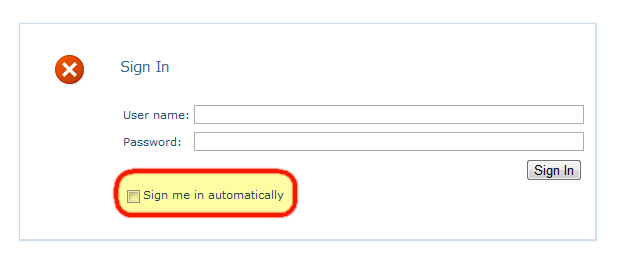
Now this is not just limited to SharePoint, but, since my main focus is SharePoint, this is where I come across this issue the most. When you log in with SharePoint via Forms Based Authentication, there is that little “Sign me in automatically” checkbox below the FBA login form. If you check this, you may realize that a few hours later, when you go to log back into the site, it does not seem to actually remember you at all. That is because by default, it will only remember you for 30 minutes. We can change this quite easily however… This option is controlled within your web application configuration file (web.config) on the server.

If you open this file directly, search for <authentication mode=”Forms”> under <system.web>, you will see, by default, this:

<authentication mode="Forms">
<forms loginUrl="/_login/default.aspx" />
</authentication>

You can also look in IIS as well, under the Configuration Editor feature in the Management section of the web application

image


If we expand system.web, and click on authentication

image

Now, the two options we want to look at in here are timeout, and sliding expiration…

image

The definitions for both of these settings are below, taken from MSDN.

When the SlidingExpiration is set to true, the time interval during which the authentication cookie is valid is reset to the expiration Timeout property value. This happens if the user browses after half of the timeout has expired. For example, if you set an expiration of 20 minutes by using sliding expiration, a user can visit the site at 2:00 PM and receive a cookie that is set to expire at 2:20 PM. The expiration is only updated if the user visits the site after 2:10 PM. If the user visits the site at 2:09 PM, the cookie is not updated because half of the expiration time has not passed. If the user then waits 12 minutes, visiting the site at 2:21 PM, the cookie will be expired. (from: http://msdn.microsoft.com/en-us/library/system.web.configuration.formsauthenticationconfiguration.slidingexpiration.aspx)

The amount of time in minutes after which the authentication expires. The default value is 30 minutes. (from: http://msdn.microsoft.com/en-us/library/system.web.configuration.formsauthenticationconfiguration.timeout.aspx)

I suggest setting this to something much higher… if your users will generally log in once a month, setting this to a couple of months, will ensure they are remembered, and with sliding expiration configured, if they log in during the 3rd month, then the system will reset the time on that cookie, remembering them for another 3 months from that date. For sites which have users logging in less often, setting this to a year will be a decent bet that this will remember them for some time. A year in minutes would be: 525600

Hopefully this helps in your configuration of FBA for SharePoint, as well as other FBA applications.

Registration open for Boston Area SharePoint Users Group on 8/10/11

BASPUG_195square_initialsRegistration is now open for the August 10th, 2011 meeting of the Boston Area SharePoint Users Group, at the Microsoft New England Research and Development Center (NERD) in Cambridge, MA.

August 10th, 2011 Meeting Information

PRESENTER

The presenter for our next meeting Paul Schaeflein of Schaeflein Consulting. He will be presenting "I need to make SharePoint look like that!"

AUDIENCE: Developer (Level 200)

SESSION ABSTRACT
How do we deploy custom branding to SharePoint? We will start with the assets provided by our designer and fit them into a predictable, repeatable process. We will also discuss techniques to enforce the brand, enhance the navigation and put some professional touches to the solution

ABOUT PAUL
Paul Schaeflein (MVP, MCPD) is a solution architect/developer with experience in all versions of the SharePoint platform. Paul is a top-rated speaker, having presented at the Microsoft SharePoint Conference and TechEd conferences, as well as user groups. Paul has more than two decades experience in architecting, designing and developing software solutions. This experience covers a vast range of technologies, languages and industries. Having developed many line-of-business applications, Paul has a firm grasp on the challenges that corporate developers face when integrating them into a corporate portal.

MEETING SPONSOR – Rackspace

Fanatical Support® has made Rackspace the world’s leader in hosting. We deliver enterprise-level hosting services to businesses of all sizes and kinds around the world. We got started in 1998 and since have grown to serve more than 99,000 customers, including over 80,000 cloud computing customers. Rackspace integrates the industry’s best technologies for each customer’s specific need and delivers it as a service via the company’s commitment to Fanatical Support. Our core products include Rackspace Managed Hosting, The Rackspace Cloud™ and Rackspace Email & Apps. There are currently over 2,900 Rackers around the world serving our customers. More information at http://www.rackspace.com.

SUSTENANCE
Food and beverages will be provided at the event!

RAFFLE PRIZES
We will be handing out raffle tickets at the BASPUG meetings.

LOCATION
We will be meeting at the Microsoft New England Research and Development Center (NERD) at One Memorial Drive, Cambridge, MA.

LINKED IN
Join our group on LinkedIn today to connect with the rest of the BASPUG members, and spread the word!

FACEBOOK

We are also on facebook! http://www.facebook.com/#!/pages/Boston-Area-SharePoint-User-Group/113652405354617

TWITTER
Follow news about the Boston Area SharePoint Users Group on twitter by following us @BASPUG, and by using the hashtag #BASPUG

Speaking at SharePoint Saturday–The Conference

image

The first event of it’s kind, SharePoint Saturday – The Conference (it’s not just for Saturdays anymore! However, this will end on one…), and I am pleased to be a part of it. I’m also very excited to see that SharePoint Saturday has grown so much over the past couple of years, and now there is a full 3-day conference. SharePoint Saturdays are great ways to share your knowledge with others, learn from peers, experts, MVPs and Microsoft Certified Masters. SharePoint Saturday holds a special place for me, as that is where I got my start speaking on SharePoint, back in the beginning of 2009 at SharePoint Saturday Boston. Since then I have spoken at 11 others to date from New York to New Orleans, and have helped organize SharePoint Saturday Boston since the beginning of 2010.

Unlike usual SharePoint Saturdays however, this one is not free, but pretty close to it as far as conference fees go. The current rate is $39, which will go up to $59 soon, so if you want to save twenty bucks… register today!

I could write-up all of the information about the conference, but it has already been done on the site, so why reinvent the wheel (http://www.spstc.org/Pages/About.aspx) – the text below is a copy of that.

WHAT

A community-focused, educational event filled with sessions from respected SharePoint professionals and executives covering a wide range of technical and business topics.

WHO

Anyone who interacts with SharePoint and its related technologies: Tracks for IT Pro, Developers, End Users, Business Process Owners, the Cloud and more!

WHERE

Northern Virginia Community College

Annandale Campus, Annandale, VA

(Visit the website here.)

WHEN

Thursday, August 11 – Saturday, August 13, 2011: 8 am – 6 pm

Friday Night Attendee Event: 6 pm – 11 pm

WHY

SharePoint Saturdays are a community sponsored event with a huge following. As we take the SharePoint Saturday event to the next level, the goal remains the same: to encourage community participation and lower the barriers to learning SharePoint.

For attendees in any role (End User, IT Professional, Business Manager or Developer), this conference provides an unparalleled level of training, sharing, networking and one-to-one interaction with the SharePoint community. It’s not to be missed!

HOW

Registration Fee:

$39 Early Bird (until August 7, 2011)

$59 for Regular & Walk-Ins

(discounts available for groups of 10 or more)

And there are some FAQ’s on the conference about page as well… http://www.spstc.org/Pages/About.aspx

I will be presenting 3 sessions there, so please drop in to one and say hello if you go!


9 Ways to Become a (SharePoint) Rock Star

Co-Presented with Christian Buckley

Session Level: 100

Session Type: End User

So you want to become a rock star? We’re talking actual rock star – not a metaphor for “finding stardom” at your company, but that little “band thing” you do on the side after putting in your 9-to-5 each day.
In this session, we will lead you on a fun and adventurous journey where you can not only learn SharePoint, but springboard into that life of fame and rock stardom that you’ve been dreaming of, using the tools at your disposal during the daily grind. If, by chance, your wildest dreams of becoming a rock star do not come to fruition, you can be rest assured that you can apply what you learn in this session to become a SharePoint rock star. Because its always good to have a backup plan.


Just Freakin’ Work! Overcoming Hurdles and Avoiding Pain in SharePoint Custom Development

Co-Presented with Mark Rackley

Session Level: 200

Session Type: IT Pro / Developer

“Why am I getting a security error??” “Why does my code work sometimes, but not others?” “I wonder if McDonalds is hiring.” Writing custom code in SharePoint opens up unlimited possibilities but also throws many hurdles in your way that will slow you down if you don’t take them into account. So, before giving up and searching for careers in the fast food industry, equip yourself with the knowledge you need to succeed in writing custom code for SharePoint.
Attendees will learn:
1. Commonly used methods to improve functionality and performance
2. Best practices for disposing of SP Objects
3. How to avoid common issues when writing custom code for SharePoint
PREREQUISITES: Developers need to have a basic knowledge of SharePoint, know C# and be comfortable in Visual Studio.


Planning and Configuring Extranets in SharePoint 2010

Session Level: 300

Session Type: IT Pro / Admin

Most companies, large or small, require contact and collaboration with external entities, whether they are vendors, clients, or contractors. SharePoint gives us the ability to open up portals for collaboration with these external entities – this session will show you how to accomplish this using SharePoint 2010.
We will review what is required to make SharePoint “open” to the external world, discuss scenarios regarding security and privacy, as well as walk through configuring Forms Based Authentication, Claims Based Authentication, as well as using Business Connectivity Services in SharePoint 2010, to authenticate, and manage our external users.
Once completing this session, you should have a firm grasp on how to configure an extranet environment using SharePoint 2010, as well as what should be considered during the planning of your extranet scenarios.

Imtech Content Query Web Part for SharePoint 2010

If you are running a publishing site in SharePoint, then you know the name Waldek Mastykarz. If you don’t, you should. His blog is filled with many posts on SEO, Content Query Web Parts, and much more. I had a client request to add some paging into the Content Query Web Part, and stumbled upon Waldek’s Imtech Content Query Web Part for SharePoint 2010. This was the perfect solution for my client, but I needed to make a few modifications… this post will go over the modifications and issues we encountered and resolved.

The Issues and Modifications

  • My client had many customized item styles they still wanted to use, so using the example ImtechContentQueryMain.xsl and ImtechItemStyle.xsl sheets was out of the question, so I had to retro-fit their existing XSL files with the paging controls.
  • The paging control appeared at the top of the CQWP, we needed it at the bottom.
  • We encountered an error relating to trusted XSL files in a sub-site, we did not want to have duplicate XSL files all over the place.
  • Limiting the number of records returned on large lists, so the paging controls did not stretch out the page size.

Retro-fitting existing XSL Stylesheets with the Paging Controls

As mentioned, we wanted to use our existing stylesheets, other than the ones available from the Codeplex project page: http://imtech.codeplex.com/releases/view/39782#DownloadId=104110

To do this, I loaded up a default ItemStyle.xsl file (without any changes), as well as the ImtechItemStyle.xsl file in Beyond Compare, and copied the differences out into our custom ItemStyle.xsl.

The first step, is to copy the PagingControls template into your ItemStyle.xsl – it can be placed anywhere.

  <xsl:template name="PagingControls">
    <xsl:param name="Page" />
    <xsl:param name="NumPages" />
    <xsl:if test="$Page = 1">
      <xsl:text disable-output-escaping="yes"><![CDATA[<div>]]></xsl:text>
      <xsl:if test="$PageNumber &gt; 1">
        <xsl:variable name="PreviousPageNo" select="$PageNumber - 1"/>
        <a href="?{$PagingParameterName}={$PreviousPageNo}">
          <xsl:text disable-output-escaping="yes"><![CDATA[&laquo;]]></xsl:text> Prev
        </a>
        <xsl:text disable-output-escaping="yes"><![CDATA[&nbsp;]]></xsl:text>
      </xsl:if>
    </xsl:if>
    <xsl:choose>
      <xsl:when test="$Page = $PageNumber">
        <strong>
          <xsl:value-of select="$Page"/>
        </strong>
      </xsl:when>
      <xsl:otherwise>
        <a href="?{$PagingParameterName}={$Page}">
          <xsl:value-of select="$Page"/>
        </a>
      </xsl:otherwise>
    </xsl:choose>
    <xsl:text disable-output-escaping="yes"><![CDATA[&nbsp;]]></xsl:text>
    <xsl:if test="$Page &lt; $NumPages">
      <xsl:call-template name="PagingControls">
        <xsl:with-param name="Page" select="$Page + 1"/>
        <xsl:with-param name="NumPages" select="$NumPages" />
      </xsl:call-template>
    </xsl:if>
    <xsl:if test="$Page = $NumPages">
      <xsl:if test="$PageNumber &lt; $NumPages">
        <xsl:variable name="NextPageNo" select="$PageNumber + 1"/>
        <a href="?{$PagingParameterName}={$NextPageNo}">
          Next
          <xsl:text disable-output-escaping="yes"><![CDATA[&raquo;]]></xsl:text>
        </a>
      </xsl:if>
      <xsl:text disable-output-escaping="yes"><![CDATA[</div>]]></xsl:text>
    </xsl:if>
  </xsl:template>

Then, once that was in there, we need to modify the item template(s) we are using to support paging. To do this, we will use the Default template for ease of use…

Locate the start of the template

<xsl:template name="Default" match="*" mode="itemstyle">

Next, add in the following parameter right after that line in your XSL item template

<xsl:param name="CurPos" />

Your item template should now look like this:

  <xsl:template name="Default" match="*" mode="itemstyle">
    <xsl:param name="CurPos" />
    <xsl:variable name="SafeLinkUrl">
     ...

This adds in a parameter which gets the current position (row) from the list(s), we need this.

Next, we want to add in the paging. We’ll add it in its default location here, at the top of the CQWP, and show you how to move it to the bottom later in this article. Within your Default template, locate the following two lines

    </xsl:variable>
    <div class="item">

Now, we will paste in the following BEFORE <div class=”item”> and after </xsl:variable>

    <xsl:if test="$CurPos = 1 and $PageSize &gt; 0">
      <xsl:variable name="NumPages" select="ceiling($TotalRecords div $PageSize)"/>
      <xsl:if test="$NumPages &gt; 1">
        <xsl:call-template name="PagingControls">
          <xsl:with-param name="Page" select="1" />
          <xsl:with-param name="NumPages" select="$NumPages" />
        </xsl:call-template>
      </xsl:if>
    </xsl:if>

This will call the PagingControls template we added earlier, if the $CurPos = 1 (this is the first row in our CQWP), and the $PageSize is greater than 0 (meaning that we are using the paging feature in this web part).

Save your ItemStyle.xsl, and we need to next compare ImtechContentQueryMain.xsl, and ContentQueryMain.xsl.

In the ContentQueryMain.xsl file, locate this line towards the top of the file:

<xsl:param name="ClientId" />

Found it? Awesome. Paste in the following lines below that line:

    <xsl:param name="PageSize" />
    <xsl:param name="PagingParameterName" />
    <xsl:param name="TotalRecords" />
    <xsl:param name="PageNumber" />
    <xsl:param name="WebPartTitle" />
    <xsl:param name="WebPartDescription" />
    <xsl:param name="WebPartTitleUrl" />
    <xsl:param name="Locale" />
    <xsl:param name="GroupStyle" />
    <xsl:param name="ItemStyle" />

The next thing we have to do is include the CurPos (current row position) in the template OuterTemplate.CallItemTemplate. Search for that in the file, and then find <xsl:otherwise> within that template. After

<xsl:apply-templates select="." mode="itemstyle">

Add in

<xsl:with-param name="CurPos" select="$CurPosition" />

So the full template should look like this

  <xsl:template name="OuterTemplate.CallItemTemplate">
    <xsl:param name="CurPosition" />
    <xsl:value-of disable-output-escaping="yes" select="$BeginListItem" />
    <xsl:choose>
      <xsl:when test="@Style='NewsRollUpItem'">
        <xsl:apply-templates select="." mode="itemstyle">
          <xsl:with-param name="EditMode" select="$cbq_iseditmode" />
        </xsl:apply-templates>
      </xsl:when>
      <xsl:when test="@Style='NewsBigItem'">
        <xsl:apply-templates select="." mode="itemstyle">
          <xsl:with-param name="CurPos" select="$CurPosition" />
        </xsl:apply-templates>
      </xsl:when>
      <xsl:when test="@Style='NewsCategoryItem'">
        <xsl:apply-templates select="." mode="itemstyle">
          <xsl:with-param name="CurPos" select="$CurPosition" />
        </xsl:apply-templates>
      </xsl:when>
      <xsl:otherwise>
        <xsl:apply-templates select="." mode="itemstyle">             

<xsl:with-param name="CurPos" select="$CurPosition" />  </xsl:apply-templates> </xsl:otherwise> </xsl:choose> <xsl:value-of disable-output-escaping="yes" select="$EndListItem" /> </xsl:template>

With the bolded line above being what we’ve added to it from the Imtech file. You can now save and close the ContentQueryMain.xsl file. And that is it for the modifications required on both the ItemStyle.xsl and ContentQueryMain.xsl files! You should now be able to use paging using your item styles and the Imtech Content Query Web Part.

Moving the Paging Control to the Bottom

Now, with the above in place, or using the Imtech XSL stylesheets, you will notice that the paging control is at the top. Well… if we want to keep in line functionality similar to SharePoint, we want to move the paging control to the bottom of the page. To do so, open up your ItemStyle.xsl file. Locate your default item style template (same one used in the last section), and locate this code, which appears after </xsl:variable> and before the starting DIV tag

    <xsl:if test="$CurPos = 1 and $PageSize &gt; 0">
      <xsl:variable name="NumPages" select="ceiling($TotalRecords div $PageSize)"/>
      <xsl:if test="$NumPages &gt; 1">
        <xsl:call-template name="PagingControls">
          <xsl:with-param name="Page" select="1" />
          <xsl:with-param name="NumPages" select="$NumPages" />
        </xsl:call-template>
      </xsl:if>
    </xsl:if>

Just cut that out. We will be moving it to the bottom of the template. now, locate the following, which ends the item style

        </div>
    </xsl:template>

Just before the closing DIV, paste the above code back in. If you save the file (and check it in – needs to be checked in to be viewable), you will see that it appears AFTER the first row returned by the CQWP. We need to add a little logic into here so we can determine if we are on the last row, and in the case of the last page where we might not have a full page, determine what the last item number is for that last page, and then display the paging controls. So the code below would be used instead of the default we just added in here.

Now, I am also going to center mine as well, so it looks a little better than just being left justified.

            <center>
              <xsl:if test="$PageSize &gt; 0">
                  <xsl:variable name="NumPages" select="ceiling($TotalRecords div $PageSize)"/>
                  <xsl:variable name="PageBeforeLast" select="$NumPages - 1"></xsl:variable>
                  <xsl:variable name="CountBeforeLastPage" select="$PageBeforeLast * $PageSize"></xsl:variable>
                  <xsl:variable name="LastPageCount" select="$TotalRecords - $CountBeforeLastPage"></xsl:variable>
                      <xsl:if test="$PageNumber = $NumPages and $CurPos = $LastPageCount">
                            <br/>
                            <xsl:call-template name="PagingControls">
                              <xsl:with-param name="Page" select="1" />
                              <xsl:with-param name="NumPages" select="$NumPages" />
                            </xsl:call-template>
                      </xsl:if>
                      <xsl:if test="$CurPos = $PageSize and $NumPages &gt; 1 and $PageNumber != $NumPages">
                        <br/>
                        <xsl:call-template name="PagingControls">
                          <xsl:with-param name="Page" select="1" />
                          <xsl:with-param name="NumPages" select="$NumPages" />
                        </xsl:call-template>
                  </xsl:if>
              </xsl:if>
            </center>

A little explanation on the above… I’ve added 3 new variables.

  • PageBeforeLast – this variable calculates the second to last page by taking the total number of pages NumPages, and then subtracts one.
  • CountBeforeLastPage – this variable gets the count of items before the last page by taking the PageBeforeLast variable, and multiplying it by the PageSize, which is the count of items per page.
  • LastPageCount – this variable gets the count of the number of items on the last page, which takes the TotalRecords variable and subtracts the CountBeforeLastPage, so if we have 23 items on the last page instead of 25, we know exactly when to implant the paging control.

Now there are two if conditions after that. The first determines if we are on the last page, and the last count. If we are at the last item on the last page, we will add in the paging control. The second if statement is used for every other page but the last one.

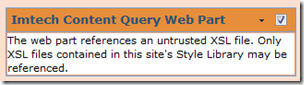
The web part references an untrusted XSL file.

Take a look at this discussion thread for the Extended CQWP by Imtech (the original version for 2007) – http://imtech.codeplex.com/discussions/53870. They are referencing the following error:
image

Now, this is in regards to the XSL options of the Presentation section of the Imtech Content Query Web Part properties.
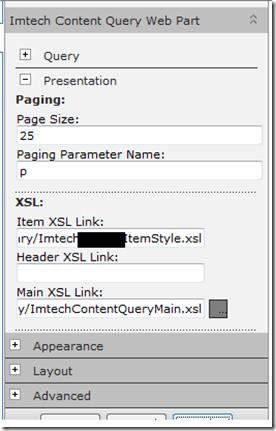
image

This is very handy – so you can change these on the fly, instead of modifying the Item and Main XSL links in the XML of the web part itself. The bad news – if it is not local to the site, the following code will not work. The assembly for the Imtech CQWP is put into the GAC (if you look at the manfiest.xml file in the WSP), and, the site I was doing this on WAS in full trust mode. However, you will still get this error. To overcome this, you will need to modify the XML of the web part itself to point to your custom XSL stylesheets, if you are not using the out-of-the-box ones, which I do not recommend doing. Keep those as-is, and create new ones. To do this, export the Imtech Content Query Web Part, and open the .webpart file in a text editor. Search for: ItemXslLink and place the link to your customized Item Style XSL there:

<property name="ItemXslLink" type="string">/Style Library/XSL Style Sheets/ImtechItemStyle.xsl</property>

And the same goes for the Main XSL link, locate MainXslLink, and put in the relative URL to your ContentQueryMain XSL file:

<property name="MainXslLink" type="string">/Style Library/XSL Style Sheets/ImtechContentQueryMain.xsl</property>

Then save the file, and you can use it by uploading it to a page, or, make it re-usable by placing it in the web part gallery of your site collection(s).

Limiting the Number of Records Returned

This part is simple, but, I did want to include it. If you have thousands of items in a list, when you enable paging, and if you have your paging set at 25 or 50, you are going to see a lot of page numbers showing up, stretching out the width of your web part if you do not have a fixed width set… so, it does not look so great. Chances are, you do not need to show ALL of the items, just the most recent 50, 100, or a couple of hundred. The way to do this? In addition to using paging, if you limit the number of records returned within the default Content Query Web Part Properties, the only items page will be the number you are returning.

Resources

Microsoft has compiled some great resources on customizing the Content Query Web Part, so I want to share those with you…

And I of course need to add a link here to Heather Solomon’s article on customizing the Content Query Web Part…

Customizing the Content Query Web Part and Custom Item Styles

Speaking at SharePoint Saturday New York on 7/30/11

I am pleased to announce (a bit belated) that I will be presenting at the next SharePoint Saturday New York on July 30th, 2011.  I will be presenting Planning and Configuring Extranets in SharePoint 2010.

Most companies, large or small, require contact and collaboration with external entities, whether they are vendors, clients, or contractors. SharePoint gives us the ability to open up portals for collaboration with these external entities – this session will show you how to accomplish this using SharePoint 2010.

We will review what is required to make SharePoint “open” to the external world, discuss scenarios regarding security and privacy, as well as walk through configuring Forms Based Authentication, Claims Based Authentication, as well as using Business Connectivity Services in SharePoint 2010, to authenticate, and manage our external users.

Once completing this session, you should have a firm grasp on how to configure an extranet environment using SharePoint 2010, as well as what should be considered during the planning of your extranet scenarios.

SharePoint Saturday New York is one of the great SharePoint Saturday events – put on by some great people – Becky Isserman (@MossLover), Jason Gallicchio (@PrincetonSUG), Greg Hurlman (@ghurlman), with Tasha Scott (@TashasEv) coordinating volunteer efforts.

For more information on my session, check out my blog series on the matter here:

Planning and Configuring Extranets in SharePoint 2010–Part 1

Planning and Configuring Extranets in SharePoint 2010–Part 2

Planning and Configuring Extranets in SharePoint 2010-Part 3 “The Environment”


I hope to see you in New York! Oh, and by the way, registration is now open! Sign up today as space IS limited! SharePoint Saturday New York

Registration open for Boston Area SharePoint Users Group on 7/13/11

BASPUG_195square_initialsRegistration is now open for the July 13th, 2011 meeting of the Boston Area SharePoint Users Group, at the Microsoft Office in Waltham, MA.

July 13th, 2011 Meeting Information

PRESENTER
The presenter for our next meeting is Scott Jamison, Managing Partner and CEO of Jornata. He will be presenting "SharePoint 2010 Usage and Adoption Best Practices"

SESSION ABSTRACT
This session will cover best practices for usage and adoption of SharePoint 2010. We’ll answer questions for both the SharePoint adoption team and users alike….

For the adoption team:
• How can I get my employees excited about using this new collaboration technology (champions, incentives)?
• How do I make sure all the employees in my organization understand and feel comfortable using SharePoint?
• How can I make sure that SharePoint fits into existing business processes, and makes people’s jobs easier?
• How do I manage the behavioral change required to integrate SharePoint into the way people work?

For users:
• What collaboration methods and site templates are most appropriate for which types of situations?
• What should I ask myself before setting up a SharePoint site?
• How should I manage content?
• What should I think about when tagging?
• Etiquette for social interactions?

ABOUT SCOTT
Scott is Managing Partner and CEO of Jornata a Boston-based Gold Partner and SharePoint consulting firm. Scott is a world-renowned expert on knowledge worker technologies and collaborative solutions and is an experienced leader with almost 20 years directing managers and technology professionals to deliver a wide range of business solutions for customers. Scott is a recognized thought leader and published author with several books, including Essential SharePoint 2007 and Essential SharePoint 2010. Scott received his master’s degree in Computer Science from Boston University, with post-graduate work at Bentley’s McCallum Graduate School of Business. Scott is a SharePoint Certified Master.

MEETING SPONSOR – KnowledgeLake
KnowledgeLake provides an affordable, platform based solution for managing your company’s unstructured content right within SharePoint. More capable than even the more expensive legacy ECM applications, KnowledgeLake is an enterprise scalable and comprehensive SharePoint ECM solution for searching, securing, routing and annotating your company’s mission critical electronic content. The KnowledgeLake Solution is fully integrated with SharePoint, so it is easy to implement, easy to administer, presents low risk, and is cost effective. For more information please visit http://www.knowledgelake.com


SUSTENANCE
Food and beverages will be provided at the event!

RAFFLE PRIZES
We will be handing out raffle tickets at the BASPUG meetings.

LOCATION
We will be meeting at the Microsoft Waltham office, located on the 6th floor, at 201 Jones Road, Waltham, MA.

LINKED IN
Join our group on LinkedIn today to connect with the rest of the BASPUG members, and spread the word!

FACEBOOK

We are also on facebook! http://www.facebook.com/#!/pages/Boston-Area-SharePoint-User-Group/113652405354617

TWITTER
Follow news about the Boston Area SharePoint Users Group on twitter by following us @BASPUG, and by using the hashtag #BASPUG

PowerPoint Web App encountered an error. Please try again.

image

Ever seen this error? I cam across this in a new environment and was befuddled for a short while. Then, also realizing it was a new environment, I’d thought to check the service applications in Central Administration (Central Administration > Application Management > Service Applications > Manage Service Applications).

There was the problem – there was no service application configured for PowerPoint! So, the moral of this short blog post is, when using Office Web Applications in SharePoint 2010, and you receive an error similar to this, be sure to check your service applications, and make sure they exist!

This has been a Public Service Application Announcement.

Planning and Configuring Extranets in SharePoint 2010-Part 3 “The Environment”

I know quite a few people have been waiting for this post. In this post we’ll cover the environment itself, which I have made mention of in Part 1 of this series, and went through more of the configuration in during Part 2. I even made mention of it during my session at SharePoint Saturday Boston on the same subject. I have been extremely busy over the past two weeks with work, and finally had a chance today to finally put the finish touches and testing on the environment, and it is now ready for release.

extranets_csI would like to thank the folks over at CloudShare for making this possible. If you are not familiar with them – well, they say it better than I can

“CloudShare makes it easy to build, manage and share any business application instantly and on-demand, in the cloud. Used by individual business and IT professionals, developers, consultants, teams and enterprises, CloudShare offers complete and easy cloud solutions for development and testing, migration, training, demos and proofs of concept. Its latest product, CloudShare ProPlus, enables users to quickly build SharePoint environments and access preconfigured production-grade SharePoint farms – no physical servers, installs, recoding or software licensing of any kind.“

So, what they have allowed me to do, is build up a demonstration environment, using CloudShare ProPlus, and using the SharePoint and Office 2010 Information Worker Virtual Image from Microsoft as a base (actual environment setup took about 5 minutes to do – and then it was just a simple matter of configuration. Then, after taking a snapshot of that environment, I can now share that environment out. Each and every person that uses the link will have their very own copy to use. Using the link provided below you will be required to register for CloudShare Pro Plus, as a 14-day trial account, which you can play around with the image as much as you want. If you like what you see, you can keep that going, even dumping this environment and creating your own, for just $49/month. You can then share out your environments with other if you’d like. This is really one of the best cloud SaaS solutions I’ve seen on the market to date.

So, with that – have at it!

[UPDATED – NEW LINK AS OF 9.25.11] http://go.gvaro.net/ExtranetsVM3

If you have any questions or comments, please let me know in the comments below.

More posts to come within this series as well!

Finally into the Office 365 Beta Program

imageIt seems that Microsoft has done another massive push into the Office 365 Beta program. So, yesterday, after months of waiting, I was finally able to get in. I most likely not be using this blog to market off the benefits (you can find those here: Top benefits), but rather, share my observations.

One neat thing which I did not expect… the Developer Dashboard is part of O365!

image

I thought that was a pretty cool inclusion they did for this. After all, this is a hosted version of SharePoint, and they are using FBA to connect to what I can assume is an LDAP database to host accounts.

image

Anyhow, more information and observations to come… hopefully some interesting stuff.

At the very least, I now have a *.sharepoint.com subdomain… http://gvaro.sharepoint.com. That’s just cool.