RecurrenceId Attribute of the CustomAction Element

During my session at SharePoint Saturday Boston – I mentioned that I would look into just what exactly RecurrenceId does, and make a post about it here. RecurrenceId is a token that is available for the URLAction element within the CustomAction element.

I did some additional research, and was able to find this via MSDN:

“A recurrence identifier that identifies a specific instance of a recurring appointment. It is used with the to uniquely identify the instance.”

The above quote is from an Exchange related article, however, it still fits the bill, and gives a little more useful information than the one found in the RecurrenceId Property link below, which is:

Returns the identifier (ID) of an instance of a recurrent item.

Paul Grenier (AutoSponge) who was attending my session, was spot on with his guess. The RecurrenceId property would be useful in the URLAction element to specifically identify a recurring event list item, and to only act on that specific item, as recurring events within events lists are just one single list item, and not copies of the original with their own specific GUIDs. They have the same GUID as the original event, however, just have an incremented RecurrenceId that can be used to directly identify that specific occurrence of the event.

More information on this SPListItem Property can be found here in the WSS 3.0 SDK: SPListItem.RecurrenceID Property (Microsoft.SharePoint), however, there is not much there.

As of my session on Saturday, I had never needed to use this attribute before in my travels, and virtually the only documentation on it I could find before SharePoint Saturday Boston, was that you cannot use it with the Edit Control Block. This doesn’t make much sense to me however, why it is even available, as I would think the only time this would be useful, is to directly interact with an event list item from the Edit Control Block.

image

Anyhow – there is now a blog posting out in the wild for others to consume regarding the RecurrenceId attribute. I hope this helps someone else out.


Delete this site

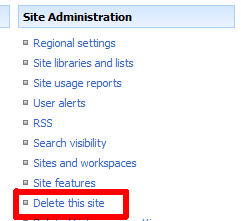
No, this is not a request for the Live Spaces administrators to follow through on, this is going to be a post about the ‘Delete This Site’ link, or more aptly, the DeleteWeb custom action within SharePoint, on the Site Settings page.

Yesterday, during my session on developing custom actions within SharePoint at SharePoint Saturday Boston, my third demonstration was on hiding custom actions, using the HideCustomAction element. My example was to hide the ‘Delete this site’ action found under Site Administration custom action group, on the Site Settings page, as shown below.

image

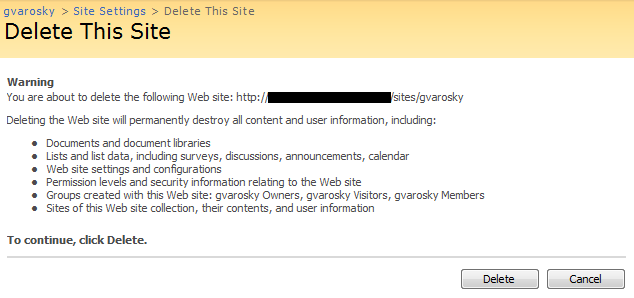
I’ve had to deploy this solution for several clients in the past, where they have given full control of sites (webs) over to one or more people, to help manage a large deployment. However, on more than one occasion, the sites themselves have been deleted, “accidentally”, even though when you go to delete a site in SharePoint, you are prompted to confirm this action, without any confusing ‘Yes or No’ buttons, only ‘Delete’ and ‘Cancel’, which, in my humble opinion, is just about as straight forward as you can be.

image

So, during my demonstration, someone had asked if this prevents users from accessing the DeleteWeb function entirely, so sites cannot be deleted at all. No, this only hides the link to the site. If the person knows the URL by remembering it, googling it, or, now, reading this blog post, by going to http://www.intranet.net/sites/subsite/_layouts/deleteweb.aspx, and they have permissions to delete the site, they can definitely still delete it. What we are doing here is just removing it from their field of view, or “security through obscurity”. What I also did in the code (available on this blog post) was keep the feature hidden, so it needs to be activated from the server via stsadm, so the site administrator, if they were to check the site features and see a feature called Hide Delete This Site Link From Bob or something similar activated on the site, they could then just deactivate the feature, and be on their way to deleting it. Again adding and extra level of protection on that function.

Another question came up – if sites are deleted, do they go to the recycle bin? No, they do not… out of the box that is. I also mentioned that Microsoft IT had posted a project to Codeplex, which creates a solution for this. Their utility, found here at http://codeplex.com/governance, is called Microsoft IT Site Delete Capture. This is a great solution that I have deployed for numerous clients, captures the contents of the site on the server itself, and stores it away in an administrator defined location, for later restoration… this beats trying to load a site from a backup tape, then the site can be restored afterwards. This makes use of the SPWebEventReceiver.SiteDeleting method. If you wanted to take this a step further, you could modify the event receiver (which Microsoft IT has posted on the above mentioned Codeplex site here), to look at what user is deleting that site, see if they are, say, a site collection administrator, and then let them delete it, or, if they are not, do not let them delete it, and fire off an email, or log entry in the system event log or ULS logs, stating that Bob tried to delete his site again, even after the intensive training we gave him last week on just that subject.

And another question that came up on this topic during my session – can you assign rights, as you can for the CustomAction method, to the HideCustomAction method, so it is only visible to those that should see it – no, you cannot, however, I would recommend you hide the existing DeleteWeb action, and then replace it with your own DeleteWeb (however, it should not be called DeleteWeb, as that is already being used OOTB) action, which you then give rights to, using the Rights attribute of CustomAction, with any of the possible values in Microsoft.SharePoint.SPBasePermissions, however, there is unfortunately, not a "SiteCollectionAdministrator” SPBasePermission you can assign, but maybe your site collection administrators are the only ones with ApproveItems,UseRemoteAPIs,DeleteVersions permissions, and then you can really pick out who is who to make that link visible to.

I hope this helps and gives a little more detail and clarity on what was covered yesterday at SharePoint Saturday. I welcome any more questions on the subject, just leave a comment!


SharePoint Saturday Boston Session Materials

SharePoint Saturday Boston has come to a close, and it was a very successful event. Well over 200 attendees were able to make the event, hosted at the Microsoft office in Waltham, MA, from all over New England and beyond.

First off – I would like to thank all of the attendees who came to my session – Introduction to Developing Custom Actions within SharePoint. I had a great turnout, and a great group of attendees, with some fantastic feedback and questions on my presentation.

Next, I would like to thank everyone who attended the event. A lot of hard work goes into putting an event like this together, and all the support and interest from the attendees make great events like this happen, and keep them continuing to happen. Thanks to all of you, this event was able to take place, and I was happy to be a part of it.

Last, but certainly not least, a big thanks to all of the speakers, and coordinators of this event. You all did a great job, and I was sad that I was unable to attend more sessions, as there was a lot of great content delivered. Because of this event, I was able to learn a few things myself, reconnect with past acquaintances, make new friends and connections, and also come away with some great ideas for future topics to speak on.

As promised during my presentation, I am making my slide deck available via SlideShare (embedded below), as well as the code samples presented during my session. Also, as promised, I will work to get most, if not all, of the questions asked during the presentation up here as well. I will plan to do so over the next week.

Code samples from the presentation are available here: SharePoint Saturday Boston – Introduction to Developing Custom Actions within SharePoint – Code Samples.zip

Please feel free to ask any questions about the content of this presentation via the comments below!


SharePoint List Type IDs

On twitter today, someone was looking for list type IDs, and this also comes in line with my session I am presenting at SharePoint Saturday in Boston this weekend (Introduction to Developing Custom Actions within SharePoint), so, I thought I would make a quick post about it, and also for my own reference as well. So, without further ado – here is the list of all of the internal SharePoint list identifiers for WSS 3.0. And, feel free to follow me on twitter – @gvaro


  List Id

List Description

100

Generic list

101

Document library

102

Survey

103

Links list

104

Announcements list

105

Contacts list

106

Events list

107

Tasks list

108

Discussion board

109

Picture library

110

Data sources

111

Site template gallery

112

User Information list

113

Web Part gallery

114

List template gallery

115

XML Form library

116

Master pages gallery

117

No-Code Workflows

118

Custom Workflow Process

119

Wiki Page library

120

Custom grid for a list

130

Data Connection library

140

Workflow History

150

Gantt Tasks list

200

Meeting Series list

201

Meeting Agenda list

202

Meeting Attendees list

204

Meeting Decisions list

207

Meeting Objectives list

210

Meeting text box

211

Meeting Things To Bring list

212

Meeting Workspace Pages list

301

Blog Posts list

302

Blog Comments list

303

Blog Categories list

1100

Issue tracking


Restoring SharePoint 2003 Document Library Items from a SQL Backup

I get asked this question almost weekly – “Is there any way to restore files from a SharePoint 2003 document library from a SQL backup?”

So – I thought I would make a post about it. Indeed there is – released by James Edelen several years ago – available from here: http://www.mindsharpblogs.com/james/archive/2005/01/20/189.aspx (I also have copies in my Live Drive – links below, in case these ever go away, as they have in the past).

There are two utilities here, SharePoint Database Explorer and SPExport. SharePoint Database Explorer will allow you explore a SharePoint farm hierarchy directly from the SQL database, and SPExport will allow you to export documents from a document library from a SQL database directly, to a locally accessible resource (computer, network fileshare, etc.)

Local copies of the utilities:
SPExport Binaries
SPExport Source
SharePoint Database Explorer Binaries
SharePoint Database Explorer Source


February “Uber” Cumulative Updates Packages Released for WSS 3.0 and MOSS 2007

Following my earlier post regarding the February Cumulative updates for WSS 3.0 and MOSS 2007, the referenced “Uber” packages have finally been released. These are the ones that should be installed, rather than the 2/25 release packages.

http://blogs.msdn.com/joerg_sinemus/archive/2009/03/09/february-cumulative-update-uber-package-for-wss-and-moss.aspx


February Cumulative Update Packages Released for WSS v3 and MOSS 2007

Yesterday, Microsoft released the February Cumulative Updates for WSSv3 and MOSS 2007. More information, as well as links to obtaining the hotfix packages can be found here: http://blogs.msdn.com/joerg_sinemus/archive/2009/02/25/february-cumulative-update-for-wss-v3-and-moss-2007.aspx

WAIT WAIT WAIT!!! BEFORE YOU GO INSTALLING…. [UPDATE 2.27.09]

The Microsoft SharePoint Team posted a note regarding these updates, there is apparently an "uber" (as they put it) February Cumulative Update coming out within the next few weeks. You can read the note they posted for yourself here – http://blogs.msdn.com/sharepoint/archive/2009/02/26/is-it-time-to-apply-feburary-cumulative-update.aspx – basically stating to wait…


Taking SharePoint Offline – What are the Options?

The UK SharePoint Consulting Services team posted some great information to their blog last week regarding options for taking SharePoint offline with Microsoft Office products – it’s a good read with good details on options for working with content when you are not connected to your SharePoint environment.

http://blogs.msdn.com/uksharepoint/archive/2009/02/19/taking-sharepoint-files-offline-what-product-s-should-you-use.aspx


How to Properly Remove a Web Part from a Web Part Page

A common observation I make when working with clients is how web parts are removed from a page, and more importantly, how they are improperly removed from the page.

First, I’ll explain the improper ways, then get into why these are bad practices, and then how to properly remove web parts from a web part page.

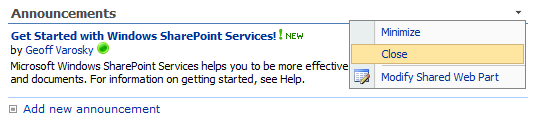
Improper Method #1 – “Close”
There are usually two ways I see this take place, the first being the Close option off of the Web Part menu, available when the page is not in edit mode (and the user has proper permissions of course!), as well as when the page is in edit mode.
image 

Improper Method #2 – The “X”
The second improper method is the X link that appears in the upper-right hand corner of the web part when the page is in edit mode.
image 

Why These Are Bad Practices…
While I do not blame anyone for using this method, as we have all come to understand that most of the time, clicking on the X or going to File > Close within a regular application will close out the program, SharePoint adds a different meaning to these. As I mentioned in the prior sentence – I said most of the time, meaning that SharePoint treats these actions similar to, say, Windows Live Messenger. When you click the X in the top-right corner of the screen (of your contact list), it minimizes the application to the system tray, so it is still running and taking up system resources, you no longer see the window on your screen.

The X and Close options for SharePoint web parts behave in much the same fashion. When either of those options are used, the web part is indeed closed, and removed from your view, however, just like with Windows Live Messenger, it just removes it from view, however, each time the page is loaded, that web part is still loaded onto the page, however, it is not viewable, thus, taking up resources to render the web part, as well as adding addition download time to that page.

While it is not immediately apparent how to remove those for good, or show them back again on the page, there are ways to do so.

Viewing Web Parts Which Have Been Closed
To view which web parts have been closed on a page, we’ll utilize a an application page called Web Part Page Maintenance page. This page is not accessible from the Site Settings page or anywhere else in the UI by default, however it is surfaced if a web part on a specific page has an error, and a link is then given on the resulting error message. However, you can easily get to this page by appending the following to the current ASPX page you are on.

Say for example, you are on a team site default.aspx page, so you would have a URL like the following in your address bar:

image

By appending ?contents=1 to default.aspx, you can access the Web Part Page Maintenance page, like so:

image

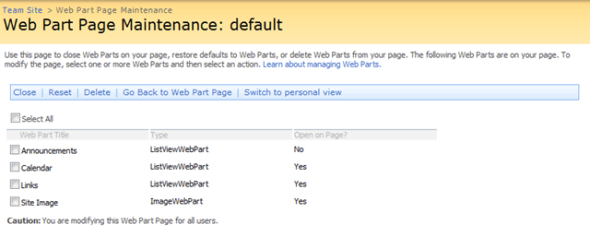
You will then see a page like this:

image

In this list you can see each of the web parts that are on the page, the type of web part that they are, and most importantly (for this post), the last column, which shows you if the web part is open on the page or not.

If you use the two "improper” methods described above, this field will list the value of “No”.

This screen is also very handy for removing any closed web parts (or any others for that matter). To do so, check the box next to the web parts that are to be removed, and then click the Delete option within the toolbar above.

image

How to Properly Delete a Web Part from a Web Part Page
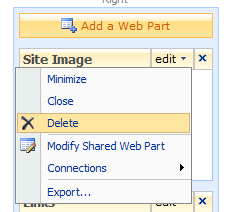
Now that we’ve outlined the issues, and how to recover from them. In addition to the ability to delete web parts from the web part page by using the Web Part Page Maintenance page as described above, the easiest way to properly remove a web part from the page is to put the page into edit mode (Site Actions > Edit Page), using the web part menu, and selecting Delete
image 

This will remove the web part from the page for good.

Conclusion
While a few minor web parts, such as a lightweight Content Editor Web Part, and the default Image Web Part (created by default for Team and Blank site templates) will not be a huge performance hit, and will be barely noticeable, if at all. The real issue lies with large list views, data view web parts that roll-up information, or other web parts which can be memory and CPU intensive to run, such as a third party list roll-up web part that queries hundreds, or even thousands if lists. If these web parts are not removed from the page, and you have a few of them closed on there, the performance of that web part page, possibly the server itself will be affected.

 

Microsoft Releases Documentation on Moving Databases for SharePoint

On February 2nd, Microsoft released procedures documenting moving all SharePoint related databases from one server to another, covering both moving to a database server with the same name, as well as moving to a database server with a different name.

See the following link for more information and to download the documentation: http://www.microsoft.com/downloads/details.aspx?FamilyID=65686896-c171-46a8-a95f-54f43ad79952&displaylang=en