Using PowerShell (and SQL) to Copy Users from SharePoint 2007 to 2010
November 9, 2010 5 Comments
 PowerShell is a neat tool. There. I said it. What, you already knew that? Oh well… I still think it’s cool. You may have guessed, that due to recent posts (and a few yet to be posted), focused around PowerShell, I’ve been using it quite a bit. Today’s post is on how to get users out of your 2007 environment, and into 2010, specifically around FBA users.
I’ve been working with a new client recently, and we are migrating a 2007 based internet site to a 2010 based internet site, which has lots of FBA users. Now, I will not name the tool directly, but, with a certain migration tool, I spent the past week jumping through a lot of hoops to migrate the users over to 2010. A LOT of hoops. And no matter what we attempted to do, we just couldn’t get the users populated into the new 2010 site.
So, I rolled up my sleeves today and managed to complete the task in a short while… here’s what I did.
First, on the 2007 server, let’s call it SQL07.company.com, I went into SQL, and performed the following query to get the list of site collections within the content database of the web application in question. Luckily, there was only one site collection, so there was not much of a list here, but, I did need to get the GUID of the site collection, so, I did this:
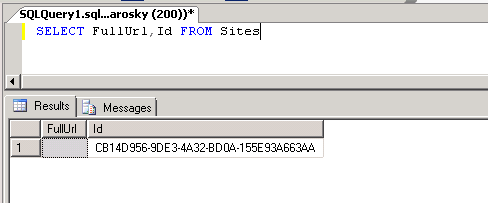
Now that I had the site collection GUID, it was time to extract the users so we could add them to our 2010 server, which was some simple SQL code to build up the strings necessary. Now, I could have written more complex code, but, this just needed to get done (the select query is wrapped to display it all here).
1: SELECT 'New-SPUser -UserAlias "'
2: + REPLACE(tp_Login, 'acaspnetsqlmembershipprovider:', 'i:0#.f|sql-membershipprovider|')
3: + '" -Web http://internet -DisplayName "'
4: + tp_Title + '" -Email "'
5: + tp_Email + '"'
6: FROM UserInfo
7: WHERE tp_SiteID = 'CB14D956-9DE3-4A32-BD0A-155E93A663AA'
8: AND tp_Login LIKE 'acaspnetsqlmembershipprovider%'
More information on the New-SPUser cmdlet in SharePoint 2010 can be found here: http://technet.microsoft.com/en-us/library/ff607868.aspx
And I switched the results view to Text in the query window in SQL, copied and pasted that into a text file, with a .ps1 extension, and called it from my SharePoint 2010 Administration Console (PowerShell), and off went the quick addition of thousands of FBA users into our new environment!
Now, what you will see here is a simple replace mechanism as well, for swapping all acaspnetsqlmembershipprovider: prefixed FBA users, to the new claims based format in 2010, i:0#.f|sql-membershipprovider|. The AND clause in the above SQL statement also only searches for FBA users, and not users out of the AD domain.
If you need to figure out what your prefix should be, add an FBA user to your site, and have a look at their profile page, it should list a funky username, that looks like the above: i:0#.f|membershipprovidername|.
Simple. Easy. And extremely effective.


 Geoff Varosky's Blog