Registration open for Boston Area SharePoint Users Group on 7/13/11

BASPUG_195square_initialsRegistration is now open for the July 13th, 2011 meeting of the Boston Area SharePoint Users Group, at the Microsoft Office in Waltham, MA.

July 13th, 2011 Meeting Information

PRESENTER
The presenter for our next meeting is Scott Jamison, Managing Partner and CEO of Jornata. He will be presenting "SharePoint 2010 Usage and Adoption Best Practices"

SESSION ABSTRACT
This session will cover best practices for usage and adoption of SharePoint 2010. We’ll answer questions for both the SharePoint adoption team and users alike….

For the adoption team:
• How can I get my employees excited about using this new collaboration technology (champions, incentives)?
• How do I make sure all the employees in my organization understand and feel comfortable using SharePoint?
• How can I make sure that SharePoint fits into existing business processes, and makes people’s jobs easier?
• How do I manage the behavioral change required to integrate SharePoint into the way people work?

For users:
• What collaboration methods and site templates are most appropriate for which types of situations?
• What should I ask myself before setting up a SharePoint site?
• How should I manage content?
• What should I think about when tagging?
• Etiquette for social interactions?

ABOUT SCOTT
Scott is Managing Partner and CEO of Jornata a Boston-based Gold Partner and SharePoint consulting firm. Scott is a world-renowned expert on knowledge worker technologies and collaborative solutions and is an experienced leader with almost 20 years directing managers and technology professionals to deliver a wide range of business solutions for customers. Scott is a recognized thought leader and published author with several books, including Essential SharePoint 2007 and Essential SharePoint 2010. Scott received his master’s degree in Computer Science from Boston University, with post-graduate work at Bentley’s McCallum Graduate School of Business. Scott is a SharePoint Certified Master.

MEETING SPONSOR – KnowledgeLake
KnowledgeLake provides an affordable, platform based solution for managing your company’s unstructured content right within SharePoint. More capable than even the more expensive legacy ECM applications, KnowledgeLake is an enterprise scalable and comprehensive SharePoint ECM solution for searching, securing, routing and annotating your company’s mission critical electronic content. The KnowledgeLake Solution is fully integrated with SharePoint, so it is easy to implement, easy to administer, presents low risk, and is cost effective. For more information please visit http://www.knowledgelake.com


SUSTENANCE
Food and beverages will be provided at the event!

RAFFLE PRIZES
We will be handing out raffle tickets at the BASPUG meetings.

LOCATION
We will be meeting at the Microsoft Waltham office, located on the 6th floor, at 201 Jones Road, Waltham, MA.

LINKED IN
Join our group on LinkedIn today to connect with the rest of the BASPUG members, and spread the word!

FACEBOOK

We are also on facebook! http://www.facebook.com/#!/pages/Boston-Area-SharePoint-User-Group/113652405354617

TWITTER
Follow news about the Boston Area SharePoint Users Group on twitter by following us @BASPUG, and by using the hashtag #BASPUG

PowerPoint Web App encountered an error. Please try again.

image

Ever seen this error? I cam across this in a new environment and was befuddled for a short while. Then, also realizing it was a new environment, I’d thought to check the service applications in Central Administration (Central Administration > Application Management > Service Applications > Manage Service Applications).

There was the problem – there was no service application configured for PowerPoint! So, the moral of this short blog post is, when using Office Web Applications in SharePoint 2010, and you receive an error similar to this, be sure to check your service applications, and make sure they exist!

This has been a Public Service Application Announcement.

Planning and Configuring Extranets in SharePoint 2010-Part 3 “The Environment”

I know quite a few people have been waiting for this post. In this post we’ll cover the environment itself, which I have made mention of in Part 1 of this series, and went through more of the configuration in during Part 2. I even made mention of it during my session at SharePoint Saturday Boston on the same subject. I have been extremely busy over the past two weeks with work, and finally had a chance today to finally put the finish touches and testing on the environment, and it is now ready for release.

extranets_csI would like to thank the folks over at CloudShare for making this possible. If you are not familiar with them – well, they say it better than I can

“CloudShare makes it easy to build, manage and share any business application instantly and on-demand, in the cloud. Used by individual business and IT professionals, developers, consultants, teams and enterprises, CloudShare offers complete and easy cloud solutions for development and testing, migration, training, demos and proofs of concept. Its latest product, CloudShare ProPlus, enables users to quickly build SharePoint environments and access preconfigured production-grade SharePoint farms – no physical servers, installs, recoding or software licensing of any kind.“

So, what they have allowed me to do, is build up a demonstration environment, using CloudShare ProPlus, and using the SharePoint and Office 2010 Information Worker Virtual Image from Microsoft as a base (actual environment setup took about 5 minutes to do – and then it was just a simple matter of configuration. Then, after taking a snapshot of that environment, I can now share that environment out. Each and every person that uses the link will have their very own copy to use. Using the link provided below you will be required to register for CloudShare Pro Plus, as a 14-day trial account, which you can play around with the image as much as you want. If you like what you see, you can keep that going, even dumping this environment and creating your own, for just $49/month. You can then share out your environments with other if you’d like. This is really one of the best cloud SaaS solutions I’ve seen on the market to date.

So, with that – have at it!

[UPDATED – NEW LINK AS OF 9.25.11] http://go.gvaro.net/ExtranetsVM3

If you have any questions or comments, please let me know in the comments below.

More posts to come within this series as well!

Finally into the Office 365 Beta Program

imageIt seems that Microsoft has done another massive push into the Office 365 Beta program. So, yesterday, after months of waiting, I was finally able to get in. I most likely not be using this blog to market off the benefits (you can find those here: Top benefits), but rather, share my observations.

One neat thing which I did not expect… the Developer Dashboard is part of O365!

image

I thought that was a pretty cool inclusion they did for this. After all, this is a hosted version of SharePoint, and they are using FBA to connect to what I can assume is an LDAP database to host accounts.

image

Anyhow, more information and observations to come… hopefully some interesting stuff.

At the very least, I now have a *.sharepoint.com subdomain… http://gvaro.sharepoint.com. That’s just cool.

Registration open for Boston Area SharePoint Users Group on 5/11/11

BASPUG_195square_initialsRegistration is now open for the May 11th, 2011 meeting of the Boston Area SharePoint Users Group, at the Microsoft NERD center in Cambridge, MA.

PRESENTER
The presenter for our next meeting is Carlos Valcarcel, FAST Technical Specialist at Microsoft. He will be presenting "Architecture: Fast Search Server 2010 for SharePoint".

SESSION ABSTRACT
With the new release of SharePoint comes a plethora of new features: linear scalability, support for more languages, better relevancy, and support for 100 million documents in total per farm just to name a few. Yet, Microsoft’s acquisition of Fast Search and Transfer in 2007 has changed where SharePoint enterprise search is going. After a brief overview of SharePoint 2010 we will look at Fast Search Server 2010, what its feature set looks like and the reasons for using it over SharePoint search.

About Carlos
Carlos has been in software development since the mid-80’s working in financial services, insurance and technology. He has worked with C, C++, Java, J2EE, Spring, Eclipse and Python in various locations around the United States and Australia. During his time as an independent consultant he presented sessions on software development and distributed system architecture in the US, UK, Germany and France. In 2004 Sams Publishing published his first book, Eclipse Kick Start (for Eclipse version 3.0).

He has been with FAST, A Microsoft Subsidiary, since March of 2007 in a pre-sales technical role.

MEETING SPONSOR
TBA

SUSTENANCE
Food and beverages will be provided at the event.

RAFFLE PRIZES
We will be handing out raffle tickets at the BASPUG meetings.

LOCATION
We will be meeting at the Microsoft New England Research and Development Center, located in Cambridge, MA. For more information on the facility, as well as directions, please visit here: http://www.microsoftcambridge.com

LINKED IN
Join our group on LinkedIn today to connect with the rest of the BASPUG members, and spread the word!

FACEBOOK

We are also on facebook! http://www.facebook.com/#!/pages/Boston-Area-SharePoint-User-Group/113652405354617

TWITTER
Follow news about the Boston Area SharePoint Users Group on twitter by following us @BASPUG, and by using the hashtag #BASPUG

WEB

Visit the Boston Area SharePoint Users Group website at http://www.bostonsharepointug.org

ORGANIZERS

Event meetings are organized by Geoff Varosky of Grace-Hunt, Eugene Rosenfeld of Black Blade Associates, Ryan Tacy of HP, and Talbott Crowell of Third Millenium.

Getting DLLs OUT of your non-managed code SharePoint solutions in Visual Studio 2010

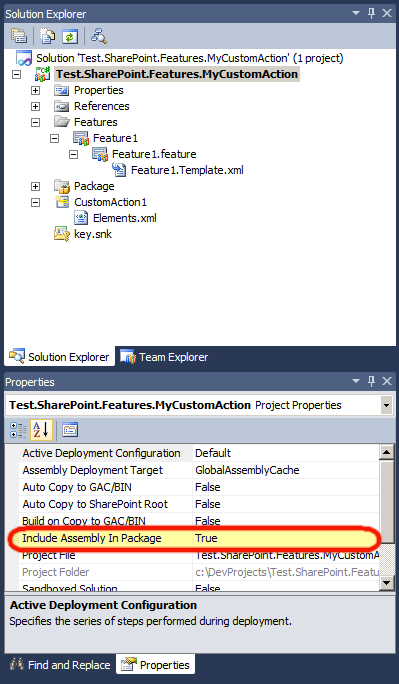
Ever notice, that no matter what you package in Visual Studio 2010, even if it is a no-code solution? See the output of a build from a CustomAction below.

—— Build started: Project: Test.SharePoint.Features.MyCustomAction, Configuration: Debug Any CPU ——
  Test.SharePoint.Features.MyCustomAction -> c:\DevProjects\Test.SharePoint.Features.MyCustomAction\Test.SharePoint.Features.MyCustomAction\bin\Debug\Test.SharePoint.Features.MyCustomAction.dll
  Successfully created package at: c:\DevProjects\Test.SharePoint.Features.MyCustomAction\Test.SharePoint.Features.MyCustomAction\bin\Debug\Test.SharePoint.Features.MyCustomAction.wsp
========== Build: 1 succeeded or up-to-date, 0 failed, 0 skipped ==========

There is a simple solution to this. Click on your project within the Solution Explorer in Visual Studio. And then below, or, wherever you have your Properties window, just change Include Assembly in Package to false. Then go ahead and re-package your solution. That was easy, eh?

image

SharePoint Saturday Boston 4–Recap and Materials

spsbostonWhat an event! This will be the 3rd SharePoint Saturday Boston event that I had the pleasure to help organize with Talbott Crowell and Pradeepa Siva. This was by far the smoothest as far as getting the gears cranking on it. Once the engine started, it virtually ran itself… I think our only real issue the day of, is that the breakfast caterer did not pick up their coffee containers, that and we could not figure out the AC situation, or lack there-of in some of the conference rooms. No speaker cancellations, or anything of that sort.

image

I want to start off by thanking our wonderful sponsors, who without, these events could never take place. It would take tens of thousands of dollars to pull one of these off… and that kind of money does go into these, but, not funded by registration fees from attendees. These are sponsored by some great companies, that believe in these events.

Next off, the speakers. If you are not familiar with a SharePoint Saturday event, the speakers are not paid a single cent to come and speak. There are no reimbursements for travel from us at least – some people do have companies that pick up their tab, a lot however, do not.We had speakers from all over the US, Canada, and even one from Russia. We could have all of the sponsors in the world, but, without the quality of the speakers, and their knowledge and delivery of the content, these events would not take place.

And last, but certainly not least, all of the 250+ attendees that came out on an absolutely gorgeous New England Saturday (it got me out of mulching my entire yard!), to come and network, learn, and have some fun. Again, if there were no attendees, there would be no SharePoint Saturday Boston.

For you math geeks out there, it is a simple equation, to sum up what the SharePoint Saturday ecosystem is.

Speakers + Sponsors + Attendees = SharePoint Saturday

And for my last bit of thanks – thank you to all of the people who attended my session – Planning and Configuring Extranets in SharePoint 2010. This was my first run of this session, and the feedback was very positive. Thank you all for bearing the heat in there, especially with the unending stream of hot air coming from me. I’ve posted my deck (below) at slideshare, and to all of who you are looking for a copy of the demo image – I will have that link available within the next week or two, as soon as I get it all up and running.


I am looking forward to the next SharePoint Saturday Boston, as well as other SharePoint Saturdays to come…

Planning and Configuring Extranets in SharePoint 2010–Part 2

extranetIn Part 1 of this series, we walked through creating of the actual databases for managing our FBA users, as well as the general scope of this blog series. Today, we are going to focus on the configuration of SharePoint [insert crowd roar here]. Ok, ok, I know you are excited, this however, is the hardest part IMHO, so, please pay attention, and try to color inside the lines to the best of your ability while we are following this exercise.


Membership and Role Providers

First, let us do a quick definition of what these are.

Membership Providers are the authentication sources for applications. A provider can be a number of back ends (LDAP, SQL, 3rd party application, or a custom membership provider). In our specific case here, we are using SQL, specifically, the ASP.NET Membership Database. If you look at the tables we created in Part 1, you can see how this provider stores a username, password, and other information about the user. Just like active directory, it can hold information about a user, and also be used for authentication.

Role Managers are similar to membership providers, however, these are more like groups in Active Directory. A person in the membership provider can belong to a number of different roles, or groups. We will be configuring these as well.

So, hopefully the brief introduction to these terms above is enough to make sense, so we can move onto our next bit.

At this point, they do not need to have a name. We can name them whatever we’d like to. So, we will use:

  • Membership Provider: SQL-MembershipProvider
  • Role Manager: SQL-RoleManager


Extending our Web Application with Claims Based Authentication

Now that we have our database up and running, we need to extend our web application in SharePoint 2010, so that we can create an FBA-Only authentication portal, for our partners at Contoso to access.

To do so, we need to enable Claims Based Authentication on our site, because it is already created, we need to enable our existing site to be “Claims aware”.

Note: a great blog on configuring Claims Based Authentication can be found here: http://blogs.technet.com/b/mahesm/archive/2010/04/07/configure-forms-based-authentication-fba-with-sharepoint-2010.aspx] I’ve relied heavily on that article in the past, so you will see a lot of the same information in this article as you will see in my reference above. This is not a swipe of that article, it is more of a homage 🙂


Extending the Web Application and Enabling Claims Authentication

To do so, go into Central Administration.

In Central Administration, go to Application Management > Manage web applications, and click on the site you would like to extend. In this example, I will be using the Intranet site within the SharePoint 2010 Information Worker demo image. Click on that site

image

And then click on Extend up in the Ribbon.

image

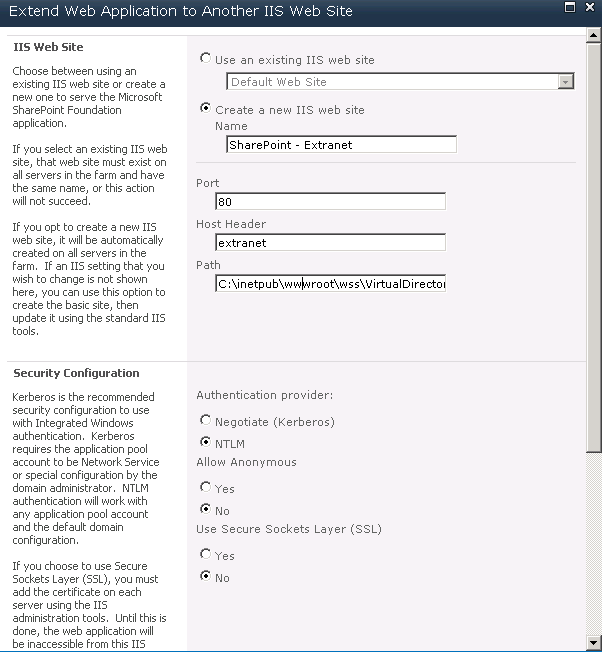
Now, time to configure the extended site. Give it a name, port, etc. (If you give it a DNS name, make sure you add in a DNS entry!)

image

image

Then select the Extranet zone. This doesn’t do anything but classify the extended web application, and allow us to modify the authentication methods used. Then click OK.

Now, once we have done that, you will notice, if you keep the web application selected in the list, click on Authentication Providers in the Ribbon, and then click on Extranet
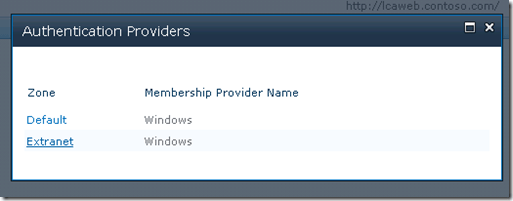
image

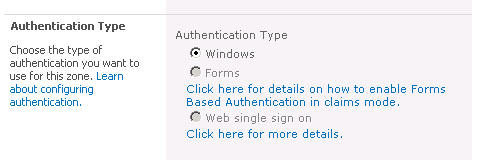
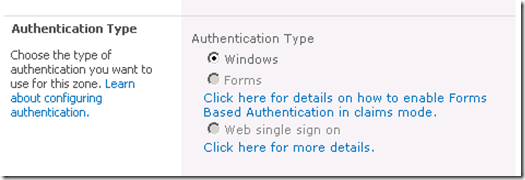
You will notice that we cannot change the authentication type from Windows to Forms.
image

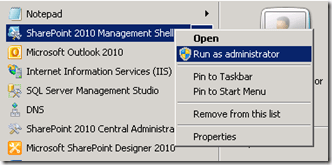
Don’t worry, we have a fix for that. To convert the web application from Classic Authentication to Claims Based Authentication, open up the SharePoint 2010 Administration Console (PowerShell – as an administrator)
image

   1: $webApp = Get-SPWebApplication http://extranet

   2: $webApp.UseClaimsAuthentication = "true"

   3: $webApp.Update()

This will enable Claims authentication on our web application.

Now if we click on Authentication Providers on the ribbon again, you can see that they now show up as Claims Based Authentication

image

Click on the Extranet again, you will now see that we can change the authentication type for this web application. If you want to have both AD users as well as FBA users to be access the same portal with their respective accounts, go ahead and check both Enable Windows Authentication as well as Enable Forms Based Authentication. Remember how I listed the Membership Provider and the Role Manager at the beginning of this article? Now is when I make use of those.

image

Note:  If you want to create a custom login page, you can specify that option from here (right below the Claims Authentication Types section). Maybe in an addendum to this article down the road I will write a quick post on how to do that. It’s easy, but, this article is more IT Pro/Admin focused, so we’ll skip that for now 🙂

Now go to the bottom and click on Save.  SharePoint will deal with the configuration of this web application.


Extranet Web Application Configuration

Our next item of concern is the configuration for the extranet. We need to re-configure the web.config settings for this extended web application. To do so, open the web.config file for the extranet web application, in my example, it is located at (C:\inetpub\wwwroot\wss\VirtualDirectories\extranet80\web.config)

Search for </SharePoint>, which should appear right before <system.web>, and insert the following code, after </SharePoint>, and before <system.web>.

   1: <connectionStrings> 

   2:   <add name="SQLConnectionString" connectionString="data source=DEMO2010A;Integrated Security=SSPI;Initial Catalog=aspnetdb" /> 

   3: </connectionStrings>

And where the two highlighted bits are above, insert your SQL server name, and FBA database name respectively. (see Part 1 for creating this database).

Once that is complete, locate the end of the </system.web>, mentioned above, where we just put the connectionStrings information above. It will be right above </system.webServer>. there are many other system.web declarations within this file, so be sure to use the right one. You should see tags in the XML for membership and rolemanager there.

We will leave these AS-IS! No need to modify those lines. Now, we need to add the following code within the <providers> and </providers> tags within the <membership> element, as directed in the image below

image

   1: <add connectionStringName="SQLConnectionString" 

   2: passwordAttemptWindow="5" 

   3: enablePasswordRetrieval="true" 

   4: enablePasswordReset="true" 

   5: requiresQuestionAndAnswer="true" 

   6: applicationName="/" 

   7: requiresUniqueEmail="true" 

   8: passwordFormat="Hashed" 

   9: description="Stores and Retrieves membership data from SQL Server" 

  10: name="SQL-MembershipProvider" 

  11: type="System.Web.Security.SqlMembershipProvider, System.Web, Version=2.0.3600.0, Culture=neutral, PublicKeyToken=b03f5f7f11d50a3a" />

Make sure that the connectionStringName and name attributes match the connection string we used above, as well as the membership provider name we used in SharePoint respectively.

Next, the piece of xml we are going to use will fit in between the <providers> and </providers> tags within the <roleManager> element, as directed in the image below

image

   1: <add connectionStringName="SQLConnectionString" 

   2: applicationName="/" 

   3: description="Stores and retrieves roles from SQL Server" 

   4: name="SQL-RoleManager" type="System.Web.Security.SqlRoleProvider, System.Web, Version=2.0.3600.0, Culture=neutral, PublicKeyToken=b03f5f7f11d50a3a" /> 

again, making sure that the connectionStringname and name attributes match the connection string we used above, as well as the role manager name we used in SharePoint respectively.

Then save the web.config file.

Central Administration Web Application Configuration

We now need to modify the Central Administration web.config file as well. In our example here, our Central Admin web.config file is located at: C:\inetpub\wwwroot\wss\VirtualDirectories\44535\web.config

We will be editing in the same places within the config file that we did for our extranet web application above, but with just a few slight changes.

So, first, locate the closing </SharePoint> tag, and the opening <system.web>. Just as we did above, we are going to paste in our connection strings here.

   1: <connectionStrings> 

   2:   <add name="SQLConnectionString" connectionString="data source=DEMO2010A;Integrated Security=SSPI;Initial Catalog=aspnetdb" /> 

   3: </connectionStrings> 

And next, as you may have guessed, just before we close out the </system.web> tag in this web.config, we need to put in our membership provider and role information. This is slightly different from the one we used for the extranet web.config above, notice the default membership provider. Don’t change this – leave this as-is. It is NOT a typo.

   1: <roleManager defaultProvider="AspNetWindowsTokenRoleProvider" enabled="true" cacheRolesInCookie="false"> 

   2:   <providers> 

   3:     <add connectionStringName="SQLConnectionString" applicationName="/" description="Stores and retrieves roles from SQL Server" name="SQL-RoleManager" type="System.Web.Security.SqlRoleProvider, System.Web, Version=2.0.3600.0, Culture=neutral, PublicKeyToken=b03f5f7f11d50a3a" /> 

   4:   </providers> 

   5: </roleManager> 

   6: <membership defaultProvider="SQL-MembershipProvider"> 

   7:   <providers> 

   8:     <add connectionStringName="SQLConnectionString" passwordAttemptWindow="5" enablePasswordRetrieval="false" enablePasswordReset="false" requiresQuestionAndAnswer="true" applicationName="/" requiresUniqueEmail="true" passwordFormat="Hashed" description="Stores and Retrieves membership data from SQL Server" name="SQL-MembershipProvider" type="System.Web.Security.SqlMembershipProvider, System.Web, Version=2.0.3600.0, Culture=neutral, PublicKeyToken=b03f5f7f11d50a3a" /> 

   9:   </providers> 

  10: </membership> 


Security Token Web Service Application Configuration

Last, but certainly not least, we must also update the web.config for the SecurityToken service.

Within your SharePoint Root folder, under WebServices\SecurityToken (generally found at C:\Program Files\Common Files\Microsoft Shared\Web Server Extensions\14\WebServices\SecurityToken), you will find another web.config file. Before the end <configuration> </configuration> section, add in the following… again, tailored to your configuration which we have specified above.

   1: <connectionStrings> 

   2:     <add name="SQL-ConnectionString" connectionString="data source=DEMO2010A;Integrated Security=SSPI;Initial Catalog=aspnetdb" /> 

   3: </connectionStrings> 

   4: <system.web> 

   5:     <roleManager defaultProvider="c" enabled="true" cacheRolesInCookie="false"> 

   6:         <providers> 

   7:             <add name="c" type="Microsoft.SharePoint.Administration.Claims.SPClaimsAuthRoleProvider, Microsoft.SharePoint, Version=14.0.0.0, Culture=neutral, PublicKeyToken=71e9bce111e9429c" /> 

   8:             <add connectionStringName="SQL-ConnectionString" applicationName="/" description="Stores and retrieves roles from SQL Server" name="SQL-RoleManager" type="System.Web.Security.SqlRoleProvider, System.Web, Version=2.0.3600.0, Culture=neutral, PublicKeyToken=b03f5f7f11d50a3a" /> 

   9:         </providers> 

  10:     </roleManager> 

  11:     <membership defaultProvider="i"> 

  12:         <providers> 

  13:             <add name="i" type="Microsoft.SharePoint.Administration.Claims.SPClaimsAuthMembershipProvider, Microsoft.SharePoint, Version=14.0.0.0, Culture=neutral, PublicKeyToken=71e9bce111e9429c" /> 

  14:             <add connectionStringName="SQL-ConnectionString" passwordAttemptWindow="5" enablePasswordRetrieval="false" enablePasswordReset="false" requiresQuestionAndAnswer="true" applicationName="/" requiresUniqueEmail="true" passwordFormat="Hashed" description="Stores and Retrieves membership data from SQL Server" name="SQL-MembershipProvider" type="System.Web.Security.SqlMembershipProvider, System.Web, Version=2.0.3600.0, Culture=neutral, PublicKeyToken=b03f5f7f11d50a3a" /> 

  15:         </providers> 

  16:     </membership> 

  17: </system.web>

Once you do that, it would be healthy to restart IIS as well (just humor me on this one, while not required, as changes to the web.config will cause the application pools to recycle, I’ve seen issues where a reset to IIS has been known to do good).

And lastly, once you visit your site, you should get one of these nice choice boxes:


image

You should be configured, and ready to roll!

Now stay tuned for Part 3… get access to this test environment!

PowerShell script to list all Webs and Site Templates in use within a Site Collection

And one more quick post today, this PowerShell script will iterate through all Webs within a Site Collection, print out their Title, URL, and WebTemplate (Site Template) name.

   1: $site = Get-SPSite "http://yoursite"

   2: foreach ($web in $site.AllWebs) { 

   3:     $web | Select-Object -Property Title,Url,WebTemplate 

   4: }

   5: $site.Dispose()

And again, before you use this – please read this: https://gvaro.wordpress.com/2011/03/26/test-out-your-powershell-scripts-first-in-a-non-production-environment-first/ (and also read the comment by Anders Rask)

System.UnauthorizedAccessException: Filename: redirection.config

If you see this error when activating a feature which makes use of the Microsoft.Web.Administration namespace, and the account you are using to activate this feature does not have permissions to C:\Windows\System32\inetsrv\config, chances are, you will see this error.

The fix – give that account access, or use a higher-privileged account.

If there are other solutions out there that people have come into, please let me know, I would love to hear them.