A giant lobster crawls out of Boston harbor…

Joel Oleson approached me at the SharePoint Technology Conference in Boston, and asked me to answer a few questions. This would be the result of that…

image

For some odd reason, I want to head down to Providence to Hemenway’s for some Lobster. I have no idea why…

Microsoft.BusinessData.Runtime.ExceededLimitException: Database Connector has throttled the response.

If you’ve created a BCS list before (such as defined by the excellent tutorial put together by Laura Rogers for connecting to a SQL data source using a SQL account – http://www.sharepoint911.com/blogs/laura/Lists/Posts/Post.aspx?ID=90), and received this error on your Read List view page:

Unable to display this Web Part. To troubleshoot the problem, open this Web page in a Microsoft SharePoint Foundation-compatible HTML editor such as Microsoft SharePoint Designer. If the problem persists, contact your Web server administrator.

Correlation ID:117e242f-0985-42e9-9972-b1a879ce7e3b

After investigating the ULS Logs, located in %SYSTEM DIR%\Program Files\Common Files\Microsoft Shared\web server extensions\14\LOGS, and searching for the correlation id mentioned above. You may find the following error:

Error while executing web part: Microsoft.BusinessData.Runtime.ExceededLimitException: Database Connector has throttled the response. The response from database contains more than ‘2000’ rows. The maximum number of rows that can be read through Database Connector is ‘2000’. The limit can be changed via the ‘Set-SPBusinessDataCatalogThrottleConfig’ cmdlet.     at Microsoft.SharePoint.BusinessData.SystemSpecific.Db.ThrottledIDataReader.Read()     at Microsoft.SharePoint.BusinessData.SystemSpecific.Db.DbEntityInstanceEnumerator.MoveNext()     at Microsoft.SharePoint.BusinessData.Runtime.EntityInstanceEnumeratorBase.MoveNext()     at Microsoft.SharePoint.SPListDataSource.GetFilteredEntityInstancesInternal(XmlDocument xdQueryView, Boolean fFormatDates, Boolean fUTCToLocal, String firstRowId, Bo…

Thanks to the wonders of the interwebs, the solution to this is fairly simple, and the error explanation is extremely helpful. Do a search for this: Set-SPBusinessDataCatalogThrottleConfig, which will lead you to a great article on the Microsoft Business Connectivity Services Team Blog by Adam Outcalt here: http://blogs.msdn.com/b/bcs/archive/2010/02/16/bcs-powershell-introduction-and-throttle-management.aspx which will give you very great instructions on modifying the BCS throttling configuration.

Be careful with this however, the throttling is there for a reason. Not just to give you another option to configure.

Slides from SharePoint Saturday EMEA 2011 Presentation

Although it happened quite early for me in the morning yesterday (January 22st, 2011), SharePoint Saturday EMEA was a great event to be a part of. Although it lacked some of the main aspects I love at SharePoint Saturdays, such as networking, meeting new people, interacting with the crowd, etc., it was kind of nice to wake up, slug down a few cups of coffee, and present my session.

The EMEA team did a great job of managing this virtual SharePoint Saturday, and I hope to be able to present at future sessions. A big thanks to the attendees of my session, as well as the team that put the event together:

  • Mark Miller (@eusp)
  • Toni Frankola (@ToniFrankola)
  • Isaac Stith (@MrIsaac)
  • Ayman El-Hattab (@aymanelhattab)
  • Natasha Felshman (@TeamEUSP)


Below is a copy of my slide deck from the presentation. Any questions on any of the material, please leave a comment below!

Integrating Social Media into the SharePoint 2010 Ribbon

image

I think the image above says enough for itself. Came across this link today (http://shojeeb.com/sharepoint/custom-social-bookmarking-ribbon-tab-in-sharepoint-2010/) by Zubhair Ahmed. Very cool integration of social media controls into SharePoint 2010, and just had to share.

A few other people think so as well…

image

image

Quick Tip – Using the Resources List in Central Administration

Let’s face it, both in SharePoint 2007 and 2010, Central Administration does require a bit of clicking around. Some features and functionality you will use on a daily basis, but others, not so much. While the UI for Central Administration got a great overhaul, navigating around can be tedious.

Not that it is any rocket science here either, however, I rarely come across client environments where this is used at all. The list was available in 2007, as well as 2010. When you log into Central Administration, you’ll see the Resources link list web part off to the right. So the quick tip of the day is – make use of this!

For instance, if you need to get down to the user profile service administration screen… you need to do the following:

  1. Click on Application Management > Manage service applications
  2. Locate the service application, and click it
  3. Then you’re there.

However, just adding a link to the Resources list for this, and other commonly used items, saves both time and effort, especially if you have trouble locating your service applications. So just copy the URL, go back out to the main page, and add it in as a link.

image

More ideas? Maybe you need to look at the Job History for your web application each day. Instead of doing the following:

  1. Click on Monitoring > Check job status
  2. Clicking on Job History on the quick Launch
  3. Selecting Web Application from the View drop down

Just copy out the link, and add it into the Resources list for a quick link http://servername/_admin/TimerJobHistory.aspx?View=2

Now, there are many other possibilities to store these links – your bookmarks for example – while that works for you, it does not work for anyone else who needs access to Central Admin.

If you wanted to build a feature or two, you could also implement some Custom Actions here as well…

Upcoming Speaking Engagements

Wow, it’s been a busy few weeks, and lots of acceptances and confirmations have come through over the past couple of weeks, enough so that I have not been able to get out posts for each one. So, I thought I would cover a few bases at once, and get all of these out there. I also keep an updated speaking and event calendar hosted here: https://gvaro.wordpress.com/calendar/.


January, 2011

  • January 22, 2011: SharePoint Saturday EMEA – Live, Online
    • Presenting “The Ribbon UI and Custom Actions in SharePoint 2010”
  • January 29 2011: SharePoint Saturday Hartford – Bloomfield, CT
    • Presenting “Creating Custom Actions in SharePoint 2010”
    • Co-Presenting with Tim Farrell “Producing a Custom Solution from the Ground Up”

February, 2011

March, 2011

April, 2011

June, 2011


More events that I will be involved with, either through sponsoring, hosting, presenting, organizing, or other ways over the next few months are below.

Speaking at SPSEMEA on January 22, 2011

imageFound out a few moments ago that I am officially slated to present at SharePoint Saturday EMEA.


What is SharePoint Saturday EMEA?

SharePoint Saturday EMEA is a loosely knit group of SharePoint evangelists from around the world. We are working together, using SharePoint as a collaboration tool to sponsor live, online global events.

On January 22nd, 2011, we will hold our 2nd annual, live online SharePoint Saturday event in the EMEA Timezones.

Oh, and it’s free.


What will I be presenting?

The Ribbon UI and Custom Actions in SharePoint 2010

Custom Actions control features in SharePoint such as the List Item Menu, the Site Actions menu, toolbars, and the links within the Site Settings page, as well as the Ribbon UI in SharePoint 2010.

Learn how to leverage Custom Actions to extend the SharePoint User Interface. This session will describe the basics of Custom Actions, demonstrations to build and apply them in SharePoint as they relate to our lists using SharePoint Designer 2010, as well as provide resources for additional information.

Where can I find more information on SPS EMEA?

Right here: http://www.sharepointsaturday.org/emea/

SharePoint & PowerShell 101: Finding Cmdlets

imageI recently did a post on Listing all available PowerShell commands in SharePoint 2010. That is all well and good, if you want to manually browse through all of them. But what if you want to search for them?


Get-Command

Get-Command is a highly useful cmdlet in PowerShell. Today we are just going to use a basic functionality of it, to help us find and locate the cmdlets we need to use. Today, we need to do some work with the User Profile Service. However, we don’t know what the command names are that we need to use, only that we need to use them. For that, we can use Get-Command. If you need to figure out how to use the Get-Command cmdlet, run

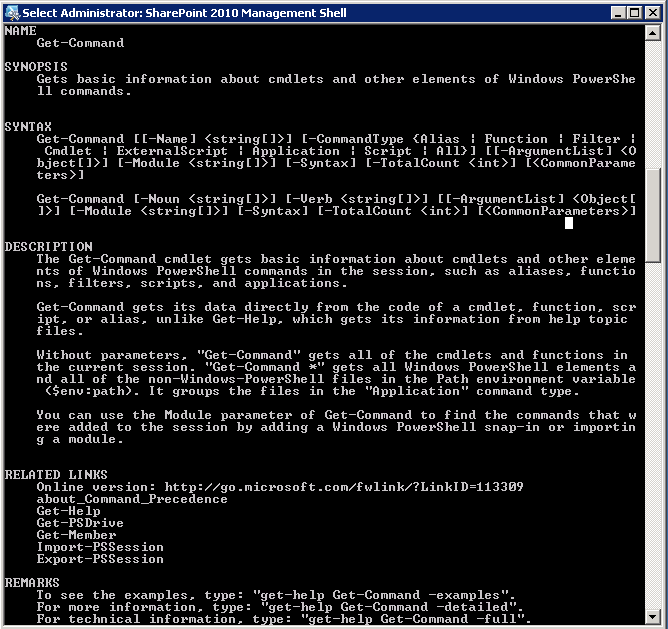
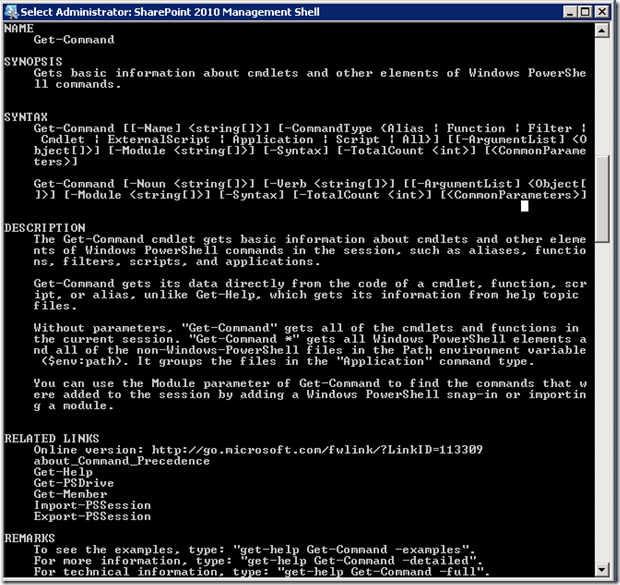
Get-Help Get-Command

Which will return the following information about the cmdlet
image

This will return the usage of the Get-Command cmdlet. We are just going to use the –Noun switch to pass in our parameters.

Let’s start looking at the basics… we’re looking to find commands relating to the User Profile Service. So, let’s try searching for a noun of Profile

Get-Command –Noun Profile

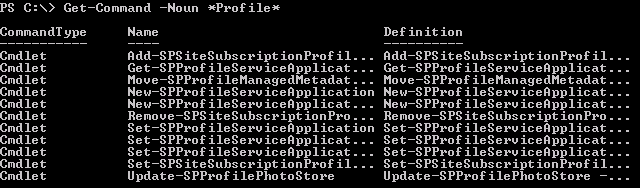
Nothing is returned… oh right, it would appear that the Get-Command is literal, not a wildcard. However, we can use a wildcard character to help us search, as we have no idea what the name of the command is. Let’s try searching for *Profile*, that should do the trick.

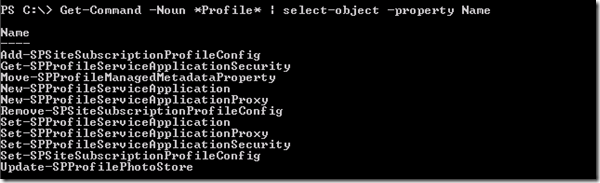
Get-Command –Noun *Profile*
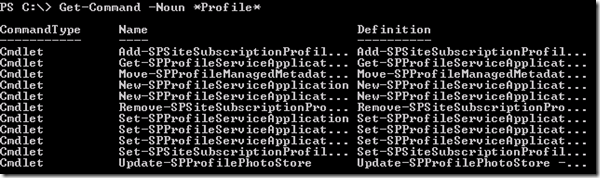
image

Hooray, results! However, we cannot see the entire name of the results returned. For that, we can use the Select-Object cmdlet.

Fore information on using that, try this in the PowerShell console

Get-Help Select-Object

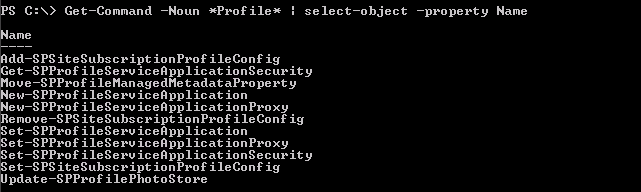
So, let’s only pull the Name property in our results of the Get-Command

Get-Command -Noun *Profile* | Select-Object –Property Name
image

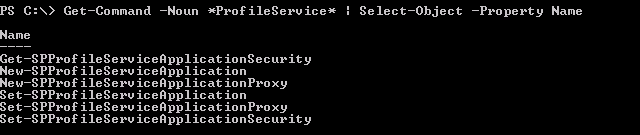
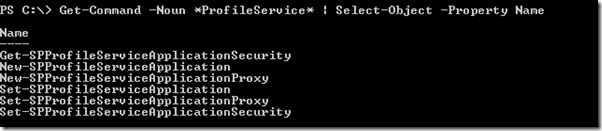
Much better! We can further refine these by adjusting our Noun, to just look at ProfileService

Get-Command -Noun *ProfileService* | Select-Object -Property Name
image

And there we go! Hopefully this helps you in your quest to add PowerShell to your arsenal of SharePoint management and development tools.

I’d love to hear what else you would like to learn about – leave me information in the comments!

List View Web Part Toolbar Types in SharePoint 2010

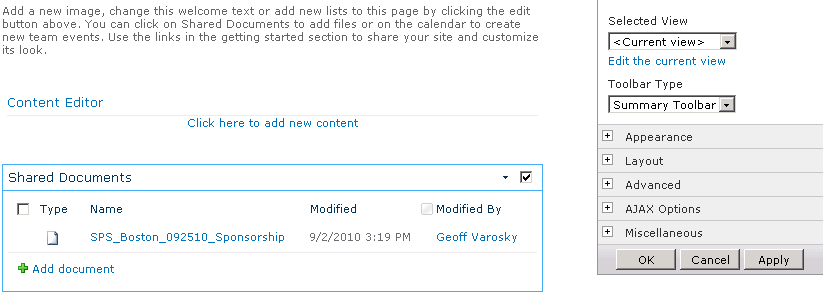
When imageadding a List View Web Part to your pages in SharePoint 2007, you had 3 options:

  • Full Toolbar
    • Gave you the library controls on a toolbar above your headers and list items, but no “Add new document” or “Add new list item” link below your data, because it was available in the toolbar above.
      image
  • Summary Toolbar
    • Gave you the “Add new document” link below your data
      image
  • No Toolbar
    • Nothing!

In SharePoint 2010, things are slightly different. Let’s take a look at our options, as well as how they are rendered.

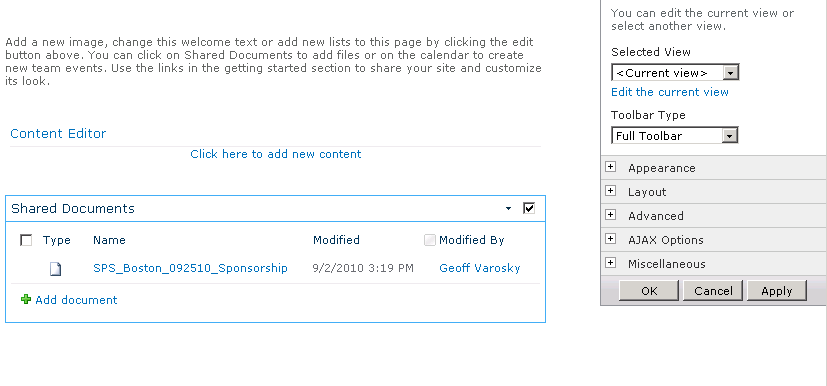
  • Full Toolbar
    • Just appears to give us the “Add Document” link. No toolbar being shown. Odd.
      image
  • Summary Toolbar
    • The exact same thing as the “Full Toolbar”. Odd, again.
      image
  • No Toolbar
    • Works as advertised.
      image
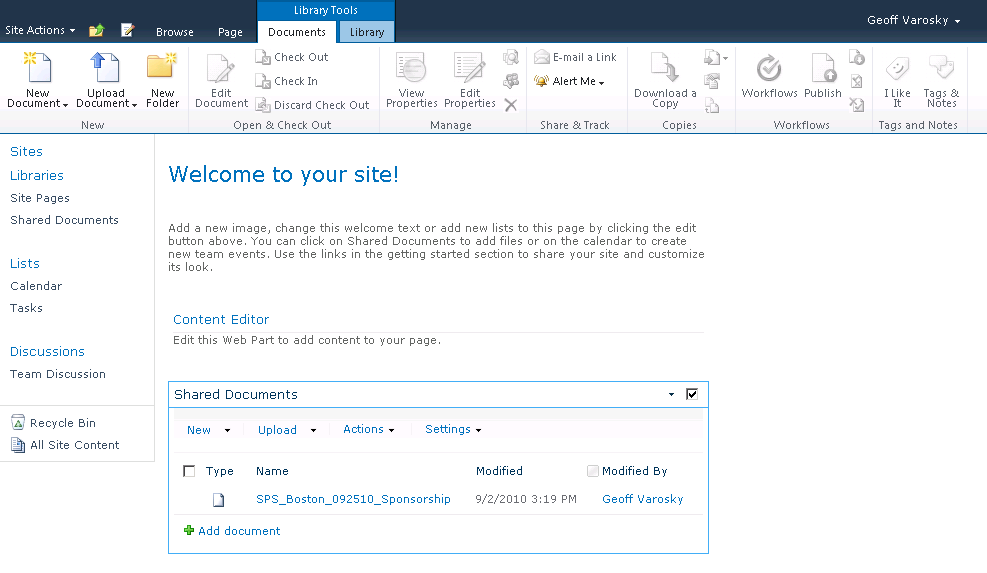
  • Show Toolbar
    • The new option on the block… This option now acts like the old “Full Toolbar” used to.
      image

My big question here is, why leave the “Full Toolbar” option, if it is now exactly the same as the Summary Toolbar? My guess would be for backwards compatibility. Also, if you hadn’t noticed – the ribbon in 2010 also takes the place of some of these options. Go ahead and click into your webpart somewhere, you’ll notice you get the contextual ribbon options for the list and list items, negating the need for the “Full Toolbar” option.

image

Hope this helps map out what these options are. I had not paid much attention to these as of yet, until it was brought up by a client recently.