Getting DLLs OUT of your non-managed code SharePoint solutions in Visual Studio 2010

Ever notice, that no matter what you package in Visual Studio 2010, even if it is a no-code solution? See the output of a build from a CustomAction below.

—— Build started: Project: Test.SharePoint.Features.MyCustomAction, Configuration: Debug Any CPU ——
  Test.SharePoint.Features.MyCustomAction -> c:\DevProjects\Test.SharePoint.Features.MyCustomAction\Test.SharePoint.Features.MyCustomAction\bin\Debug\Test.SharePoint.Features.MyCustomAction.dll
  Successfully created package at: c:\DevProjects\Test.SharePoint.Features.MyCustomAction\Test.SharePoint.Features.MyCustomAction\bin\Debug\Test.SharePoint.Features.MyCustomAction.wsp
========== Build: 1 succeeded or up-to-date, 0 failed, 0 skipped ==========

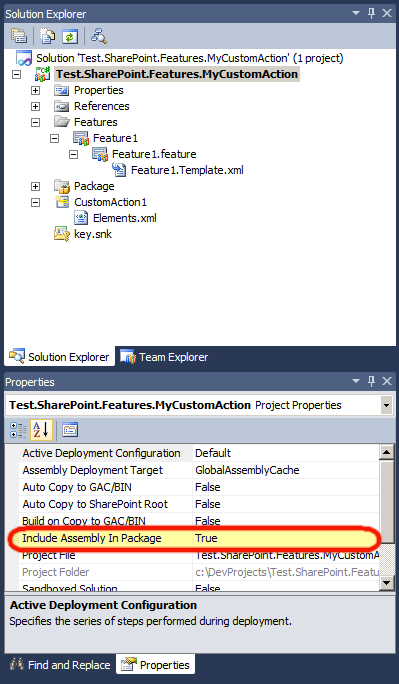
There is a simple solution to this. Click on your project within the Solution Explorer in Visual Studio. And then below, or, wherever you have your Properties window, just change Include Assembly in Package to false. Then go ahead and re-package your solution. That was easy, eh?

image

SharePoint Saturday Boston 4–Recap and Materials

spsbostonWhat an event! This will be the 3rd SharePoint Saturday Boston event that I had the pleasure to help organize with Talbott Crowell and Pradeepa Siva. This was by far the smoothest as far as getting the gears cranking on it. Once the engine started, it virtually ran itself… I think our only real issue the day of, is that the breakfast caterer did not pick up their coffee containers, that and we could not figure out the AC situation, or lack there-of in some of the conference rooms. No speaker cancellations, or anything of that sort.

image

I want to start off by thanking our wonderful sponsors, who without, these events could never take place. It would take tens of thousands of dollars to pull one of these off… and that kind of money does go into these, but, not funded by registration fees from attendees. These are sponsored by some great companies, that believe in these events.

Next off, the speakers. If you are not familiar with a SharePoint Saturday event, the speakers are not paid a single cent to come and speak. There are no reimbursements for travel from us at least – some people do have companies that pick up their tab, a lot however, do not.We had speakers from all over the US, Canada, and even one from Russia. We could have all of the sponsors in the world, but, without the quality of the speakers, and their knowledge and delivery of the content, these events would not take place.

And last, but certainly not least, all of the 250+ attendees that came out on an absolutely gorgeous New England Saturday (it got me out of mulching my entire yard!), to come and network, learn, and have some fun. Again, if there were no attendees, there would be no SharePoint Saturday Boston.

For you math geeks out there, it is a simple equation, to sum up what the SharePoint Saturday ecosystem is.

Speakers + Sponsors + Attendees = SharePoint Saturday

And for my last bit of thanks – thank you to all of the people who attended my session – Planning and Configuring Extranets in SharePoint 2010. This was my first run of this session, and the feedback was very positive. Thank you all for bearing the heat in there, especially with the unending stream of hot air coming from me. I’ve posted my deck (below) at slideshare, and to all of who you are looking for a copy of the demo image – I will have that link available within the next week or two, as soon as I get it all up and running.


I am looking forward to the next SharePoint Saturday Boston, as well as other SharePoint Saturdays to come…

Planning and Configuring Extranets in SharePoint 2010–Part 2

extranetIn Part 1 of this series, we walked through creating of the actual databases for managing our FBA users, as well as the general scope of this blog series. Today, we are going to focus on the configuration of SharePoint [insert crowd roar here]. Ok, ok, I know you are excited, this however, is the hardest part IMHO, so, please pay attention, and try to color inside the lines to the best of your ability while we are following this exercise.


Membership and Role Providers

First, let us do a quick definition of what these are.

Membership Providers are the authentication sources for applications. A provider can be a number of back ends (LDAP, SQL, 3rd party application, or a custom membership provider). In our specific case here, we are using SQL, specifically, the ASP.NET Membership Database. If you look at the tables we created in Part 1, you can see how this provider stores a username, password, and other information about the user. Just like active directory, it can hold information about a user, and also be used for authentication.

Role Managers are similar to membership providers, however, these are more like groups in Active Directory. A person in the membership provider can belong to a number of different roles, or groups. We will be configuring these as well.

So, hopefully the brief introduction to these terms above is enough to make sense, so we can move onto our next bit.

At this point, they do not need to have a name. We can name them whatever we’d like to. So, we will use:

  • Membership Provider: SQL-MembershipProvider
  • Role Manager: SQL-RoleManager


Extending our Web Application with Claims Based Authentication

Now that we have our database up and running, we need to extend our web application in SharePoint 2010, so that we can create an FBA-Only authentication portal, for our partners at Contoso to access.

To do so, we need to enable Claims Based Authentication on our site, because it is already created, we need to enable our existing site to be “Claims aware”.

Note: a great blog on configuring Claims Based Authentication can be found here: http://blogs.technet.com/b/mahesm/archive/2010/04/07/configure-forms-based-authentication-fba-with-sharepoint-2010.aspx] I’ve relied heavily on that article in the past, so you will see a lot of the same information in this article as you will see in my reference above. This is not a swipe of that article, it is more of a homage 🙂


Extending the Web Application and Enabling Claims Authentication

To do so, go into Central Administration.

In Central Administration, go to Application Management > Manage web applications, and click on the site you would like to extend. In this example, I will be using the Intranet site within the SharePoint 2010 Information Worker demo image. Click on that site

image

And then click on Extend up in the Ribbon.

image

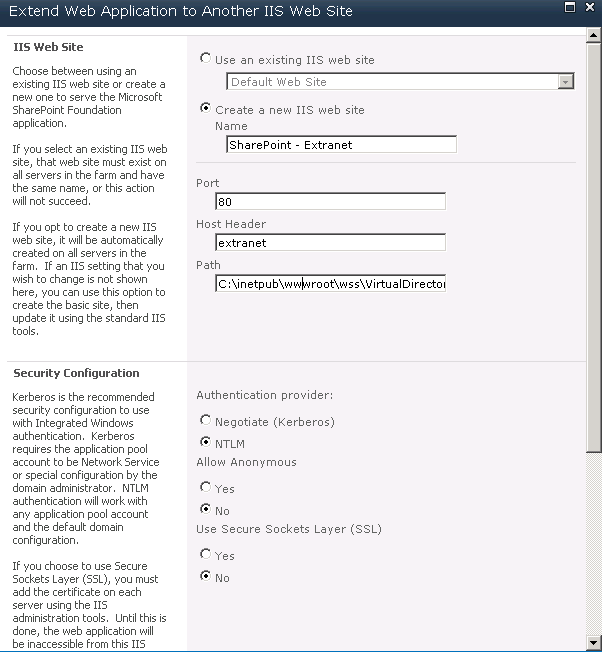
Now, time to configure the extended site. Give it a name, port, etc. (If you give it a DNS name, make sure you add in a DNS entry!)

image

image

Then select the Extranet zone. This doesn’t do anything but classify the extended web application, and allow us to modify the authentication methods used. Then click OK.

Now, once we have done that, you will notice, if you keep the web application selected in the list, click on Authentication Providers in the Ribbon, and then click on Extranet
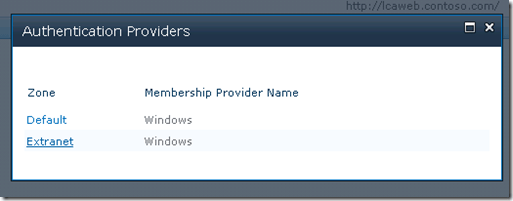
image

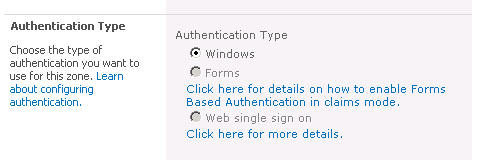
You will notice that we cannot change the authentication type from Windows to Forms.
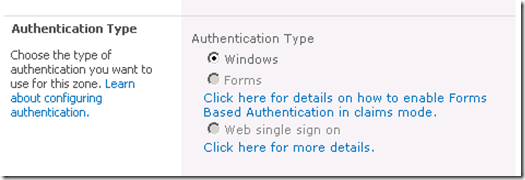
image

Don’t worry, we have a fix for that. To convert the web application from Classic Authentication to Claims Based Authentication, open up the SharePoint 2010 Administration Console (PowerShell – as an administrator)
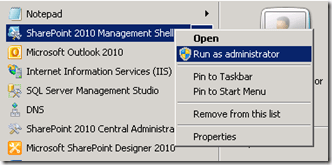
image

   1: $webApp = Get-SPWebApplication http://extranet

   2: $webApp.UseClaimsAuthentication = "true"

   3: $webApp.Update()

This will enable Claims authentication on our web application.

Now if we click on Authentication Providers on the ribbon again, you can see that they now show up as Claims Based Authentication

image

Click on the Extranet again, you will now see that we can change the authentication type for this web application. If you want to have both AD users as well as FBA users to be access the same portal with their respective accounts, go ahead and check both Enable Windows Authentication as well as Enable Forms Based Authentication. Remember how I listed the Membership Provider and the Role Manager at the beginning of this article? Now is when I make use of those.

image

Note:  If you want to create a custom login page, you can specify that option from here (right below the Claims Authentication Types section). Maybe in an addendum to this article down the road I will write a quick post on how to do that. It’s easy, but, this article is more IT Pro/Admin focused, so we’ll skip that for now 🙂

Now go to the bottom and click on Save.  SharePoint will deal with the configuration of this web application.


Extranet Web Application Configuration

Our next item of concern is the configuration for the extranet. We need to re-configure the web.config settings for this extended web application. To do so, open the web.config file for the extranet web application, in my example, it is located at (C:\inetpub\wwwroot\wss\VirtualDirectories\extranet80\web.config)

Search for </SharePoint>, which should appear right before <system.web>, and insert the following code, after </SharePoint>, and before <system.web>.

   1: <connectionStrings> 

   2:   <add name="SQLConnectionString" connectionString="data source=DEMO2010A;Integrated Security=SSPI;Initial Catalog=aspnetdb" /> 

   3: </connectionStrings>

And where the two highlighted bits are above, insert your SQL server name, and FBA database name respectively. (see Part 1 for creating this database).

Once that is complete, locate the end of the </system.web>, mentioned above, where we just put the connectionStrings information above. It will be right above </system.webServer>. there are many other system.web declarations within this file, so be sure to use the right one. You should see tags in the XML for membership and rolemanager there.

We will leave these AS-IS! No need to modify those lines. Now, we need to add the following code within the <providers> and </providers> tags within the <membership> element, as directed in the image below

image

   1: <add connectionStringName="SQLConnectionString" 

   2: passwordAttemptWindow="5" 

   3: enablePasswordRetrieval="true" 

   4: enablePasswordReset="true" 

   5: requiresQuestionAndAnswer="true" 

   6: applicationName="/" 

   7: requiresUniqueEmail="true" 

   8: passwordFormat="Hashed" 

   9: description="Stores and Retrieves membership data from SQL Server" 

  10: name="SQL-MembershipProvider" 

  11: type="System.Web.Security.SqlMembershipProvider, System.Web, Version=2.0.3600.0, Culture=neutral, PublicKeyToken=b03f5f7f11d50a3a" />

Make sure that the connectionStringName and name attributes match the connection string we used above, as well as the membership provider name we used in SharePoint respectively.

Next, the piece of xml we are going to use will fit in between the <providers> and </providers> tags within the <roleManager> element, as directed in the image below

image

   1: <add connectionStringName="SQLConnectionString" 

   2: applicationName="/" 

   3: description="Stores and retrieves roles from SQL Server" 

   4: name="SQL-RoleManager" type="System.Web.Security.SqlRoleProvider, System.Web, Version=2.0.3600.0, Culture=neutral, PublicKeyToken=b03f5f7f11d50a3a" /> 

again, making sure that the connectionStringname and name attributes match the connection string we used above, as well as the role manager name we used in SharePoint respectively.

Then save the web.config file.

Central Administration Web Application Configuration

We now need to modify the Central Administration web.config file as well. In our example here, our Central Admin web.config file is located at: C:\inetpub\wwwroot\wss\VirtualDirectories\44535\web.config

We will be editing in the same places within the config file that we did for our extranet web application above, but with just a few slight changes.

So, first, locate the closing </SharePoint> tag, and the opening <system.web>. Just as we did above, we are going to paste in our connection strings here.

   1: <connectionStrings> 

   2:   <add name="SQLConnectionString" connectionString="data source=DEMO2010A;Integrated Security=SSPI;Initial Catalog=aspnetdb" /> 

   3: </connectionStrings> 

And next, as you may have guessed, just before we close out the </system.web> tag in this web.config, we need to put in our membership provider and role information. This is slightly different from the one we used for the extranet web.config above, notice the default membership provider. Don’t change this – leave this as-is. It is NOT a typo.

   1: <roleManager defaultProvider="AspNetWindowsTokenRoleProvider" enabled="true" cacheRolesInCookie="false"> 

   2:   <providers> 

   3:     <add connectionStringName="SQLConnectionString" applicationName="/" description="Stores and retrieves roles from SQL Server" name="SQL-RoleManager" type="System.Web.Security.SqlRoleProvider, System.Web, Version=2.0.3600.0, Culture=neutral, PublicKeyToken=b03f5f7f11d50a3a" /> 

   4:   </providers> 

   5: </roleManager> 

   6: <membership defaultProvider="SQL-MembershipProvider"> 

   7:   <providers> 

   8:     <add connectionStringName="SQLConnectionString" passwordAttemptWindow="5" enablePasswordRetrieval="false" enablePasswordReset="false" requiresQuestionAndAnswer="true" applicationName="/" requiresUniqueEmail="true" passwordFormat="Hashed" description="Stores and Retrieves membership data from SQL Server" name="SQL-MembershipProvider" type="System.Web.Security.SqlMembershipProvider, System.Web, Version=2.0.3600.0, Culture=neutral, PublicKeyToken=b03f5f7f11d50a3a" /> 

   9:   </providers> 

  10: </membership> 


Security Token Web Service Application Configuration

Last, but certainly not least, we must also update the web.config for the SecurityToken service.

Within your SharePoint Root folder, under WebServices\SecurityToken (generally found at C:\Program Files\Common Files\Microsoft Shared\Web Server Extensions\14\WebServices\SecurityToken), you will find another web.config file. Before the end <configuration> </configuration> section, add in the following… again, tailored to your configuration which we have specified above.

   1: <connectionStrings> 

   2:     <add name="SQL-ConnectionString" connectionString="data source=DEMO2010A;Integrated Security=SSPI;Initial Catalog=aspnetdb" /> 

   3: </connectionStrings> 

   4: <system.web> 

   5:     <roleManager defaultProvider="c" enabled="true" cacheRolesInCookie="false"> 

   6:         <providers> 

   7:             <add name="c" type="Microsoft.SharePoint.Administration.Claims.SPClaimsAuthRoleProvider, Microsoft.SharePoint, Version=14.0.0.0, Culture=neutral, PublicKeyToken=71e9bce111e9429c" /> 

   8:             <add connectionStringName="SQL-ConnectionString" applicationName="/" description="Stores and retrieves roles from SQL Server" name="SQL-RoleManager" type="System.Web.Security.SqlRoleProvider, System.Web, Version=2.0.3600.0, Culture=neutral, PublicKeyToken=b03f5f7f11d50a3a" /> 

   9:         </providers> 

  10:     </roleManager> 

  11:     <membership defaultProvider="i"> 

  12:         <providers> 

  13:             <add name="i" type="Microsoft.SharePoint.Administration.Claims.SPClaimsAuthMembershipProvider, Microsoft.SharePoint, Version=14.0.0.0, Culture=neutral, PublicKeyToken=71e9bce111e9429c" /> 

  14:             <add connectionStringName="SQL-ConnectionString" passwordAttemptWindow="5" enablePasswordRetrieval="false" enablePasswordReset="false" requiresQuestionAndAnswer="true" applicationName="/" requiresUniqueEmail="true" passwordFormat="Hashed" description="Stores and Retrieves membership data from SQL Server" name="SQL-MembershipProvider" type="System.Web.Security.SqlMembershipProvider, System.Web, Version=2.0.3600.0, Culture=neutral, PublicKeyToken=b03f5f7f11d50a3a" /> 

  15:         </providers> 

  16:     </membership> 

  17: </system.web>

Once you do that, it would be healthy to restart IIS as well (just humor me on this one, while not required, as changes to the web.config will cause the application pools to recycle, I’ve seen issues where a reset to IIS has been known to do good).

And lastly, once you visit your site, you should get one of these nice choice boxes:


image

You should be configured, and ready to roll!

Now stay tuned for Part 3… get access to this test environment!
PowerShell script to list all Webs and Site Templates in use within a Site Collection

And one more quick post today, this PowerShell script will iterate through all Webs within a Site Collection, print out their Title, URL, and WebTemplate (Site Template) name.

   1: $site = Get-SPSite "http://yoursite"

   2: foreach ($web in $site.AllWebs) { 

   3:     $web | Select-Object -Property Title,Url,WebTemplate 

   4: }

   5: $site.Dispose()

And again, before you use this – please read this: https://gvaro.wordpress.com/2011/03/26/test-out-your-powershell-scripts-first-in-a-non-production-environment-first/ (and also read the comment by Anders Rask)

System.UnauthorizedAccessException: Filename: redirection.config

If you see this error when activating a feature which makes use of the Microsoft.Web.Administration namespace, and the account you are using to activate this feature does not have permissions to C:\Windows\System32\inetsrv\config, chances are, you will see this error.

The fix – give that account access, or use a higher-privileged account.

If there are other solutions out there that people have come into, please let me know, I would love to hear them.

Planning and Configuring Extranets in SharePoint 2010–Part 1

extranetFor my SharePoint Saturday Boston session on April 9th, I will be delivering a presentation on Planning and Configuring Extranets in SharePoint 2010. As I am building up my virtual environment for this presentation, I thought I would also write a blog series on the subject. The abstract for the session is below, and, if you can make it to SharePoint Saturday Boston, I hope you’ll come and see the presentation.

Most companies, large or small, require contact and collaboration with external entities, whether they are vendors, clients, or contractors. SharePoint gives us the ability to open up portals for collaboration with these external entities – this session will show you how to accomplish this using SharePoint 2010.

We will review what is required to make SharePoint “open” to the external world, discuss scenarios regarding security and privacy, as well as walk through configuring Forms Based Authentication, Claims Based Authentication, as well as using Business Connectivity Services in SharePoint 2010, to authenticate, and manage our external users.

Once completing this session, you should have a firm grasp on how to configure an extranet environment using SharePoint 2010, as well as what should be considered during the planning of your extranet scenarios.

At the conclusion of this series, as well as after the presentation at SPS Boston, I will include my slide deck here, as well as links to the actual virtual environment I am creating for this via cloudshare, as well as follow-up answers to questions asked during the session. I am using this to build up the shareable version of my presentation, because, it doesn’t use any local resources, I can access it from anywhere, and, I can share it with an unlimited amount of people, and I can update it from time to time.

So, let’s get started. To give some background on what we are going to be accomplishing here as our end game – we are going to configure the SharePoint 2010 Information Worker image with FBA, using the ASP.NET membership database as our backend. As well as using some built-in and home-grown tools to manage those users.

So now, really this time, lets get started… oh wait, before I do, notice the two images that start off this blog post? get it? an “extra net”, hah! Wow, did I strike a funny bone on that one.

Ok, I am seriously serious about moving forward on this. Let’s go.

Creating the ASP.NET Membership Database

So, first, we will need to be able to authenticate users. In the imaginary (but none-the-less exciting!) extranet planning that took place for Contoso, we decided we wanted to not have our external users, our partners, to have Active Directory accounts. Sure, we can secure AD users, and create a sub-domain to support them, but, just in case, we want to make sure that with the username and password they are given, they cannot access any other resource at all, no matter what, within our organization. Even if they came into our office and plopped down onto a computer connected to our internal network, and started typing away. A SQL-based authentication source will guarantee that.

To do this, we are going to follow this resource here (http://go.gvaro.net/AN2Mbr) to create our authentication database (pay no attention to the fact that the content is outdated – it is not for our purposes!). If we visit that link, and scroll down to Using the SQLMemberShipProvider, and look at Step 2, we have the commands needed to configure our ASP.NET Membership Database.

aspnet_regsql.exe -E -S localhost -A -all

If you do not have aspnet_reqsql.exe in your path, it can be found in C:\Windows\Microsoft.NET\<FRAMEWORK VERSION>\<versionNumber>\aspnet_regsql.exe

image

This will create all of the tables needed (we might need roles, web part personalization, etc. so that is why I chose the “All” option. Information on all of the above options can be found here at the Creating the Application Services Database for SQL Server link from technet.

Once that completes, if you check SQL, you should have a new database named aspnetdb, as well as the tables.

image

And time to leave you hanging until Part 2… until then, stay tuned for more extranet fun in SharePoint 2010!

TEST OUT YOUR POWERSHELL SCRIPTS FIRST IN A NON-PRODUCTION ENVIRONMENT FIRST

You may be wondering why I applied such bad grammar to the title of this post, it came from a comment on this: https://www.nothingbutsharepoint.com/sites/itpro/Pages/Seven-Virtues-for-the-SharePoint-IT-Pro.aspx

PowerShell is a beast. Sure, it’s hard to learn the syntax, and there are 600+ commands that come along with SharePoint 2010. But, it also gives you direct access to the API for SharePoint. Never, ever, ever, ever, ever, ever, ever, ever, ever, ever, ever, ever, ever, ever, ever, under any circumstances what-so-ever, run un-tested PowerShell code in a production environment. ever. ever. ever. ever. ever. ever. ever. ever. ever. ever. ever. ever. ever. ever. ever.

What may have worked for one person, in which they have posted it on their blog, mailing list, or company-wide fax – it should be tested first, in a non-production environment.

It may work fine, sure, but, it may also grind everything to a halt, and end your career.

In closing, re-read the above, and make it your mantra. No go fourth, SharePoint admins (and devs – yes you too), and prosper.

Description Meta Tag in SharePoint Publishing Pages

I guess the title is a bit misleading, because in SharePoint 2007 and SharePoint 2010, the Description meta tag does not exist.

After a bit of googling on Bing, I came up with several free solutions people have written, such as Waldek Mastykarz Mavention Meta Fields, WCM Utilities on Codeplex, to name a few. But the solution I landed on was so simple, so easy, so perfectly perfect, I went with it. I found it here: http://social.msdn.microsoft.com/Forums/en/sharepointecm/thread/d3583140-62de-4e5d-9a84-d0a1f9bff08d

Buried as an unmarked answer, within this thread. This works for both SharePoint 2007, and 2010 publishing pages, and it works well. Below is the reply I am referencing. So, Praggers, whoever you are, thank you.

image

A note for 2010 (and possibly 2007, I did not take the 2 minutes it would require to find out, sorry!), the “Description” field’s internal name is Comments. So be sure to change FieldName=”Description” to FieldName=”Comments” within the code for your page layout.

Thank you Praggers!

Registration Open for SharePoint Saturday Boston – 4/9/11

I am pleased to announce that registration is now open for SharePoint Saturday Boston! Register today to reserve your spot. Registration is on a first-come, first-serve basis.

Event Details

SharePoint administrators, end users, architects, developers, and other professionals that work with Microsoft SharePoint Technologies will meet for the 4th SharePoint Saturday Boston event on Saturday, April 9th, 2011 at the Microsoft Office located at 201 Jones Road in Waltham, MA, 02451. SharePoint Saturday is an educational, informative, and lively day filled with sessions from respected SharePoint professionals and MVPs, covering a wide variety of SharePoint-orientated topics. SharePoint Saturday is FREE, open to the public and is your local chance to immerse yourself in SharePoint! Follow us on twitter @SPSBoston. Register today to reserve your spot before they are all gone.

Our sponsors will be providing breakfast, lunch, and a snack. Microsoft is providing the facility. Many other sponsors will be providing wonderful giveaways at the end of the day.

We have speakers from around New England plus speakers flying into Boston from around the globe to provide the best event for learning cutting edge skills and techniques for implementing SharePoint at your company. SharePoint Saturday is also a great way to network with like-minded professionals.

For up to date schedule and agenda see our web site at:

http://www.sharepointsaturday.org/boston

Don’t forget to print your ticket and bring it with you to the event in order to use the Rapid Registration Line.

When is SharePoint Saturday Boston?

Saturday, April 9th, 2011
8:00AM – 6:00PM

Where will SharePoint Saturday Boston be held?

SharePoint Saturday Boston will be held at the Microsoft Waltham office at 201 Jones Rd., Sixth Floor, Waltham, MA 02451

http://www.bing.com/maps/default.aspx?v=2&style=r&lvl=100&where1=201%20Jones%20Road%2CWaltham%2CMA%2C02451


Who is organizing this event?

ThirdM and Grace-Hunt

How do I register?

Registration is limited and based on first come first serve basis. http://spsboston.eventbrite.com