Speaking at SharePoint Saturday NYC 2014

image

I am pleased to announce that I will be once again presenting at SharePoint Saturday NYC on July 26th, 2014.

SharePoint administrators, end users, architects, developers of all kinds, and other professionals that work with Microsoft SharePoint Technologies will meet for the 5th SPS Events New York City event on the last Saturday of July, July 26, 2014 at the new Microsoft office located at 11 Times Square, across the street from the Port Authority Bus Terminal at 8th Ave & 42nd St.
 
Come see world-class speakers from around the country and the globe present the very same content you’ll see at conferences that cost thousands of dollars to attend, and see it – as always – absolutely free of charge.
 
Registration to attend will open June 20th; stay tuned here for more information as it becomes available!

I will be presenting “Automating your Enterprise Application Deployments with PowerShell”.

Session Abstract

In enterprise application deployments to SharePoint, there are generally farms, or web applications that host specific applications for specific groups, rather than having just an all-in-one deployment. Often times, you do not have access to these other environments, and will need to pass the deployment baton off to the system administrators of those farms.

This session will walk you through how you can deploy your applications, without needing to have the administrator who will be deploying the application, have to do much more than type a few keys into the SharePoint Administration Console and press enter – and having full configuration and deployment of your custom SharePoint applications to other environments.

Boston Office 365 Group Launch

BosO365-UG-Logo-650x225

Are you curious about Office 365? What it is, how it can save you time and help you be more productive? Are you getting the full benefits of all that Office 365 has to offer?

One of the ways for people to get the most out of this new and constantly evolving suite of products is to have people to turn to; a place to go to explore new features and functionality or just learn more, share experiences and ask questions. Formal training is great (we strongly encourage ongoing training for users of the Office 365 suite of products), but there are times when you just want to interact with others or ask a simple question.

Help has arrived. Jornata is pleased to be a founding organizer of the Boston Office 365 User Group. Our co-organizers include Microsoft, Wellington Street Consulting, Slalom Consulting and Cognizant Technology Solutions. The group will met monthly, beginning on Thursday, May 22nd, and on the third Thursday of every month thereafter. The event will take place at Microsoft’s New England Research and Development Center (NERD) at One Memorial Drive in Cambridge. Attendance is free and food and beverages will be provided. You can learn more and register for the meeting or join the mailing list.

Fittingly, for the initial event, Microsoft’s Chris Bortlik will present an overview of Office 365. His discussion will include an overview of current Office 365 functionality, including Yammer, Lync Online, mobile applications and Office 365 Pro Plus. He’ll also explore administration and update issues. Chris is an Office 365 technology architect at Microsoft.

There are plenty of ways to keep the conversation going. We have a web site, Linked In group and Yammer group, or you can follow us on Twitter @Bos365.

We want this to be your group. Feedback, ideas, and suggestions are welcome. What topics would you like to see the group address? Are there other elements that you feel should be added to the program? We’ll provide a place to air your grievances and perhaps learn how others have dealt with the issues you’ve encountered.

We’re also looking for event sponsors to provide food, beverages and raffle prizes for the events or pick up the tab for the Office 365 Happy Hour that will follow each meeting at a local bar or restaurant. If you’re interested, or know anyone who might be, please contact us.

We look forward to seeing you there!

Creating a Licensed Users View in Office 365

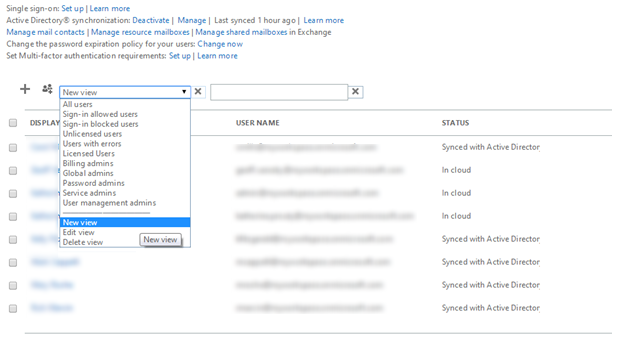
In Office 365, when managing users and groups under the Office 365 Admin Center, they have several canned views you can use to filter the list of employees and groups that you see.

image

One which is not there by default, which is a custom view, is Licensed Users. You can easily create views or edit existing views by using the menu items at the bottom. In this case, we are going to create a New view

image

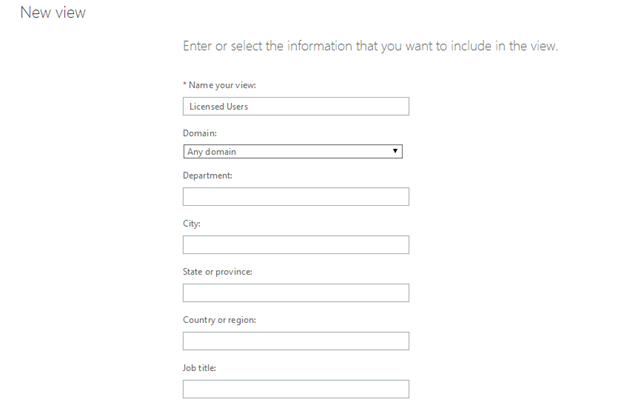
First, just like any other view in SharePoint, you need to give the view a name. In this case, I used Licensed Users

image

I’ve left every other option blank except for Assigned license. I’ve changed this field to reflect my client’s license plan, which is the E3 license.

image

Click Save, and you’re good to go.

If you have multiple licenses in use, you will need to create multiple views, as it is a single selection drop-down.

I have a Public SharePoint Online site?

Yes. Yes you do. Well, if you have Office 365 and it is part of the license which you purchased. You didn’t have to do anything, you have a public facing (anyone on the internet can hit it just like a normal website) website.

Where is it?

It’s easy to find. Go into the SharePoint Online Admin Center

image

Select the first link on the left side navigation (the default) site collections

image

And in the listing on the right side of the page, it will be listed first under Public Website

image

The default URL will be http://yourtenantname-public.sharepoint.com.

And if you go there…You’ll see a nice SharePointy and Cloudy site…

image


Oh Cool! Now I can create a website like Ferrari in Office 365/SharePoint Online????

No. As of yet, SharePoint Online in Office 365 does not contain all of the super awesome Web Content Management and publishing controls that SharePoint 20XX on-premises does.

Oh…

Yep.

Ok, the public website is enough for my needs, can I create more than one?

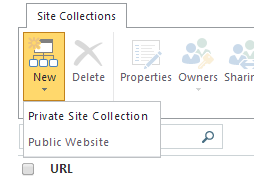
No. Once you have one created, you cannot create another one. It will appear greyed out when attempting to create a new site collection.

image

Oh…

Yep.

Enabling Office on Demand in SharePoint Online

Office on Demand is a new feature in SharePoint Online on Office 365. Straight from the link, from the horses’ mouth so to speak:

Office on Demand is a feature that provides online access to full rich Office desktop applications, including Word, Excel, and PowerPoint, when you’re using a PC that doesn’t have the latest version of Office installed locally. Office on Demand is available to anyone who has an Office 365 subscription that includes the Office application suite. Office 365 subscriptions that include the Office applications let you install on up to five devices for use both online and offline. Office on Demand is a helpful option if you want to use your Office applications on an additional device or on a device that you don’t own, such as when you’re logged in as a guest using someone else’s computer.

This also works in environments where thin clients are used such as a Citrix or kiosk based setup where users cannot install software, and license management can become quite the hassle if multiple users are using the same server to do their work each day.

To enable or disable Office on Demand

Go into your SharePoint Online Admin Center

image

and select Settings from the left-side navigation

image

And then scroll down to the Office on Demand header to enable or disable the functionality.

image

Managing External Sharing in SharePoint Online

A question I frequently hear from clients when moving to Office 365 and SharePoint online, is how can I manage external sharing?

Maybe an organization does not want to allow content to be shared with external users, or allow users direct access to documents without first having an account and logging in. There are many different situations and requirements which may need to have the external sharing settings tweaked.

To do so, go into your SharePoint Online Admin Center

image

and select Settings from the left-side navigation

image

And then once there (and currently it is the second header down on the right side of the screen), choose one of the options which firs your requirements.

  • Don’t allow sharing outside your organization
  • Allow external users who accept sharing invitations and sign in as authenticated users
  • Allow both external users who accept sharing invitations and anonymous guest links

image

SharePoint Online is…Helpful!

In many cases when working with SharePoint, you do not always know “what happens next” when do perform an operation in SharePoint. Microsoft is working to change that, especially with SharePoint Online and Office 365. Now, when performing actions, things have been re-worded, or additional information and confirmations have been added to the screens, since it is not just us SharePoint nerds managing deployments anymore with SharePoint Online.

Example: Deleting a Site Collection

image

See what they did there? Big red letters, stating that you can no longer access SharePoint anymore if you delete the root/main site collection in SharePoint online. It’s not wordy, and its in RED. You should hopefully not gloss over it. This will hopefully save some headaches and confusion.

How Do I Upgrade My Trial Office 365 Subscription to a Subscription Plan?

It is very cool, you get a 90 day trial for Office 365 to really test out the system and see what works, what doesn’t, and plan for your move to the service. 90 days, and you can even ask for extensions to make sure that this is the right solution for you. Not many services offer that even by a long shot. Microsoft wants you to make the right decision.

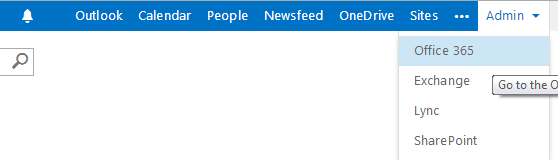
So, now that you’ve decided to go with Office 365, how can you keep all of your work and get properly licensed? It’s quite simple. Go to the Office 365 Admin Center

image

Select Purchase Services from the left-side navigation

image

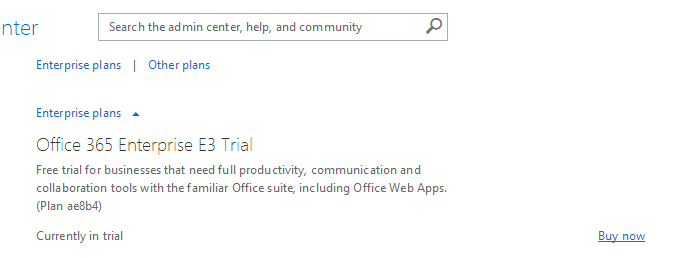
You will see your current plan, listed as Currently in trial

image

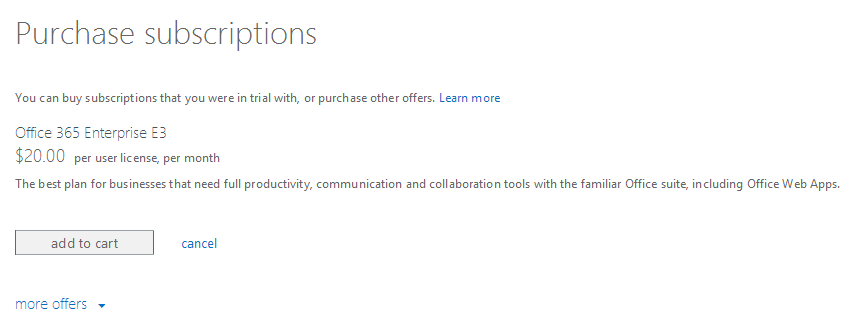
Click the handy Buy now link…

image

And complete the process from there.

HOWEVER….. make sure you have your licensing trued up first. If you have licensed all 250 trial users you can have, and you only need 30… that first bill is going to be awfully painful.

Updated New England SharePoint (and Office 365) Community List

Good morning everyone, just a quick post to let you know that I have updated the New England SharePoint (and Office 365) Community List.

Is your group or event missing, anything need correction? If so, please drop in a comment below and let me know!

New England has a fantastic community around SharePoint and Office 365. Lots of opportunities to learn and network with some great people from around the area.

See you at a SPUG soon!

April 2014 #CollabTalk TweetJam On Social Influence

Join me, and a host of other SharePoint experts on Tuesday, April 29th at Noon EST for a TweetJam to discuss Microsoft’s Strategy for Social Influence

Below is a re-post from Christian Buckley’s blog:

April 2014 CollabTalk TweetJamIt’s time once again for my monthly #CollabTalk tweetjam scheduled for April 29th at 9am Pacific / 12pm Eastern focusing on the theme of “Microsoft’s Strategy for Social Influence” which is a supporting activity for a panel event I’ll be running at the European SharePoint Conference on this subject next month. I ran a tweetjam on a similar topic last summer, but wanted to touch on the topic once again because of the ESPC panel – and because we now have more details on Microsoft’s social strategy following the SharePoint Conference in Las Vegas last month. Specifically, Microsoft announced their new OfficeGraph technology, which plays a key role in the company’s efforts to identify, utilize, and measure social influence through various “listening” tools within the business and productivity platforms we use every day, like SharePoint, Outlook, Yammer, Dynamics CRM, and of course from our use of the internet to search, communicate and collaborate. It’s pretty simple – to identify social influence and do something with it, you need to track social activities….so OfficeGraph is a HUGE step in the right direction, and I’m pretty excited to see Microsoft innovate in this area.

If you’re new to the tweetjam model, basically its an hour-long public conversation held on Twitter and using a shared hashtag (or as @sebmatthews would call it, “a shared octothorpe metadata field”) which is #CollabTalk. You can use your Twitter platform of choice OR go over to http://twubs.com/CollabTalk which automatically appends each message with #CollabTalk, and has a nice feature that allows followers to actually slow the dialog down to a readable speed (it can fly by fairly quickly). The questions we will be discussing are listed below:

"Microsoft’s Strategy for Social Influence"

  • Q1: How is social influence impacting collaboration and search?
  • Q2: Is social influence important within the enterprise?
  • Q3: How are organizations tracking and measuring social influence?
  • Q4: What are your thoughts on Microsoft’s social roadmap?
  • Q6: What are the logical “next steps” for OfficeGraph?
  • Q7: Is social changing the direction of Microsoft’s business and productivity platforms?

As always, we will have a panel of experts on hand to help seed the conversation – but anyone can jump in and participate. That’s the point – we want to encourage people to share their perspectives, so don’t be shy. Our panel this month will include:

  • Marwan Tarek (@marwantarek), SharePoint MVP and principal technology strategist at BrightStarr
  • Jussi Mori (@JussiMori), SharePoint MVP, social expert and consultant at Peaches Industries
  • Barry Jinks (@BJinks), founder and ceo at Colligo
  • Jeff Shuey (@Jshuey), director of strategic alliances at Gimmal
  • Geoff Varosky (@gvaro), senior consultant at Jornata
  • and myself as your host and moderator (@buckleyplanet), SharePoint MVP and chief evangelist at Metalogix

I’ll add to this list of panelists as I confirm them in the next day or two, and am excited to once again have a lively debate. We’re also doing something slightly different this time around – we’ll have a number of our panelists live via Google Hangouts, allowing viewers yet another way to participate, watching us as we “simulcast” the tweetjam via video. I’m not sure how it’ll turn out, or if it will provide any additional value – but we’ll try anything once, and it should be fun!

Mark your calendars, tell your colleagues, and get involved!