Registration open for Boston Area SharePoint Users Group on 1/12/11

BASPUG_195square_initialsRegistration is now open for the January 12th, 2011 meeting of the Boston Area SharePoint Users Group, at the Microsoft NERD center in Cambridge, MA.

PRESENTER
Our presenter for our next meeting is Scott Jamison, Managing Partner at Jornata. He will be presenting "SharePoint 2010 Usage and Adoption Best Practices".

SESSION ABSTRACT
This session will cover best practices for usage and adoption of SharePoint 2010. We’ll answer questions for both the SharePoint adoption team and users alike….

For the adoption team:

• How can I get my employees excited about using this new collaboration technology (champions, incentives)? 
• How do I make sure all the employees in my organization understand and feel comfortable using SharePoint?
• How can I make sure that SharePoint fits into existing business processes, and makes people’s jobs easier? 
• How do I manage the behavioral change required to integrate SharePoint into the way people work?

For users:

• What collaboration methods and site templates are most appropriate for which types of situations?
• What should I ask myself before setting up a SharePoint site? 
• How should I manage content? 
• What should I think about when tagging? 
• Etiquette for social interactions?

About Scott
Scott is Managing Partner and CEO of Jornata, a Boston-based Gold Partner and SharePoint consulting firm. Scott is a world-renowned expert on knowledge worker technologies and collaborative solutions and is an experienced leader with almost 20 years directing managers and technology professionals to deliver a wide range of business solutions for customers. Scott is a recognized thought leader and published author with several books, including Essential SharePoint 2007 and Essential SharePoint 2010. Scott received his master’s degree in Computer Science from Boston University, with post-graduate work at Bentley’s McCallum Graduate School of Business.  Scott is a SharePoint Certified Master.

MEETING SPONSOR
TBA

SUSTENANCE
Food and beverages will be provided at the event.

RAFFLE PRIZES
We will be handing out raffle tickets at the BASPUG meeting for the following items.

LOCATION
We will be meeting at the Microsoft New England Research and Development Center, located in Cambridge, MA. For more information on the facility, as well as directions, please visit here: http://www.microsoftcambridge.com

LINKED IN
Join our group on LinkedIn today to connect with the rest of the BASPUG members, and spread the word!

FACEBOOK
We are also on Facebook! http://www.facebook.com/#!/pages/Boston-Area-SharePoint-User-Group/113652405354617

TWITTER
Follow news about the Boston Area SharePoint Users Group on twitter by following us @BASPUG, and by using the hashtag #BASPUG

WEB
Visit the Boston Area SharePoint Users Group website at http://www.bostonsharepointug.org

ORGANIZERS
Event meetings are organized by Geoff Varosky of Grace-Hunt, Eugene Rosenfeld of Black Blade Associates, Ryan Tacy of HP, and Talbott Crowell of Third Millenium.

New Version of SPDisposeCheck Released Today (12/13/10)!

Saw a tweet from J.D. Wade (@JDWade) today, that Roger Lamb released a new version today of SPDisposeCheck. If you’ve been in my Best Practices for SharePoint Development session I do with Mark Rackley, or, if you are a SharePoint developer, you should know what this is.

But, in case you do not know what it is, here is a comment straight from the linked post below:

SPDisposeCheck is a tool to helps developers and administrators check custom SharePoint solutions that use the SharePoint Object Model in identifying correctly disposing of SharePoint objects to help you follow published best practice. This tool may not show all memory leaks in your code and may produce false positives which need further review by subject matter experts.

The biggest update here is that it now comes complete with an add-in to the Visual Studio 2008/2010 IDE. Sure, you can do this yourself, but, I like it when it is done for me. Call me lazy, I call myself “efficient” 🙂

http://blogs.msdn.com/b/rogerla/archive/2010/12/13/announcing-spdisposecheck-v14-0-4762-1000-update-for-sharepoint-development.aspx

Deploying and Activating Features in SharePoint 2010 with PowerShell

I was looking at an article on MSDN blogs today for customizing My Sites in SharePoint 2010. This post is not about that, but rather PowerShell that were there for deploying and activating a feature. Here is the text, direct from the site itself. This installs a feature (a), enables the feature (b), and then activates the feature on each site (c).

a.       Install-SPFeature -path "MyNewNavFeature"
b.       Enable-SPFeature -identity "MyNewNavFeature" -URL http://<mysitehost&gt; (Enables the new feature on the mysitehost)
c.       Enable the new feature on all personal sites:

$personalSites = get-spsite | where {$_.RootWeb.WebTemplate -eq "SPSPERS"}
foreach ($site in $personalSites) {Enable-SPFeature -Identity "MyNewNavFeature" -Url $site.Url}


The blog posting – where credit is due: http://blogs.msdn.com/b/spsocial/archive/2010/04/08/customizing-my-sites-in-microsoft-sharepoint-2010.aspx

Options for Deploying Reusable Workflows in SharePoint 2010

With SharePoint 2010, we have two new workflow types we can create, a Reusable Workflow, and a Site Workflow. Today we’ll concentrate on reusable workflows. And if you’ve been living under a rock for the past few months, let me first explain…

In WSS v3, we could create “reusable” workflows in Visual Studio, and through some third party applications, however, in v3, lots of workflows were generated in SharePoint Designer. And a lot of times, people found out the hard way, that you couldn’t just copy and paste them, or suck them into Visual Studio to re-deploy elsewhere. Those workflows are list-based workflows, which are bound just to a single list, in a single site. You could re-create the workflow on other lists, but, that is time consuming… and not that efficient at all.

There were options however – you could copy the workflow files over to a new list, and edit the workflow files manually, to point to the GUID of the list you wanted to deploy it against, or, use some Visual Studio Voodoo, to write some code to accomplish the same thing. Again, not entirely efficient, and, not out of the box.

With SharePoint 2010 and SharePoint Designer 2010, we finally have some options, out of the box.

image

  1. List Workflow – This is the same list-based workflow you know and love from 2007.
  2. Reusable Workflow – This workflow is tied to a content type, hence why it can be reusable, and the focus of this here article today.
  3. Site Workflow – The site workflow is a different beast altogether, and is a topic for another day. These are, as they sound, bound to sites. Not content types or lists, but, to the site itself. Site workflows are not initiated from list-level actions – they need to either be manually called, or called through code. But I digress – we’ll save this topic for another day…

Now, on to the meat and potatoes of this post. The reusable workflow, and, options for deployment. First, lettuce (you should always have some greens with your meat and potatoes… just ask your mother, she’ll tell you the same thing…) create a simple workflow, that will send an email to a single email address when the workflow is run.

I already have a list called Clients on my site, so we’ll use that. Open SharePoint Designer 2010, and connect up to the site, and click on the Workflows navigation node on the left hand of the screen. When you do, you’ll see the Workflows tab in the ribbon as shown above.

image


Create a New Reusable Workflow in SharePoint Designer

Now, you may be able to see the future, and to test this, if you think I am going to say “Click on the Reusable Workflow option in the Workflows ribbon tab”, then you are clairvoyant. Congrats on that! So cool… anyways, click there, just as you knew I was going to say.

image

Go ahead and give it a name, such as Notify Client Engagement Manager, and a description, with whatever you please… then select a content type. Now, something I forgot to mention, is that I had already created a Client content type prior to this, so, you may want to go ahead and do that, in case that’s what you’d like to do, if you’re following along at home. Go ahead – this post will still be here when you get back… I’ll wait.

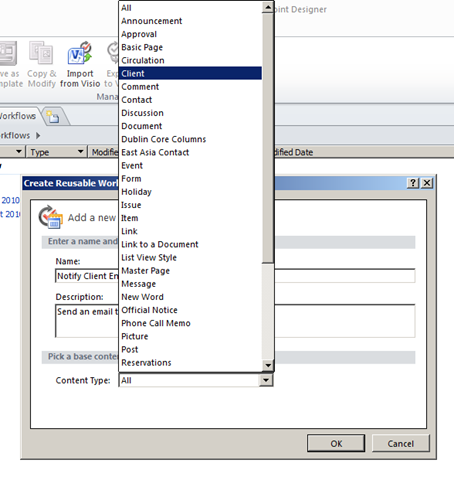
Ok, done? Now, select your Client content type (as shown below), and click OK. You also may note, that you can associate this reusable content type to ALL content types. While I have not peered beneath the sheets on that one yet (SharePoint 2010 has not even officially launched as of the penning of this article…), I am guessing that it uses the System 0x or Item 0x1 content type to associate to, similar as I did in a previous article on binding custom actions to all list types.

image

Anyhow, back on track again! So, now that we have done. We get our next screen. Do as the man says, and start typing away…

image

A phrase like “email” is helpful – it’ll find the action you are looking for

image

Then press enter, and click on these users in the link that appears

image

And then create your email definition, something like as follows, and click OK.

image

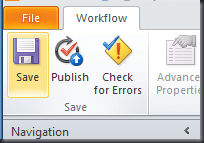
And then click Save back up in the ribbon to save any changes, and when you’re ready, click Publish, that’ll, as you may have thought, publish the workflow.
image

Your workflow has now been created. Now, you’ll need to make sure your list is configured to use it, if, indeed, you’d like to use it. As it works just like the other reusable workflows in SharePoint (Approval, Three-State, etc.), it needs to be configured.

So, check your list, and be sure that it is managing content types,

image

And then, go into Workflow Settings on the list settings page

image

Select the content type…

image

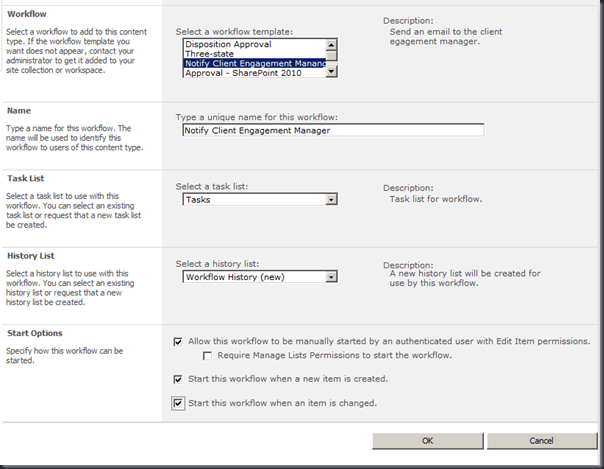
And then configure the workflow…

image

And we’ll see that it is assigned to the content type now

image

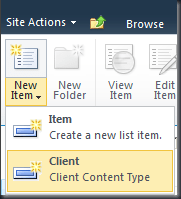
Let’s test it, just to make sure… go to New Item > Client from the list page
image

And your workflow should fire. Great! Ok! Now what?

Now Bob, in HR, wants to do the same thing – what can we do? Good thing we created a reusable workflow! We have options, which is the real basis for this article.

Save As Template in SharePoint Designer

In SharePoint Designer 2010, we have the option now to save our Reusable Workflow as a Template. To do so, on the Ribbon UI when you are working with your workflow, select Save as Template.

image

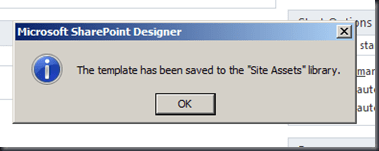
This will automagically save the WSP file of the workflow out to the “Site Assets” library, and it will tell you it did so, as shown below.
image

If you click on the Site Assets link on the left-hand navigation in SharePoint Designer, you will see there should be a new WSP file, corresponding with the name of the workflow you had saved as a template.

image

Next, let’s download the file. Just click on it to save it.

image


Packaging and Deploying the Reusable Workflow in Visual Studio 2010

Now, here comes the good stuff. Fire up Visual Studio 2010, and go to File > New > Project from the menu.

image

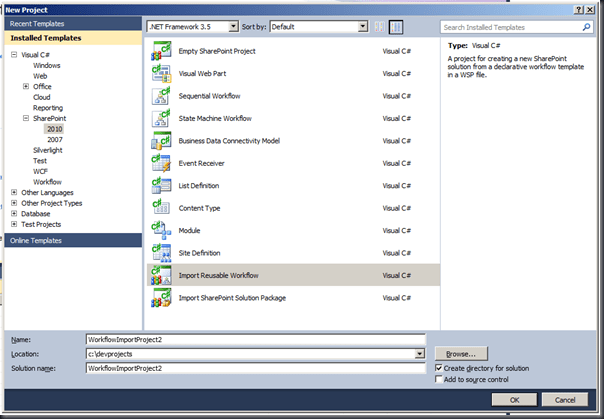
If you have not seen it before in Visual Studio – under Visual C# > SharePoint > 2010, there is a new project template called Import Reusable Workflow. Select that, give your project a name, etc., and click OK.
image

You will then see the SharePoint Customization Wizard window pop up, select the URL you would like to use for deployment/debugging, and you cannot deploy workflows as sandboxed solutions, so Deploy as a farm solution is your only option. Hit Next >

image 

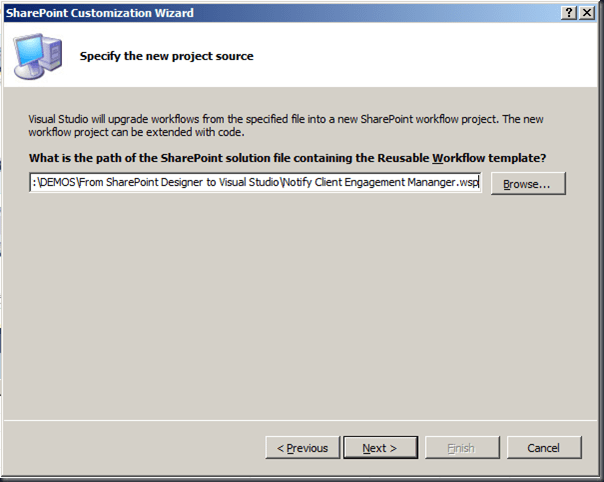
The next window in the SharePoint Customization Wizard is to specify the project source. Select the WSP package containing your workflow which you had exported earlier.
image

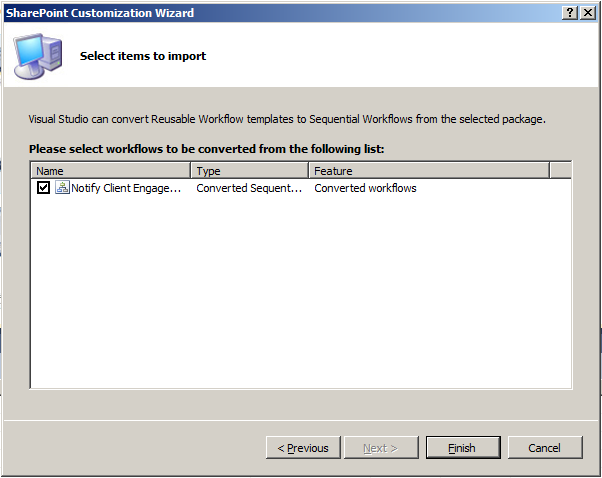
Then, select the items to import – you should only have your workflow listed.

image

Click Finish, and Visual Studio will import your workflow from your solution.

image

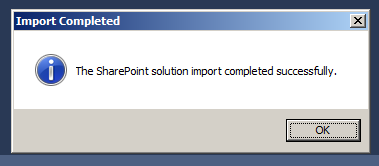
And when it’s done, and if it completed successfully, it will tell you so.

image

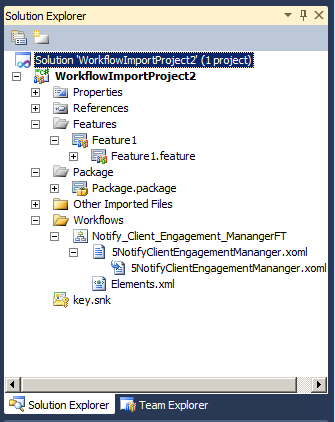
Now, look at the solution in the Solution Explorer on the right. We are not going to make any changes at the moment, but, if you wanted to, add more code, change the forms, etc., you could do that all here.

image

Right click on the project and select Package

image

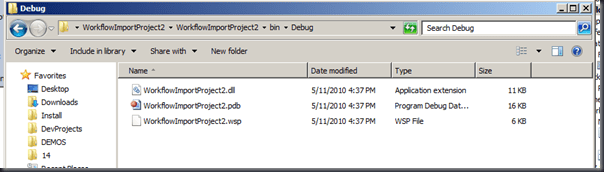
Once that is complete, if you look in the project folder (created when you selected the project in Visual Studio), you should see your WSP file for your project.
image

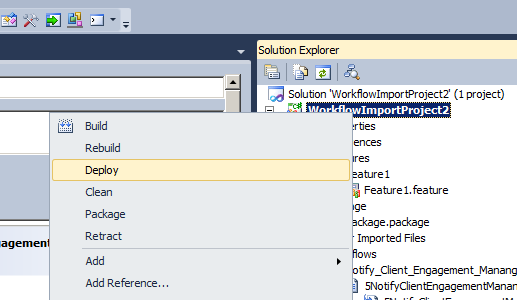
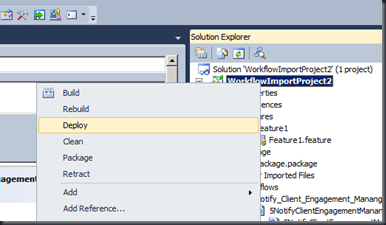
Now, you can deploy this out to the debugging/deployment site you specified in the SharePoint Configuration Wizard portion of the import of the workflow, by right-clicking on the project, and selecting Deploy.
image

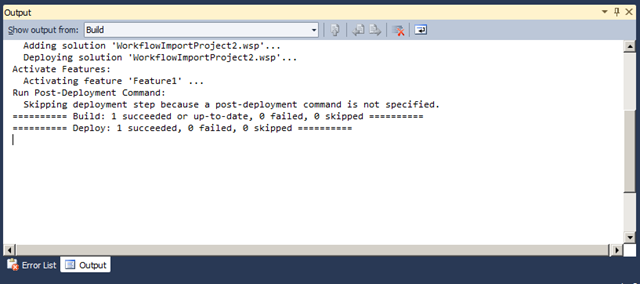
Checking the Output window will show you the steps taken for deployment.

image

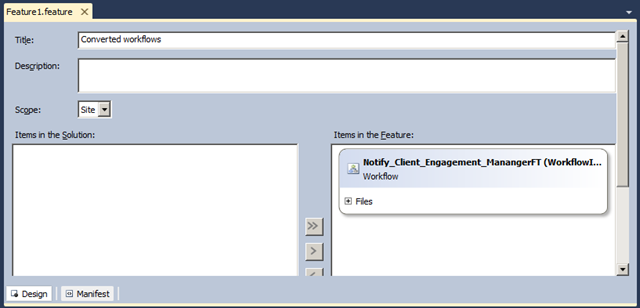
Now how do you check to make sure it was deployed? Well, in Visual Studio, double-click on Feature1.feature in the solution explorer, and in the Title field of the designer view for the feature, you will see your workflow there with it’s defaulted name of Converted Workflows.

image

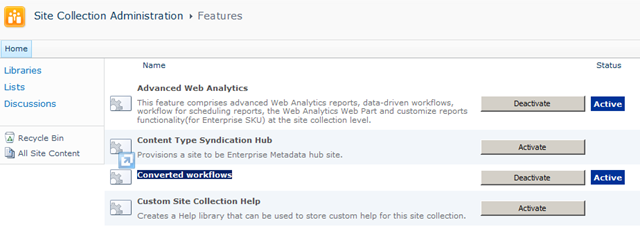
In your site collection features, you should see a feature by the same name…

image

Activate it, if necessary, and now your cooking with gas, or really, you can use any other sort of medium for generating intense heat that you desire, I am not going to “hold your feet to the fire” on this. Hah. Sometimes – I just crack myself up.


Publishing a Reusable Workflow Globally through SharePoint Designer

The first word in the title of this article is “Options”. So, here is another option – using SharePoint Designer to publish the workflow globally. Now, that sounds bigger than it is, however, you also may note, if you are an astronomy buff, that it did not say “Publish Solarsytemmy”, or “Publish Galaxyally”, or even “Publish Universally”. Maybe because I just made some of those words up? Or, maybe, because you are working within the context of a site collection here – a “world” in SharePoint. I really have no idea – I don’t know who came up with the copy for that specific button, or, rather, any buttons anywhere in SharePoint Designer.

So, start by creating a new workflow, or, you can just use the one we did earlier if you’d like.

image

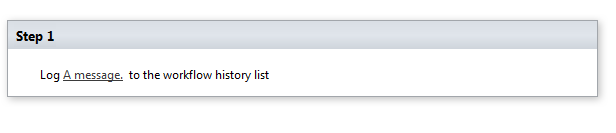
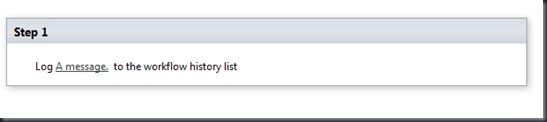
Give it a step, or else its not much of a workflow…
image

Ok, lets save the workflow…

image

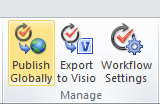
and you’ll see in the Ribbon, that mysterious button Publish Globally. Go ahead – click it.

image

You will then be prompted by SharePoint Designer – telling you the intentions and ramifications, with not even a one word salutation, that publishing this workflow globally will publish it to all sites within the site collection. COOL! Do it!

image

Now, to see this in action, go back into your site, and create a new site.

image

Let’s go with a team site – simple, easy, and comes pre-populated with some lists.

image

Now, lets go into our document library, and check out the workflow settings to see if it is there…

image

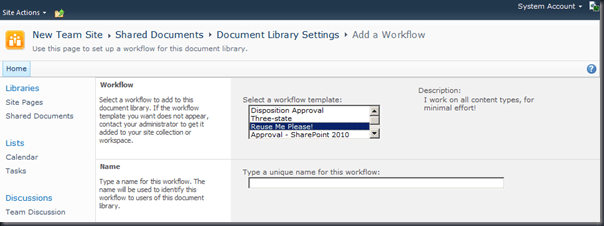
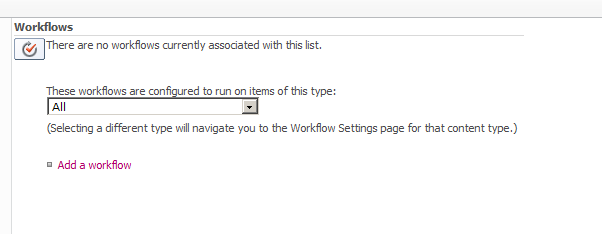
Oh, wait – no workflows associated with this list. Let’s add one, to see if we can add ours…

image

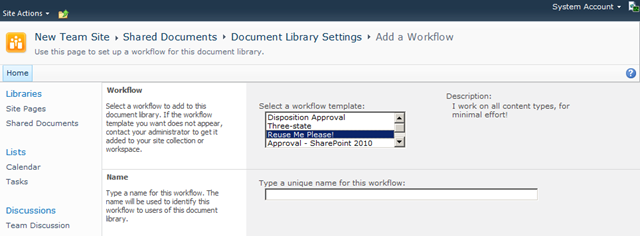
And there it is!

image


Fun stuff, huh? Yeah, I know many of you who have already started toying with 2010 may have already seen, or even done, some or all of this. The truth of the matter is, I’ve had this sitting in my drafts folder since May 10th, and as you can also see, I am finally getting around to posting it.

Hope this helps – and if not, leave me a comment on where I can provide any clarification 🙂


Parachute deployment image borrowed from: http://www.cirruspilots.org/Content/CAPSHistory.aspx

Content Query Web Parts, Anonymous Access, and the Dreaded CopyUtil.aspx in SharePoint 2010

I spent some decent time over the past couple of days trying to get a Content Query Web Part in SharePoint 2010, that was aggregating blogs from several different sites to “just work”, and was not having any luck. Basically, the CopyUtil.aspx page, which resides in the SharePointRoot/TEMPLATE/LAYOUTS/ folder, redirects you based on the ListID, ItemID, and WebID of the target item within the Content Query Web Part.

This work is being done for a client, who is migrating their public website from SharePoint 2007 to SharePoint 2010. It’s been a great project for a great client, however, as with any project, there are always a few curveballs unique to that specific project. This was one of them.

In their prior version of the site, the previous developer implemented the solution which can be found here: http://www.sharepointforum.se/en-US/Bugday/Lists/Posts/Post.aspx?ID=9, a custom application page and a DLL to go with it. This did not work on my client’s 2010 environment, so I had to go looking elsewhere, and was not finding too much. My good friend, Christina Wheeler, happened to direct me to a blog post she did on the matter, which was a great idea, however, this one was also directed at 2007 – http://sharepoint.mindsharpblogs.com/ChristinaW/archive/2009/12/07/Content-Query-Web-Parts-and-Anonymous-Access.aspx, or at least, an environment that was not similar to my client. There was no dispform.aspx within the layouts folder, and dropping one copied out of a document library required a bit of toiling to work… and it would not reference the master page I was hoping to use.

All looked bleak and hopeless, however, the #2 method in Christina’s post was the ticket, and, I found the example code that I needed out on the interwebs as well! Hooray for the interwebs! Which led me to this blog post: http://www.sectorpoint.com/blog/post/2008/07/10/Anonymous-access-and-the-Content-by-Query-Web-Part-(CQWP).aspx

Now, the version there however, is for 2007 as well, but, looking at how they did it, made perfect sense, and I was able to put it to practice in SharePoint 2010.

Here are the steps to get this functional…

Go into the SharePointRoot/TEMPLATE/LAYOUTS/ folder –

NOTE: DO NOT DO ANYTHING TO THE ORIGINAL COPYUTIL.ASPX!

And, create a new file, for example, GVCopyUtil.aspx, and put the following code into it, the only change from CopyUtil.aspx, is the line highlighted below.

<%@ Assembly Name=”Microsoft.SharePoint.ApplicationPages, Version=14.0.0.0, Culture=neutral, PublicKeyToken=71e9bce111e9429c”%>
<%@ Page Language=”C#” CodeFile=”CopyUtil.aspx.cs” Inherits=”CopyUtil” MasterPageFile=”~/_layouts/application.master” %>
<%@ Import Namespace=”Microsoft.SharePoint.ApplicationPages” %>
<%@ Register Tagprefix=”SharePoint” Namespace=”Microsoft.SharePoint.WebControls” Assembly=”Microsoft.SharePoint, Version=14.0.0.0, Culture=neutral, PublicKeyToken=71e9bce111e9429c” %>
<%@ Register Tagprefix=”Utilities” Namespace=”Microsoft.SharePoint.Utilities” Assembly=”Microsoft.SharePoint, Version=14.0.0.0, Culture=neutral, PublicKeyToken=71e9bce111e9429c” %>
<%@ Import Namespace=”Microsoft.SharePoint” %>
<%@ Assembly Name=”Microsoft.Web.CommandUI, Version=14.0.0.0, Culture=neutral, PublicKeyToken=71e9bce111e9429c” %>
<%@ Register TagPrefix=”wssuc” TagName=”TopNavBar” src=”~/_controltemplates/TopNavBar.ascx” %>
<%@ Register TagPrefix=”wssuc” TagName=”LinksTable” src=”/_controltemplates/LinksTable.ascx” %>
<%@ Register TagPrefix=”wssuc” TagName=”InputFormSection” src=”/_controltemplates/InputFormSection.ascx” %>
<%@ Register TagPrefix=”wssuc” TagName=”InputFormControl” src=”/_controltemplates/InputFormControl.ascx” %>
<%@ Register TagPrefix=”wssuc” TagName=”LinkSection” src=”/_controltemplates/LinkSection.ascx” %>
<%@ Register TagPrefix=”wssuc” TagName=”ButtonSection” src=”/_controltemplates/ButtonSection.ascx” %>
<%@ Register TagPrefix=”wssuc” TagName=”ActionBar” src=”/_controltemplates/ActionBar.ascx” %>
<%@ Register TagPrefix=”wssuc” TagName=”ToolBar” src=”/_controltemplates/ToolBar.ascx” %>
<%@ Register TagPrefix=”wssuc” TagName=”ToolBarButton” src=”/_controltemplates/ToolBarButton.ascx” %>
<%@ Register TagPrefix=”wssuc” TagName=”Welcome” src=”/_controltemplates/Welcome.ascx” %>
<%@ Register Tagprefix=”wssawc” Namespace=”Microsoft.SharePoint.WebControls” Assembly=”Microsoft.SharePoint, Version=14.0.0.0, Culture=neutral, PublicKeyToken=71e9bce111e9429c” %>
<%@ Register Tagprefix=”SharePoint” Namespace=”Microsoft.SharePoint.WebControls” Assembly=”Microsoft.SharePoint, Version=14.0.0.0, Culture=neutral, PublicKeyToken=71e9bce111e9429c” %>
<asp:Content ID=”Content1″ ContentPlaceHolderId=”PlaceHolderPageTitle” runat=”server”></asp:Content>

Now, save that, and create another file in the folder, called CopyUtil.aspx.cs, and paste the following C# code into that:

using Microsoft.SharePoint.ApplicationPages;

public partial class CopyUtil : Microsoft.SharePoint.ApplicationPages.CopyUtil
{
protected override bool AllowAnonymousAccess
{
get
{
return true;
}
}
}

Not so hard, huh? And actually, it is pretty simple, even if you are a non-developer, so don’t be scared. The first section, and more importantly, the highlighted section, says that the language of the page is C# – a programming language. CodeFile references the code it will use. Inherits, means that the page will utilize the class CopyUtil from the CodeFile mentioned previously. And the master page directive just states that we will use that as our master page.

How did we figure out the class to use? Easy, that is highlighted in the 2nd code snippet above.

Now for the second code snippet, all this does, is make use of the Microsoft.SharePoint.ApplicationPages namespace – found on the first line with “using”. We are then inheriting all of the code that makes up this page, and then overriding the boolean value for AllowAnonymousAccess, and setting that to TRUE, rather than it’s normal value, which is FALSE.

In any event, Christina really saved my tuckus today – so thank you Christina!

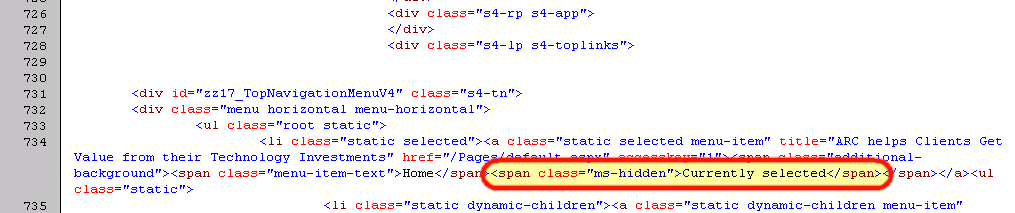
How SharePoint determines what node in the global navigation is currently “selected”

Simple – by placing a hidden span in there with the inner text of “Currently selected”. Just came across this today and thought it was a neat little find, and thought I’d share.


image

What’s that? You missed a Week3 Presentation??

Please, have no fear. In fact, instead of sitting on the couch, attempting to overcome your Turkey, Turducken (I could be so lucky…) or Tofurkey coma on Friday and over the weekend, it may be a good time to pick out the bits of cranberry sauce from your keyboard, and head on over to http://www.Week3.org, and catch some recorded webinars from Week3, specifically, at this page here: http://www.week3.org/Pages/Sessions.aspx

image

What is Week3? (Hint: it takes place on the 3rd week of the month…)

Week3 hosts webinar sessions on various relevant topics, using real-world information and case studies, during the third week of the month. We are sponsored by a team of companies that are dedicated to giving back to the collaborative community.

  • Monthly sessions are not “infomercials” or product promotions in disguise.
  • Our goal is to maintain a business focus around collaboration technologies.
  • We provide grounded, real-world information and case studies.

We encourage your suggestions and ideas to make sure Week3 sessions meet your need for balanced collaboration technology information.

There is some excellent content up there, that is not all developer or administrator focused, there is a high amount of business user content up there as well.

With that, be sure to sign up for the January Week3 event (we’re taking December off), where Grace-Hunt’s own Charlie Delong and Mike Davenport will be presenting: What is SharePoint 2010 and how can it help my Organization?

Currently there is a lot of buzz around SharePoint 2010 and all the great things it can do to help your Organization.  Join us and see real world examples of how SharePoint can enhance business process, streamline communications, and increase collaboration within your teams.  Through the context of these examples you will also be introduced some of the new features and functionality of SharePoint 2010.  If you can identify a particular pain point within your organization you will have a compelling argument to initiate a SharePoint project to improve your Organization.  These real world examples will help focus your project and send you down the path of  a successful deployment.  Your competitors are doing it why shouldn’t you?

For more information, and to sign up, visit: http://www.week3.org/Lists/Sessions/DispForm.aspx?ID=67

Microsoft SharePoint 2010 Firestarter Event in Waltham, MA.
image

I was at a “User Group for User Groups” (VERY simplified version – more on that to come soon!), and found out from our local Microsoft Evangelists, Chris Bowen and Dan Stolts, that there are some great local Firestarter events. These are described, on the site, as “Heat up your skills with the all-new Firestarter event series. Each day tackles a single Microsoft technology, including free sessions presented live by Microsoft developer and IT pro evangelists and technology specialists – with special appearances from community luminaries. Attend in person, via live meeting or download the webcast at your convenience.”
I am always interested into attending and participating in any event around SharePoint, especially if they are local, so, I wanted to help spread the word about this particular one. There are Firestarter events for Azure, Windows 7, ASP.NET, Windows Phone 7, and Silverlight. Basically, all of the new good things that have come out from Microsoft recently.

So, head on over to http://www.msdnevents.com/firestarter/ for more information and to register. And, if you are not in the Boston Area, they are happening elsewhere too. If you are in the Boston area, well then maybe I will see you there! Oh, and it takes place on December 2nd at the Microsoft Waltham office.

“All People” view in SharePoint 2010

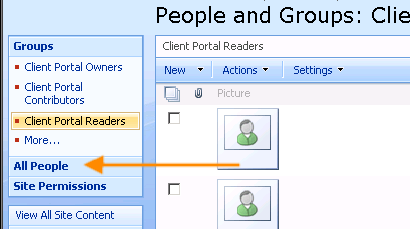
One thing we have seemed to have lost is the “All People” link when managing users and groups from SharePoint 2007 in 2010, as shown below from a 2007 site.

image

However, in SharePoint 2010, this link does not exist… Have no fear however. If you have copy & paste skills, you can get back there. It still exists. Just copy the URL from your 2007 site

http://my2007site.sharepointyankee.com/_layouts/people.aspx?MembershipGroupId=0&FilterField1=ContentType&FilterValue1=Person

And drop the protocol, port, and host sections of the URL out, and use that with the protocol, host, and port of your 2010 site, and you are good to go.

http://my2010site.sharepointyankee.com/_layouts/people.aspx?MembershipGroupId=0&FilterField1=ContentType&FilterValue1=Person

Simple and easy way to get back to that view. Then just add this as a favorite, or, even better yet, create a CustomAction to add it into the toolbar, or site settings page in 2010.